Configure the Google Review Request Feature in Lumos
This guide walks you through configuring the Google review feature in the Lumos application. You will learn how to activate the review section, set up automatic sending, and send requests to your clients.
Visit inspector.lumos.property
1. Overview of the Lumos Feature
The Lumos application allows you to ask your clients to leave Google reviews once you have completed your inspections.
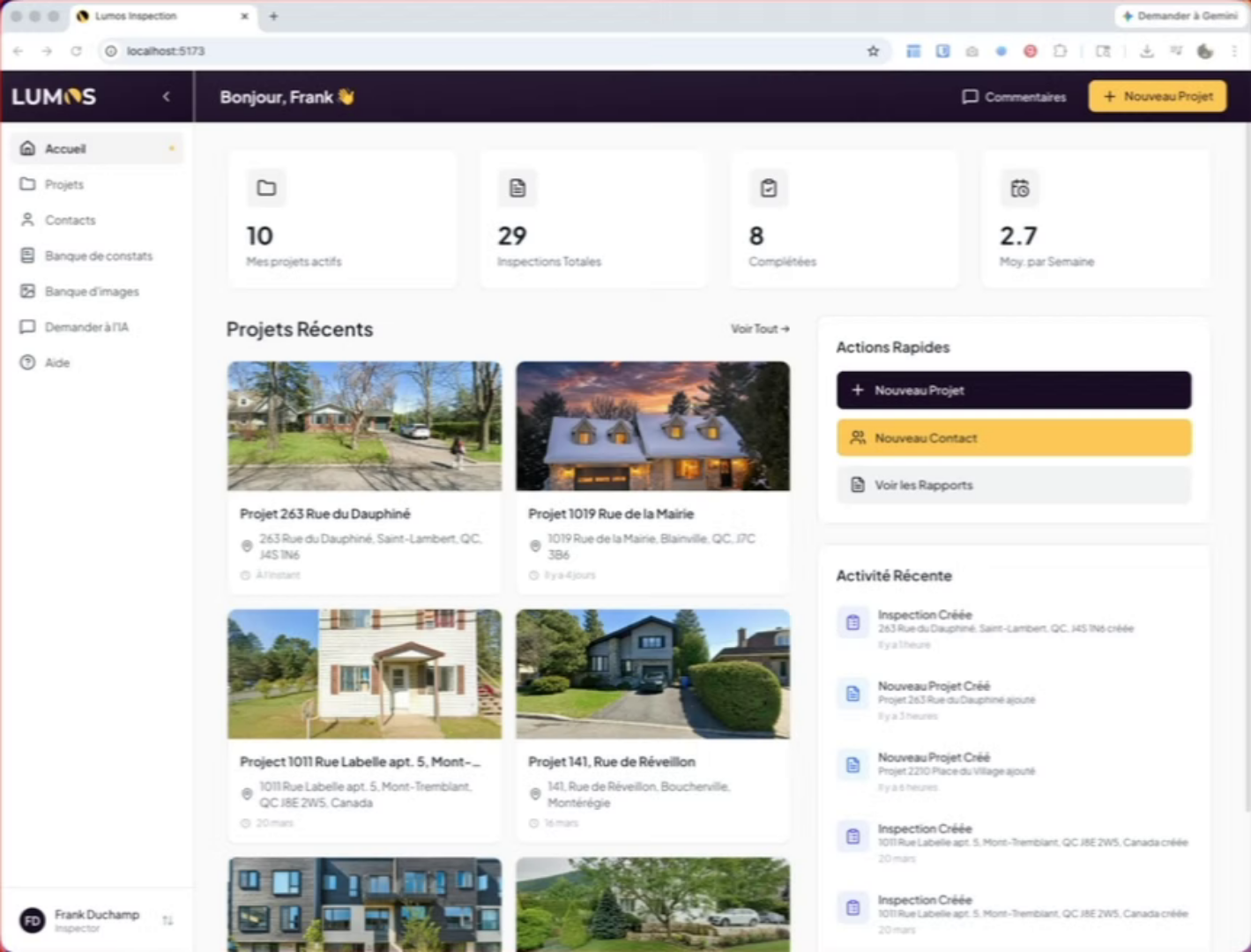
2. Access Google Review Settings
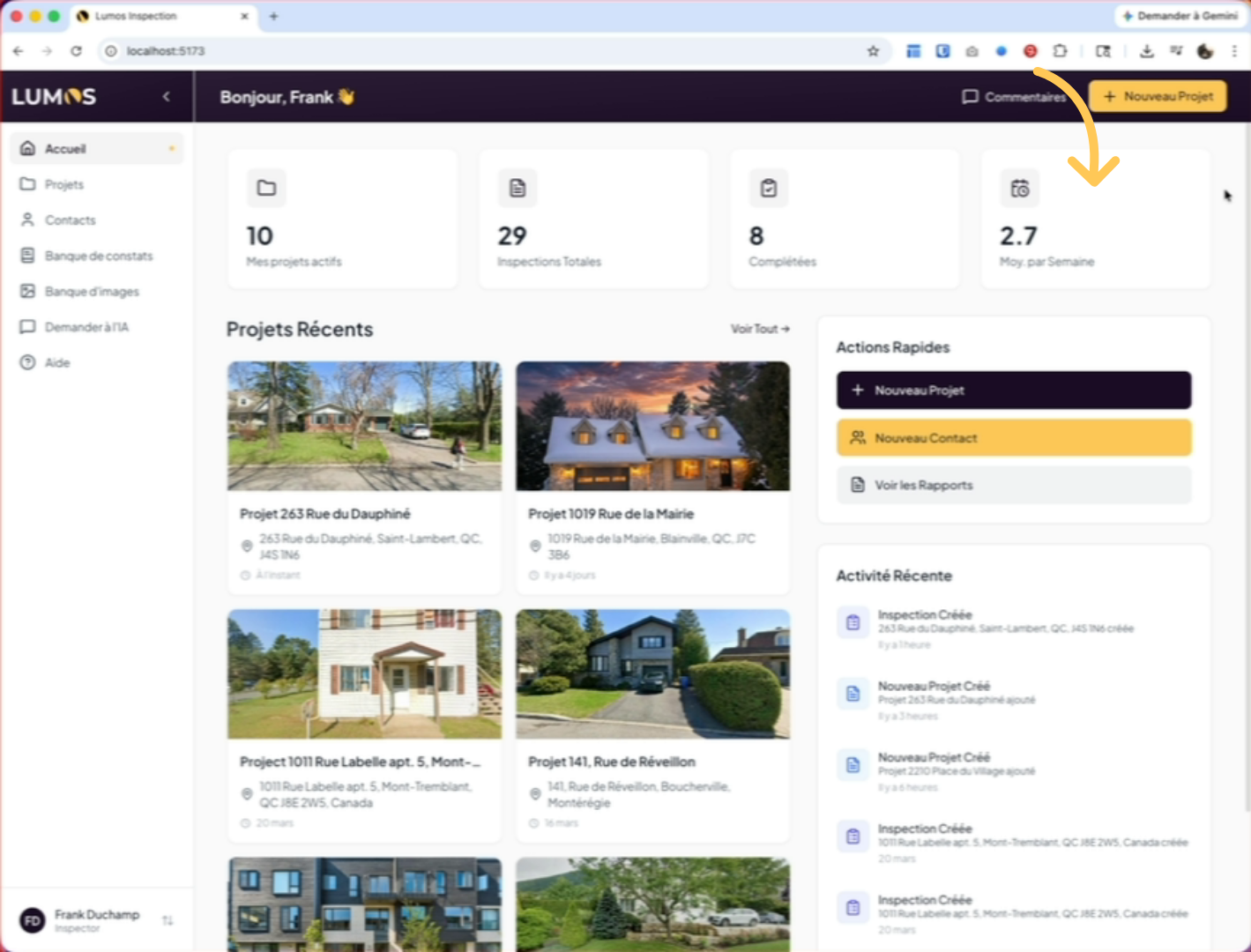
To configure this, go to your settings, company configuration, Google reviews.
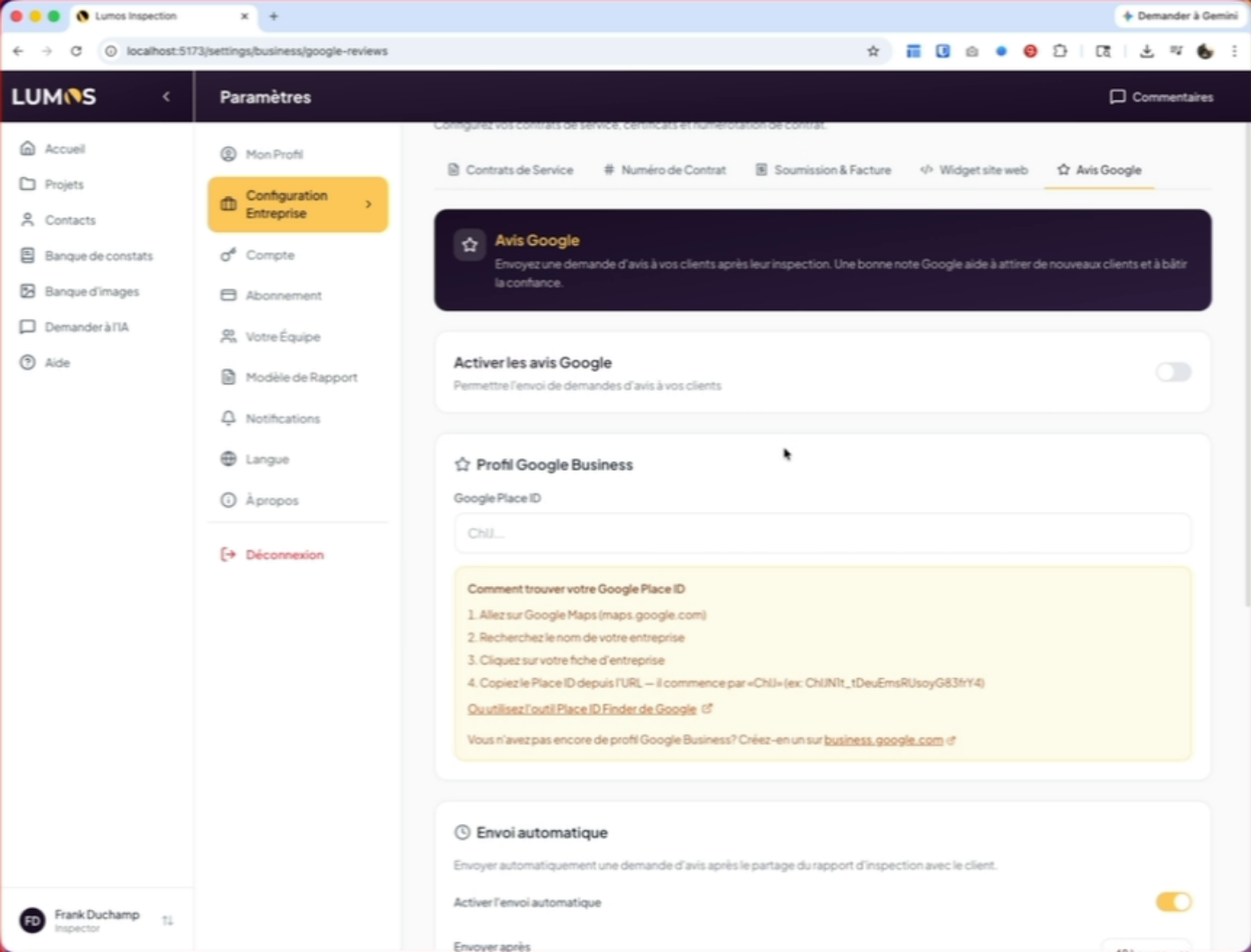
3. Activate the Review Section
To activate the section, simply enable the option by clicking on the toggle.
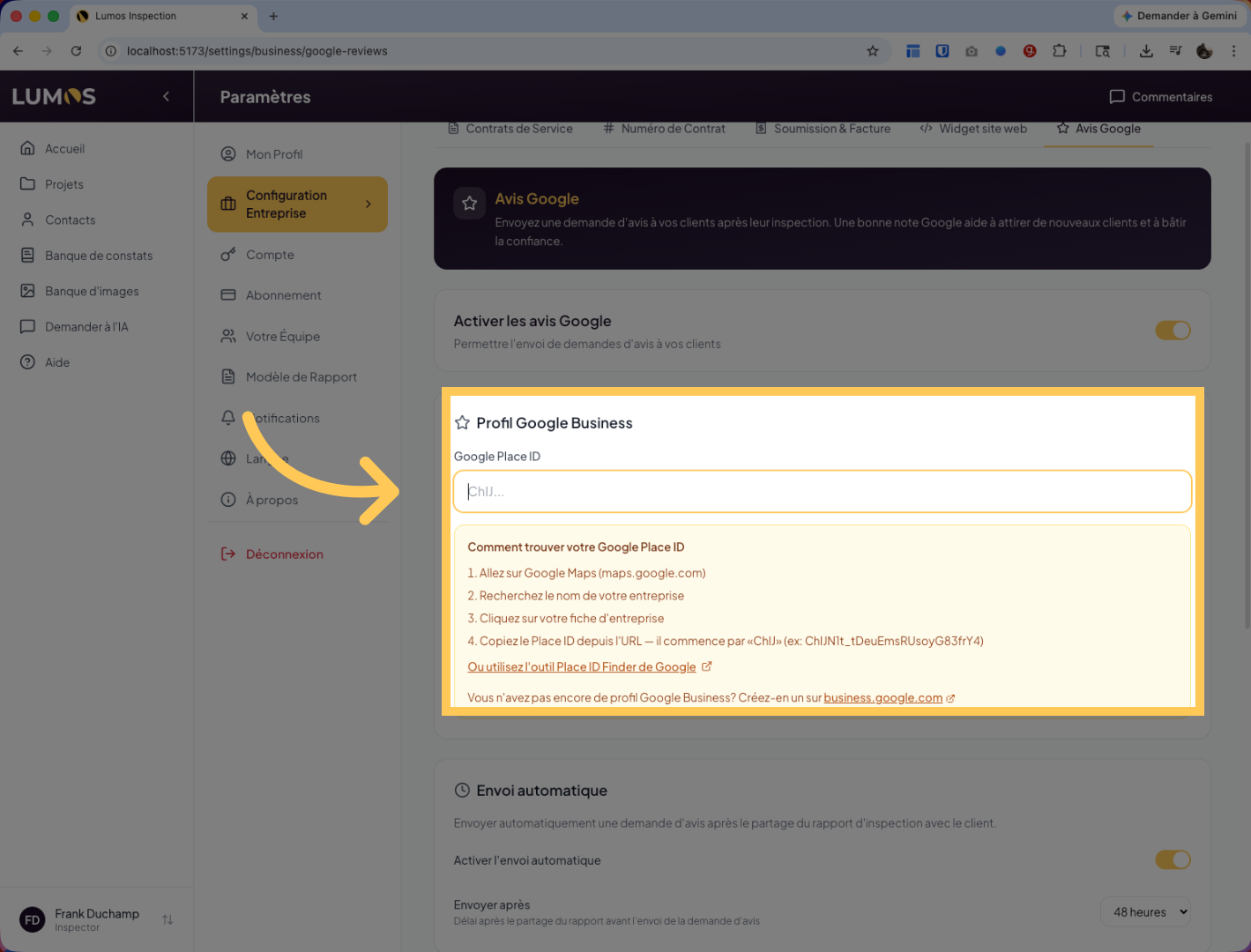
4. Select the Google Entry
Click on the Google Business Profile field to paste your Google Business profile URL. Instructions on how to find your Google ID are provided on the page.
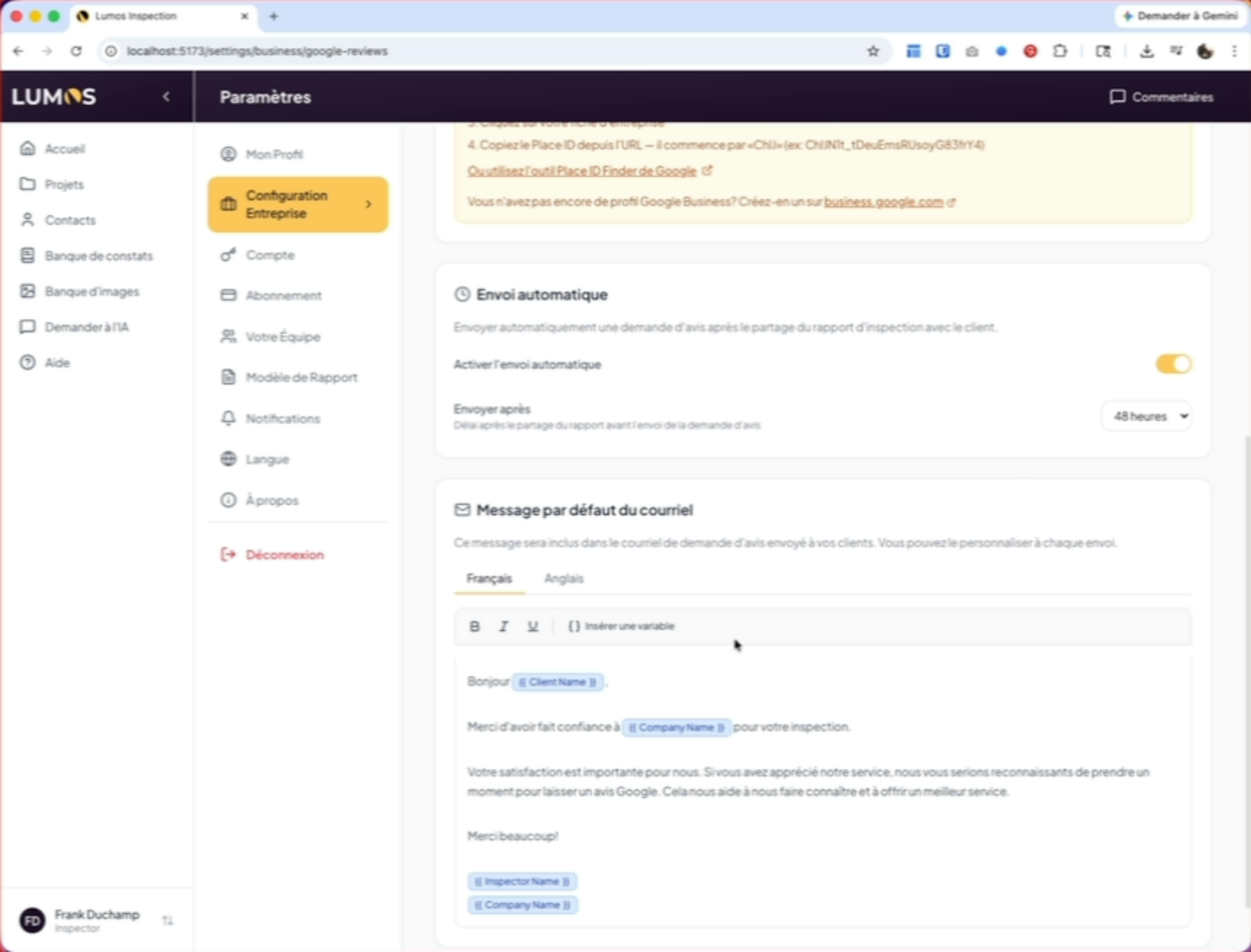
5. Configure Automatic Sending
You can set up automatic sending and determine the delay for sending.
6. Send a Review Request Manually
You can also send the request manually from your projects.
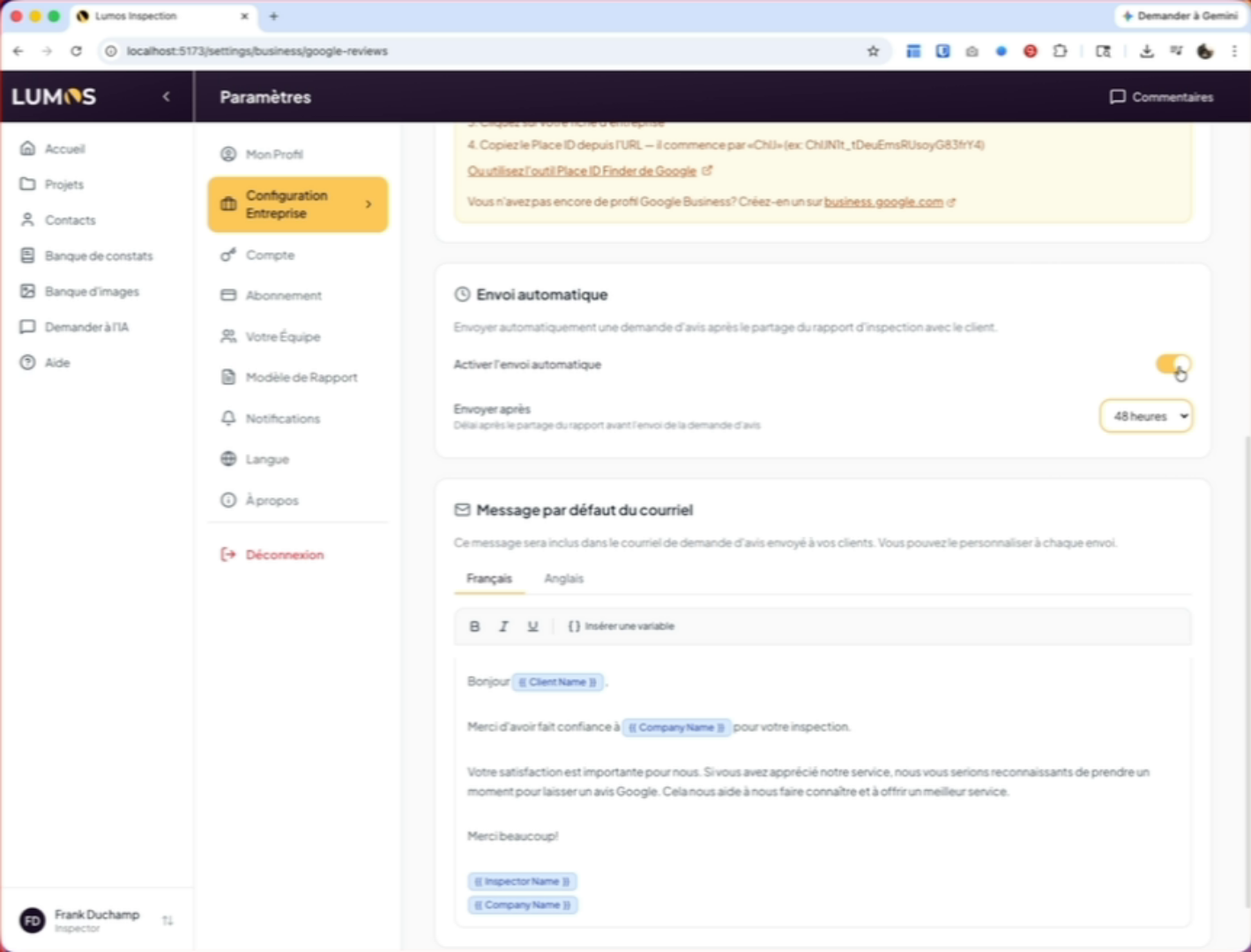
7. Customize the Email Text
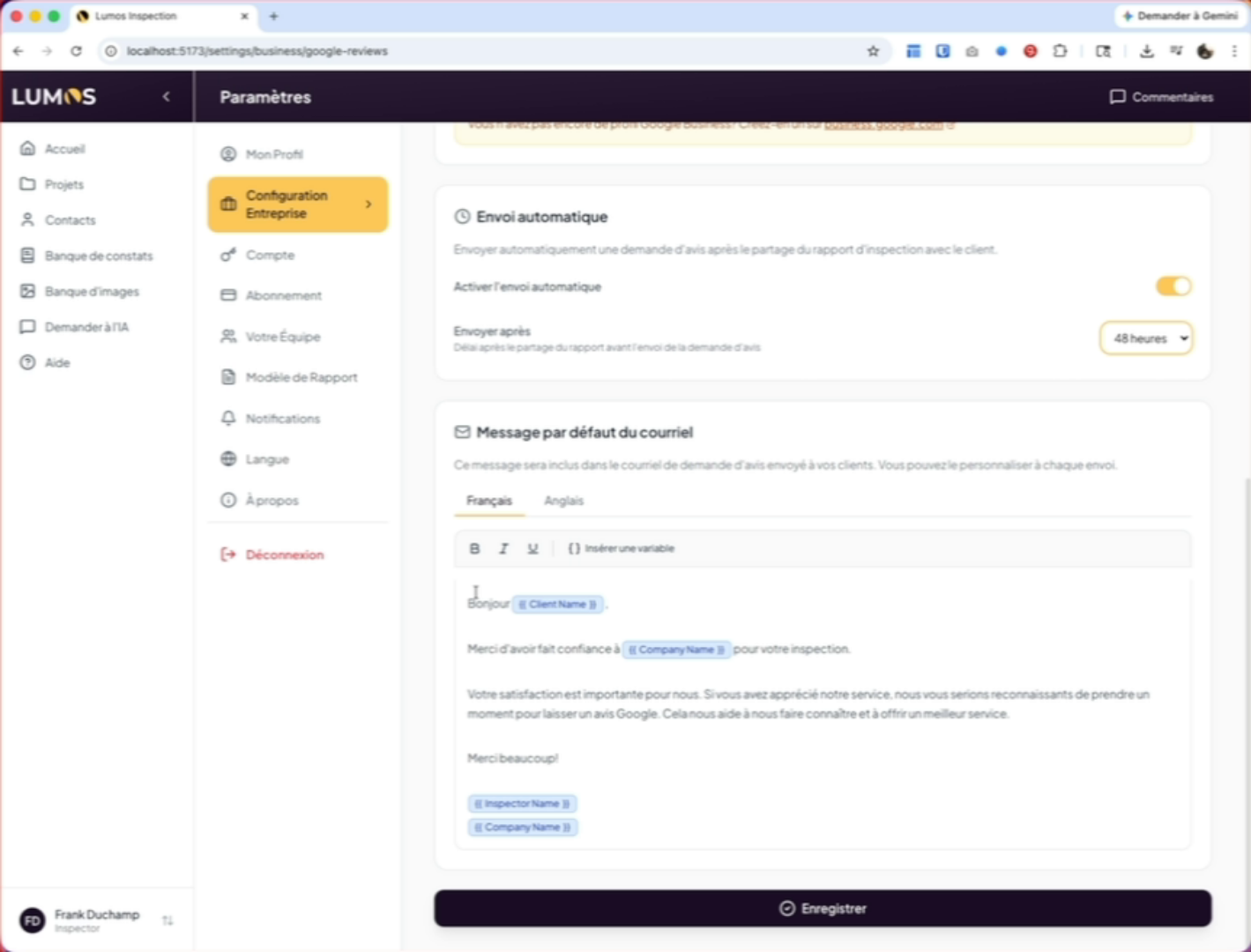
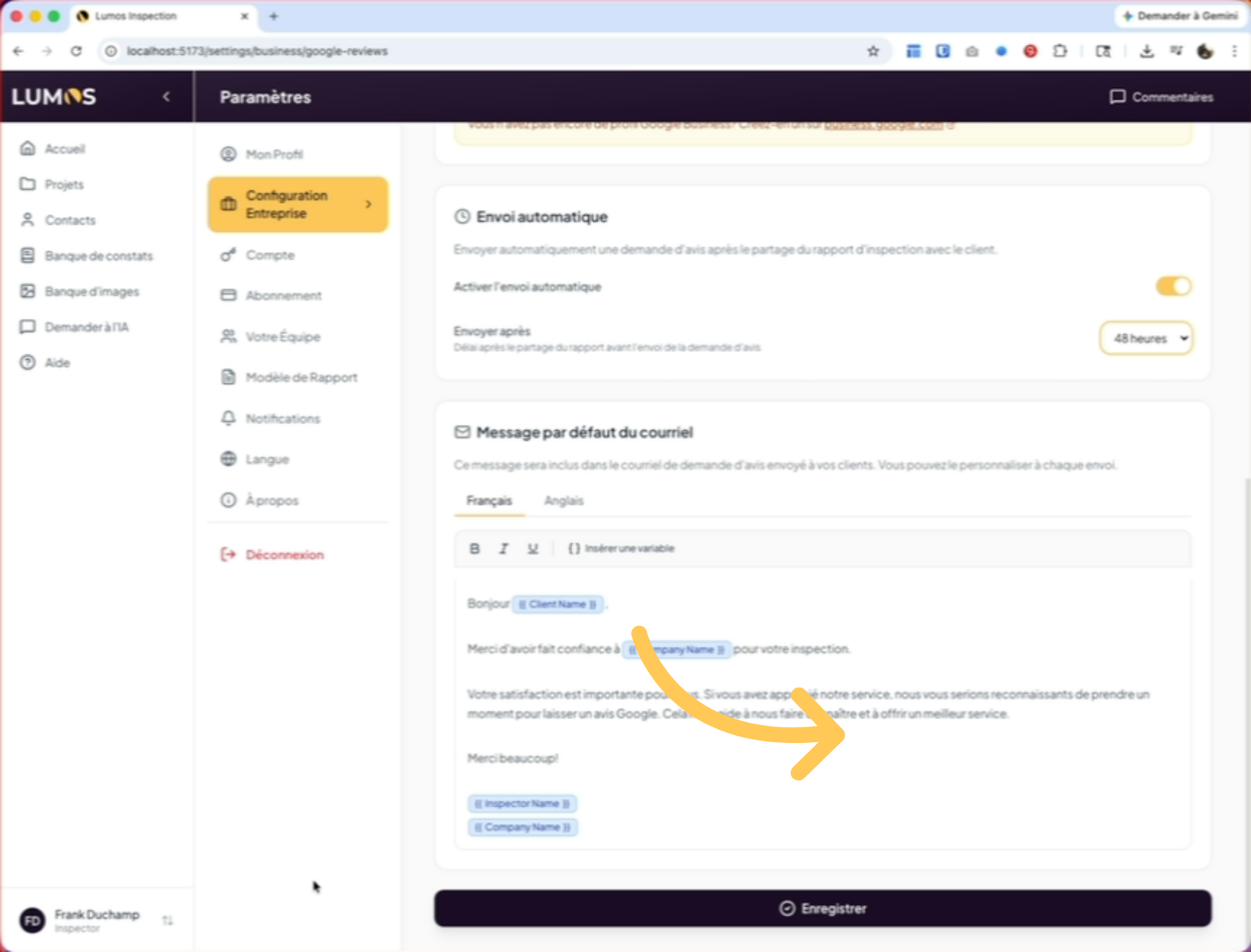
Further down the page, you will find the option for the default text you want to send in your email to your client.
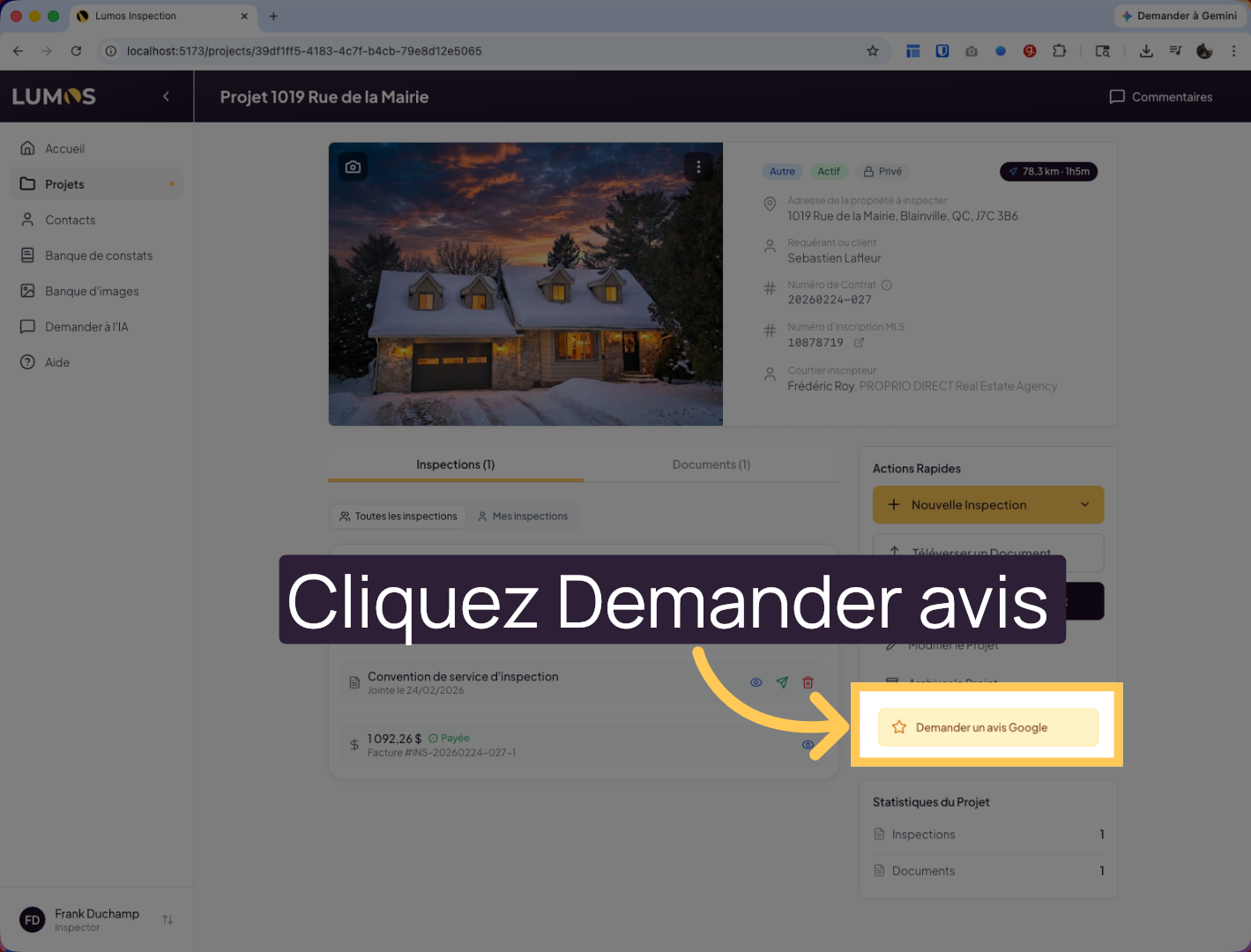
8. Use the Review Request Button
Don’t forget to save your options. Once configured, when you go to your project, you will find the button in the quick actions that allows you to request a Google review.
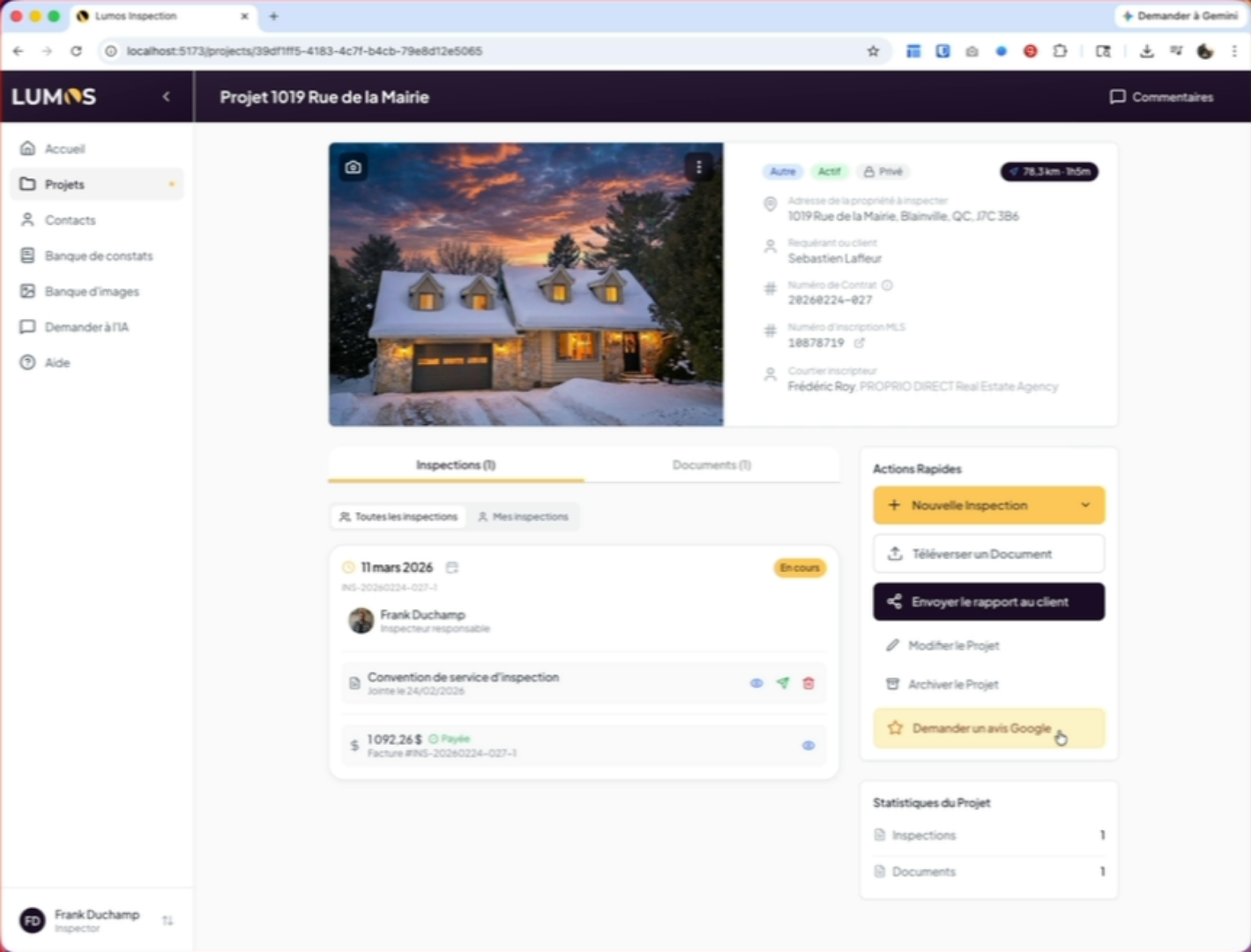
9. Click “Request a Google Review”
Click “Request a Google Review” to initiate the request to your client.
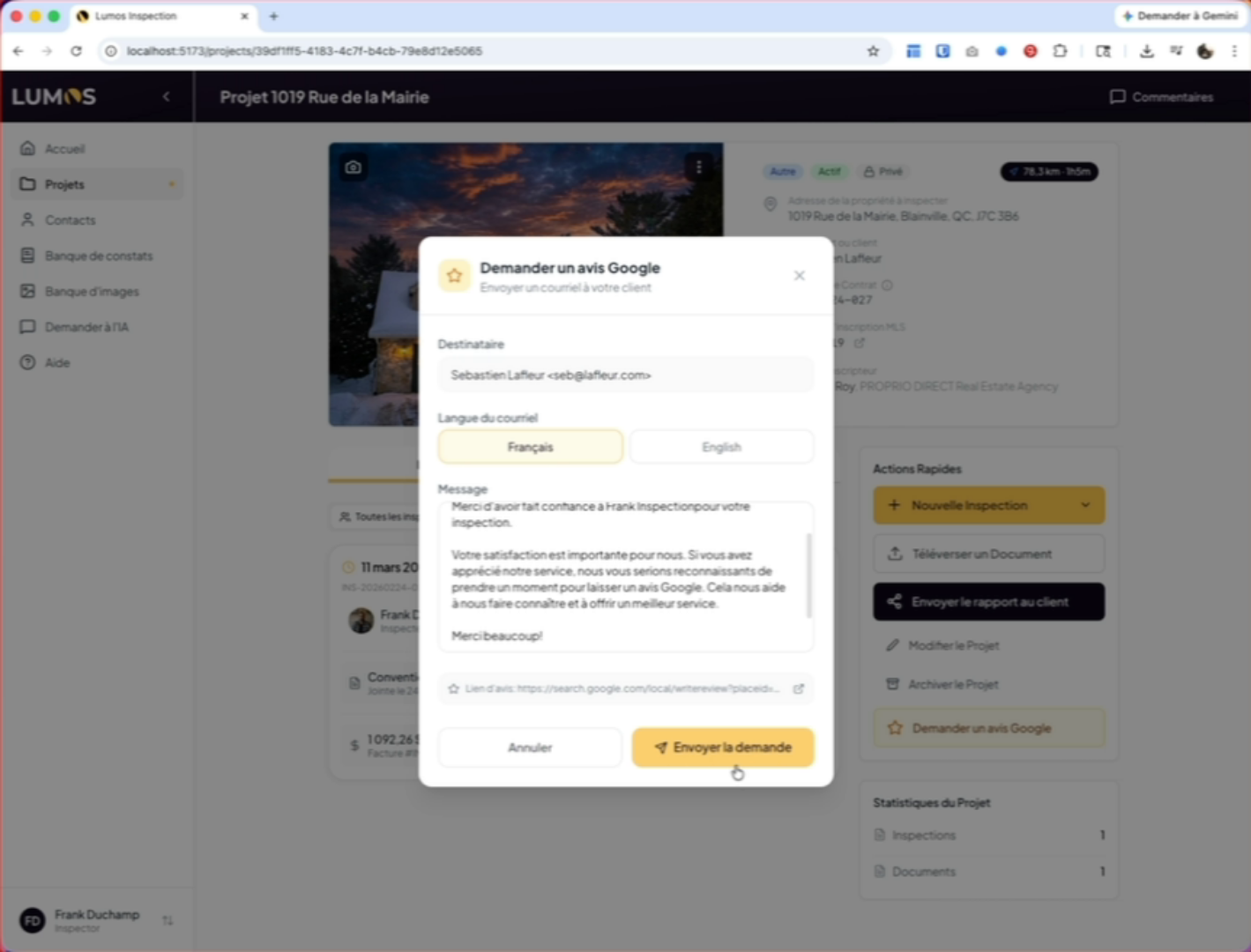
10. View the Configured Text
Click the button to see the text configured in your Lumos settings. The link for your review request will be automatically included in the email.
11. Confirm the Request Was Sent
When you click the “Send” button, a reference and date will appear below the button.
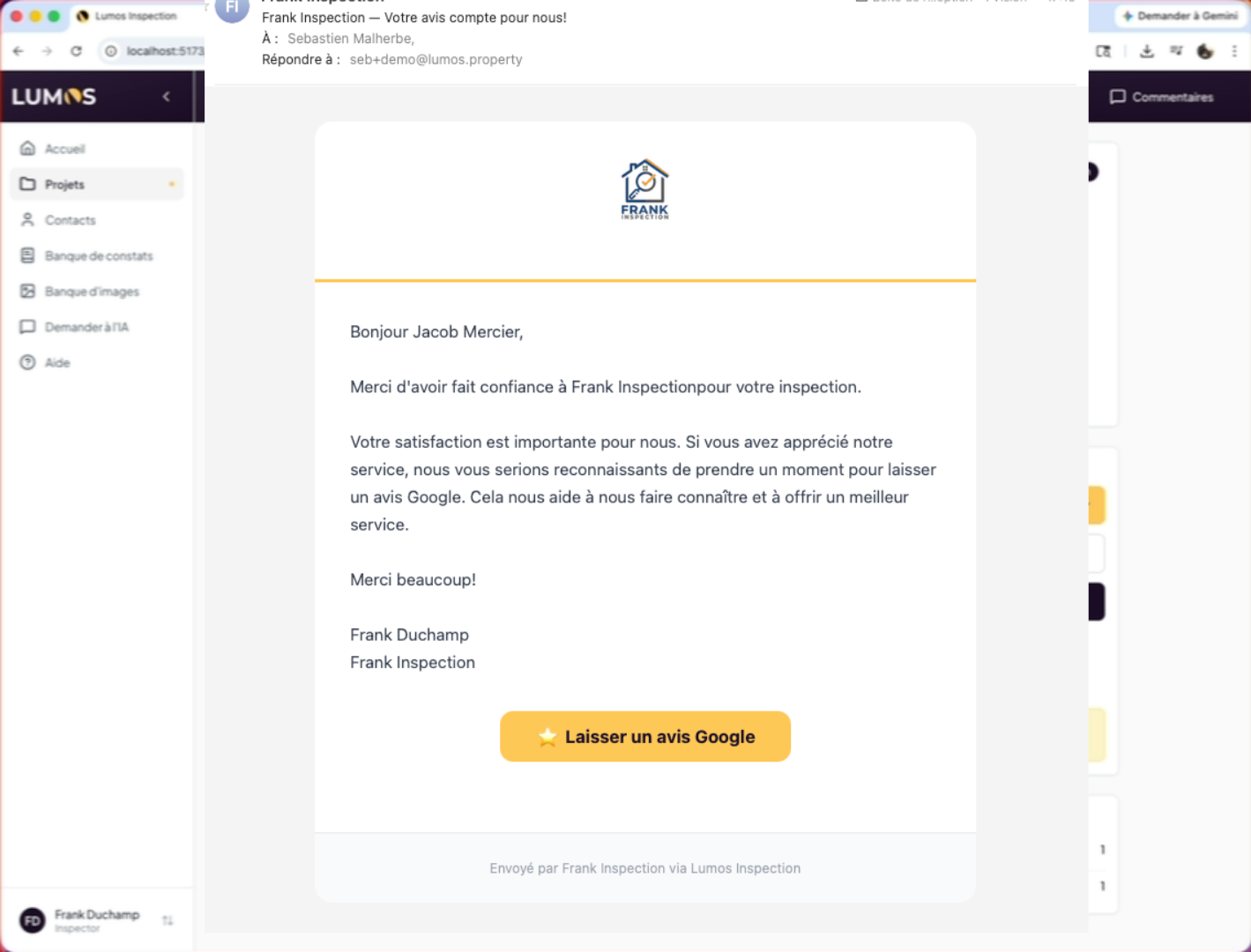
12. Client Email with Review Link
At this point, your client has received an email from you asking them to leave a Google review with a direct link to access it.
You have successfully configured the Google review feature in Lumos and learned how to send review requests automatically or manually. You can now track client feedback and improve your online visibility.