Show or Hide Report Sections and Subsections
This tutorial explains how to show or hide sections or subsections of the inspection report when needed.
Visit inspector.lumos.property
1. Navigate to the desired section or subsection
Click on “Plumbing” for example to open the section dedicated to plumbing inspections.
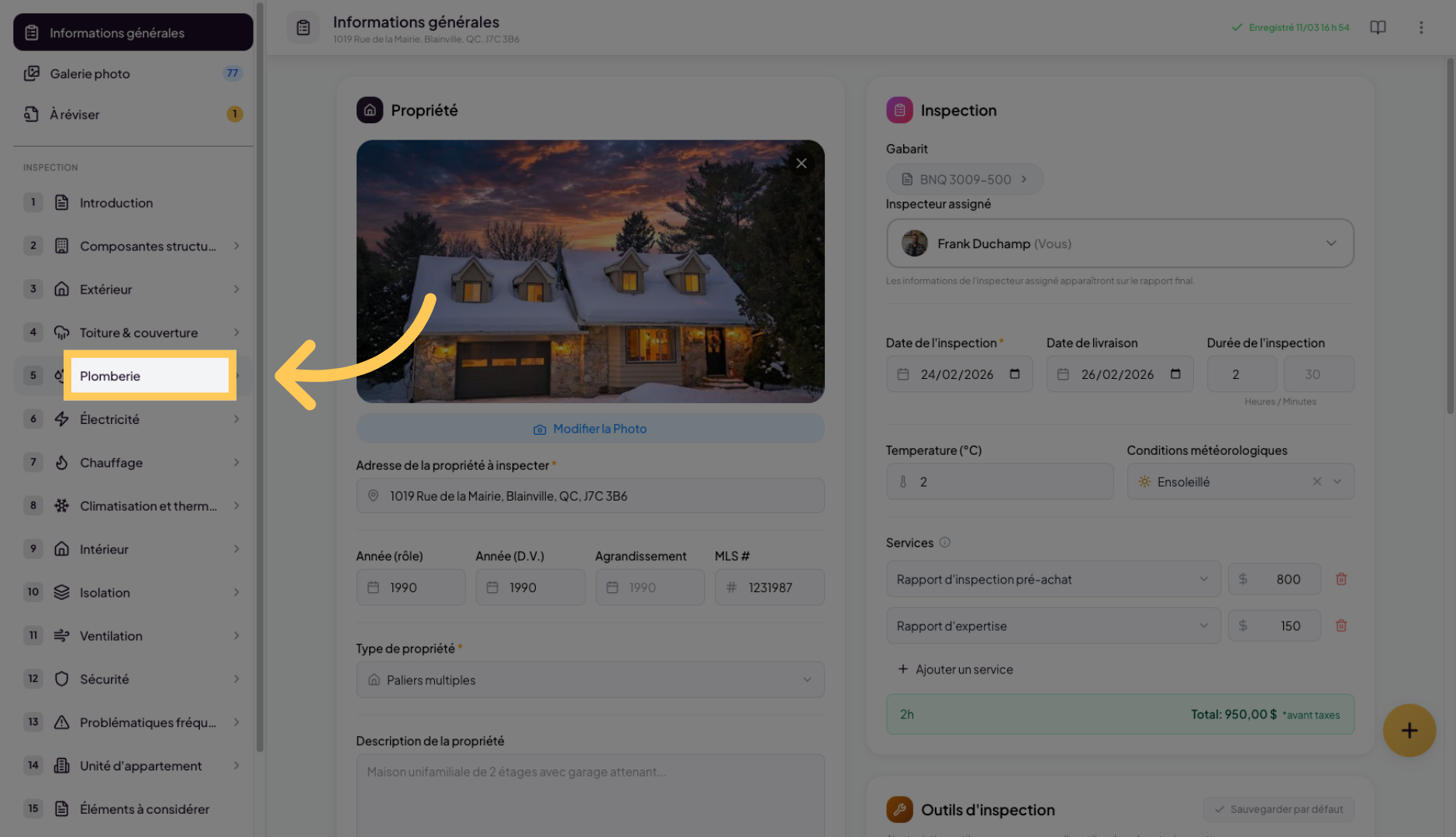
2. Open the desired subsection
Click on the subsection you want to work on and add detail to.
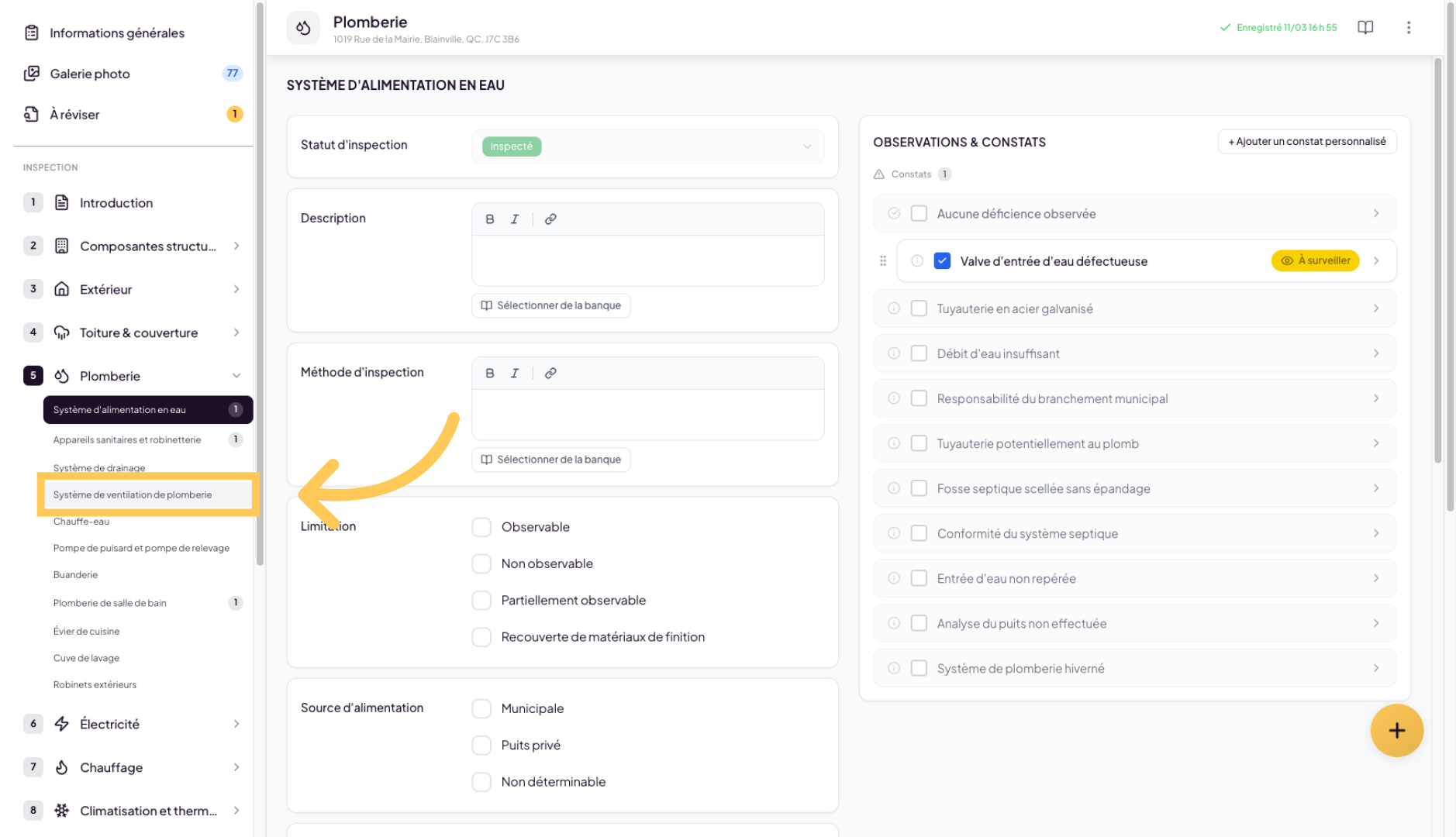
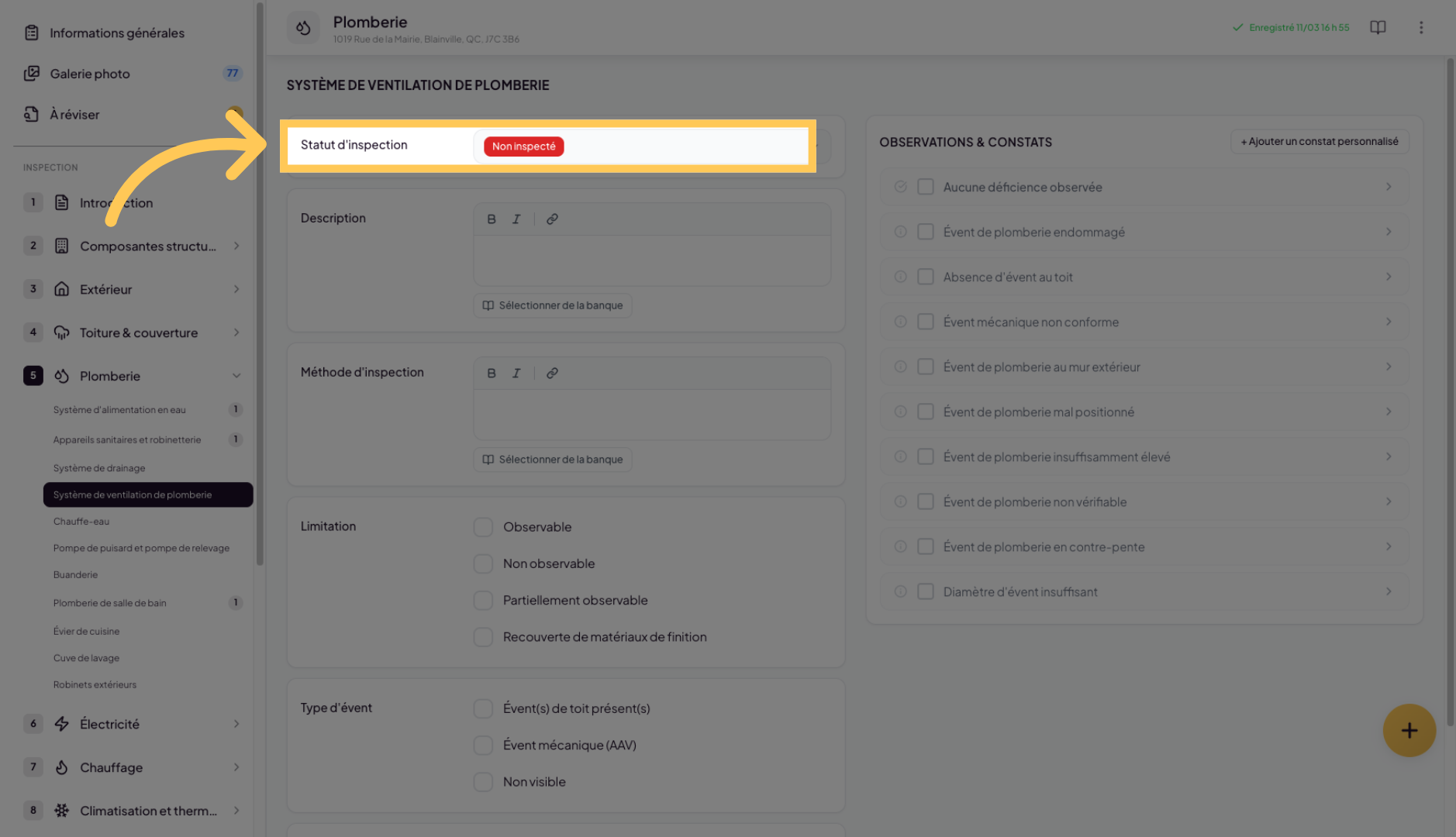
3. Click on the inspection status selector
At the top left of the subsection, you will find a selector named “Inspection Status”. By clicking on this selector, you can determine whether or not you have inspected this component.
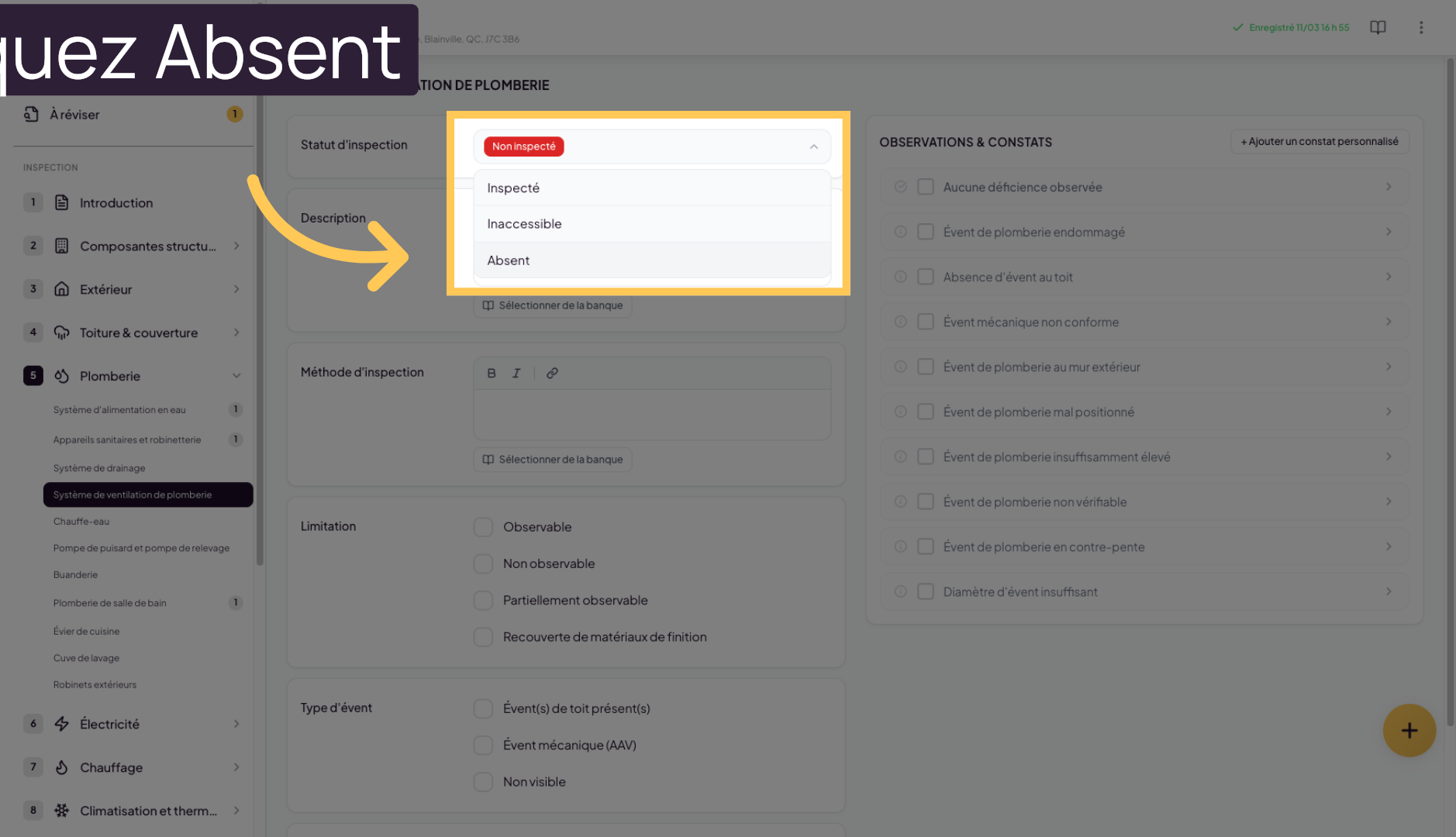
4. Mark as absent to hide the subsection
If you want to completely hide a subsection by indicating that this component was absent, select “Absent”. This subsection will then be completely absent and not visible in the final report.
5. Hide an entire section
Some sections are configured to be completely hideable. This option is a template parameter configured by Lumos. It is not available for all subsections in the default template. To configure these options, go to the Lumos application settings under the “Report Templates” tab.
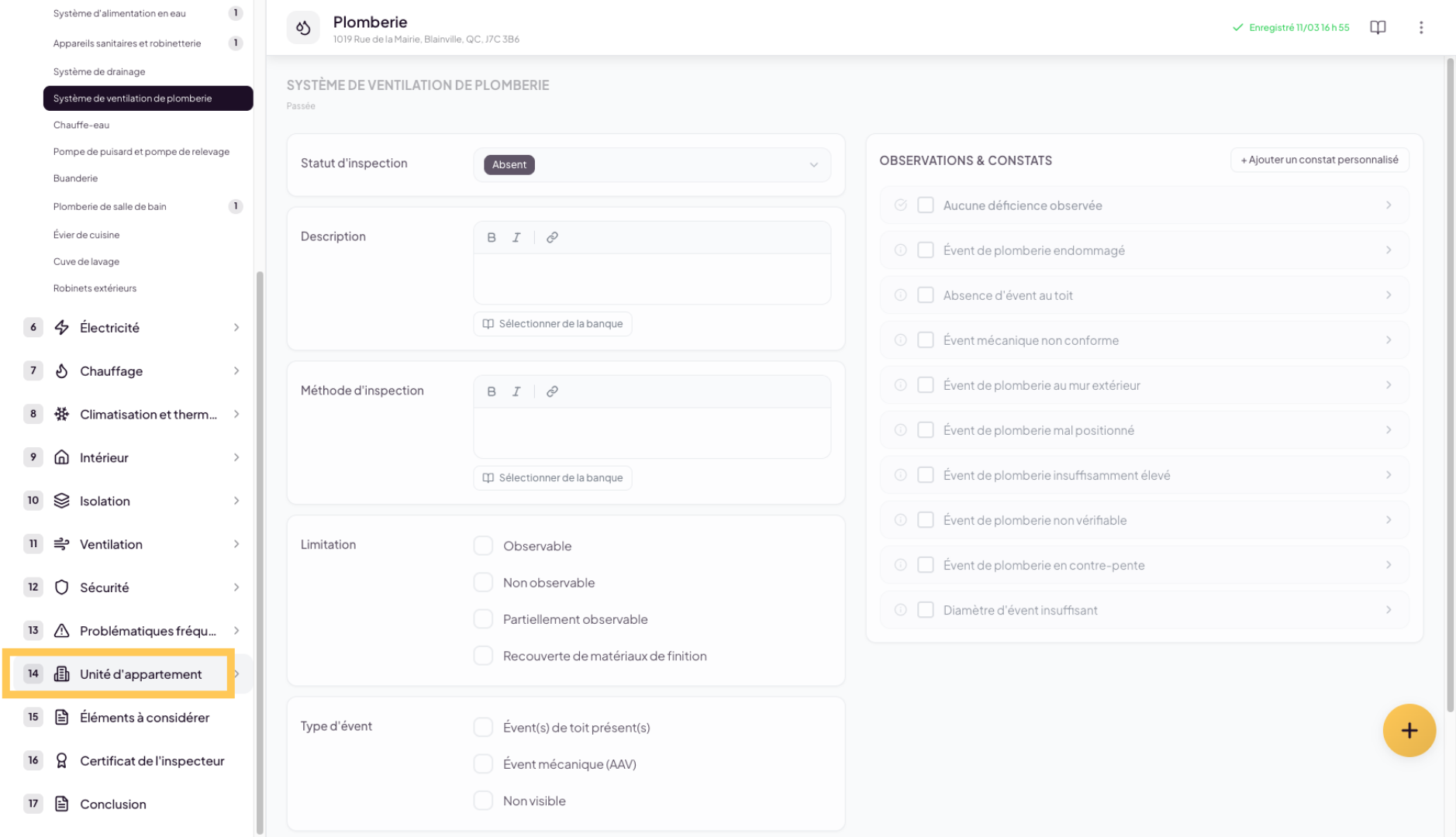
6. Hide the section
In sections that can be completely hidden, you will find an option in the page header called “Hide section” that allows you to entirely remove the section from the report. Once hidden, you cannot modify its content.
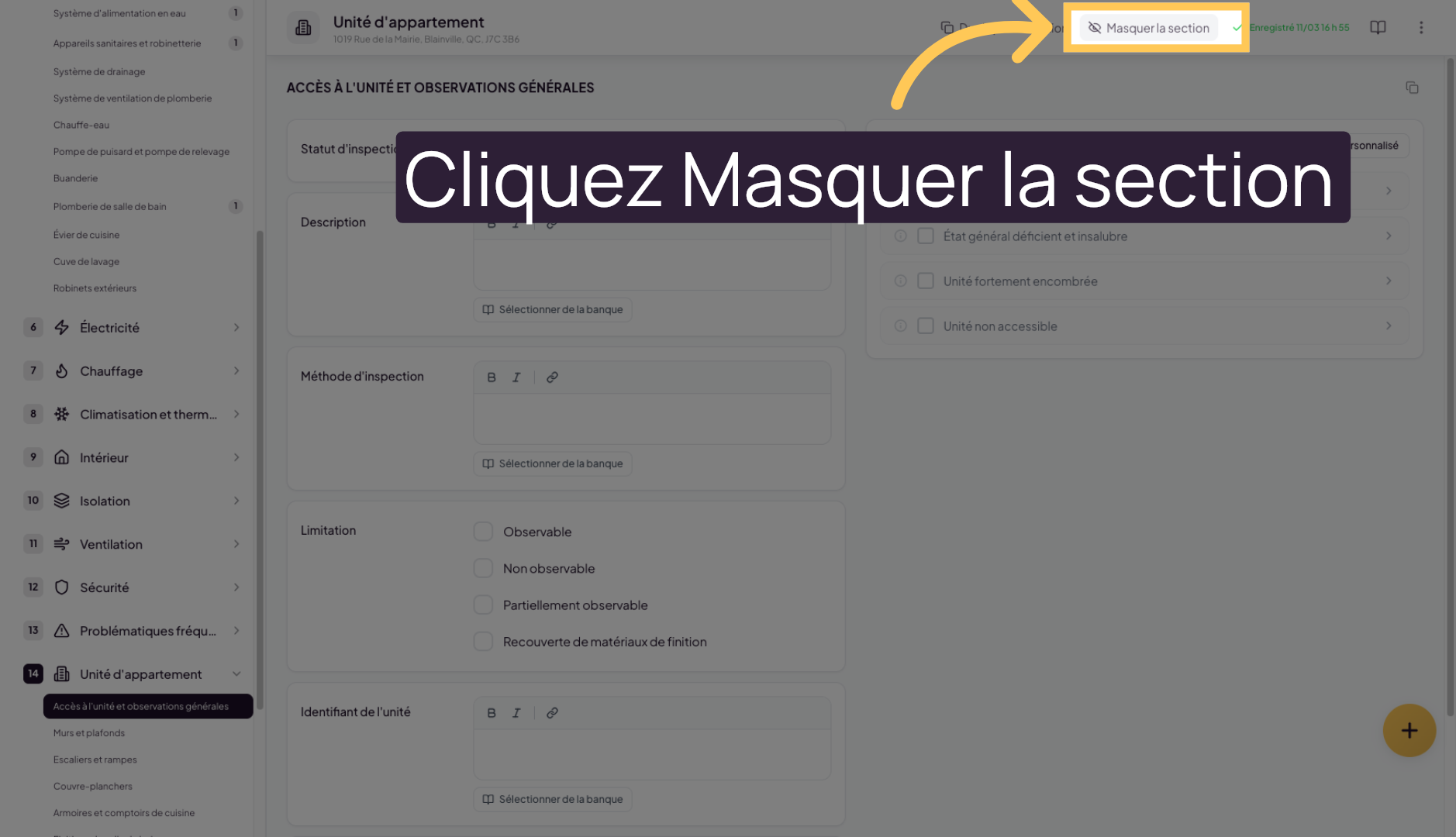
7. Edit the report template
To modify the advanced settings of a report template, go to the Lumos application settings. You need to leave the report and navigate to Settings - Report Templates.
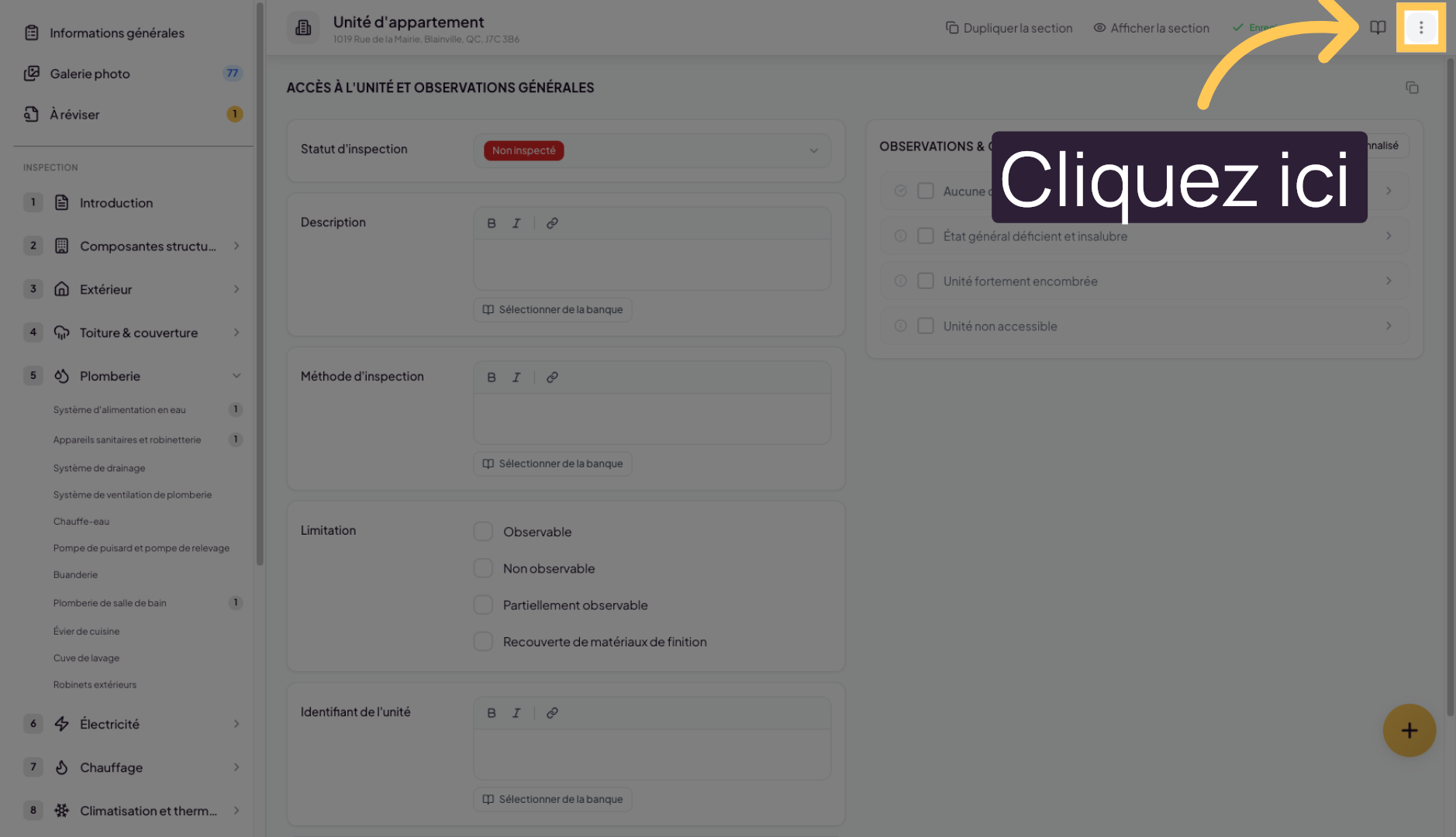
8. Leave the current section
Click “Leave” to exit the current section and return to the main menu.
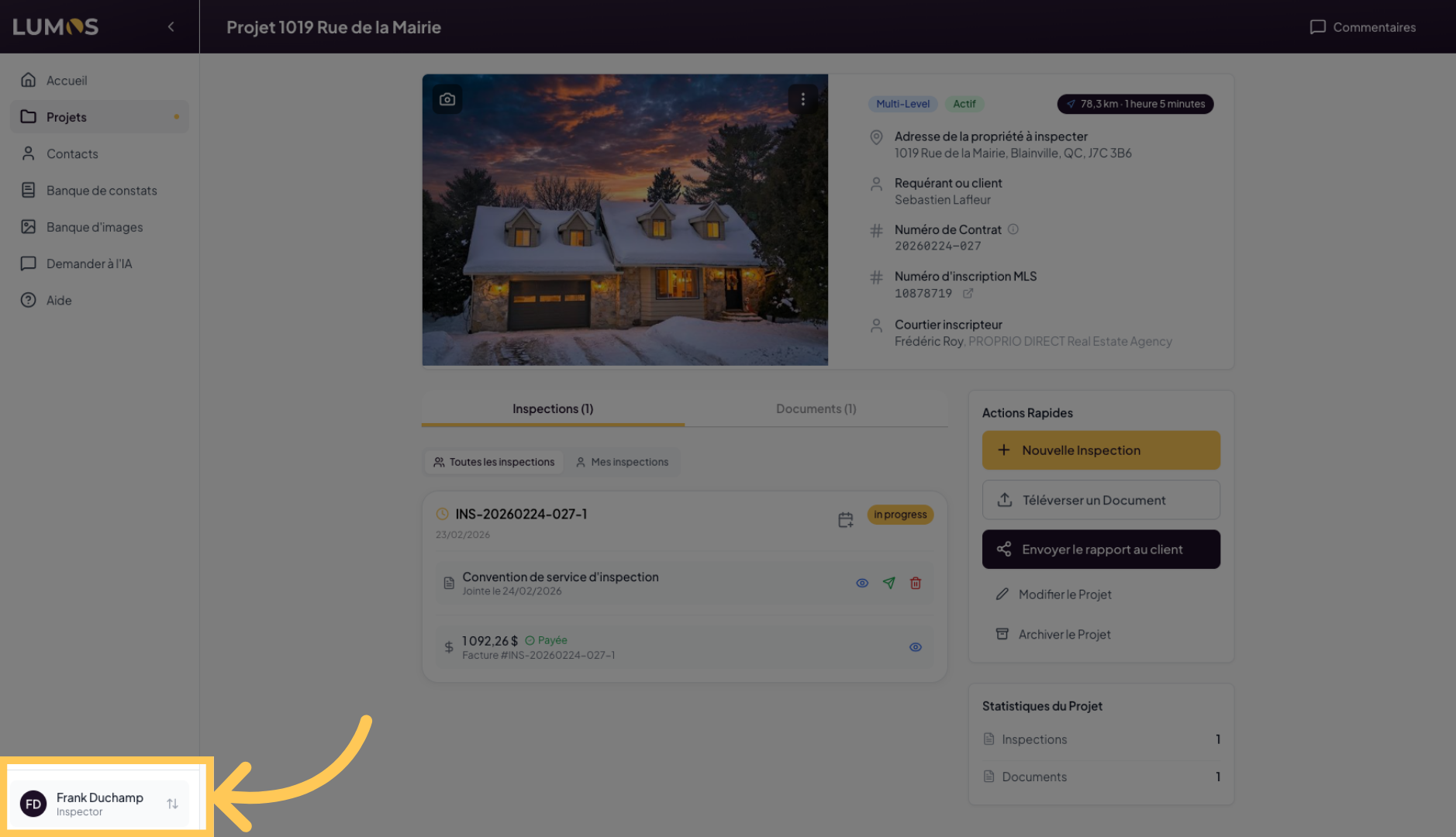
9. Select your user profile
Click on your profile to go to the Lumos settings.
10. Access settings
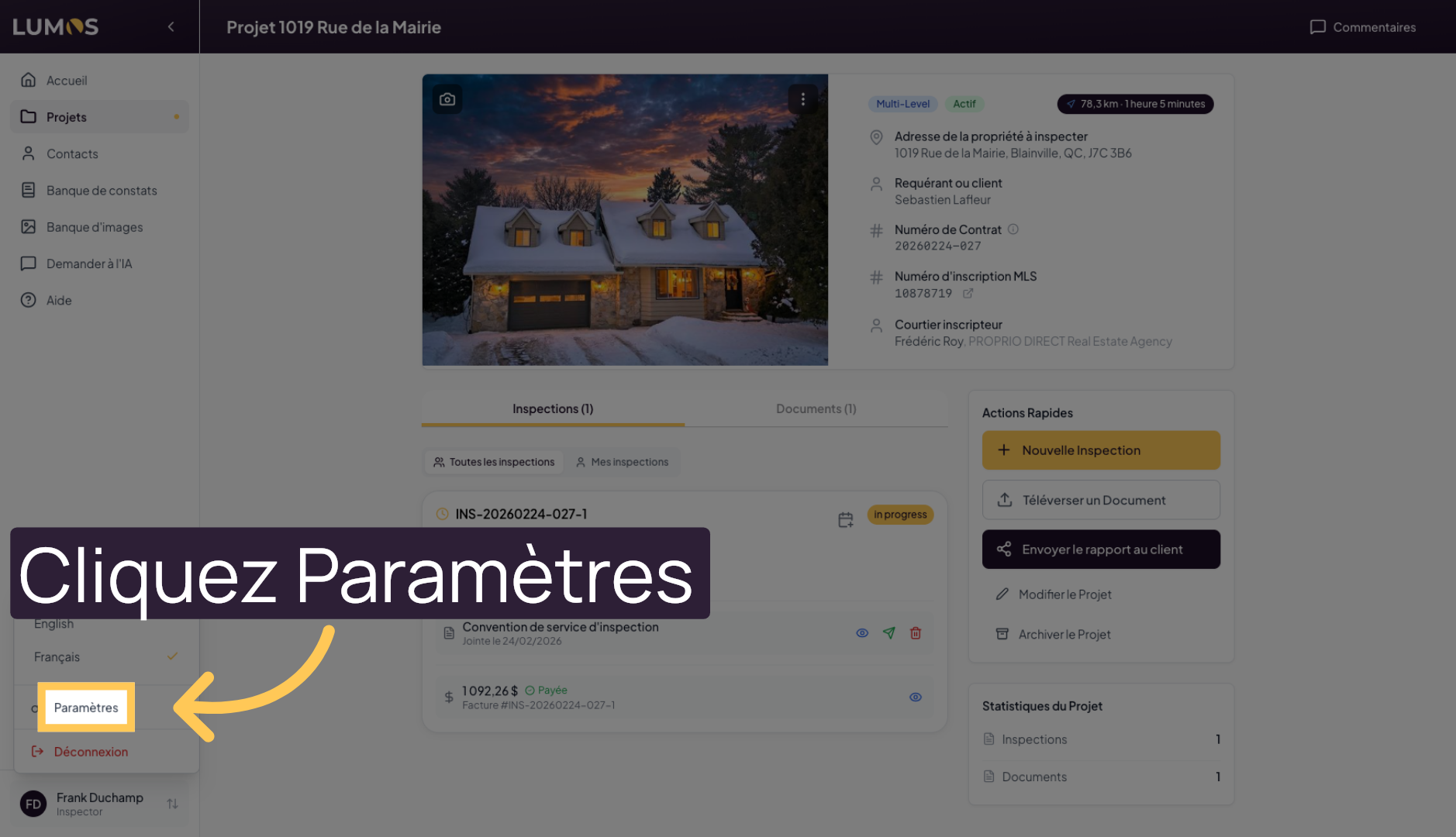
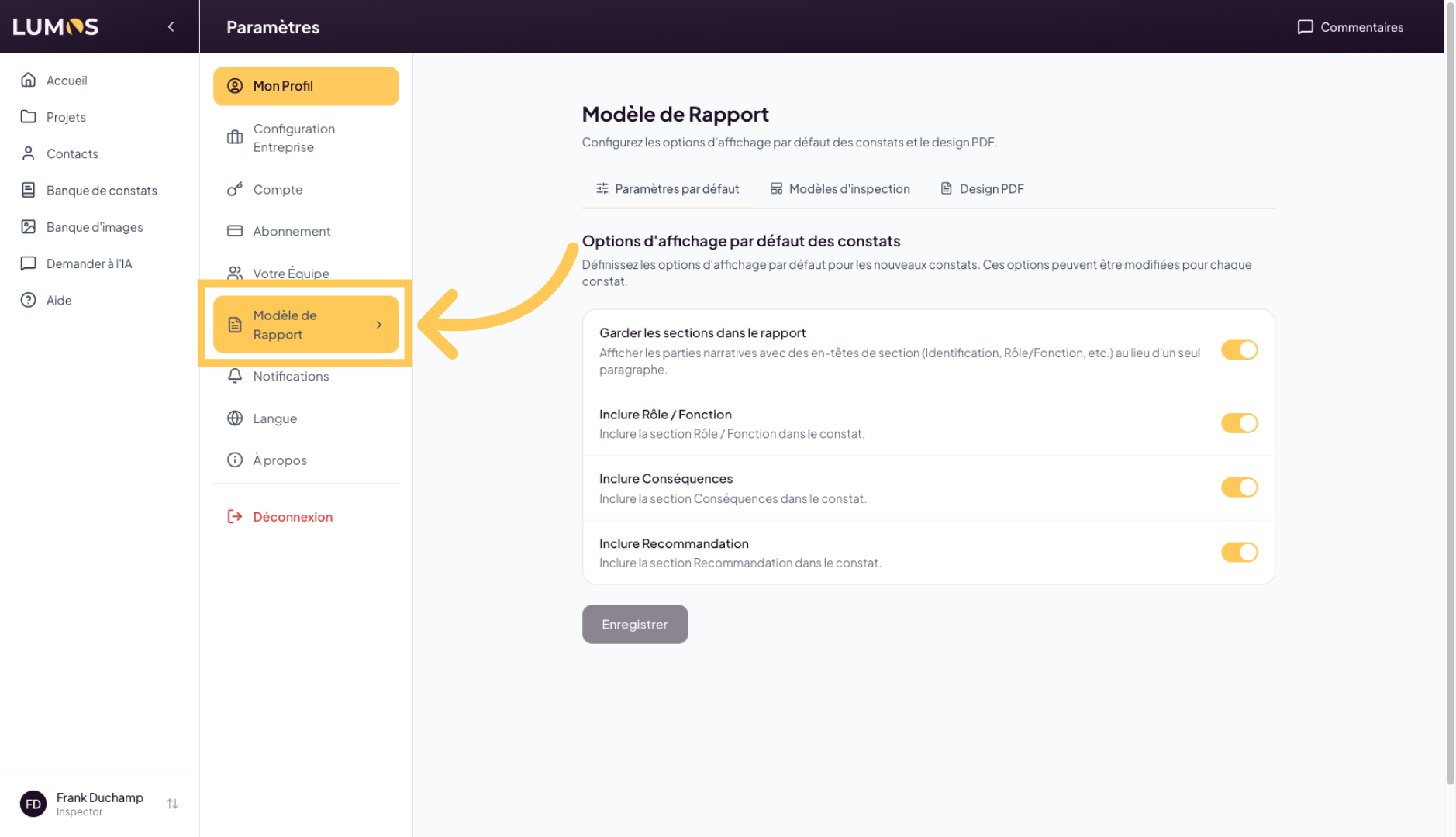
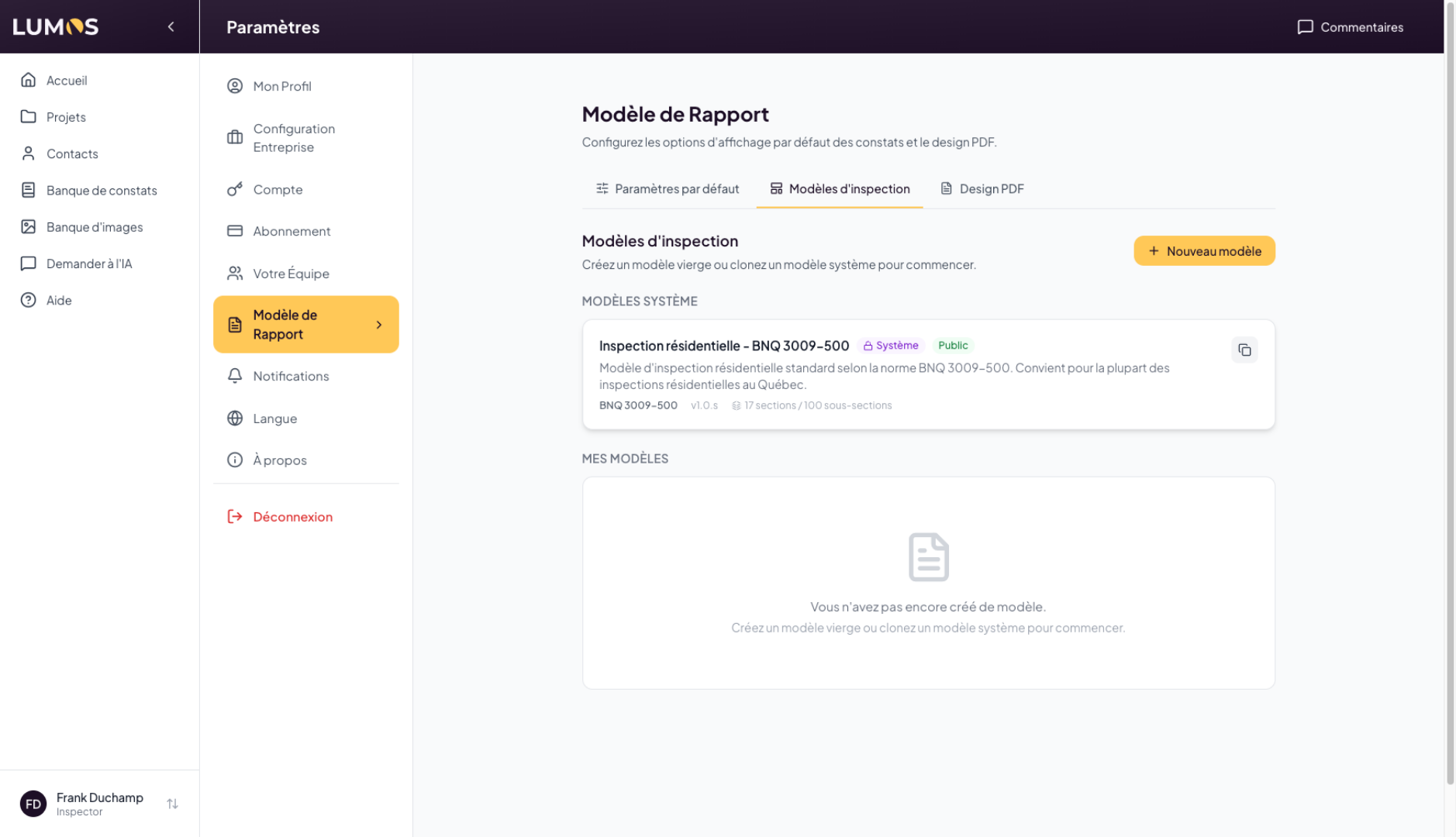
11. Open report template
Select “Report Template” to access report customization options.
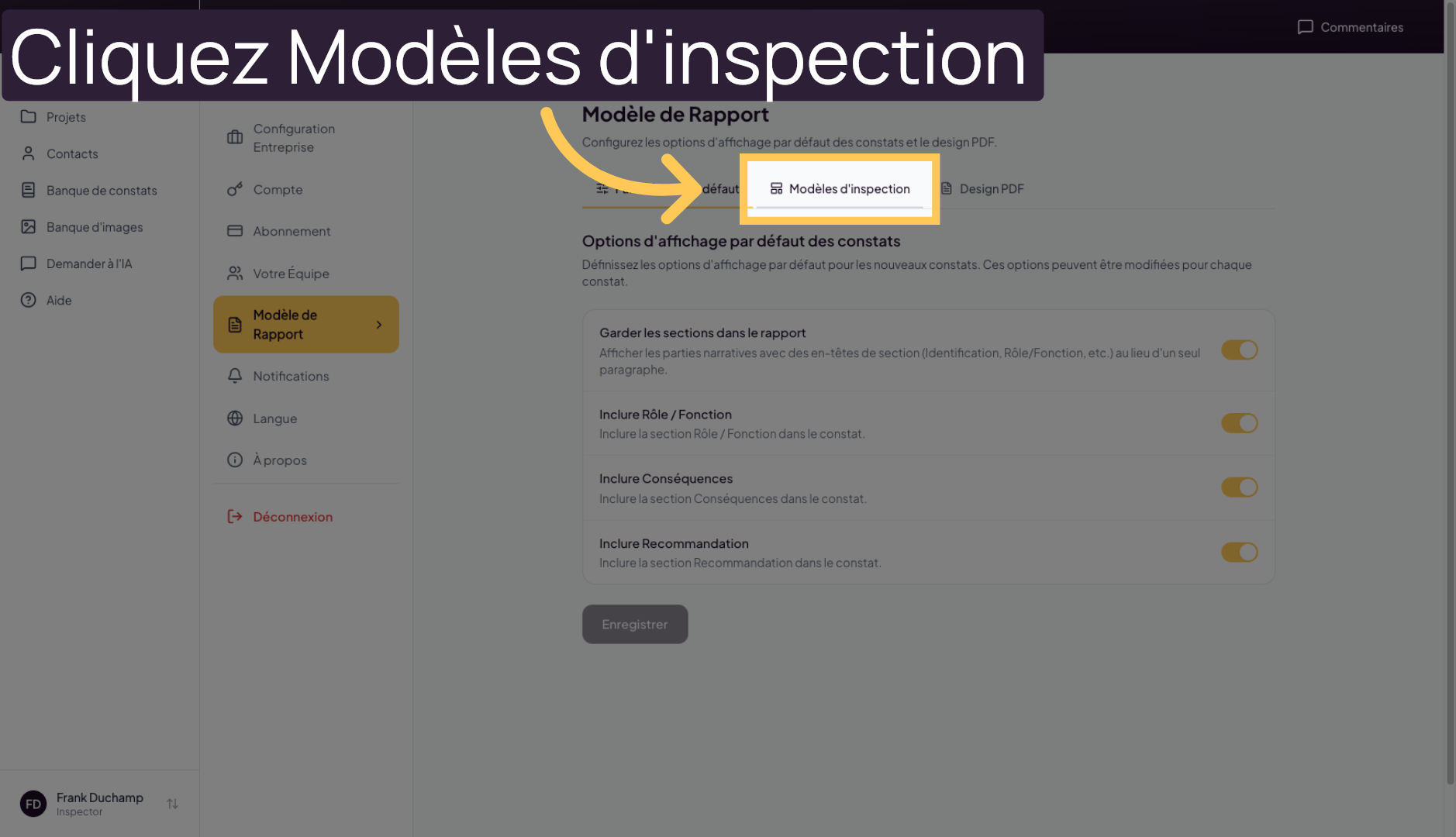
12. Access inspection templates
Click on “Inspection Templates” to manage the different inspection formats available.
13. Configure the inspection template
In this section of Lumos, you can configure your inspection templates. By default, the application offers a standard template, but you can configure several.
Please note that these settings are advanced and require a thorough understanding of the system.
Also note that any changes here will not affect ongoing or already created inspections to avoid corrupting previously recorded data. If you want to apply template changes, you will need to create a new inspection using the modified template.
14. Learn more about report templates
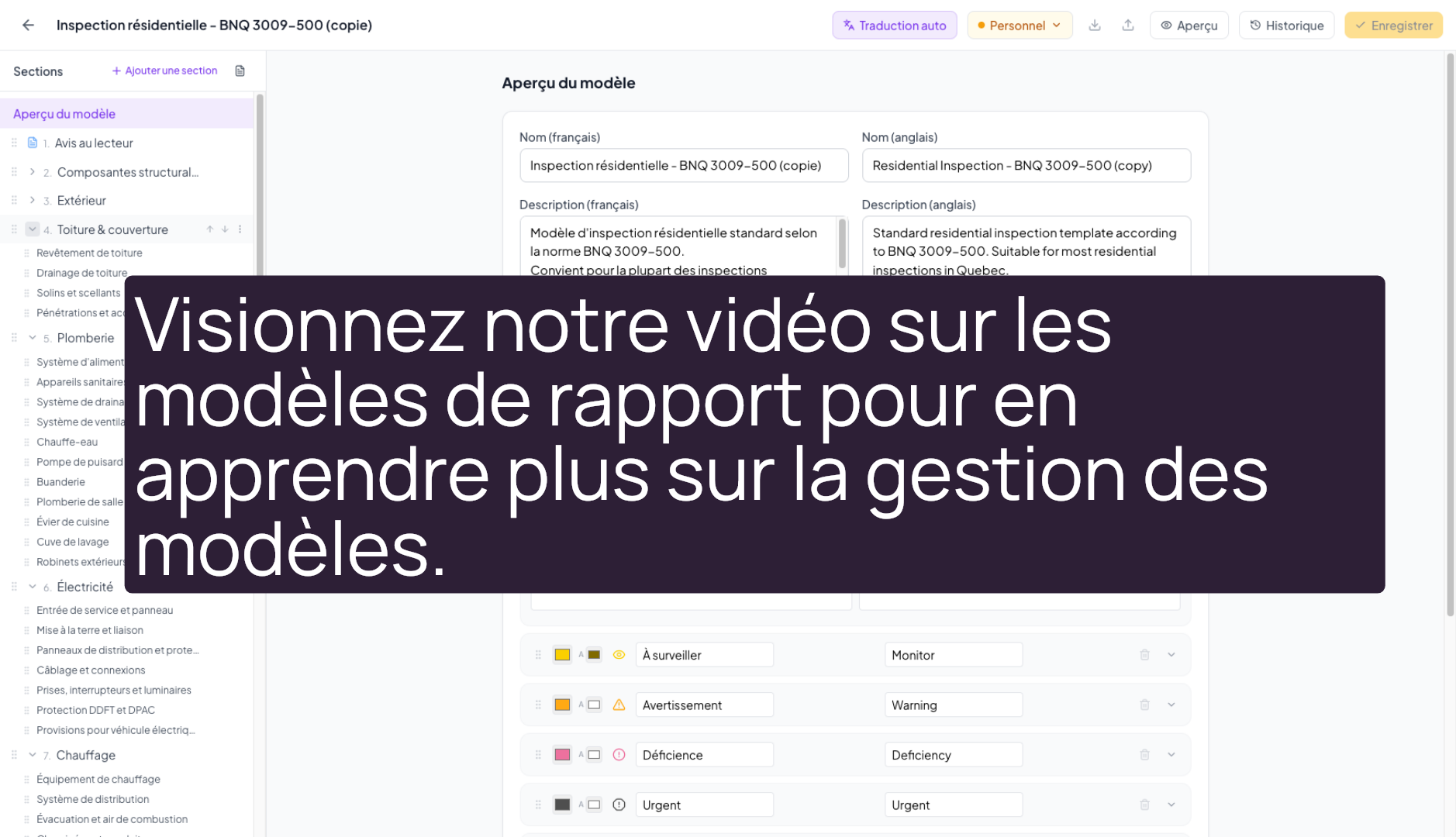
To understand and learn how to manage report templates in Lumos, watch our video on report templates.
To learn more, explore creating detailed reports or managing users.