Generate and send a finished report to a client
This tutorial guides you through preparing and sending your completed inspection report to your client. You will learn how to gather the necessary documents and share the report securely.
Visit inspector.lumos.property
1. Prepare the Report for Sending
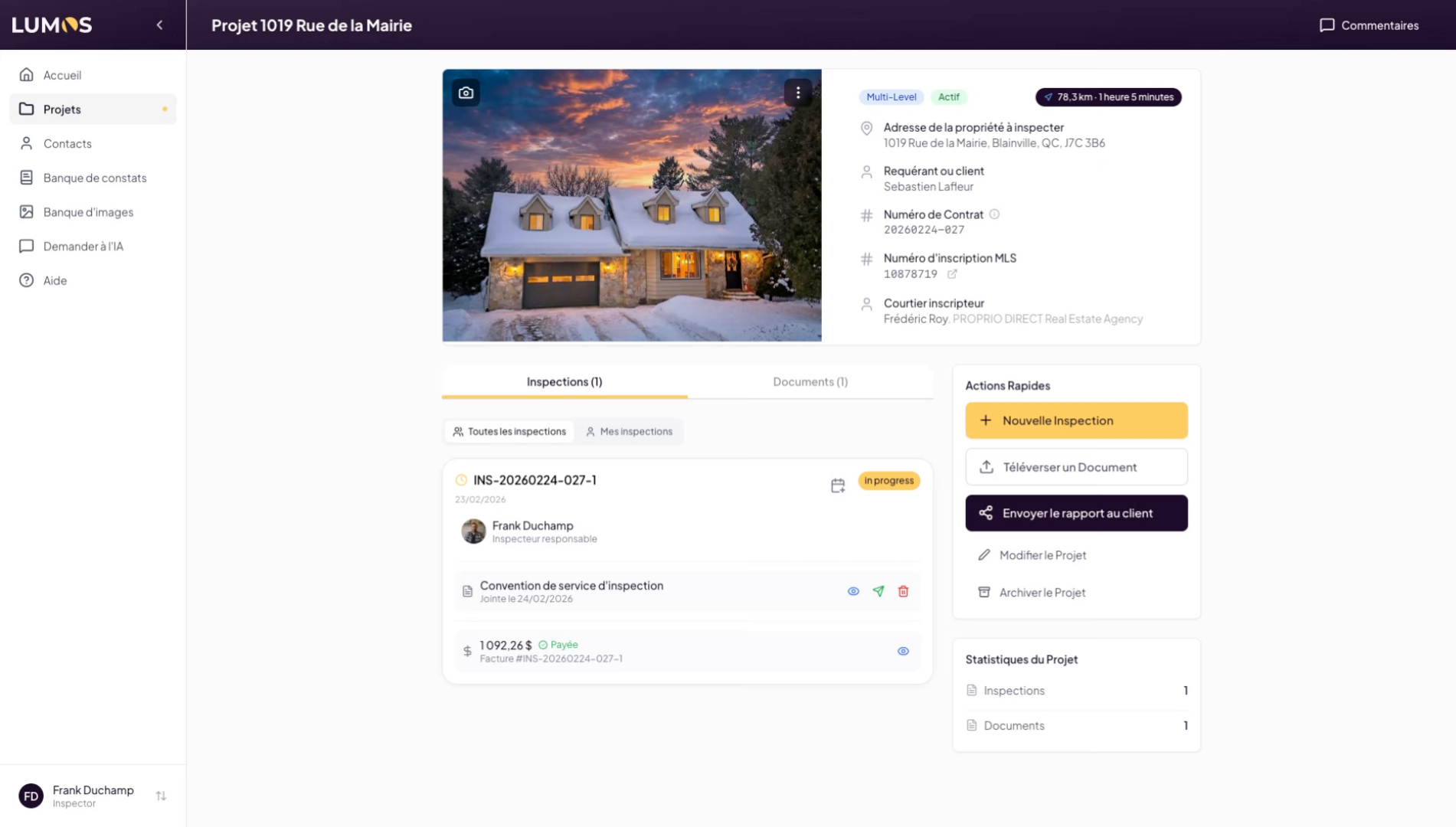
2. Add Documents and Invoice
Make sure you have added the service agreement, and also added your invoice if needed. Remember that you can add attached documents, such as a seller’s declaration or other relevant documents.
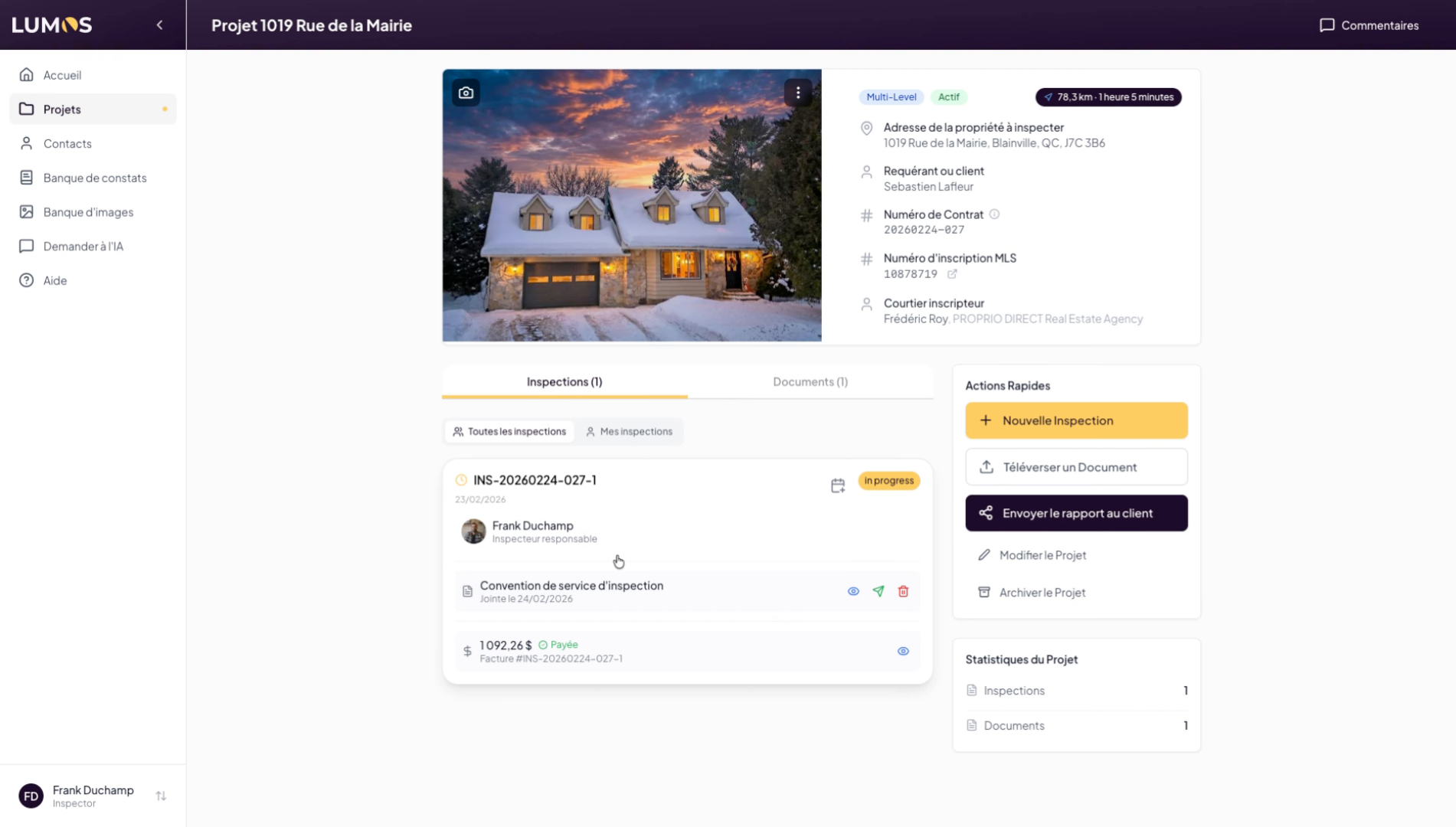
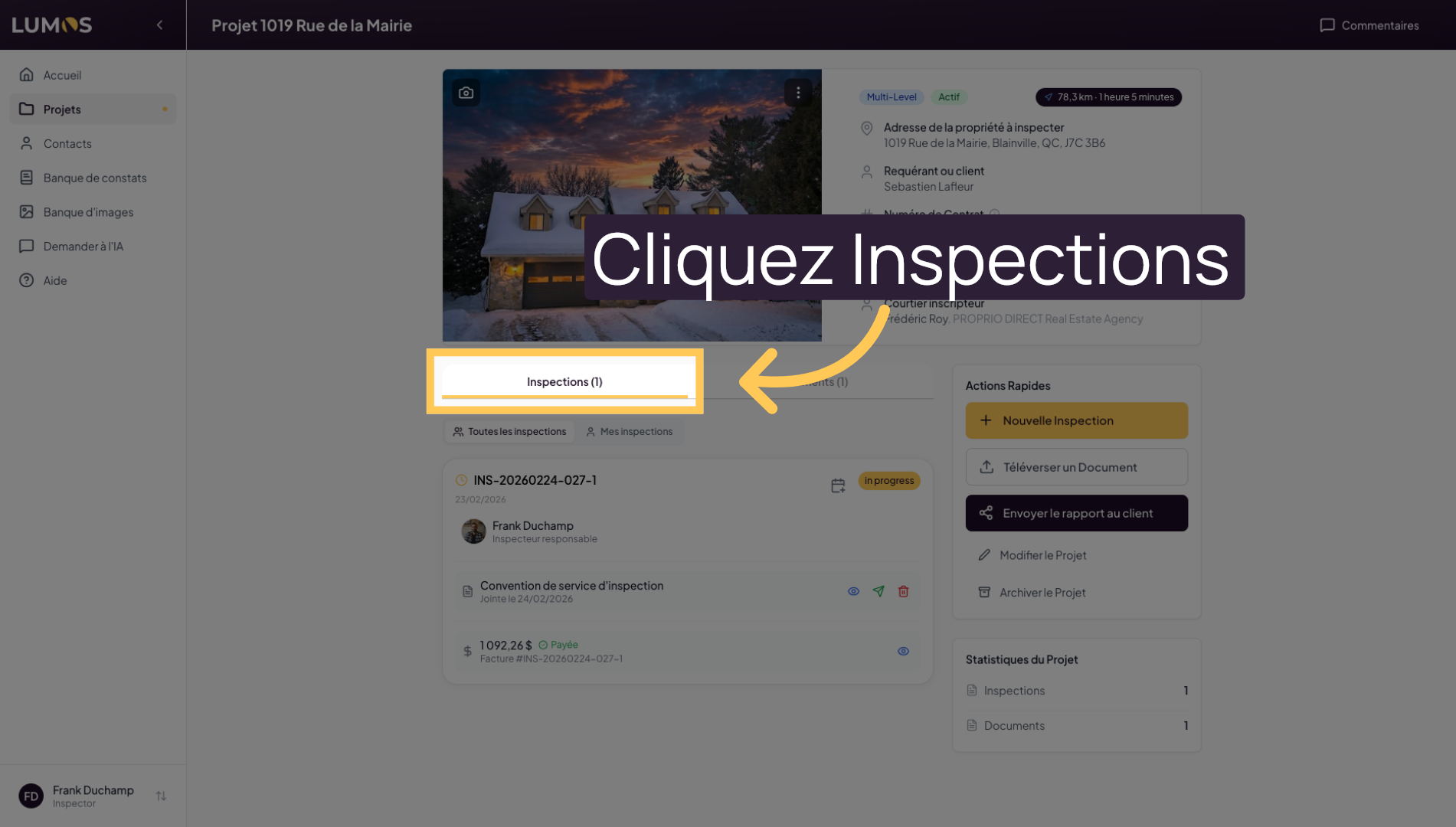
3. Access the Inspections Section
In the project, click the “Inspections” tab to access the list of available reports.
4. Select the Report to Send
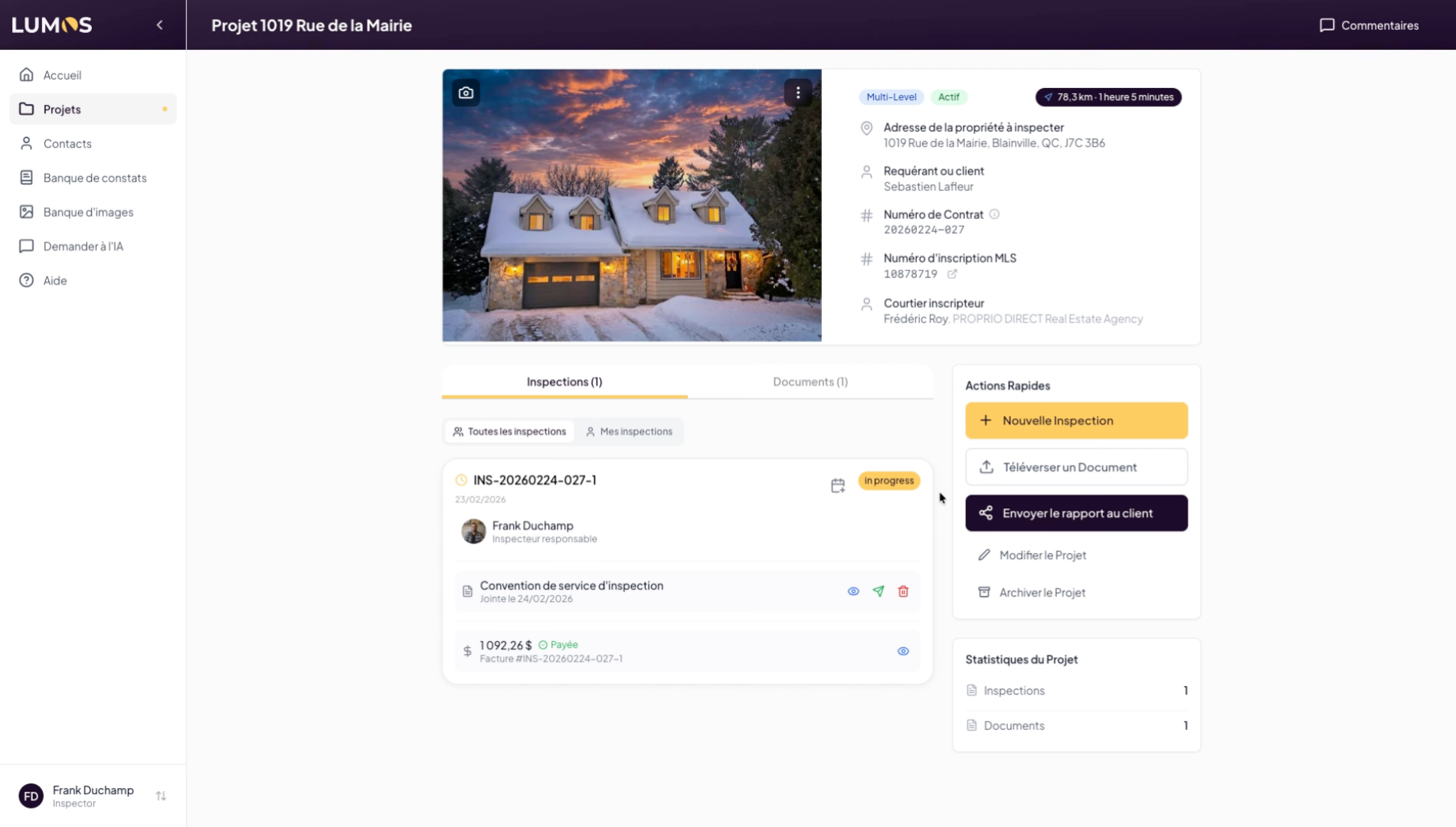
5. Generate the Report Link
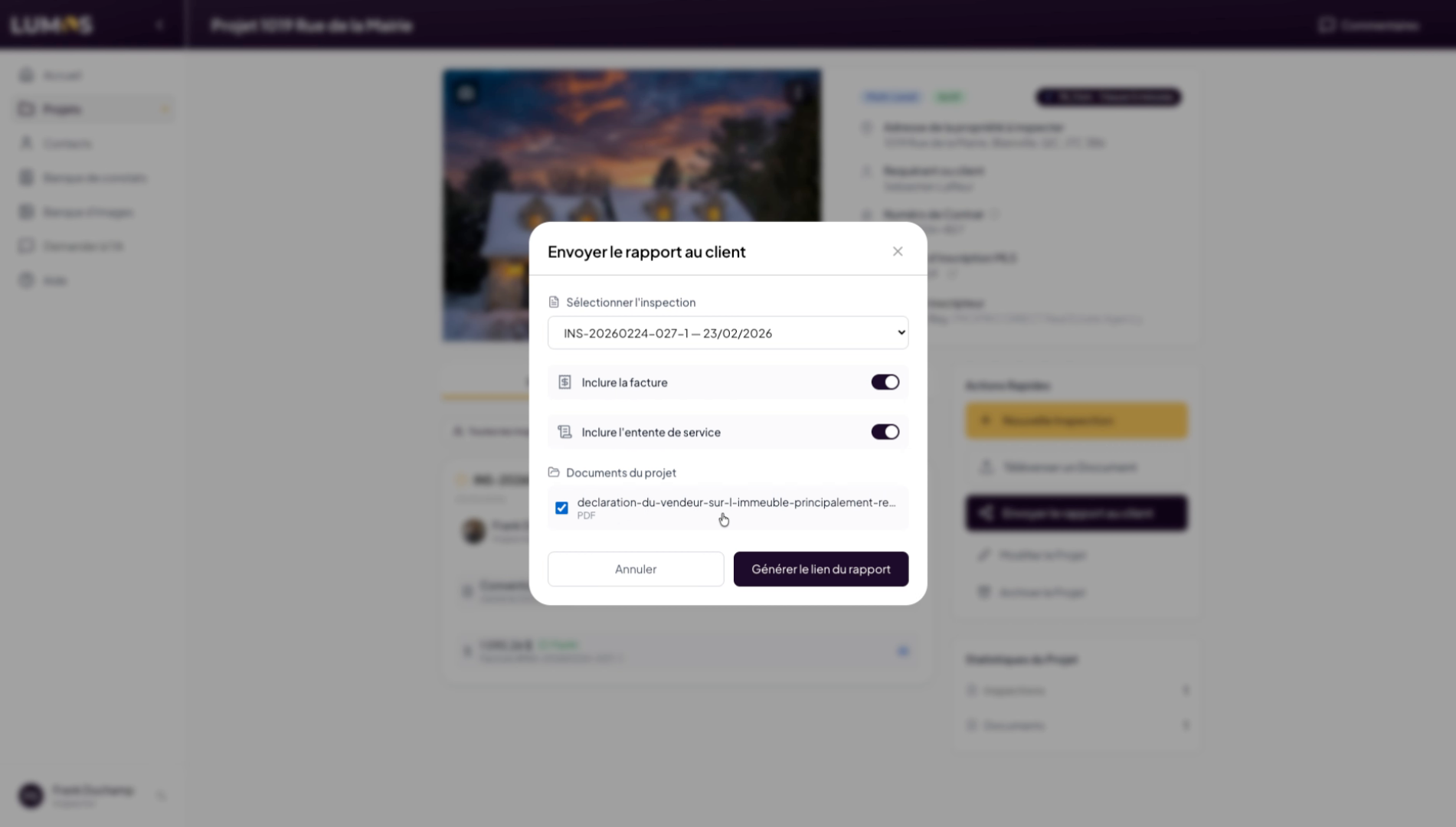
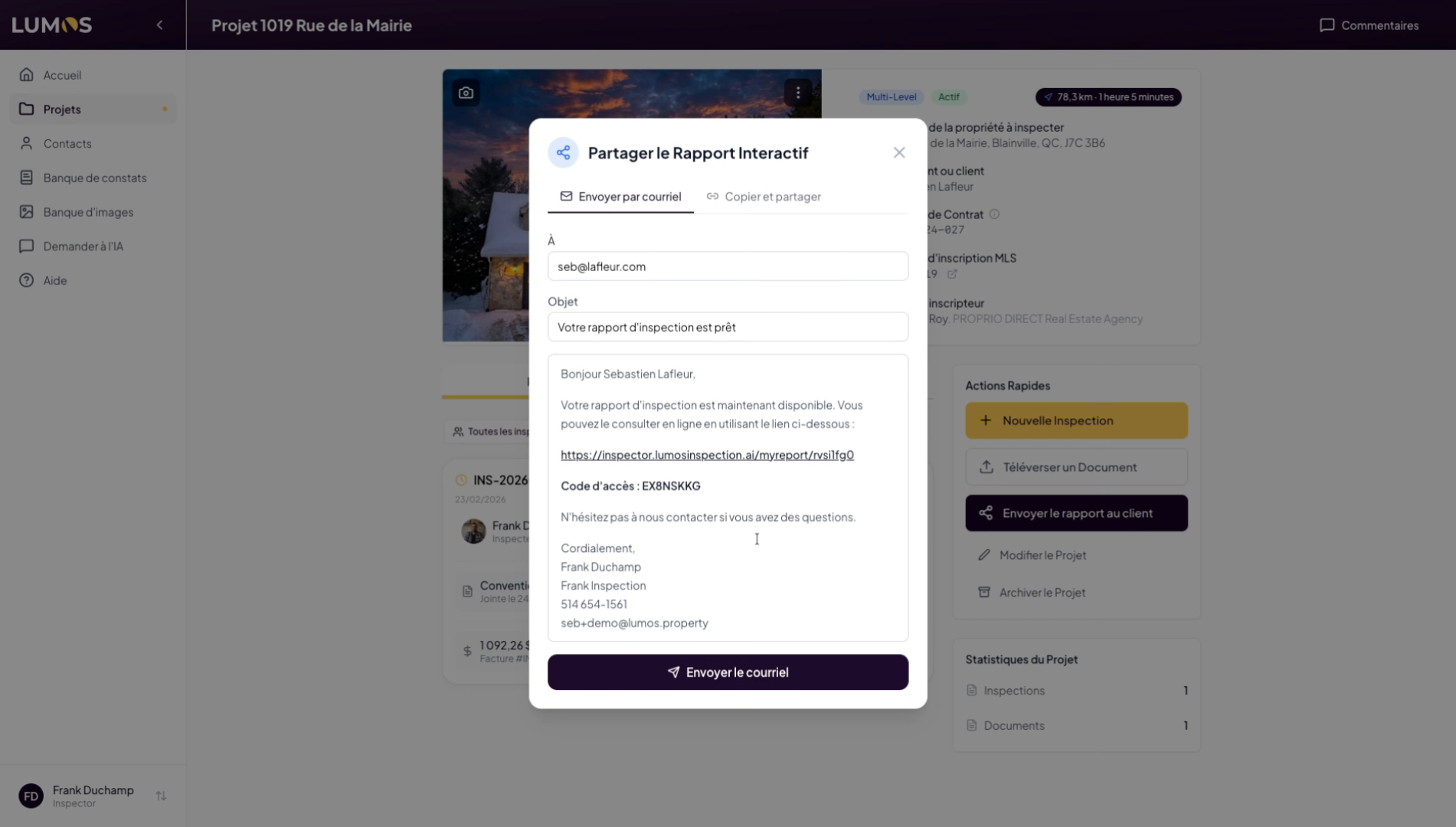
6. Send the Report by Email
You can choose to send the interactive report by email. Lumos provides default text that you can customize as you wish. Your client will receive a link and an access code directly in their inbox.
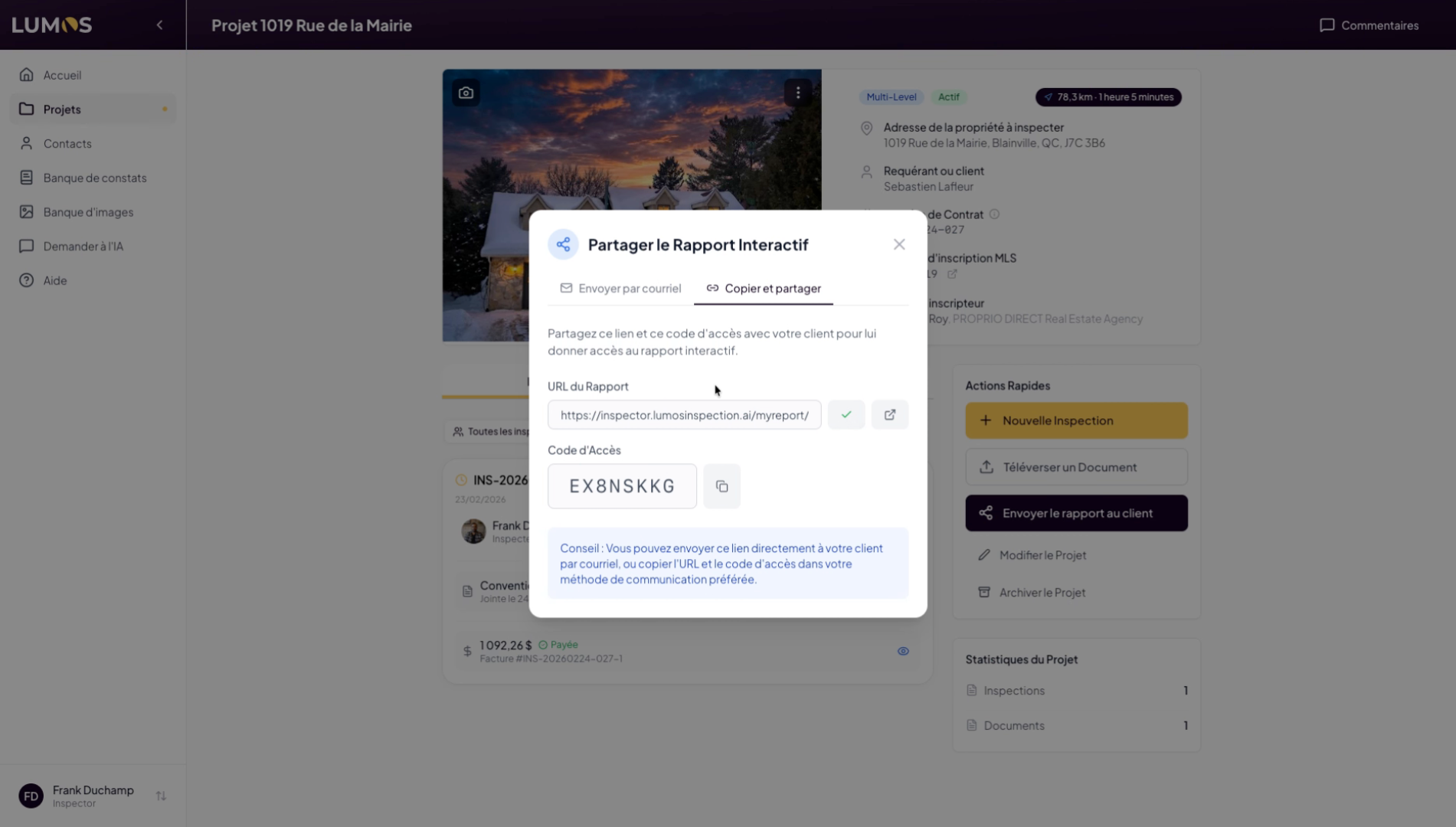
7. Share the Report Link
You can also copy and share the link by selecting the copy button next to the report URL, then paste it into the tool of your choice such as a text message, SMS, or email.
8. Enter the Access Code
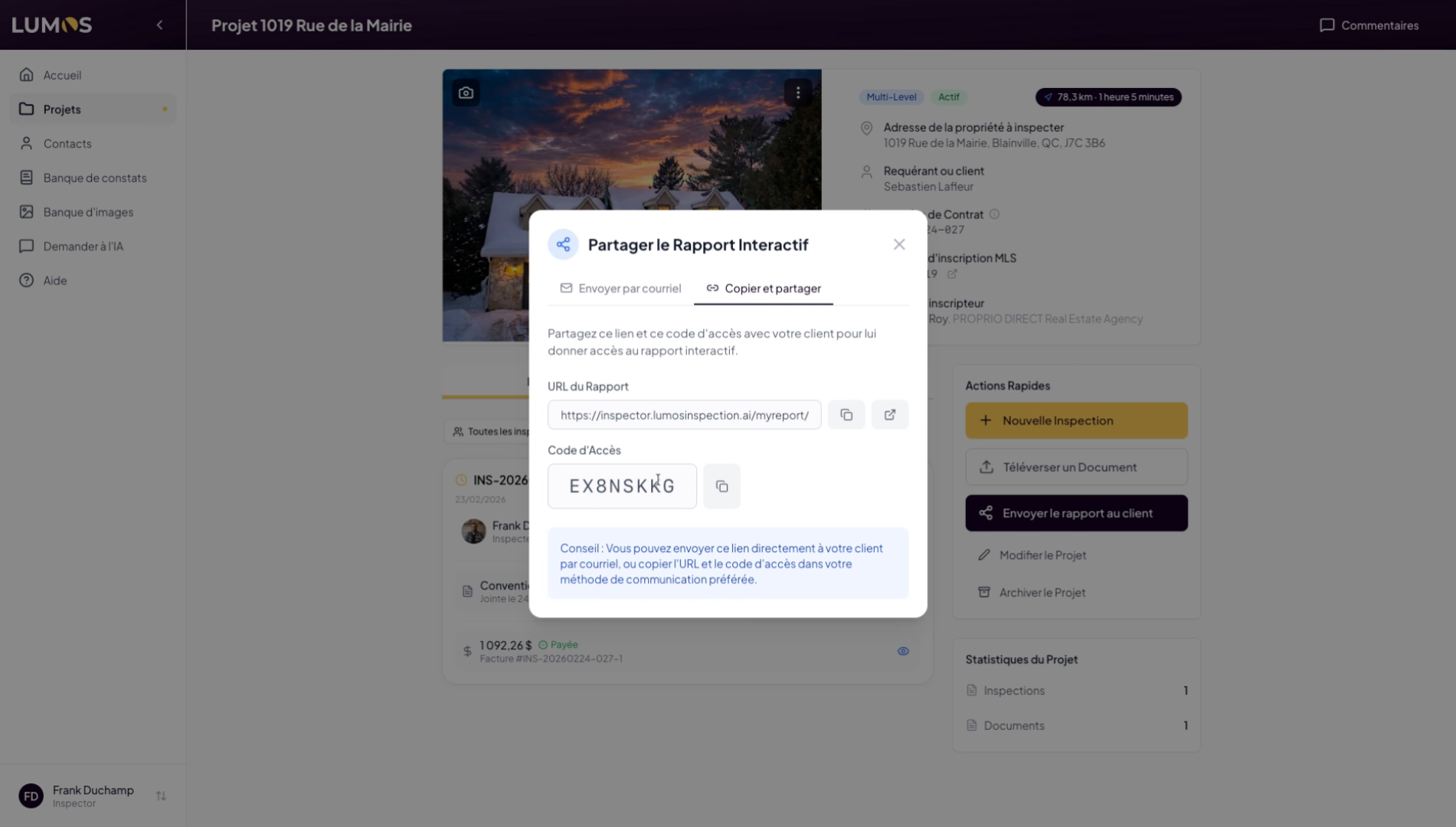
You have successfully prepared and sent your inspection report to your client, including the necessary documents and sharing the secure link with the access code.