Template configuration
Template configuration is the page pinned at the top of the editor’s navigation — it’s also the landing page when you open a template. It groups the global settings: identity, report content, severity scale, tools introduction paragraph, and template deletion.
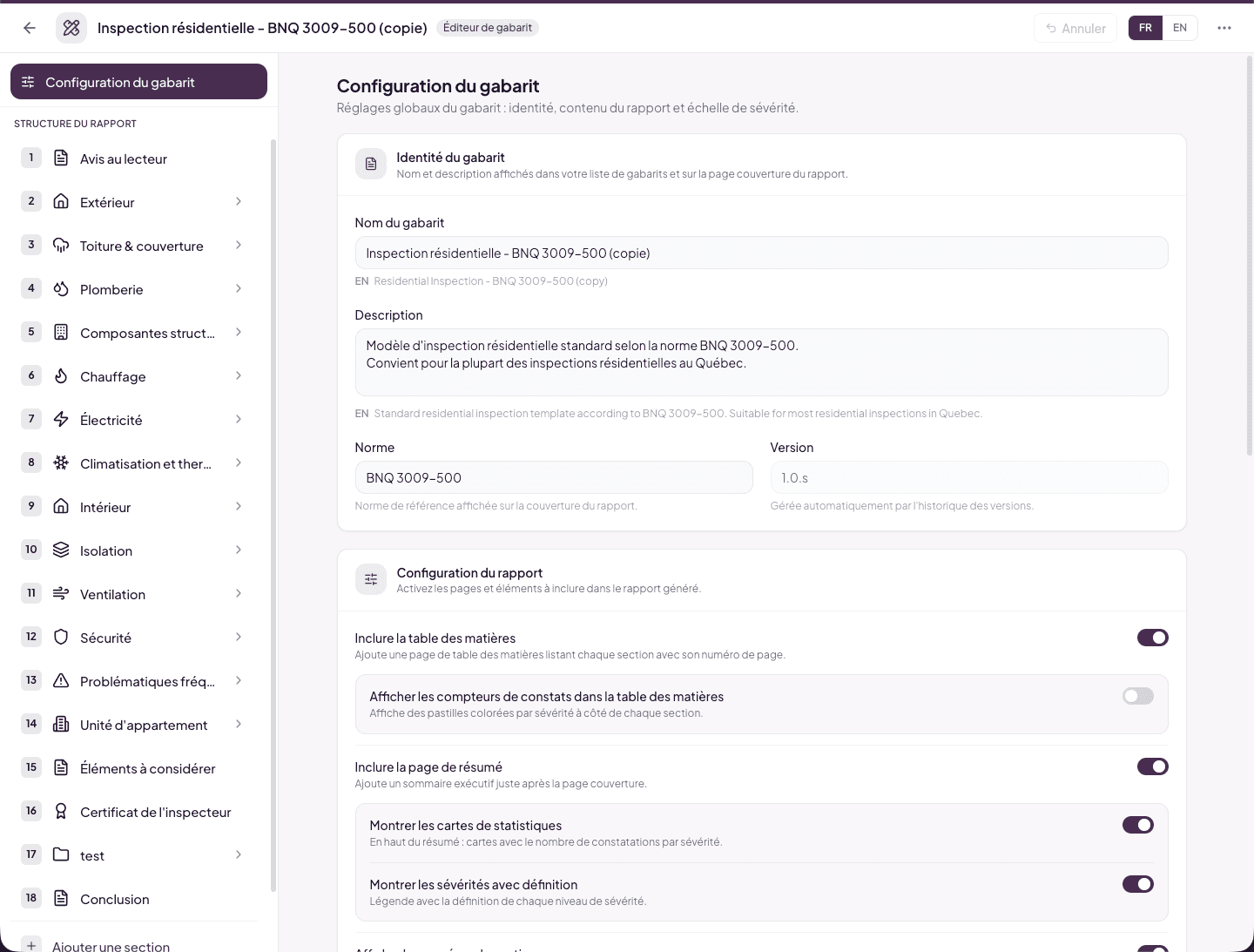
Template identity
Name and description shown in your template list and on the report’s cover page.
- Template name — in the current editing language; the other language shows as a reminder below and fills in via Auto-translate.
- Description — same bilingual behavior.
- Standard — the reference standard shown on the report cover (for example “BNQ 3009-500”).
- Version — read-only: “Managed automatically by the version history.” View and restore versions via ⋯ > History (see RT.2).
Report configuration
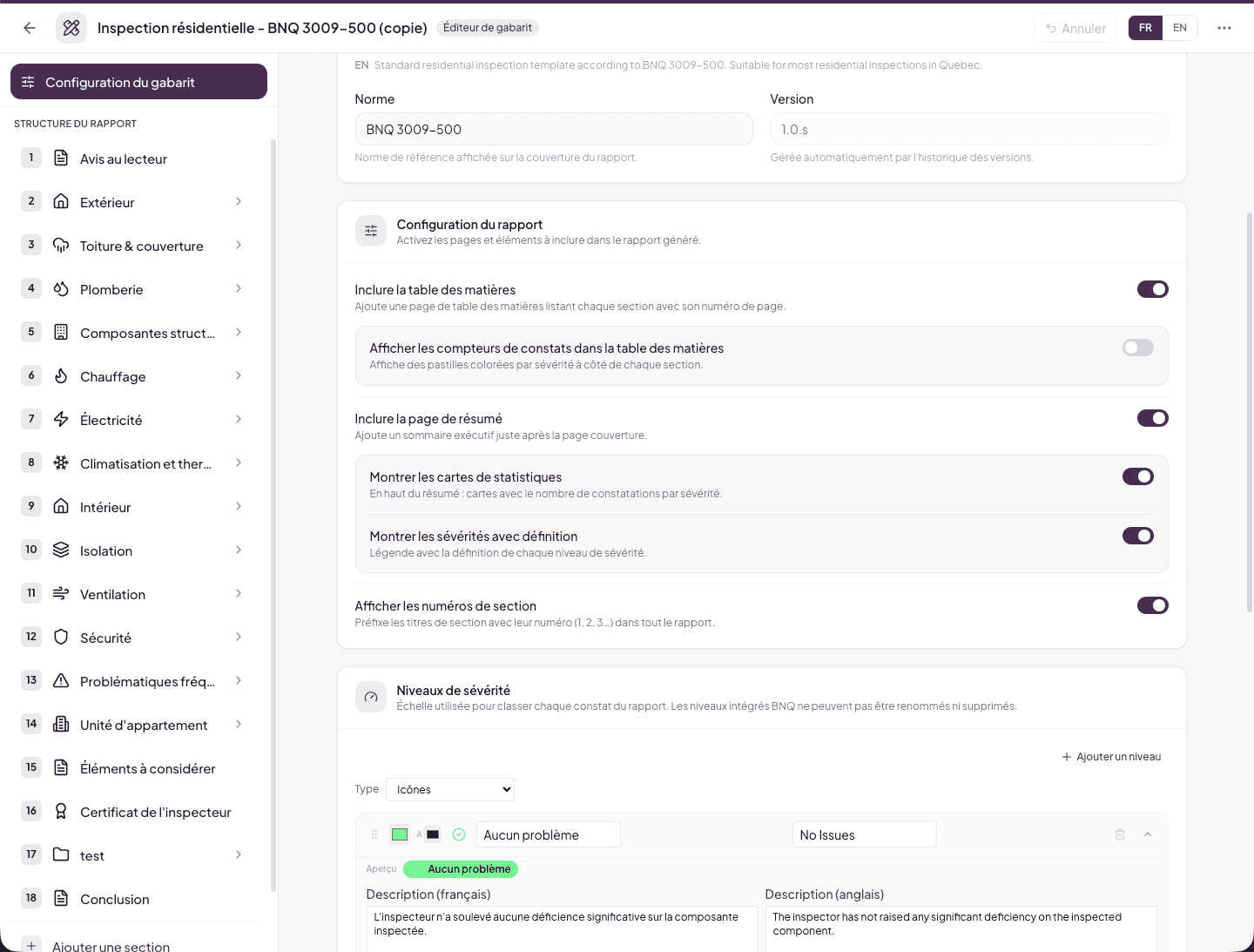
“Enable the pages and elements to include in the generated report.” Sub-options appear in a nested panel under their parent option, only when it’s enabled.
Include table of contents
On by default. The PDF report starts with a table of contents page listing each section with its page number.
- Sub-option — Show finding counters in the table of contents: severity-colored dots appear next to each section, showing how many findings of each level are present. A quick landmark for the client on long reports; off by default to keep the table of contents sober.
- Sub-option — Show subsections in the table of contents: each subsection appears indented under its section, with its own number (2.1, 2.2, 2.3…) and page number. Without this option the table of contents lists sections only (the 1.1, 1.2, 1.3 rows under “Introduction” are a special case: those are the fixed front-matter pages, always itemized). Off by default, because it makes the table of contents longer — a full BNQ report can go from one page to three. Turn it on if your client needs to jump straight to “Distribution panels” without leafing through.
Include summary page
On by default. Adds an executive summary right after the cover page.
- Sub-option — Show statistics cards: at the top of the summary, cards with the finding count per severity. The client grasps the scale of the findings in seconds.
- Sub-option — Show severities with definition: a legend with each severity level’s definition (as configured in the Severity levels card, see RT.9). Makes the report self-contained for a client unfamiliar with your nomenclature.
Show section numbers
On by default. Numbers (1, 2, 3…) prefix section titles throughout the report. Recommended for formal reports; uncheck for a less administrative look.
Severity levels
The page’s next card — the scale used to classify every finding in the report. Covered in detail in RT.9.
Tools and equipment — introduction paragraph
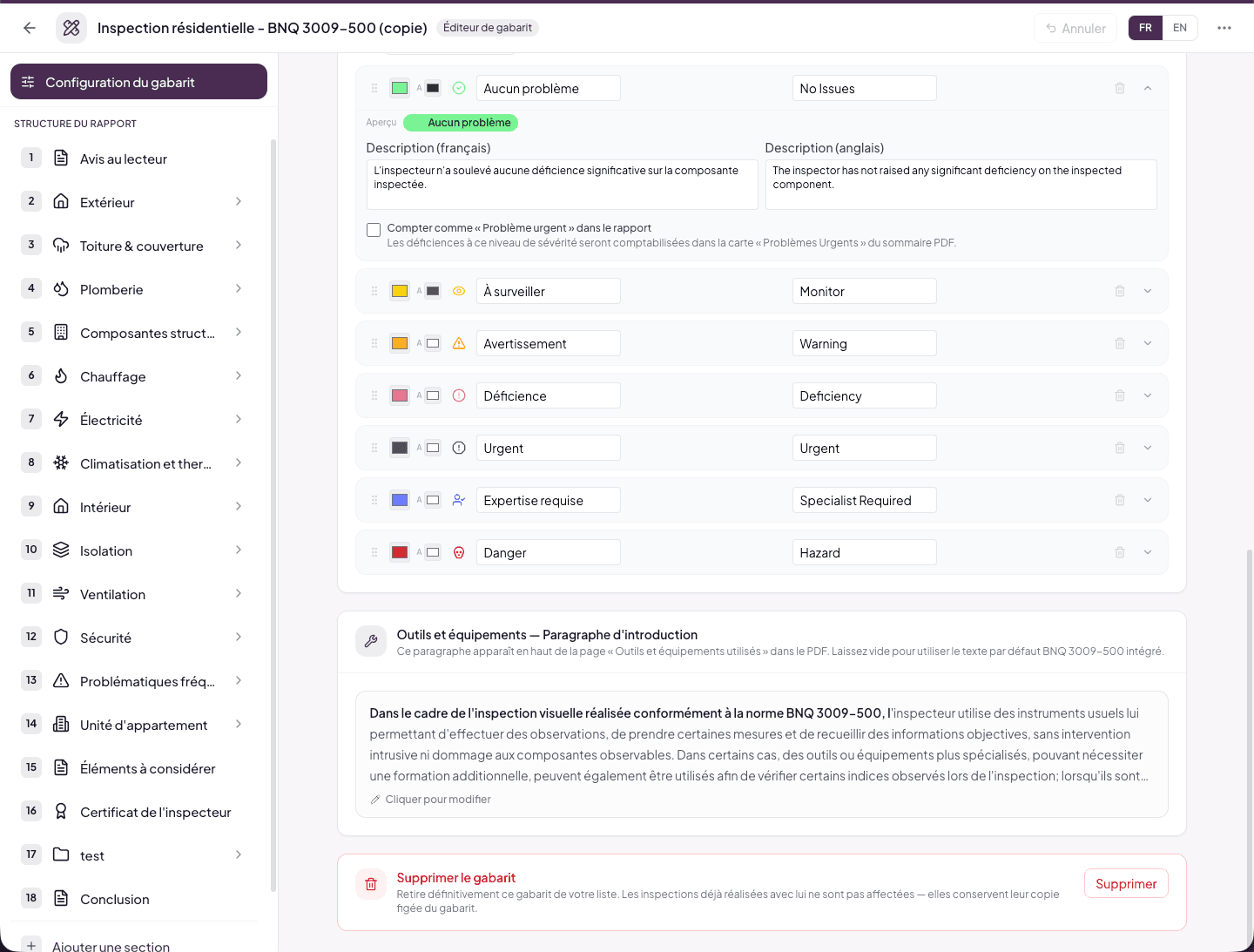
This paragraph appears at the top of the “Tools and equipment used” page in the PDF. Leave it empty to use the built-in BNQ 3009-500 default text.
A preview of the text shows in the card — click it (Click to edit) to open the bilingual rich editor. The Reset to default text button restores the BNQ version provided by Lumos.
Delete template
At the very bottom of the page, the red Delete template zone: “Permanently removes this template from your list. Inspections already done with it are not affected — they keep their frozen copy of the template.”
The Delete button asks for confirmation with the template’s name before executing. This zone only exists on your personal templates — system templates can’t be deleted.
Recommendations by context
Classic residential pre-purchase report
- Table of contents: on
- Counters in the table of contents: depending on length (enable if > 30 pages)
- Subsections in the table of contents: off (the section list is enough)
- Summary: on, with statistics cards and severity legend
- Section numbers: on
This is the BNQ template’s default configuration — suited to 90% of cases.
Very short report (mini-inspection, second opinion)
- Table of contents: off (pointless on a few-page report)
- Summary: on (always useful); cards and legend optional
Long, exhaustive report (commercial, multi-building)
- Table of contents: on, with counters (highest added value on this format)
- Summary: on, with cards and legend
Effect on the PDF
All these options affect the generated PDF. The interactive web report uses its own display logic (always a table of contents in the sidebar, statistics at the top), so these settings don’t directly concern it. For PDF layout (accent color, density, fonts), see the PDF design and Client Report design tabs under Settings > Report Template.
See also
- RT.9 Severity levels — the legend and counters rely on these levels
- RT.2 Editor anatomy — the version history
- RT.0 Overview