Invite and manage members
This page describes the lifecycle of a member in a Lumos team: sending the invitation, tracking pending invitations, removing a member, and what happens to a removed member’s content. These actions are accessible only to the Owner of the account.
Access
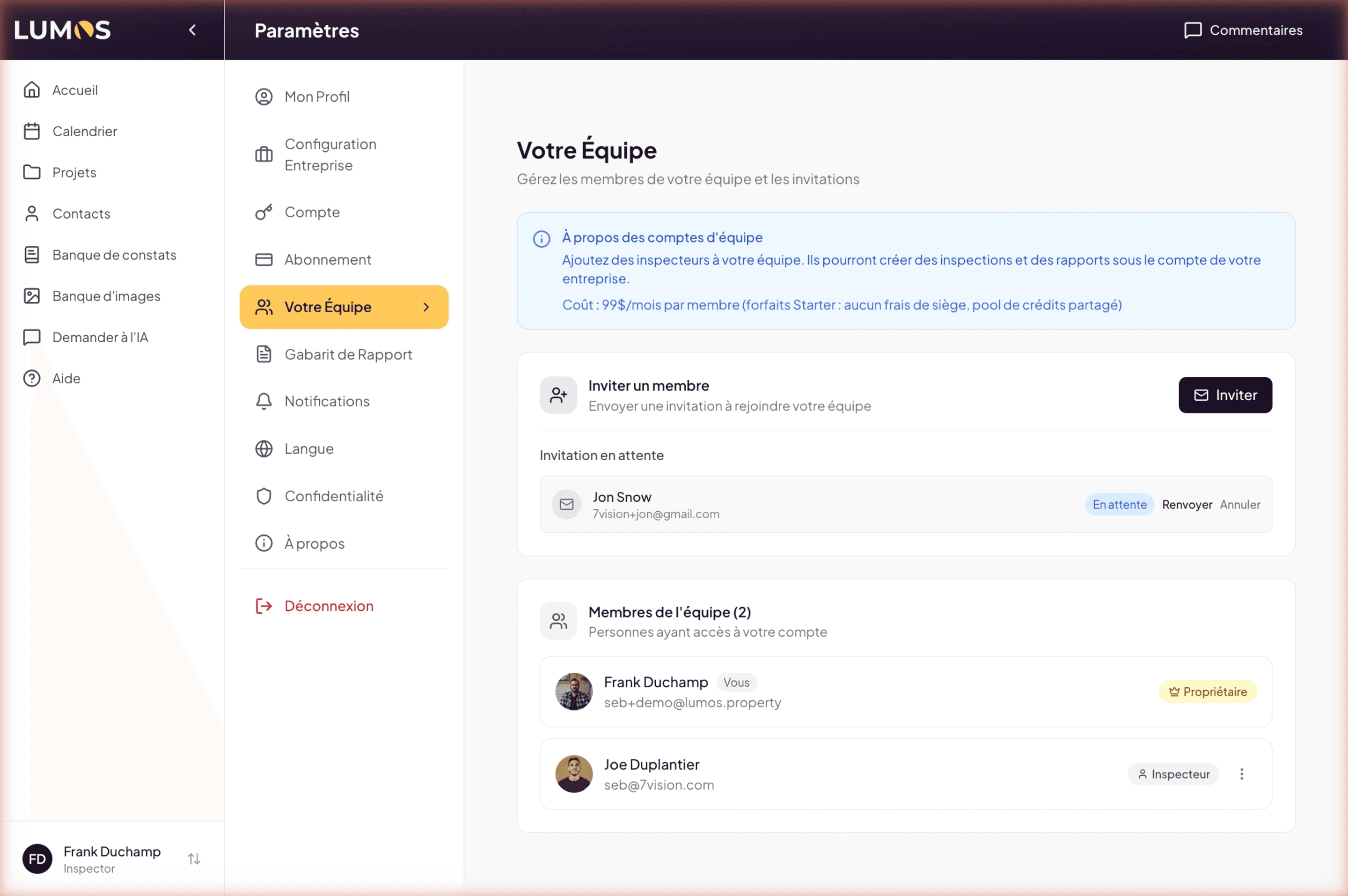
Settings > Your Team. Item in the Settings sidebar, under Business Configuration and Subscription.
Invite a new member
Launch the invitation
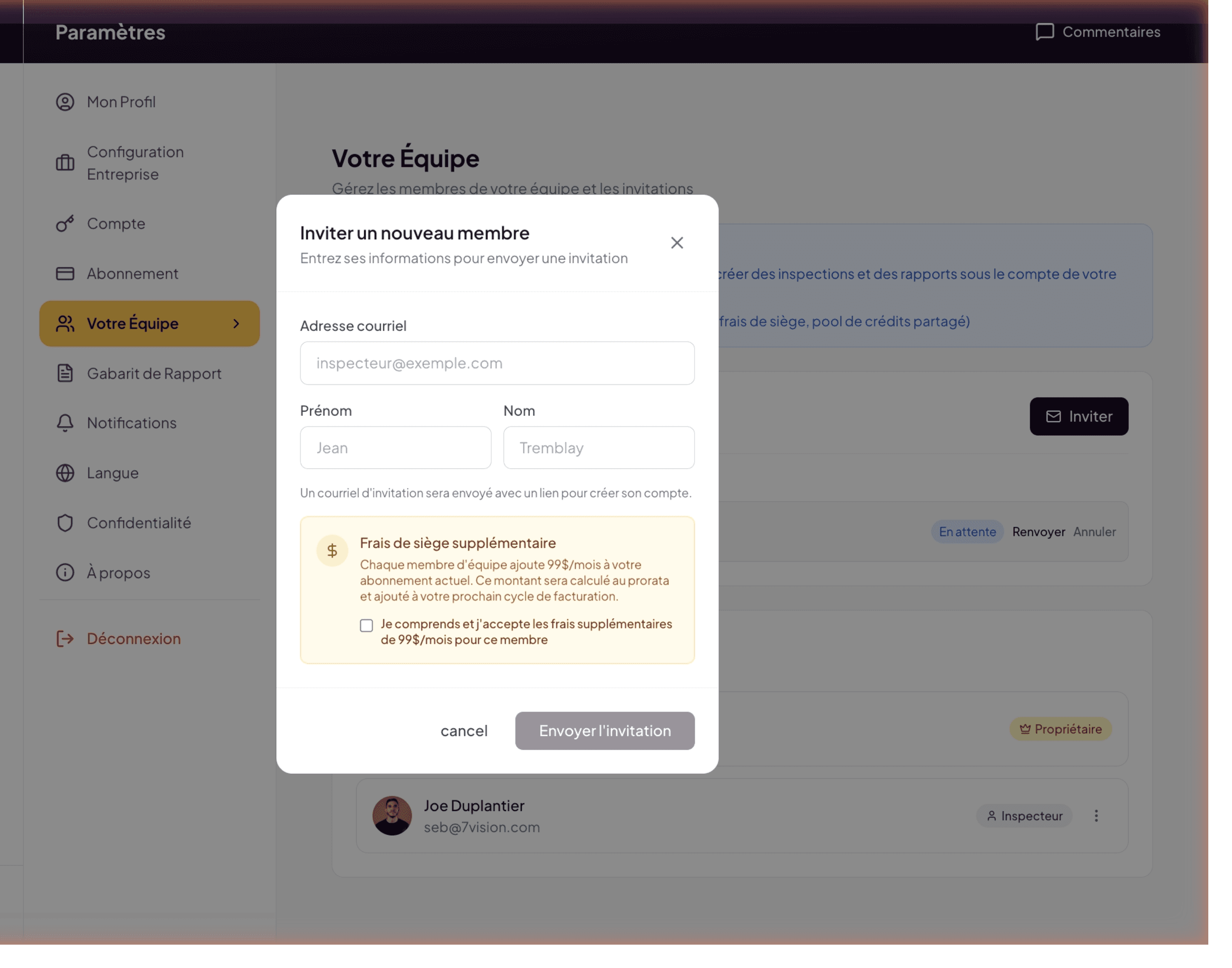
Click Invite in the Invite a member card at the top of the page. The Invite a new member modal opens.
Required fields
- Email address (required) — email of the inspector you are inviting. It must be unique on the Lumos side (the same email cannot be a member of two master accounts at the same time).
- First name (required).
- Last name (required).
The invitation email is sent to the entered address with a link to create the account.
Seat fees
A warning panel reminds you:
Additional seat fee
Each team member adds $99/month to your current subscription. This amount will be prorated and added to your next billing cycle.
You must check the box “I understand and accept the additional $99/month fee for this member” before the Send invitation button activates.
On the Starter plan, there is no seat fee — shared pool inspections work first come, first served. The warning panel remains consistent with the Unlimited plan; on Starter, the financial impact depends on pool inspection consumption, not on a fixed per-seat fee.
Confirm the send
Click Send invitation. Lumos immediately sends the email to the invited inspector, and the invitation appears in the Pending invitation section of the Your Team page.
The invitation email on the inspector’s side
The invited inspector receives an email from Lumos Inspection with:
- Subject: “
Owner First Last Nameinvites you to joinBusiness Nameon Lumos” - Header with Lumos branding
- Title: “Join
Business Name!” - Body:
Hello
First Name,Owner First Last Nameinvites you to join their team on Lumos Inspection.As a team member, you will be able to:
- Create and manage building inspections
- Generate professional PDF reports
- Access team projects and clients
- Orange Join the team button
- Note: “This invitation expires in 7 days. If you weren’t expecting this invitation, you can ignore this email.”
The inspector clicks Join the team and is redirected to Lumos to create their account (if new) or log in with an existing account. Once validated, they become an Inspector sub-account of your team.
The Pending invitation section
As long as an invitation is not accepted, it appears in a dedicated Pending invitation section on the Your Team page, with:
- Email icon avatar
- Recipient’s full name
- Email address
- Yellow Pending chip
- Resend link — to follow up if needed (the recipient may have missed the first email)
- Cancel link — to revoke the invitation before it is accepted
The invitation automatically expires after 7 days. If the inspector hasn’t accepted within that window, the link in the email no longer works and you must send a new invitation.
The Team Members list
Once the invitation is accepted, the member disappears from Pending invitation and appears in Team Members with:
- Avatar (profile photo or initials)
- Full name + You chip if it’s your own account
- Email address
- Role chip: Owner (crown) or Inspector (user icon)
- Kebab menu (3 dots) on the right — only on Inspectors (not on the Owner)
Remove a member
Procedure
- On the Your Team page, find the member to remove in the Team Members list.
- Click the kebab menu (3 dots) on the right of their row.
- Choose Remove from team (red).
- Confirm the action.
Consequences
Removal is immediate and irreversible. Several things happen in cascade:
- All content of the removed inspector (projects, inspections, reports, personal narratives, personal templates) is transferred to the Owner account. No data is lost.
- The inspector loses access to Lumos via their account. Their session is invalidated.
- Lumos sends them an automatic email informing them of their removal from the team.
If you just want to temporarily remove a member (vacation, leave), consider reducing their activity in your organization outside Lumos. Lumos does not (yet) offer a “suspended” mode that would preserve their account.
No role modification after creation
A member’s role is fixed: it is set at account creation. You cannot promote an Inspector to Owner or vice versa. See Roles and permissions for each role’s capabilities.
See also
- Overview
- Roles and permissions
- Content sharing
- Subscription chapter — for pricing