Configure the Google Review Request Feature in Lumos
This guide walks you through configuring the Google review feature in the Lumos application. You will learn how to activate the review section, set up automatic sending, and send requests to your clients.
Visit inspector.lumos.property
1. Overview of the Lumos Feature
The Lumos application allows you to ask your clients to leave Google reviews once you have completed your inspections.
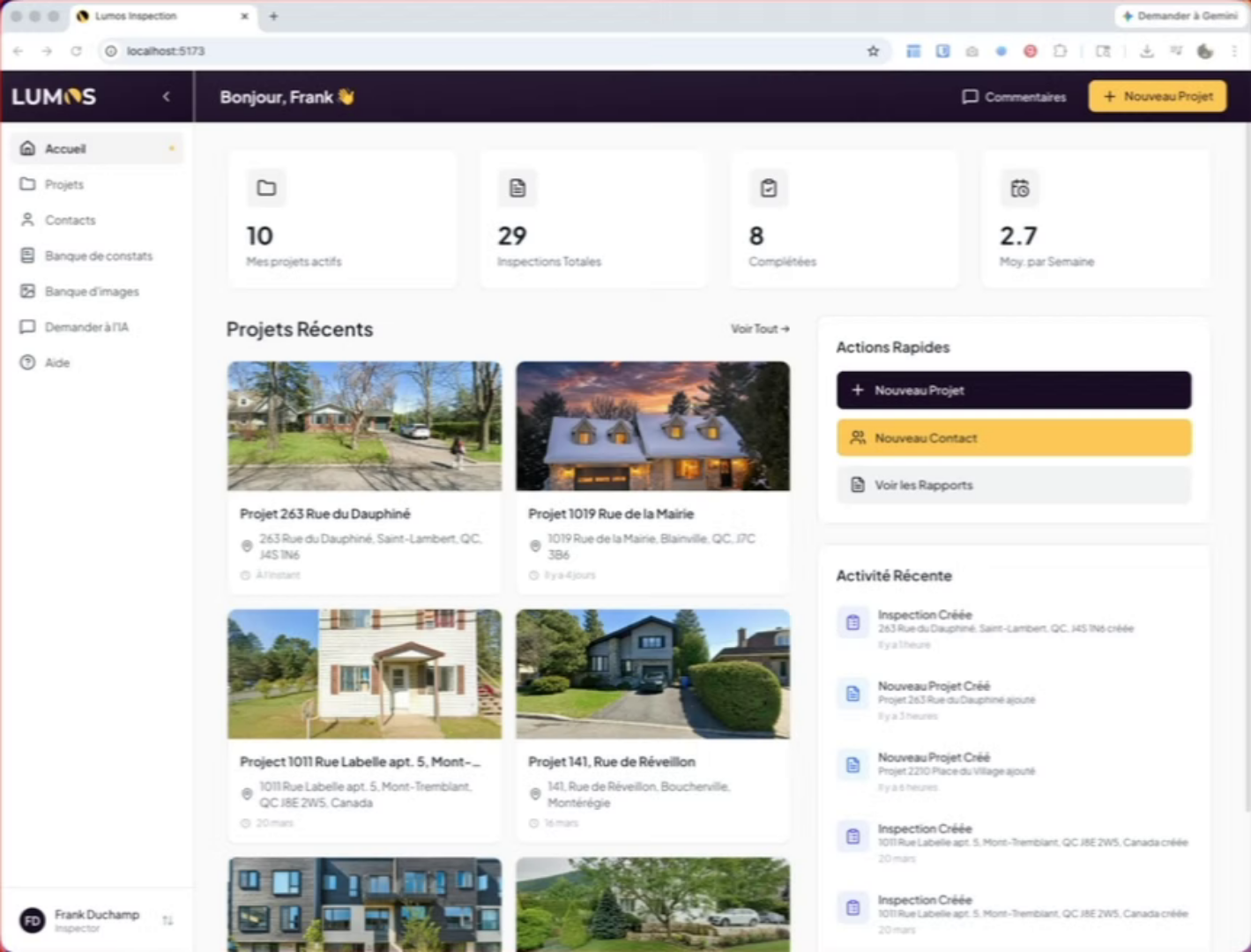
2. Access Google Review Settings
To configure this, go to your settings, company configuration, Google reviews.
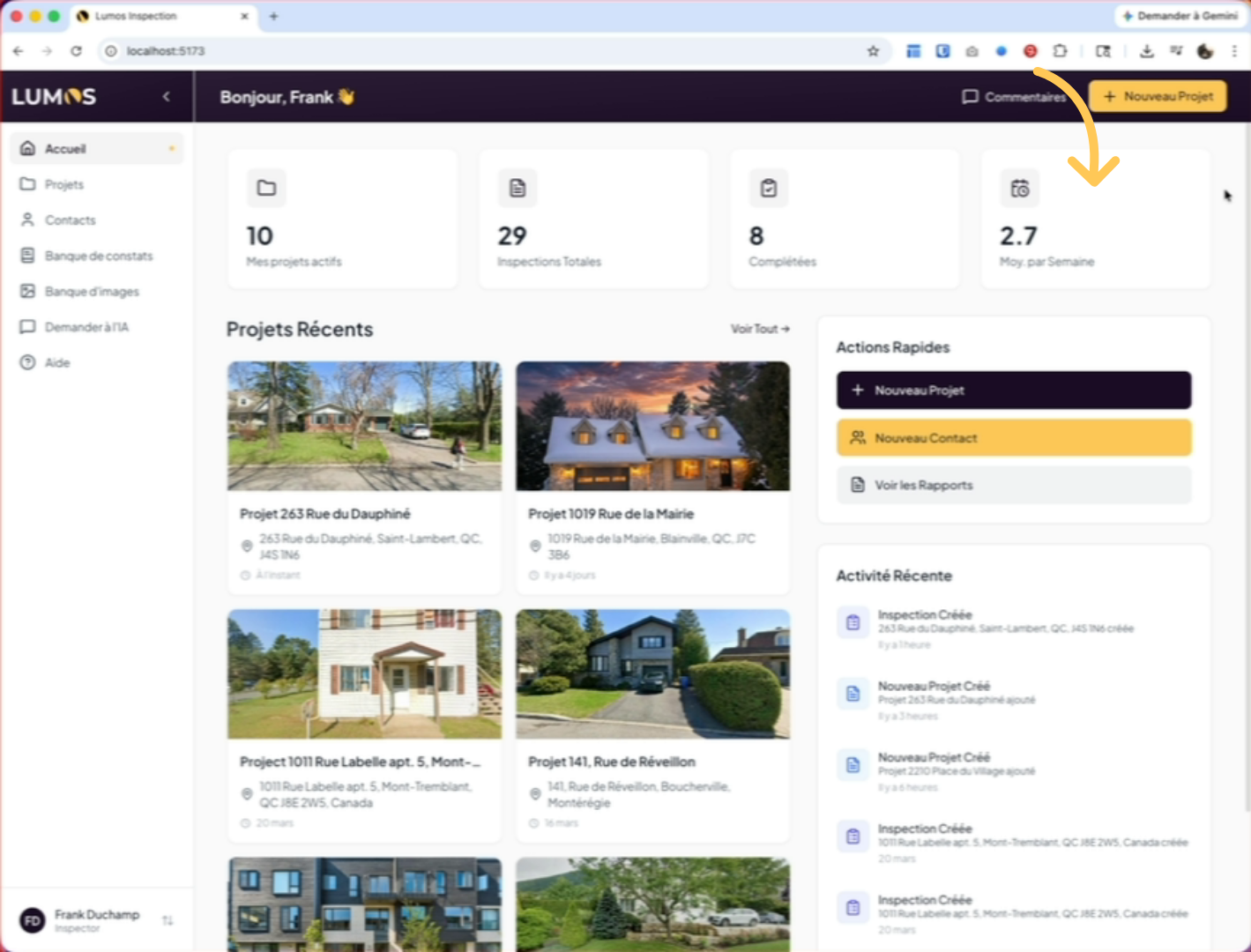
3. Activate the Review Section
To activate the section, simply enable the option by clicking on the toggle.
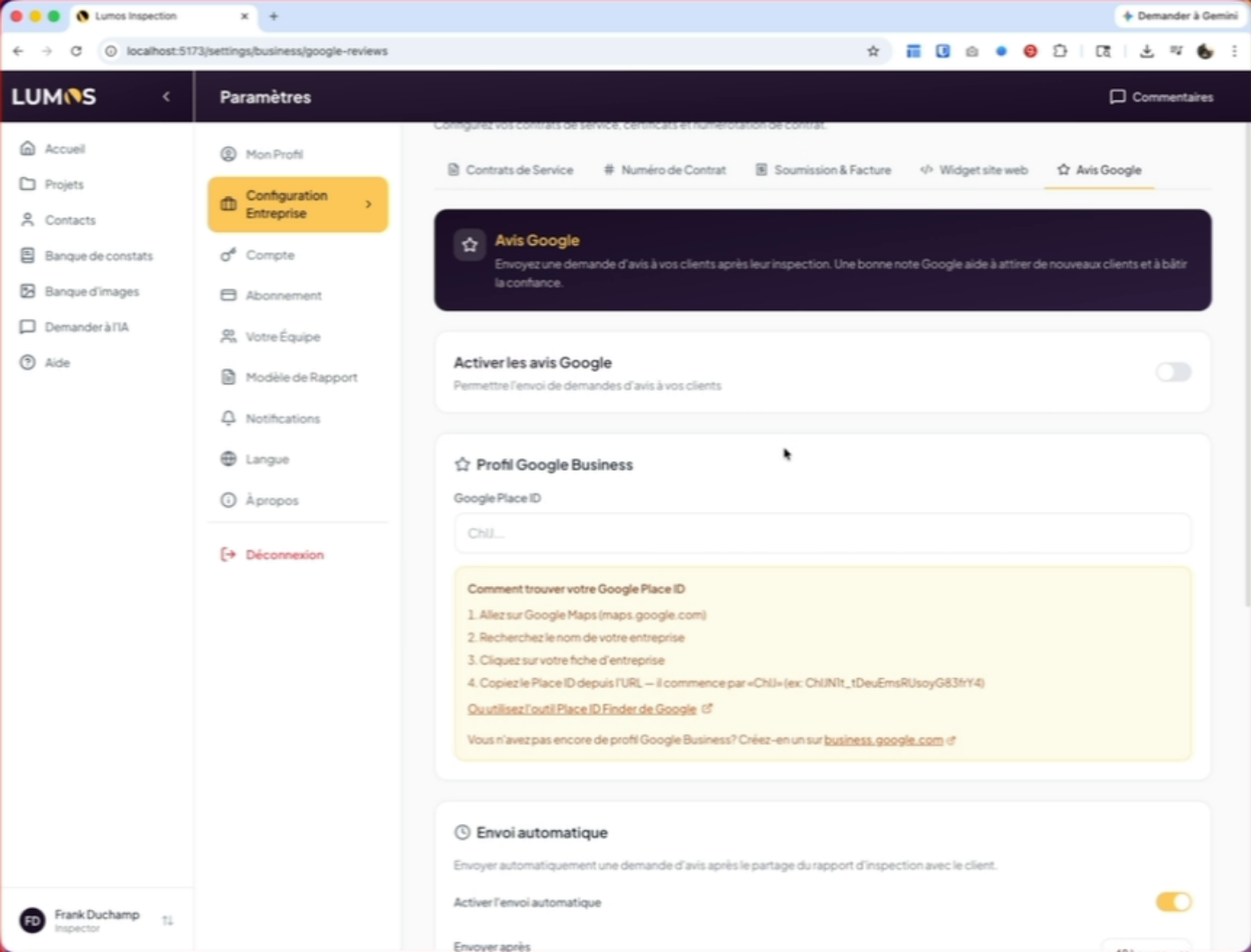
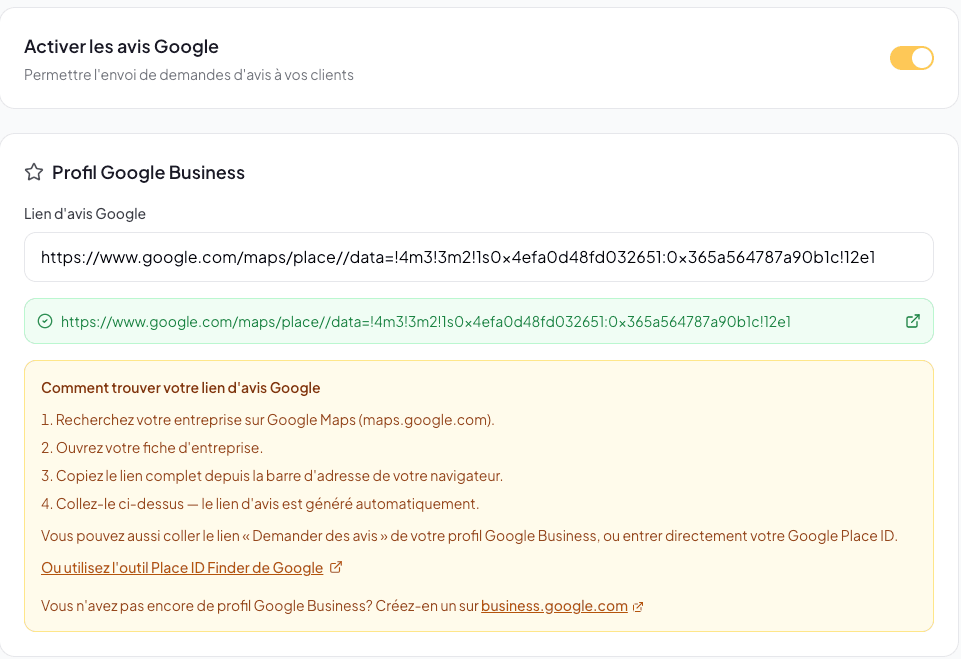
4. Paste Your Google Review Link
Click the “Google review link” field. The easiest way: search for your business on Google Maps, open your listing, then paste the full link copied from your browser’s address bar. The field also accepts the “Ask for reviews” link from your Google Business Profile or your Google Place ID. As soon as the value is recognized, the final review link appears in a green box — click the icon on the right to test it.
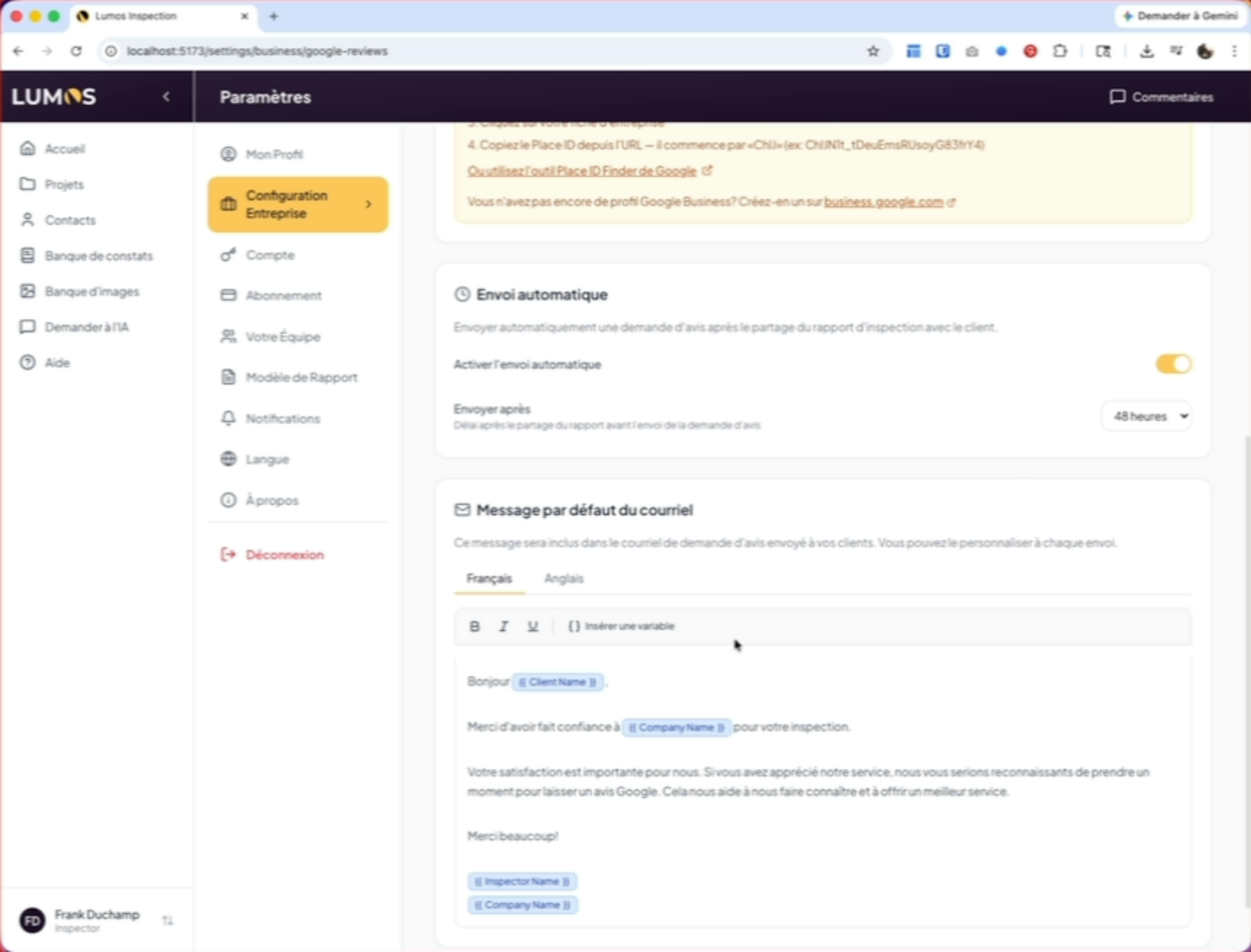
5. Configure Automatic Sending
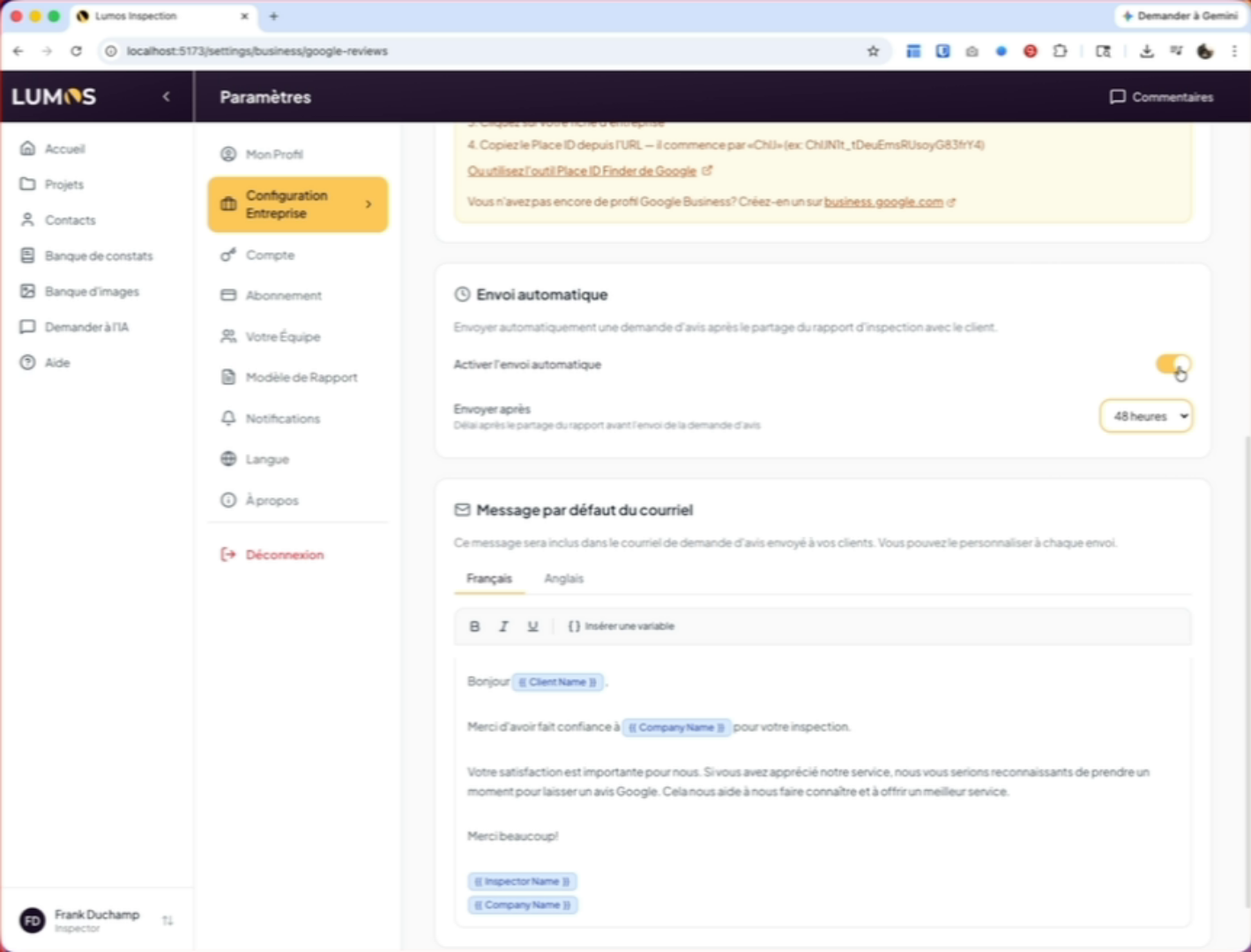
You can set up automatic sending and determine the delay for sending.
6. Send a Review Request Manually
You can also send the request manually from your projects.
7. Customize the Email Text
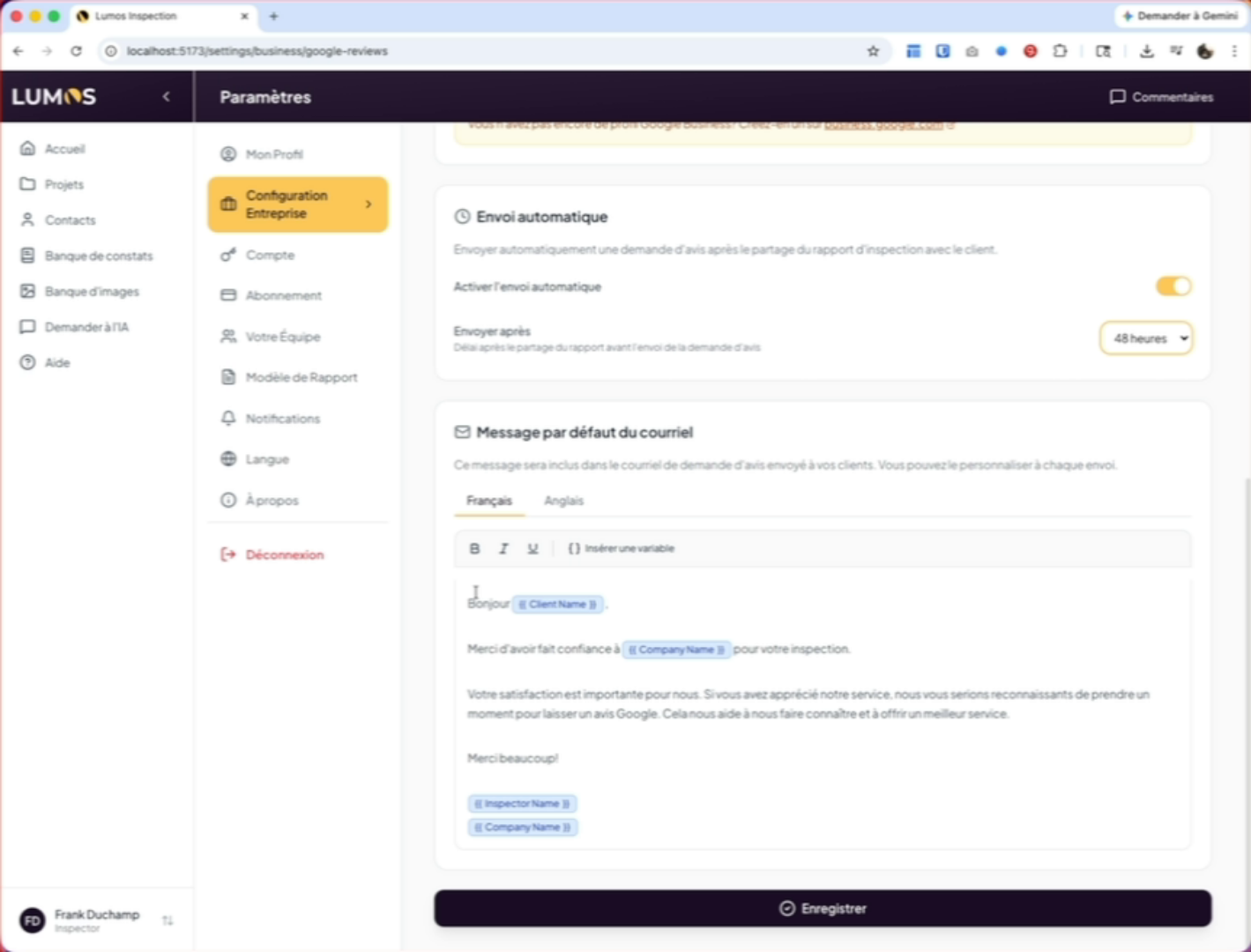
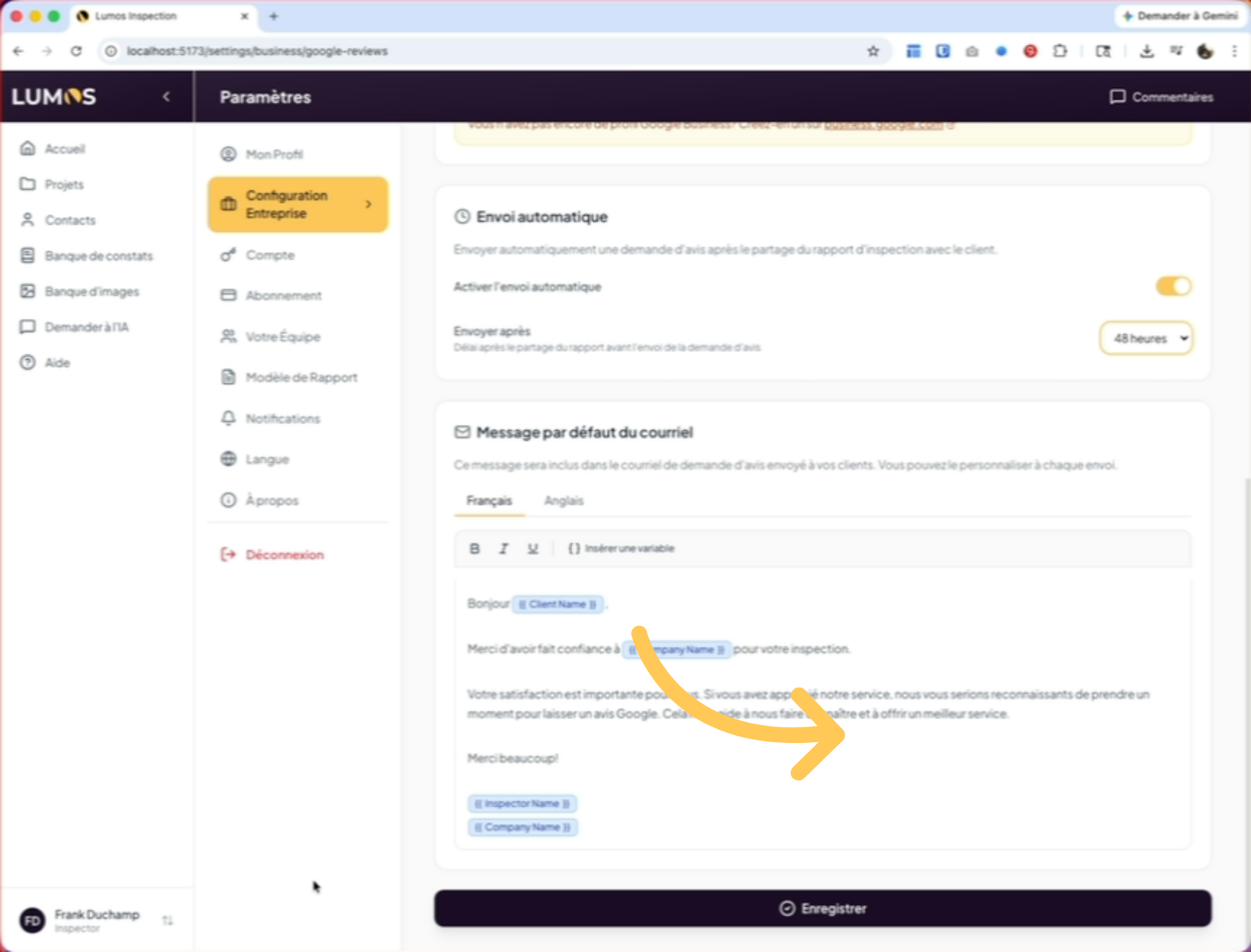
Further down the page, you will find the option for the default text you want to send in your email to your client.
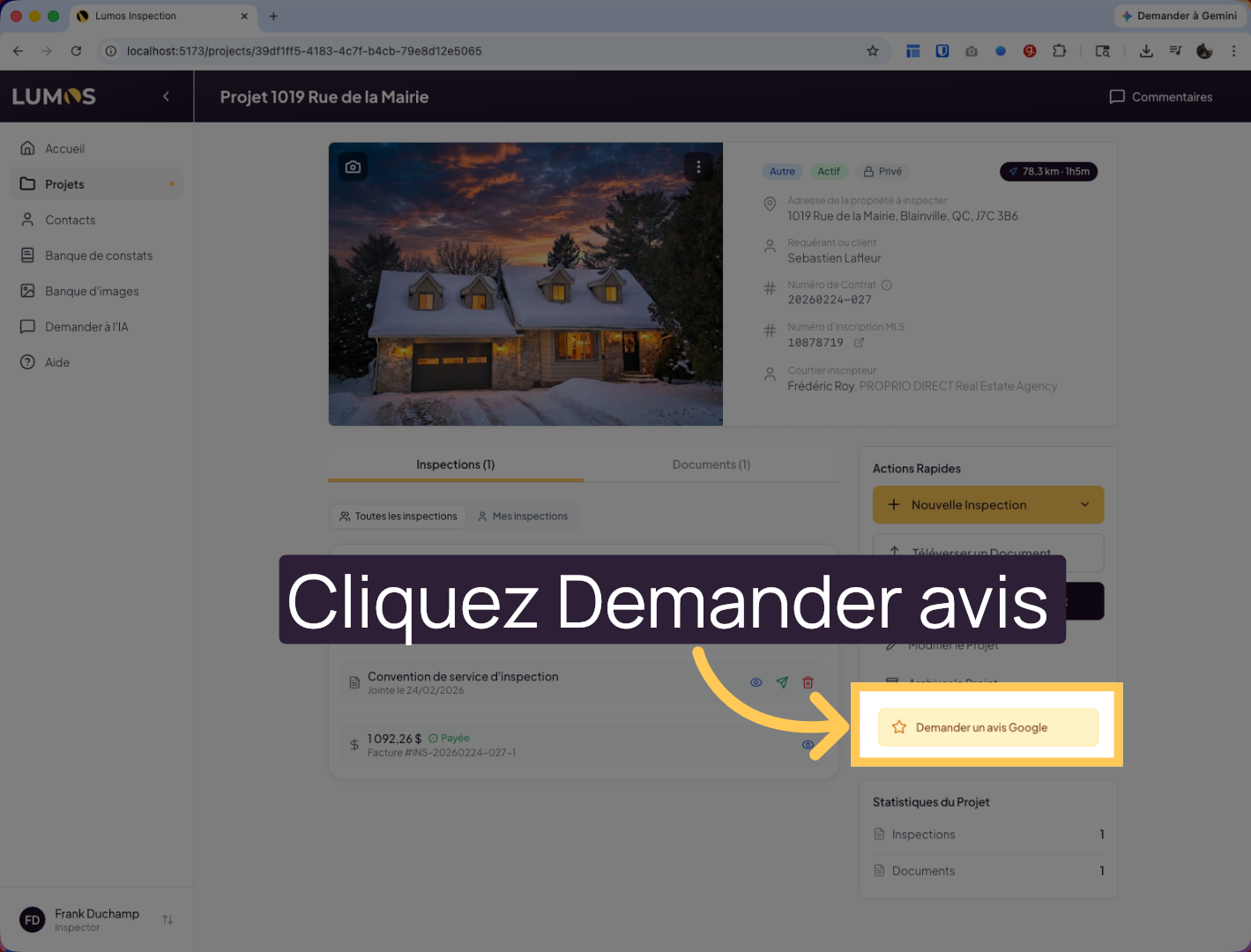
8. Use the Review Request Button
Don’t forget to save your options. Once configured, when you go to your project, you will find the button in the quick actions that allows you to request a Google review.
9. Click “Request a Google Review”
Click “Request a Google Review” to initiate the request to your client.
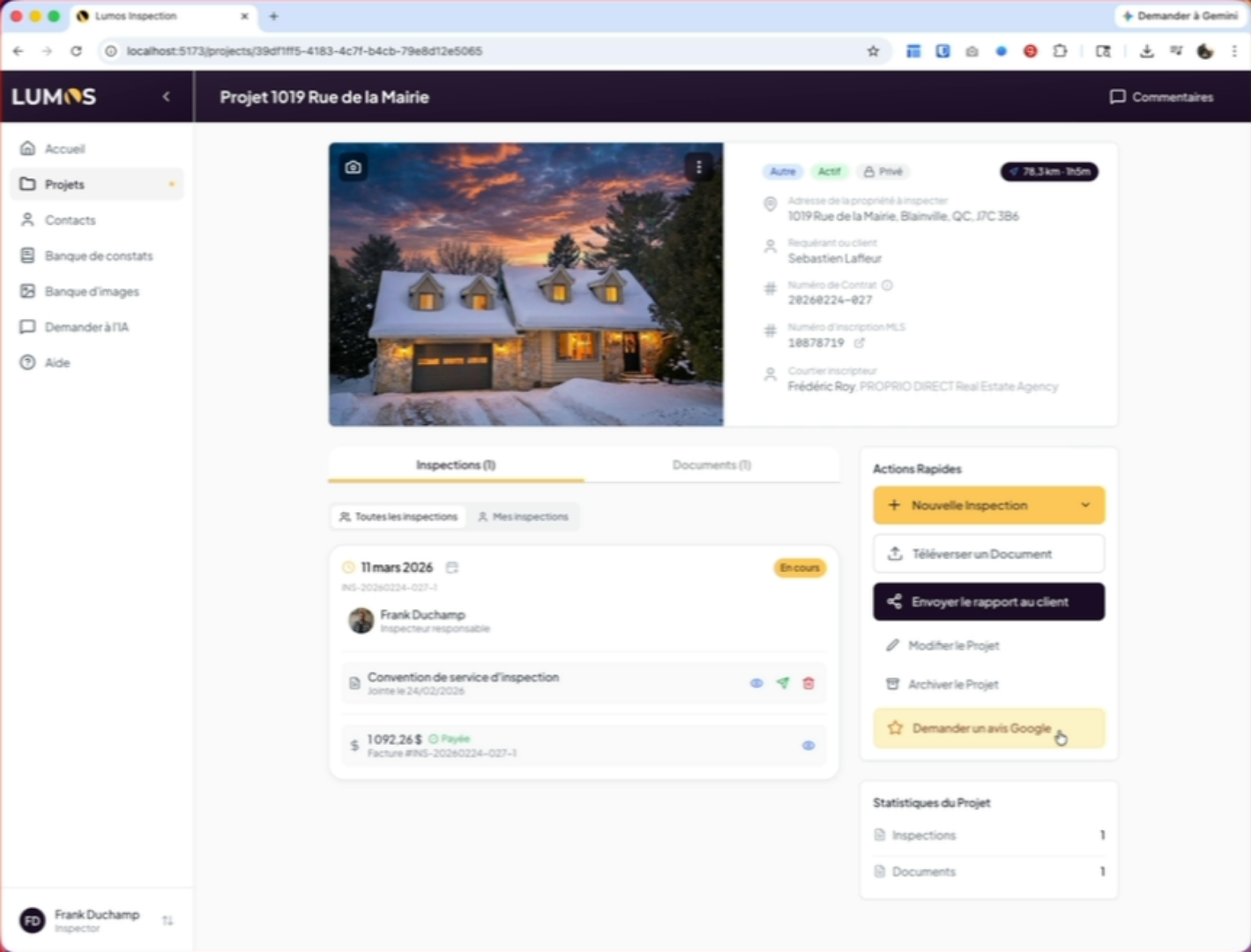
10. View the Configured Text
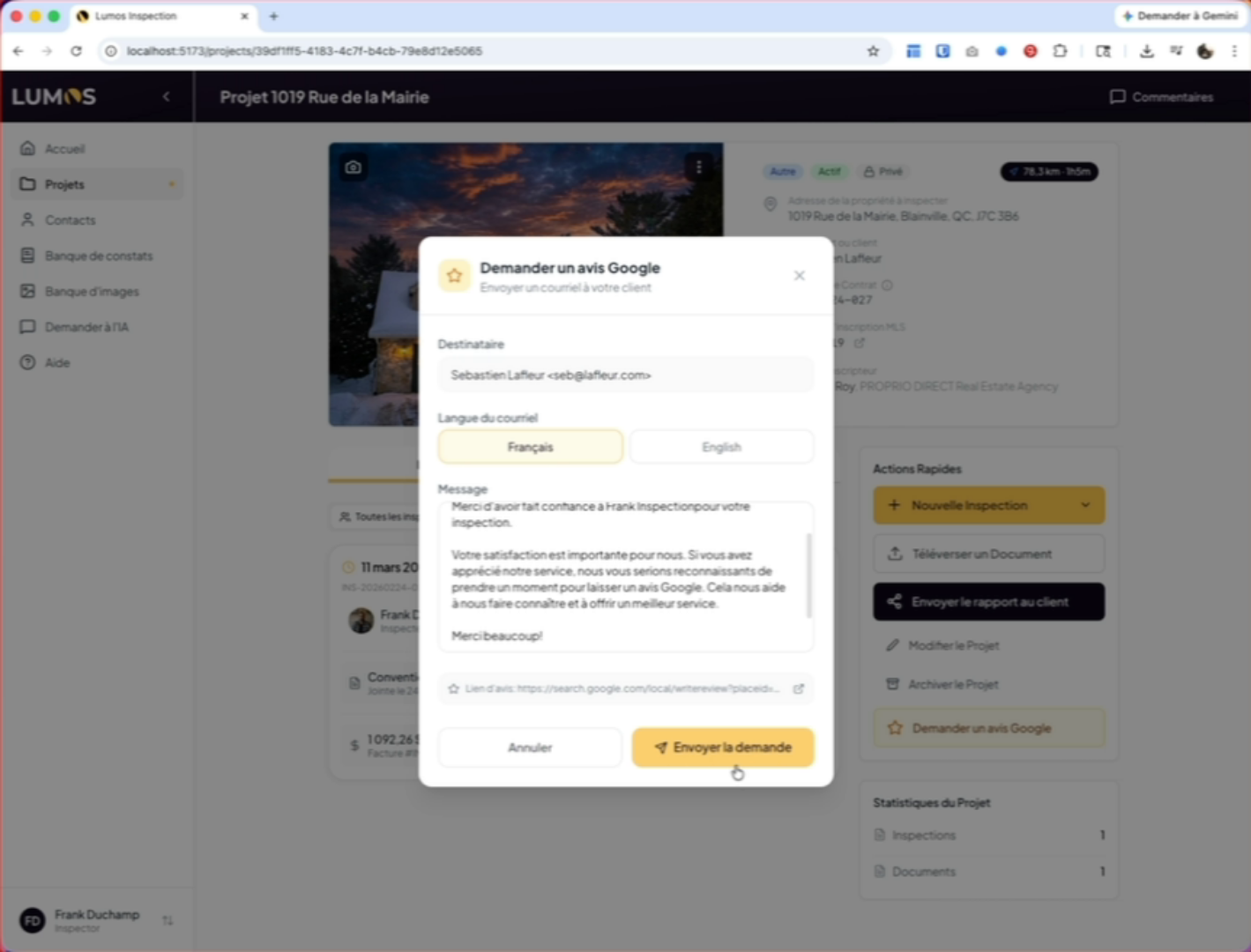
Click the button to see the text configured in your Lumos settings. The link for your review request will be automatically included in the email.
11. Confirm the Request Was Sent
When you click the “Send” button, a reference and date will appear below the button.
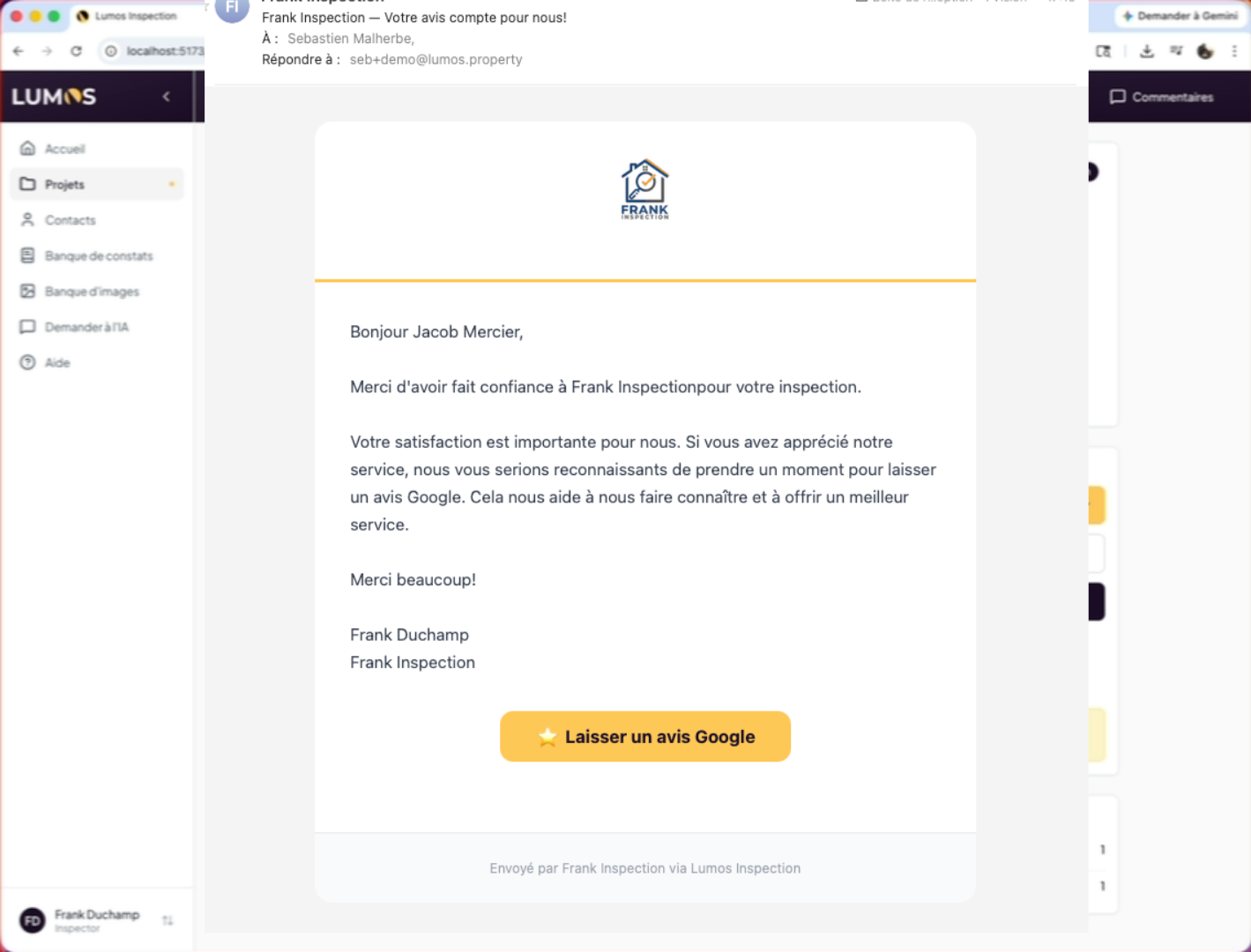
12. Client Email with Review Link
At this point, your client has received an email from you asking them to leave a Google review with a direct link to access it.
You have successfully configured the Google review feature in Lumos and learned how to send review requests automatically or manually. You can now track client feedback and improve your online visibility.
The button on the interactive report
In addition to email requests, a separate toggle — Show the Google review button on the client report — adds a review button directly in the interactive report, below your contact info. It is independent from the review request activation: only your review link is required. You will find it in the Google Reviews tab (section “Button on the client report”) or in Report Template → Client Report Design.
Note: the “Request a Google Review” button in a project also requires a client with an email address assigned to the project — that is where the request is sent.
See also
- Business Configuration — the Google Reviews tab in detail
- Tracking and post-delivery follow-up
- Using variables in text editors — to personalize the review request message