Settings and sync
The Lumos calendar’s behavior is configured in My Profile > Calendar settings. This page describes the available options and explains how to export your calendar to Google Calendar, Apple Calendar, Outlook or Zoho Calendar.
Access
Sidebar Settings > My Profile, then the Calendar settings tab (4th tab). URL: /settings/profile/calendar.
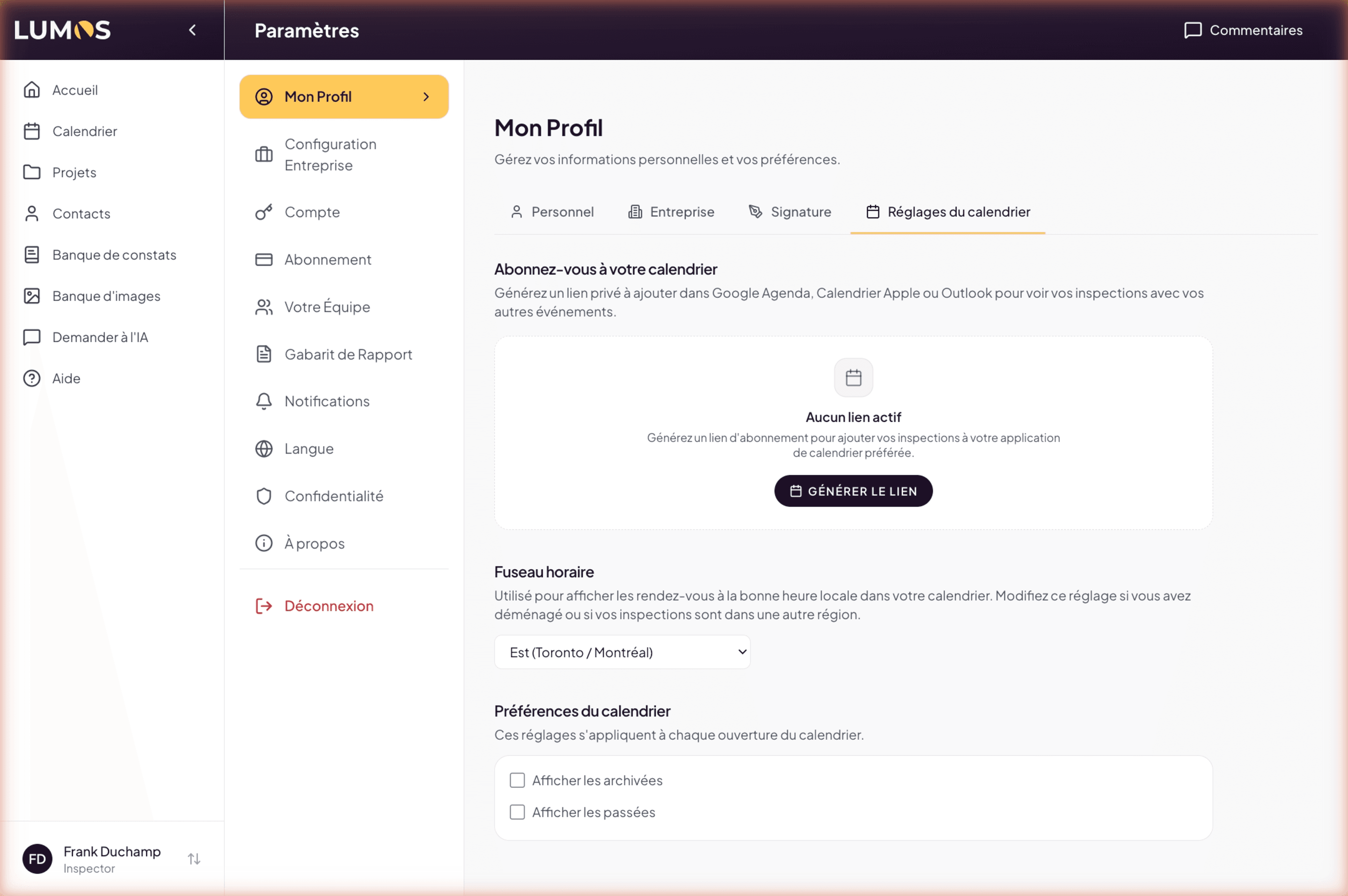
Time zone
The time zone determines how times are displayed in the calendar and on every page where an inspection time appears.
Default: (GMT-05:00) Eastern Time — Toronto/Montreal.
You can change it if you work from another time zone (e.g. on a long trip), or if your activity covers another province. The selected time zone is yours — it does not affect other team members.
Display preferences
Two toggles control what appears in the calendar grid:
- Show archived inspections — off by default. Archived projects disappear from the calendar but remain accessible via the Projects page. Turn this on if you want to see the full history on past days.
- Show past inspections — on by default. Turn this off to lighten the grid by seeing only today’s and future inspections.
These preferences are personal: they only affect your own view.
External calendar sync
Lumos lets you subscribe to your inspection calendar from Google Calendar, Apple Calendar or Outlook. It is a read-only subscription: your external calendar shows your Lumos inspections, but cannot modify them.
The benefit: your inspections appear next to your personal and professional appointments, without you having to copy anything. And any change in Lumos propagates automatically to the external calendar (with a refresh delay that depends on the app — typically a few hours).
Get the subscription link
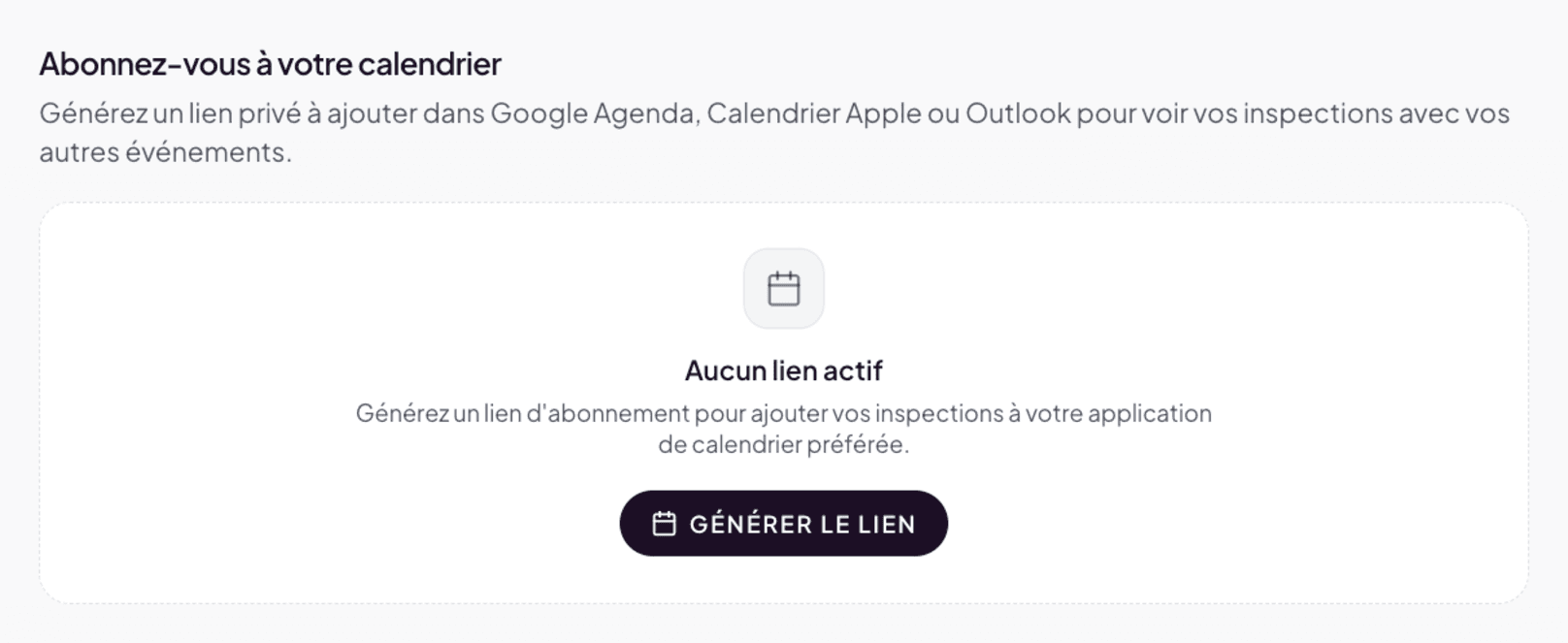
In Calendar settings, the External calendar subscription section lets you generate an ICS link unique to your account.
- In the initial state (no link generated yet), a Generate link button is shown. Click it to create the link.
- Once the link is created, the button becomes Regenerate link — useful if you suspect it has leaked or want to revoke the previous one.
Copy the link with the Copy button.
This link grants read access to your inspection calendar. Do not share it publicly and do not publish it online. If you suspect it has leaked, regenerate it from this same page (the previous link then stops working).
Add to Google Calendar
- Open Google Calendar in the browser.
- In the left sidebar, next to Other calendars, click + then From URL.
- Paste the Lumos ICS link and click Add calendar.
- The calendar appears in the Other calendars list. Rename it if needed (three-dot menu > Settings).
Add to Apple Calendar (macOS)
- Open Calendar.
- File > New Calendar Subscription.
- Paste the Lumos ICS link and click Subscribe.
- Choose the refresh frequency (default “Every week” — switch to Every day or Every hour for more frequent refresh).
On iPhone/iPad: Settings > Calendar > Accounts > Add Account > Other > Add Subscribed Calendar, then paste the link.
Add to Outlook
- Open Outlook (web or desktop).
- In Calendar, right-click My Calendars > Add Calendar > Subscribe from web.
- Paste the Lumos ICS link and confirm.
Add to Zoho Calendar
- Open Zoho Calendar in the browser.
- Click the gear icon (top right) > Settings.
- In the left menu, select Calendars, then click Add Calendar.
- Choose Subscribe and paste the Lumos ICS link.
- Give the calendar a name and click Save.
Refresh delay
External calendars refresh ICS subscriptions at their own rhythm — typically from a few hours to 24 h. An inspection you just created in Lumos may take time to appear in Google Calendar. For real-time use, stay in the Lumos calendar.
Regenerate the link
If you want to revoke an existing subscription (e.g. the link has leaked, or you change devices and prefer to start fresh), use the Regenerate link button on this same page. The old link immediately stops working; the new one must be reinstalled wherever you were subscribed.