Calendar — overview
The My Calendar page centralizes all your scheduled inspections in a familiar time-based view. It is the tool you open in the morning to prepare your day, and the one you check when a client asks for your next available slot. This page situates the function and describes what appears on it.
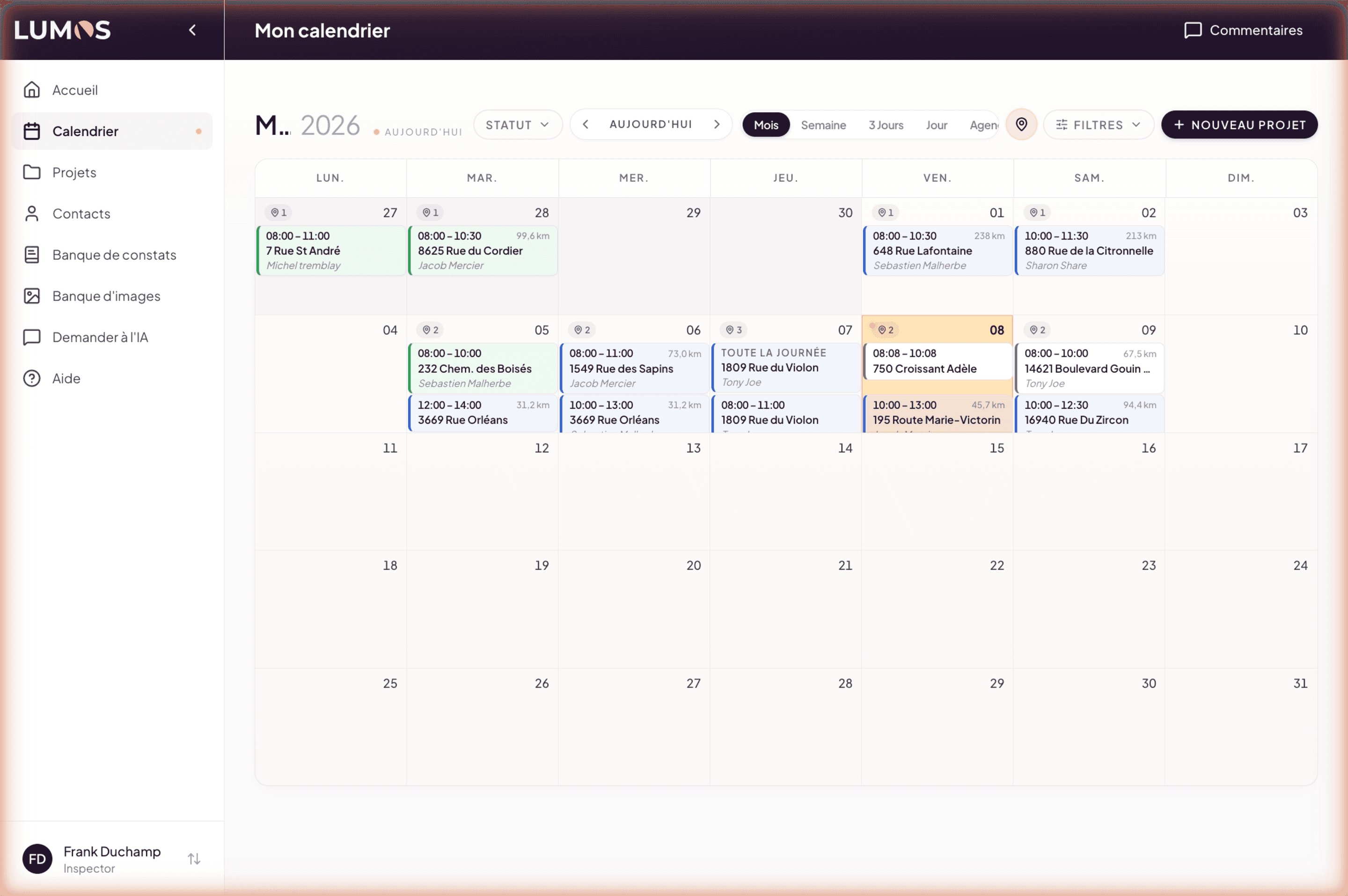
Access
Calendar is a top-level item in the main sidebar (calendar icon, under Home). URL: /calendar.
What appears in the calendar
All your scheduled inspections appear automatically in the calendar grid, at the date and time set when they were created (see Chapter 5 — Mandate preparation).
For each inspection, a card displays:
- The start and end time (e.g. “08:00 – 11:00”).
- The distance from your business address (e.g. “73.0 km”).
- The shortened address of the property (e.g. “3669 Rue Orléans”).
- The client name linked to the project.
- A color that reflects the status or nature of the inspection.
Inspections without a defined time appear at the top of the day with the “ALL DAY” label.
Month navigation
The calendar opens by default on the current month. The top bar displays:
- The month and year shown (e.g. “May 2026”).
- An orange “Today” dot when the current month includes the actual day.
- Navigation buttons: ◀ previous arrow / Today / ▶ next arrow.
Clicking Today brings you back immediately to the actual day, no matter where you were. Useful when you have navigated into the future or past to plan or find an inspection.
The Today indicator
The current day is highlighted in the grid with a slightly tinted background. It is your main visual cue to quickly situate where you are.
Quick access to an inspection
Clicking an inspection card in the calendar opens directly the project file of that inspection. There you find everything to prepare the visit: service agreement, quote, attached documents, history, etc.
This is a useful shortcut: no need to go through the Projects page to open an inspection you can see in the calendar.
Five different views
The calendar offers five views depending on your need at the moment: Month (default), Week, 3 Days, Day, and Agenda. Each has its use — see Views and filters for the detail.
Route optimization
The route icon (📍) next to the inspection count of a day opens a detailed popup that calculates your full itinerary between your home base, the inspection stops, and the return. You can export this route to Google Maps, Apple Maps or Waze in one click.
See Daily route.
Personal settings
The calendar respects several settings you configure in My Profile > Calendar settings:
- Time zone — to display times correctly.
- Display preferences — show or hide archived and past inspections.
- External calendar subscription — export your Lumos calendar to Google Calendar, Apple Calendar or Outlook.
See Settings and sync.
See also
- Views and filters
- Daily route
- Settings and sync
- Chapter 5 — Mandate preparation — to schedule an inspection at a given date