Views and filters
The calendar offers five views and two levels of filters to adapt the display to your need. This page describes each one and explains when to use it.
The five views
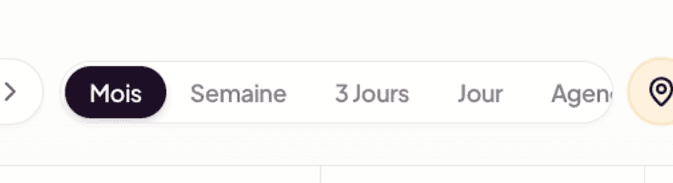
The view tabs are in the calendar’s top bar, next to the navigation buttons. The active view is highlighted; clicking another tab switches the grid immediately.
Month (default view)
Classic 7-column grid (Monday to Sunday), one cell per day, the whole month visible at once. Each cell lists the day’s inspection cards.
Use for: overall planning, seeing the workload across the month, spotting free days.
Week
Detailed 7-day view with a time grid on the left. Each inspection appears at its exact slot (e.g. a block from 08:00 to 11:00).
Use for: preparing the week, seeing potential overlaps, adjusting time slots.
3 Days
Tighter view of 3 consecutive days, with the same time grid as Week view, but wider per day.
Use for: analyzing the detail of a few days without the noise of the full week. Useful on a medium screen or while traveling.
Day
A single day displayed full-width, detailed time grid. All the inspections of the day are laid out with their exact slots.
Use for: morning preparation, seeing precisely the day’s timing.
Agenda
A list view rather than a grid. Inspections are grouped chronologically, without time-slot rendering — a format close to an event feed.
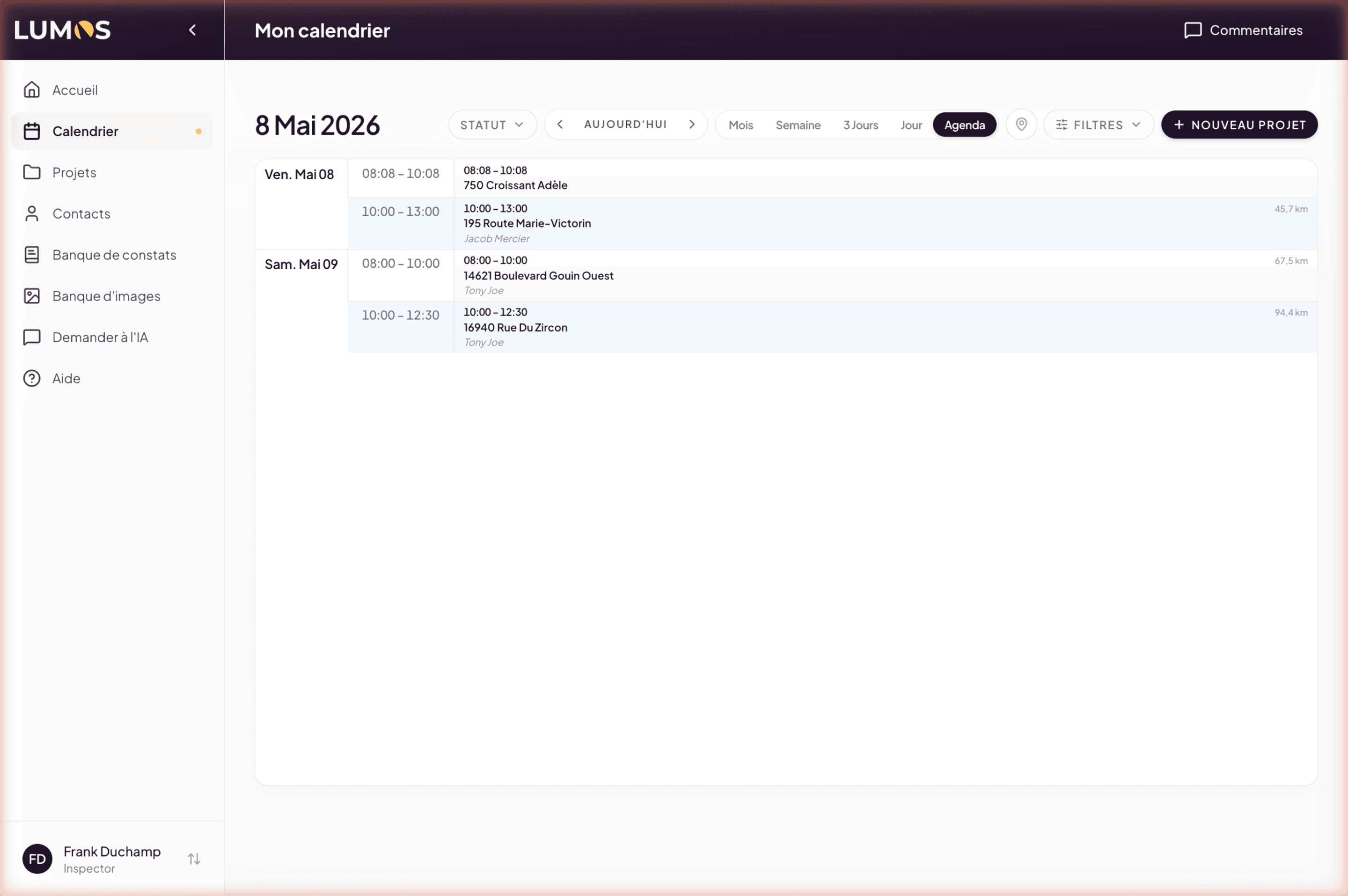
Use for: quickly scanning upcoming inspections, especially on a small screen. Also useful to copy-paste a list of addresses or clients.
The filters
Status filter
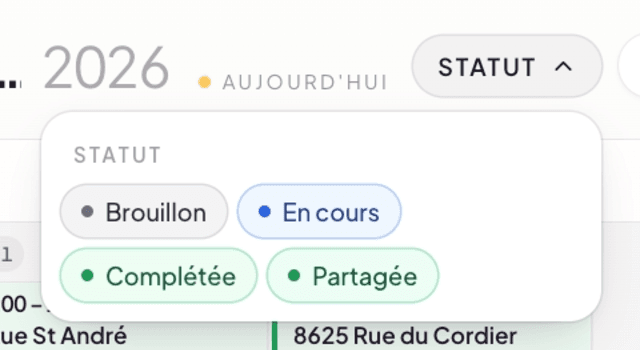
The Status dropdown in the navigation bar offers 4 toggleable chips:
- Draft — projects not yet started in inspection.
- In progress — active inspections, being entered or produced.
- Completed — projects finished but not yet delivered.
- Shared — projects whose report has been shared with the client.
Clicking a chip activates or deactivates it. Filters stack: if you activate In progress and Shared, you see both. If you deactivate everything, the calendar empties.
Use cases: see only Drafts to identify projects waiting to be scheduled. See only In progress to focus on the work to finish.
Filters (advanced)
The Filters button opens a panel with three additional dropdowns:
- Project — filter by a specific project (useful if multiple inspections are linked to the same project).
- Client — filter by an individual client.
- Inspection type — Pre-purchase, Pre-delivery, etc.
These filters combine with the Status filter. You can for example display: all In progress + Shared projects, of client Acme, of type Pre-purchase.
Clear filters
To return to the full view, deactivate each filter individually, or reopen the Filters panel and reset each dropdown to “All”.
Combining view and filters
View and filters are independent: switching view does not reset your filters, and vice versa. You can for example:
- View Month + filter Draft → see all projects waiting to be scheduled this month.
- View Day + filter In progress + client Acme → see today’s active inspections for that client.
- View Agenda + all statuses → full chronological list to scan.