Project management — overview
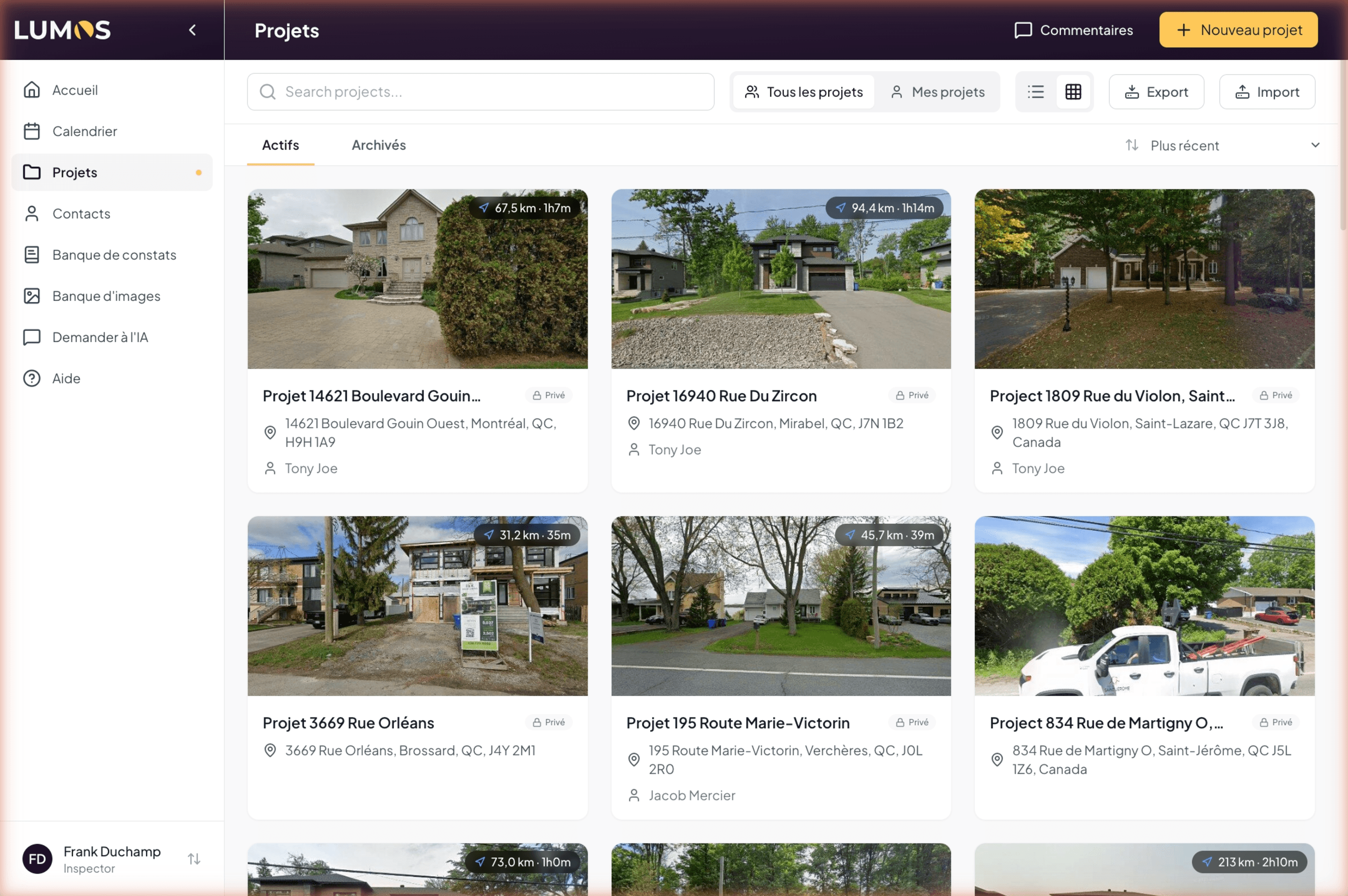
The Projects page is your central point to find, consult, organize, and back up everything you have created in Lumos. Beyond the creation flow (chapter 5), this is where you manage your inventory — active and archived — over the long term.
Access
Projects is a top-level item in the main sidebar, accessible from any page in Lumos. Click to open the full list. URL: /projects.
What the page offers
Five main capabilities:
- Visualize your inventory in grid view (cards with streetview image) or list view (dense table).
- Search for a project by name, client, or address.
- Sort by recent date, oldest, last modified, or alphabetical order.
- Manage the lifecycle of a project: edit, archive, restore, delete.
- Back up or restore a set of projects via .zip export/import.
- Track documents of each project in its Document Center: quote, agreement, invoice, report and files, with their status and history.
These capabilities work whether you operate solo or as a team.
No cap on the number of projects
Whatever your plan (Starter or Unlimited), the number of projects you can create is not limited. The Starter plan limits the number of inspections (3 free, then $10 per inspection beyond), not the number of projects you can prospect or manage in parallel.
Difference with creation
Chapter 5 — Engagement preparation covers the initial creation of a project and the associated inspection. This chapter 12 takes over once your projects exist: you come back here to find them, filter them, archive them as your activity grows.
Route to a property
On the project page, next to the address, a route pill shows the distance and driving time from your home base (e.g. “78.3 km · 1h5m”). Click the pill to open the Route modal:
- Map showing the A→B trip (home base → property).
- Distance and estimated time.
- Three export buttons: Google Maps, Waze, Apple Maps — to open the route in your preferred navigation app.
It’s a handy shortcut for a standalone trip (e.g. a preliminary visit before the inspection). For full-day multi-stop planning, use Daily route in the calendar instead.
Suggested organization
A few principles that emerge in practice:
- Work by cohort — use search and sort to isolate your projects of the current week or month rather than scrolling through the full list.
- Archive instead of delete — deletion is final. Archiving moves the project to a dedicated tab without losing anything.
- Back up regularly — the .zip export gives you a local copy, useful for your archives or in case of future migration.
These best practices are detailed in 12.7 Organization best practices.