Backup and restore (Export / Import .zip)
Beyond internal archiving, Lumos lets you produce a complete .zip file containing one or more projects to keep outside Lumos. This page describes the export flow, the inverse import, and best practices for handling these files.
Why export
Four typical use cases:
- Personal backup — an off-Lumos copy for your archives, in addition to native retention.
- Migration or transfer — moving a subset of projects to another account or firm.
- Compliance — providing a client with all their data in a portable format, on request (Quebec’s Law 25).
- Long-term retention — keeping a local copy after archiving and before any deletion.
The export flow
Click Export in the filter bar of the Projects page. The Export a backup modal opens.
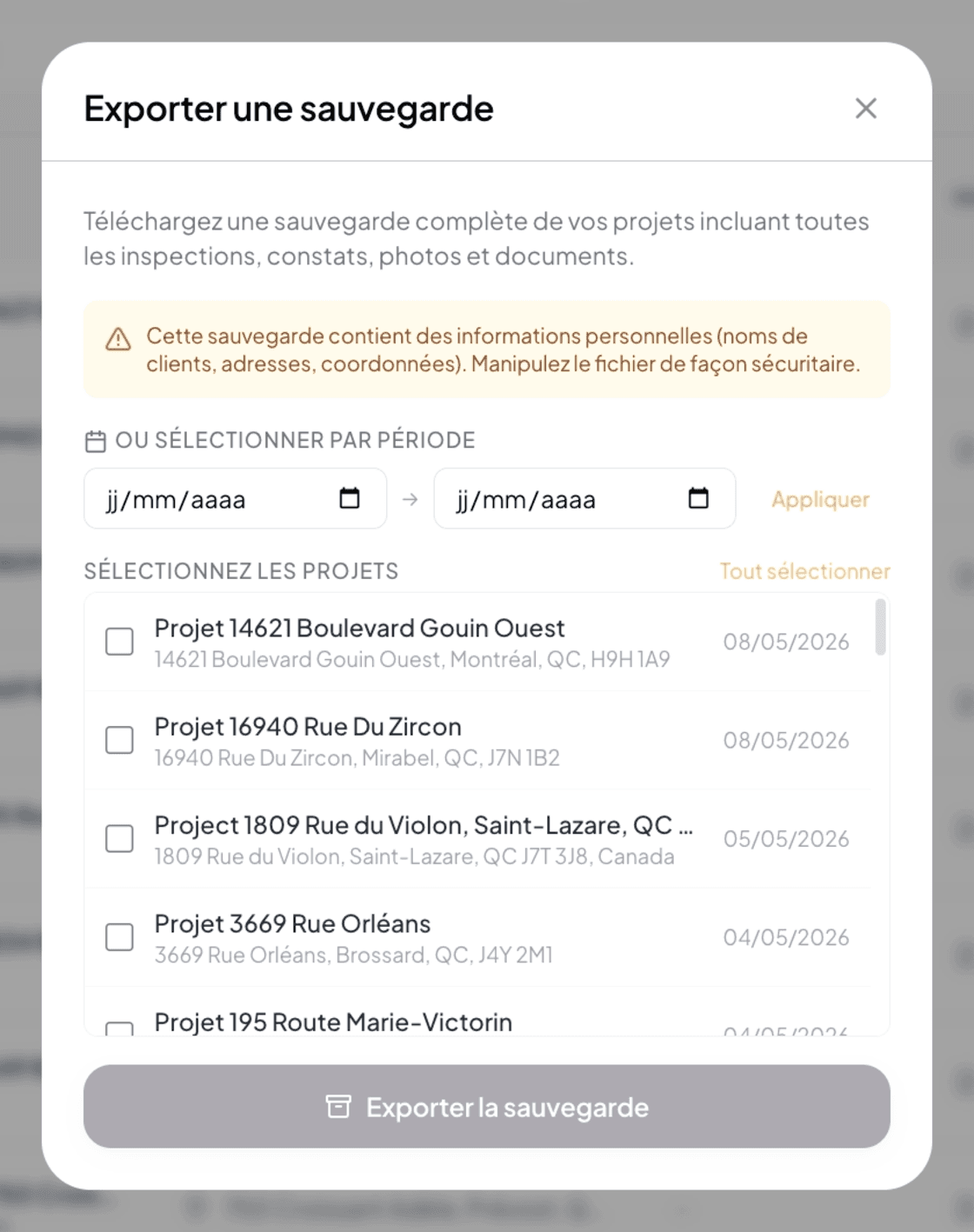
Introduction text
“Download a complete backup of your projects including all inspections, observations, photos, and documents.”
Warning
Lumos prominently reminds:
⚠️ This backup contains personal information (client names, addresses, contact details). Handle the file securely.
To take seriously: the .zip is not encrypted beyond the download protocol, so once on your disk or cloud, protecting it is your responsibility.
Filter by period
Two date fields:
- Start date (in dd/mm/yyyy format).
- End date (in dd/mm/yyyy format).
- Apply button that restricts the displayed list of projects to those created or modified in the period.
Useful for example to export “all my 2025 projects” or “the last quarter’s projects”.
Project selection
Below the dates, a list shows projects matching the period (or all, if no period is applied). For each:
- A checkbox on the left.
- The project name.
- The address.
- The date (creation or last modification).
Select all link at the top right to check all visible projects.
Export
Click Export the backup. Lumos prepares the .zip then automatically triggers the download to your browser’s downloads folder.
Depending on volume (number of photos, attached documents), preparation can take a few seconds to several minutes. You can close the window: when the archive is ready, you also receive an email with the download link, valid for 7 days. After 7 days the archive is deleted; simply create a new one.
If you own a team, the export also includes your inspectors’ projects.
What the .zip contains
Everything that constitutes each selected project:
- Project data (address, client, MLS, type, cover photo).
- The linked inspections with their details.
- Narratives and observations written.
- Photos taken in the field.
- Capture audio recordings, while they are kept.
- Documents uploaded (seller’s declaration, certificates, plans).
- Agreements and quotes in PDF format, with their signed copies.
- Invoices issued (PDF and signed copies).
- Reports generated.
- At the root: clients.csv and invoices.csv, to open your clients and invoices in Excel (handy to keep your invoices for 6 years).
It is a complete copy, not a simple metadata export. If a file could not be retrieved, it is listed in the archive’s manifest.json file, and the export window tells you.
The import flow
To restore a backup, click Import in the filter bar. The Import a backup modal opens.
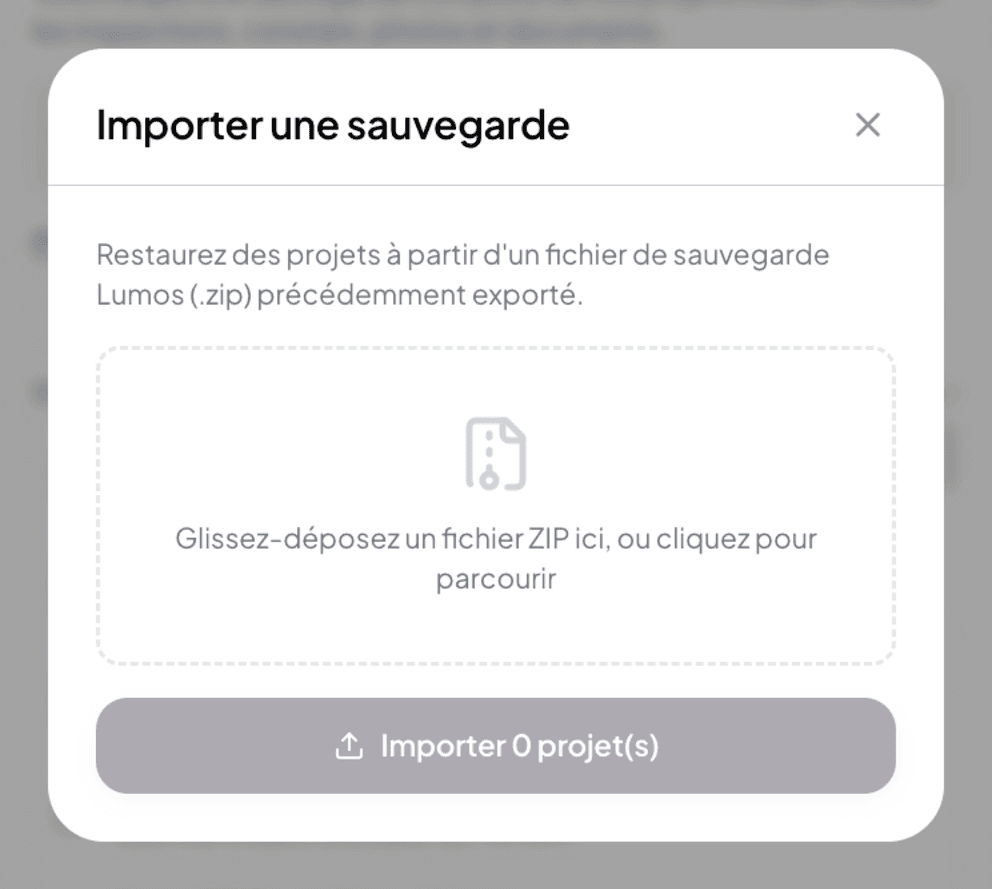
Introduction text
“Restore projects from a Lumos backup file (.zip) previously exported.”
Drag & drop
A central zone invites: “Drag and drop a ZIP file here, or click to browse”.
The file must be a .zip generated by Lumos export — another format will not work.
Preview
Once the file is dropped, Lumos shows the number of projects contained in the .zip and activates the Import N project(s) button.
Import
Click Import N project(s). Lumos unpacks the contents and creates the projects in your account.
Import duplicates projects, it does not merge. If a project from the .zip already exists in your account (for example because you exported then re-imported), Lumos will create a new identical project rather than overwrite the existing one. It is up to you to delete any duplicate afterward if you do not want it.
Handling best practices
- Store .zip files in a safe place — encrypted disk, cloud storage with strong authentication, never in an unencrypted email inbox or on a shared device.
- Rename your exports with an explicit timestamp (for example
lumos-backup-2026-05-06.zip). - Document your rhythm — monthly or quarterly backup depending on volume, in addition to native Lumos backups.
- Test the import at least once with a single project to validate that your process works before relying on it.
- Delete old .zip files when you have confirmed a new backup succeeded — you avoid multiple versions containing outdated personal data.
See also
- 12.5 Archive, restore, delete
- Chapter 17 — Privacy and data — handling personal data
- 12.7 Organization best practices