Archive, restore, delete — project lifecycle
Over the course of your activity, your projects pass through several states. This page describes the three actions that move a project and their exact consequences — including clarifying what is final and what is not.
Archive
Archiving moves a project from the Active tab to the Archived tab. It is the recommended action for completed projects (report delivered, invoice paid) that you no longer consult regularly.
What archiving does
- The project disappears from the Active list.
- It appears in the Archived list.
- All associated data (inspections, reports, agreements, invoices, photos) remains intact.
- Permanent links to reports delivered to the client stay functional — archiving on the inspector side does not affect consultation on the client side.
How to archive
One project at a time
3-dot menu on the project’s row → Archive.
Several projects at once
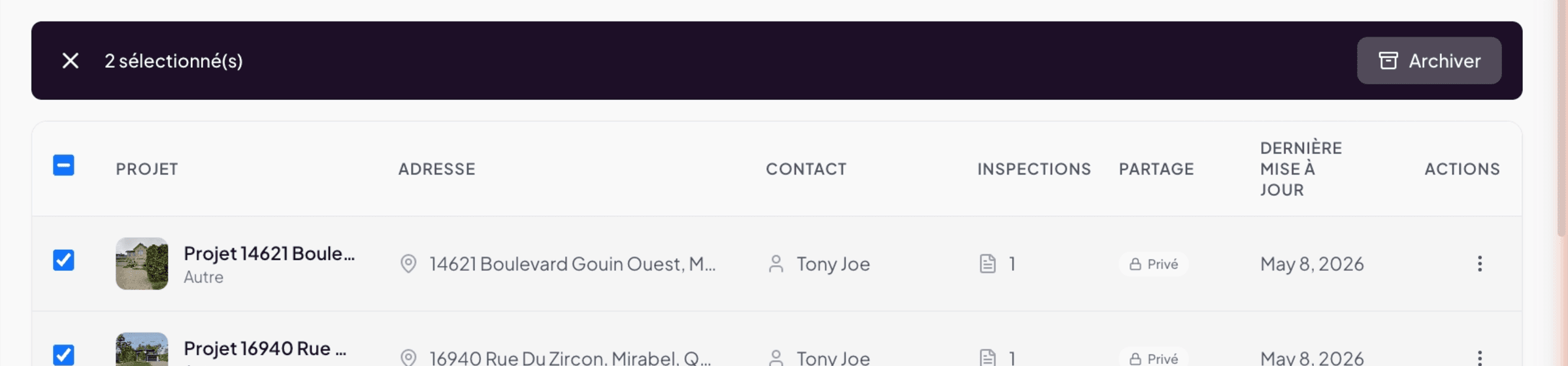
Check the boxes at the start of rows in list view. A bar appears at the top with “N selected” and an Archive button. Click to archive all checked projects in one go.
Restore
An archived project can return to Active at any time. This is useful if:
- The client returns for a second inspection on the same property.
- You need to update an old report following a question.
- You archived by mistake a still-active project.
How to restore
On the Archived tab, open the 3-dot menu on a row and choose Restore. The project immediately reappears in the Active tab with all its data intact.
Delete
Deletion removes the project from Lumos.
Deletion is final and irreversible. All associated data (inspections, reports, photos, agreements, invoices, contacts linked to the project) is deleted. Lumos does not offer a trash or recovery mechanism. If in doubt, archive rather than delete.
When to delete
- Project created in duplicate by mistake, with no significant data.
- Test project you want to clean up.
- Project of a client who explicitly requested deletion of their data (per Quebec’s Law 25 — see Chapter 17).
When not to delete
- A completed project you no longer consult → archive instead.
- A project abandoned by the client → archive, you may need it later.
- A project you are no longer sure about → archive by default.
How to delete
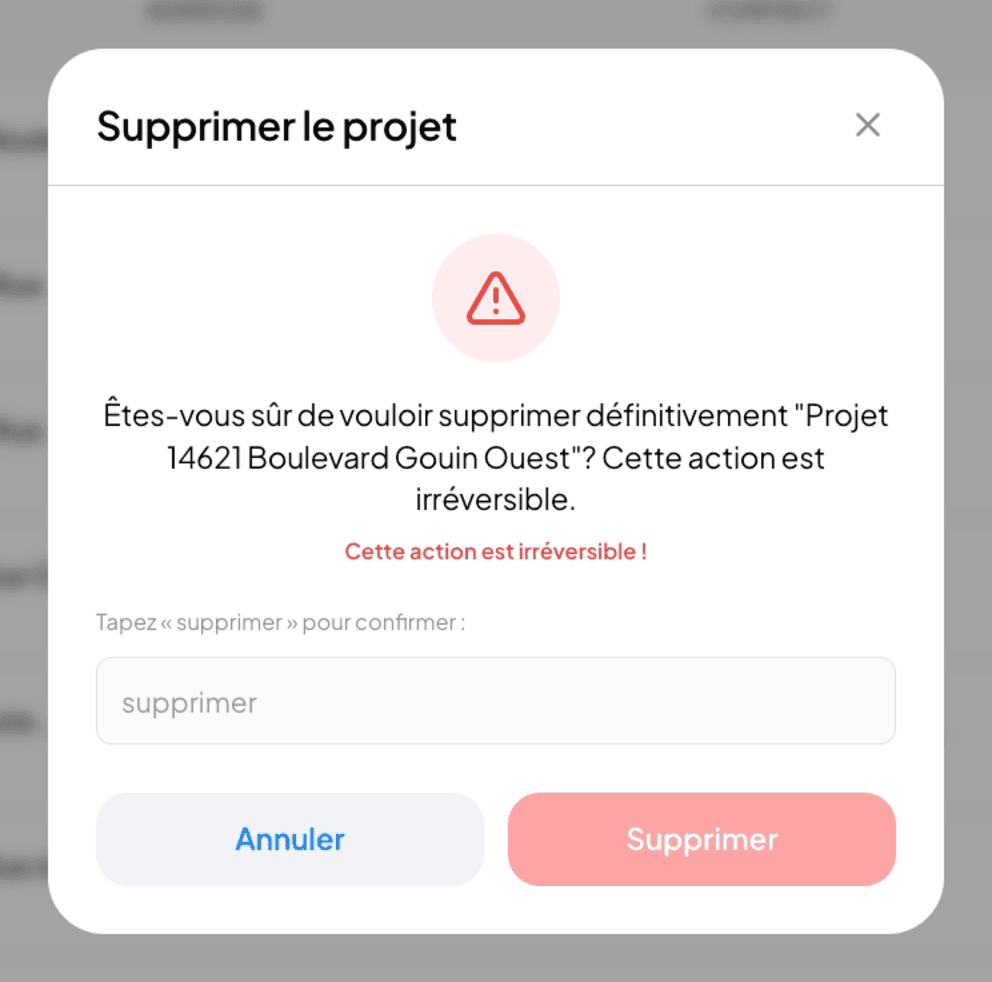
3-dot menu on the row → Delete (red). Lumos asks for explicit confirmation before proceeding.
Recap table
| Action | Reversible? | Data preserved? | When to use |
|---|---|---|---|
| Archive | Yes (Restore) | Yes, intact | Completed project, no longer consulted daily |
| Restore | Yes (Archive again) | Yes, intact | Archived project being reopened |
| Delete | No | No, final loss | Mistake or client deletion request |
Bulk actions
In list view, select multiple projects via checkboxes to enable bulk actions. Today, only bulk archiving is available. Deletion and editing are done one at a time.
See also
- 12.0 Overview
- 12.6 Backup and restore — for off-Lumos copies
- Chapter 17 — Privacy and data — Law 25 and deletion on request