Configure your email templates and invoice defaults
All defaults used by Lumos when creating an invoice (email template, PDF footer notes, payment instructions) are centralized in Business Configuration > Quote & Invoice. This page describes each section and best practices to configure it once for all.
Access the settings
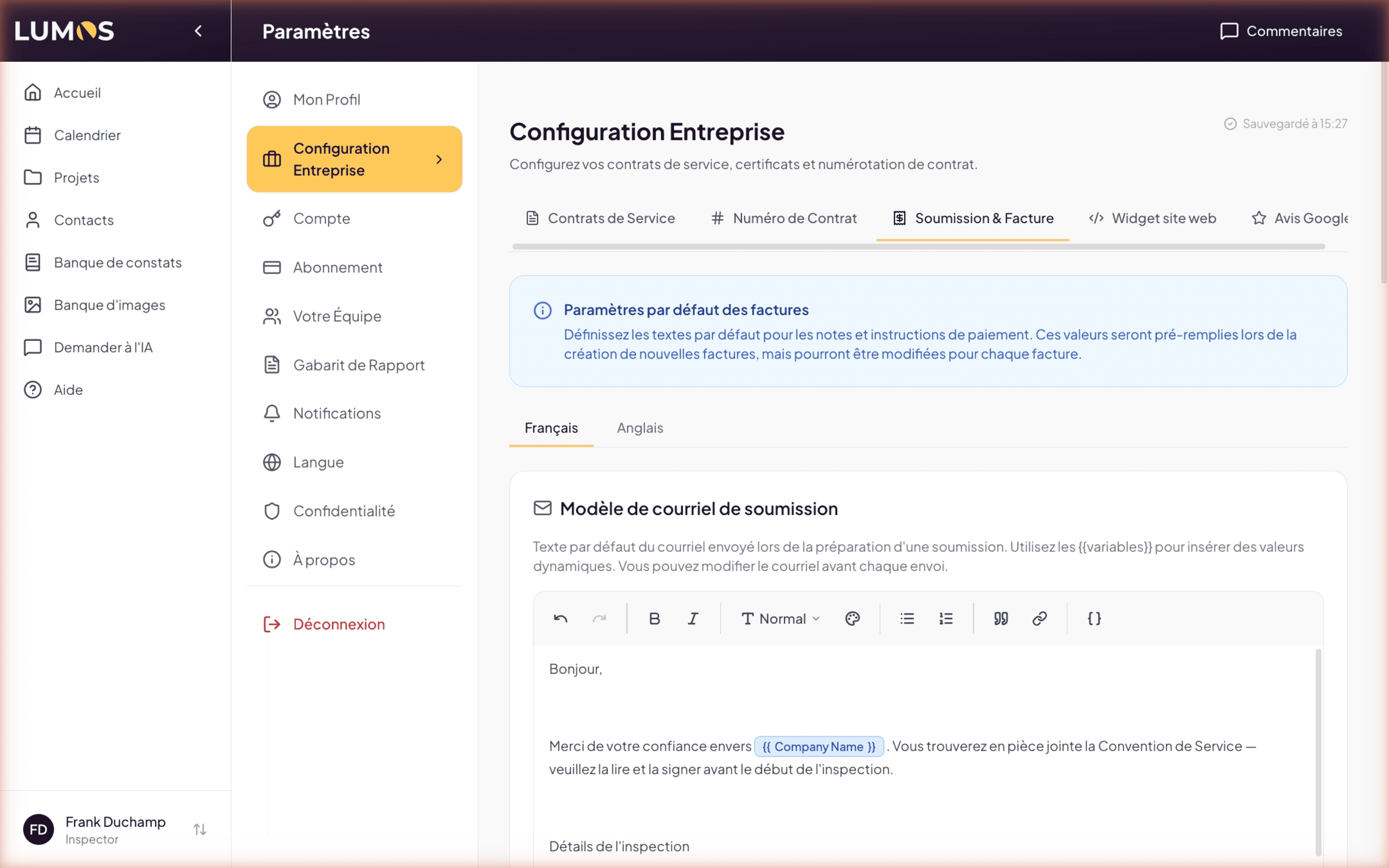
In the sidebar, open Settings > Business Configuration, then click the Quote & Invoice tab.
An info banner reminds: “Define default texts for notes and payment instructions. These values will be pre-filled when creating new invoices, but can be modified for each invoice.”
French / English tabs
At the top of the page, two tabs let you configure templates independently in each language. If you work with a bilingual client base, take the time to configure both versions — Lumos will automatically select the right language based on the project’s language.
Section 1 — Quote email template
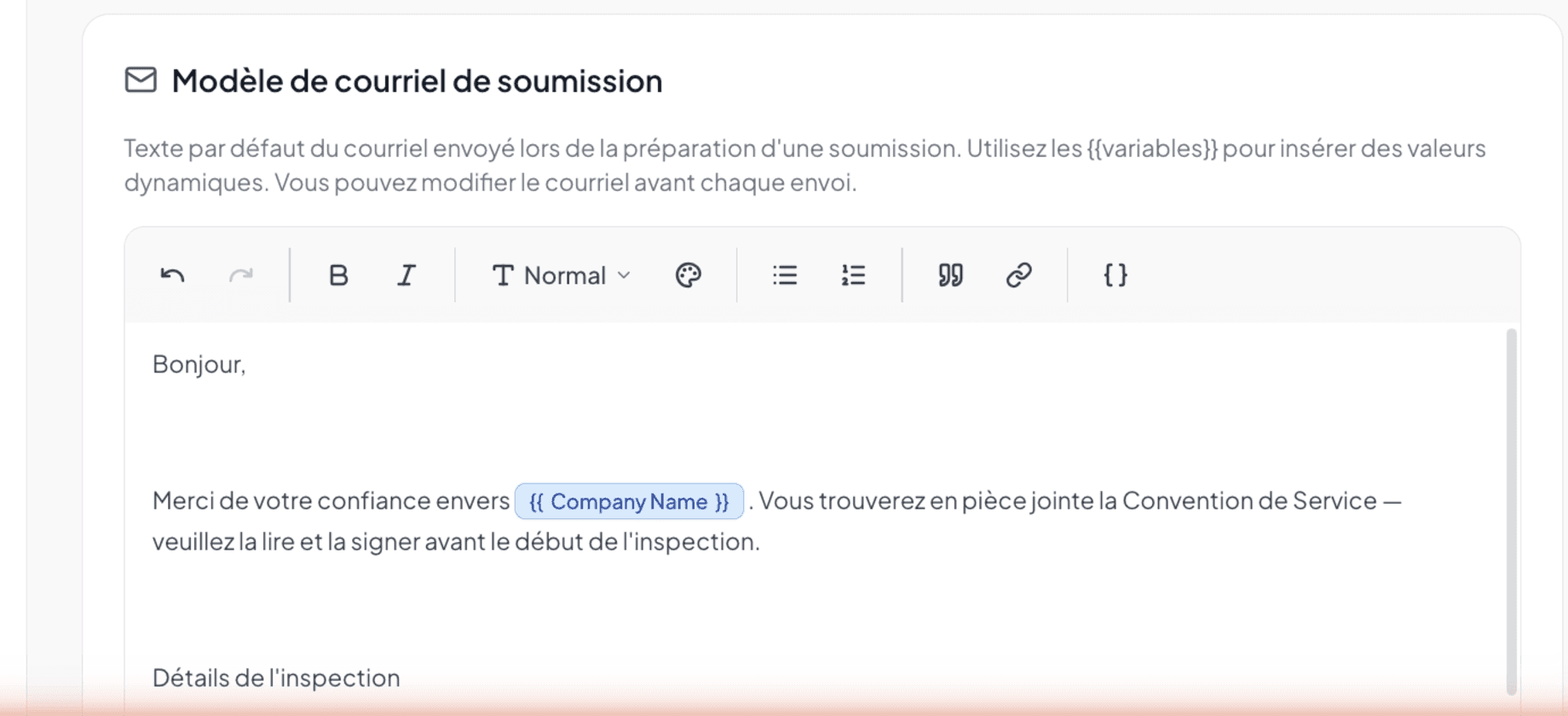
This template is used for the email that goes with a quote sent for signature (chapter 5). It is edited in a rich editor that supports:
- Formatting (bold, italic, lists, heading levels).
- Variables between
{{ }}that are auto-replaced at send (see 11.4 Available variables). - Clickable links.
The default Lumos template covers:
- A greeting.
- Inspection details (address, date and time, taxes-included price).
- The applicable standard and a link to the BNQ standard.
- A request for prior documents (seller’s declaration, GCR warranty, prior reports).
- Access to plan (attic, plumbing, electrical panel, roof).
- A commitment on report delivery time.
- A recommendation that the client be present.
A Reset to default text button is available if you want to return to the initial Lumos template.
Section 2 — Invoice email template
This template is used for the “Your invoice is available” email, when you make a final invoice available in the client portal (chapter 11). Same editor, same variables. The default template is shorter:
- Greeting.
- Reference to the inspection performed (address + date).
- Total amount and payment terms.
- Invitation to contact for any questions.
- Signature with your name and your business.
As with the quote, you can freely modify the content and use {{ }} to insert dynamic values.
Section 3 — Invoice information (PDF)
Two simple text fields feed the invoice PDF footer (not the email), followed by a third field that controls the automatic invoice copy:
Default notes
Free text placed at the bottom of the invoice, below the total. Typical use:
- Thank you message (“Thank you for your trust”).
- Warranty or modification policy.
- Payment terms (deadlines, late penalties).
- Specific legal mentions.
Default payment instructions
Text specific to payment terms, separated from the notes for clarity. Typical use:
- Beneficiary and address for cheques.
- Interac e-Transfer email.
- Bank details for transfers.
- Cash acceptance or refusal.
Example: “Please send payments to SupaDupa Inspection Inc. or via Interac to payment@supadupa.com”
Automatic invoice copy
Below the payment instructions, the Automatic invoice copy field lets you enter an email address — typically your accountant’s — that receives a copy of every invoice you make available to a client.
How the copy works:
- It is a separate email from the client’s: the subject starts with [Copy] and the message, titled “Copy for your records”, states who the invoice was made available to, and for which address.
- The invoice PDF is attached to the copy. Your accountant doesn’t need portal access: they never receive your client’s portal link.
- The client does not see this copy.
- The copy goes out every time a final invoice is made available in the portal (step ③ of the Document Center), not for quotes.
- If the entered address looks invalid, a warning appears under the field and Lumos ignores it: the invoice is still made available to the client.
- Leave the field empty to disable the copy.
Note for teams: the address configured by the account owner applies to the whole team’s invoices.
Section 4 — Tips
At the bottom of the page, Lumos reminds three good practices:
- Include your preferred payment methods and their details in the instructions.
- Set distinct values for French and English.
- Customize case by case if needed — defaults can always be modified before sending a specific invoice.
Saving
Lumos automatically saves your changes. A Saved at HH:MM indicator appears at the top right when changes are recorded.
Configuration best practices
- Test your templates by sending an invoice to your own email before using them with a real client.
- Avoid variables that may not resolve in some cases (for example
{{ Inspection Time }}if the time is not entered). - Keep it concise — long emails are read less.
- Update the signature if your business name or phone number changes.
See also
- 11.0 Overview
- 11.4 Available variables
- Chapter 2 — Business Configuration
- My Profile > Business — where your logo, GST/QST/NEQ numbers are entered