My Profile
The My Profile page in Settings collects the personal and professional information that will appear under your name and your business’s name in all documents generated by Lumos.
It is divided into four tabs: Personal, Business, Signature, and Calendar Settings.

Personal
The Personal tab gathers:
- Profile photo (recommended: square image, at least 200 × 200 pixels)
- First name and Last name
Inspector information section:
- Mobile phone
- Email — this email will appear on your inspection reports. It may differ from the one you sign in with.
- RBQ License (optional)
- Insurance # (optional) — your professional liability insurance number
- Association (optional) — choose from APCHQ, AIBQ, Réseau-IBC, Other
- Member # (optional) — your membership number in the selected association
All fields in this tab except First name, Last name, Phone, and Email are marked optional. Fill them in if your professional status requires it: the BNQ 3009-500 standard requires presenting your professional identification on the report.
Business
The Business tab gathers:
- Business logo (cropping happens after selection)
- Business name
- Address
- City
- Province — Quebec, Ontario, British Columbia, or Alberta
- Postal Code
- GST (optional)
- QST (optional)
- NEQ (optional)
Social media section, all optional:
- Website
The logo and business name will appear on your reports, invoices, and contracts. Social media links appear in the footer of your interactive report.
Signature
The Signature tab is where you save your electronic signature, used in your reports and service agreements.
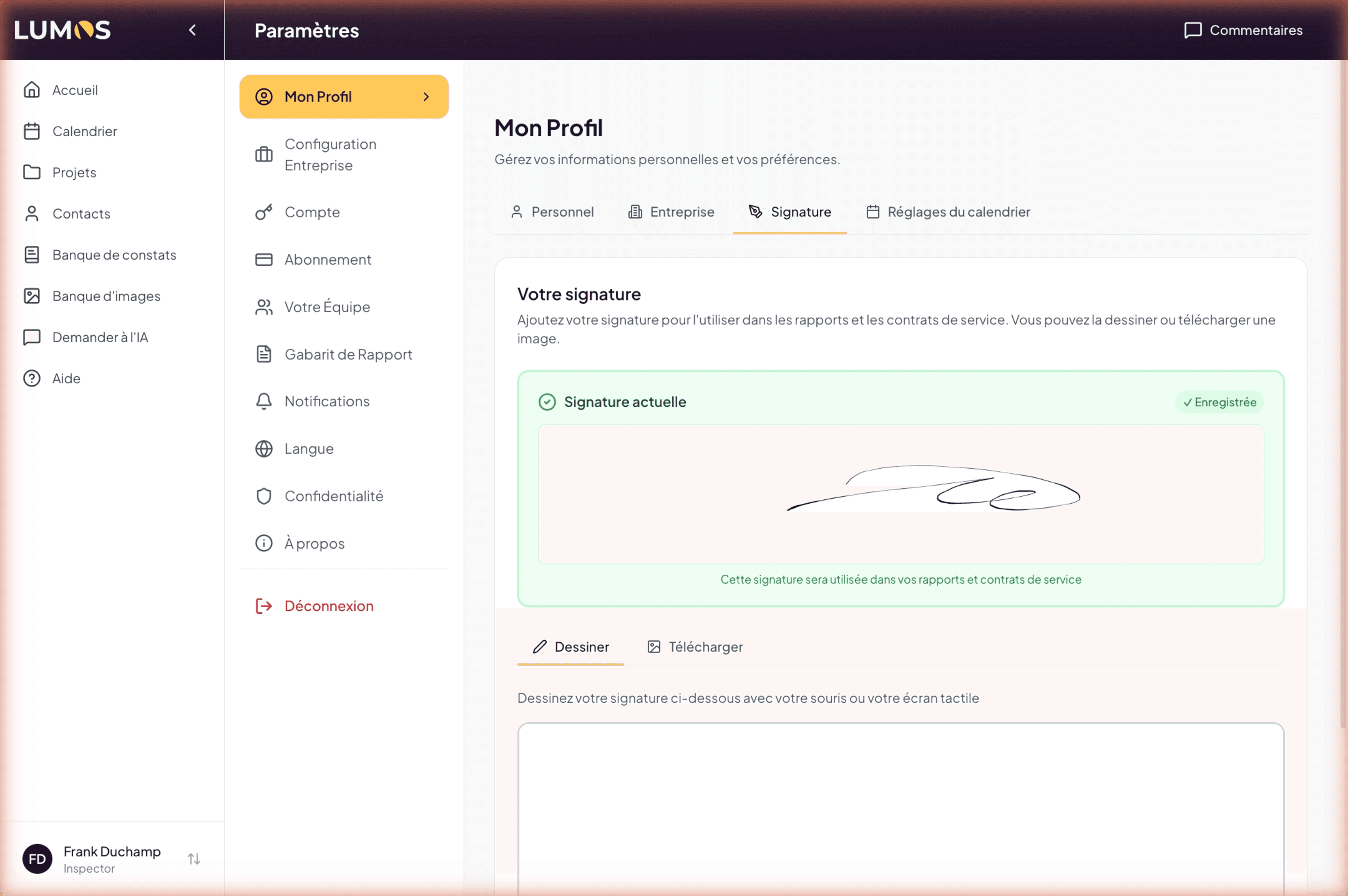
Two modes:
- Draw — sign with your mouse or a touchscreen.
- Upload — upload an existing image of your signature.
Once saved, the ”✓ Saved” indicator confirms the signature is active. You can at any time Erase, Delete signature, or Save signature.
Calendar Settings
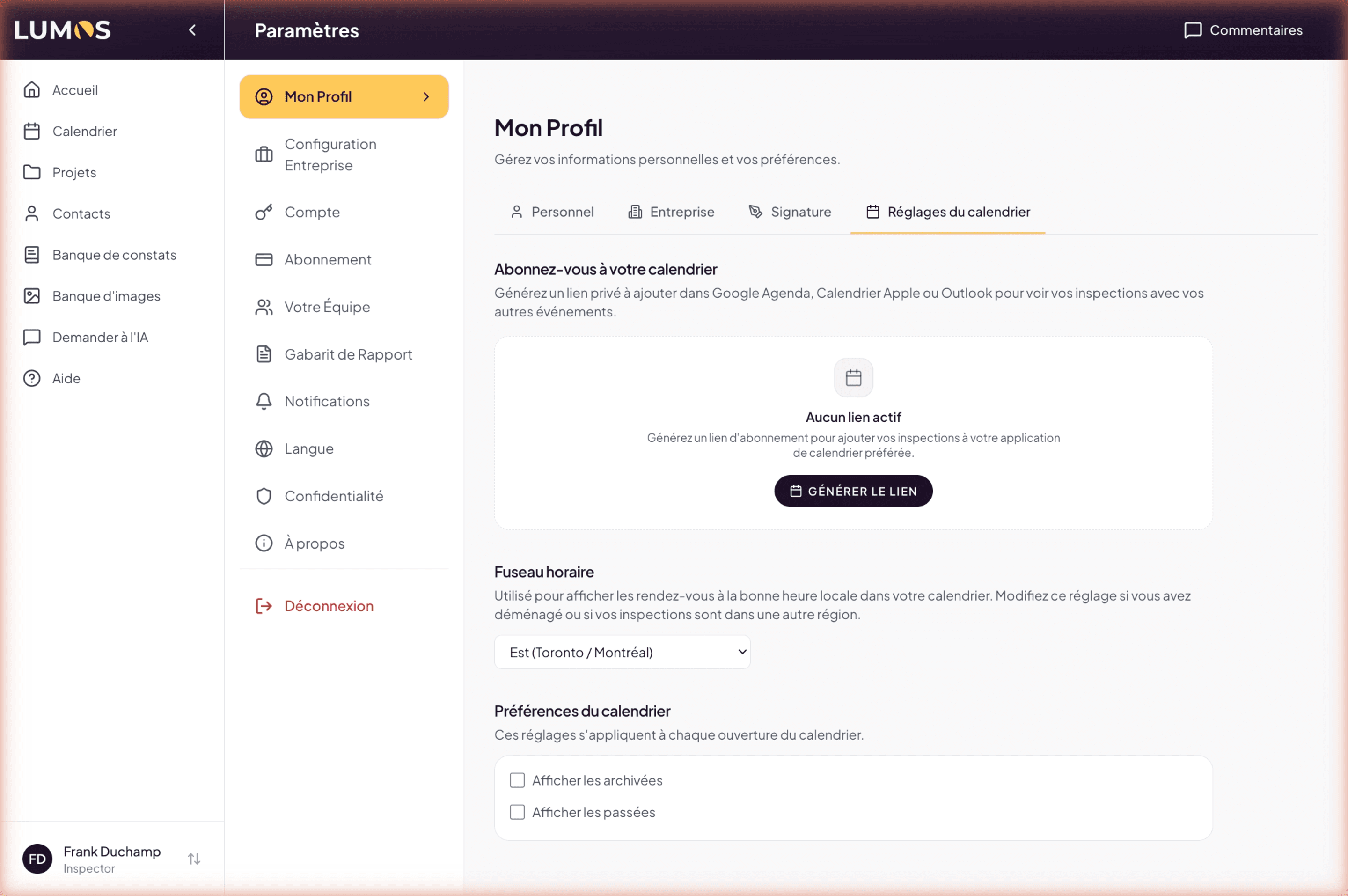
This tab gathers three things.
Calendar subscription link
Lumos can generate a private link that you then add to your calendar application (Google Calendar, Apple Calendar, Outlook). This link makes your Lumos inspections appear alongside your other events.
The link is read-only. Editing an event in your external calendar does not update Lumos: sync flows in one direction, from Lumos to your calendar.
Time zone
Choose from Canadian time zones:
- Newfoundland (St. John’s)
- Atlantic (Halifax)
- Eastern (Toronto / Montreal)
- Central (Winnipeg)
- Central — no DST (Regina)
- Mountain (Edmonton / Calgary)
- Pacific (Vancouver)
- Yukon (Whitehorse)
The chosen time zone determines the local display time for your appointments. Update it when you move or when your inspections are in another region.
Calendar preferences
Two toggles that control what you see when opening the calendar:
- Show archived — display archived inspections or not.
- Show past — display inspections older than today or not.
Step-by-step
The existing Guidde video configure-profile already covers most of this section. A version split by sub-tab is planned.
See also
- Business Configuration — the next step
- Notifications
- The calendar