Notifications
The Notifications page in Settings groups the emails Lumos sends you, organized into three categories.
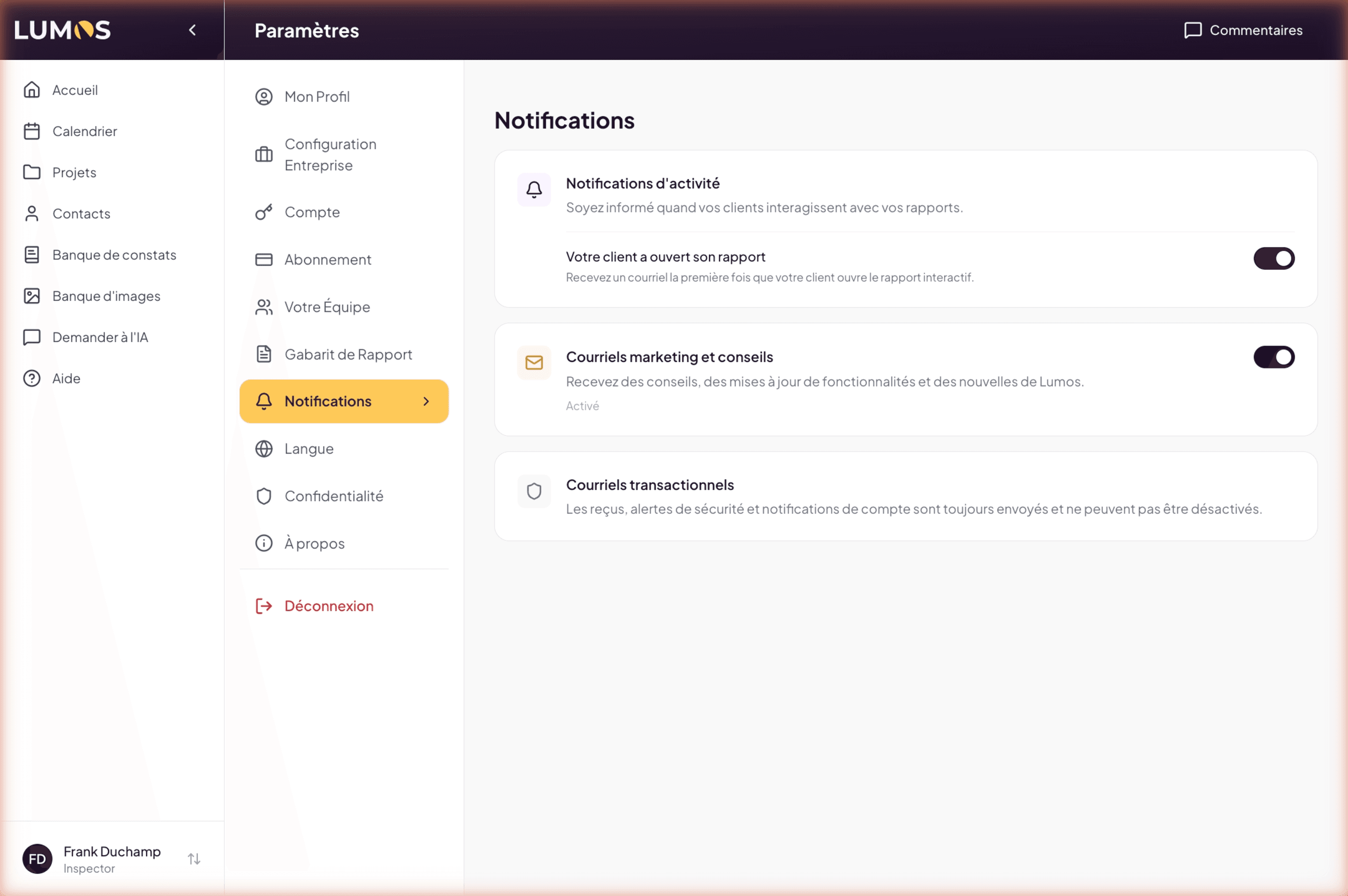
Activity notifications
This section keeps you informed about your clients’ interactions with your reports.
- A report was sent to the client — a confirmation email every time you send a report: who received it, the date and time, the inspection number, and a link to the project. On by default. It is your proof that the send actually happened, without going back to check in the Document Center.
- Your client opened their report — a toggle that enables or disables sending an email the first time your client opens the interactive report. Useful for tracking the report’s reception, for example before a follow-up.
- Also notify the account owner — only visible if you are the owner of a team account. When a member of your team sends a report, you receive a copy, naming the inspector who sent it. Off by default.
The team setting belongs to the owner
“Also notify the account owner” is an account setting, not a personal one: it is read on your owner row and applies to the whole team. A member therefore cannot silence your copy by changing their own preferences — and you do not have to visit each inspector’s settings to turn it on.
Each inspector does keep control of their own send confirmation: if they turn off “A report was sent to the client”, they stop receiving anything, but your owner copy keeps arriving.
Finally, if you send a report yourself as the owner, you get one email, not two.
Marketing and tips emails
A toggle that controls Lumos emails unrelated to your activity: tips, feature updates, news from the Lumos team.
You can disable it at any time without any impact on the product’s operation.
Transactional emails
This section is informational only. Transactional emails (payment receipts, security alerts, important account notifications) are always sent and cannot be disabled.
This is intentional: these emails are part of the service relationship between Lumos and you (payment proof, alerts on suspicious sign-in, etc.).
Step-by-step
A Guidde video dedicated to notifications is in the works.
See also
- Tracking and follow-up — what these notifications tell you after delivery
- Your team — inviting inspectors and understanding the main account
- Language — the next step
- Subscription — to understand transactional emails tied to your plan