Quick Check
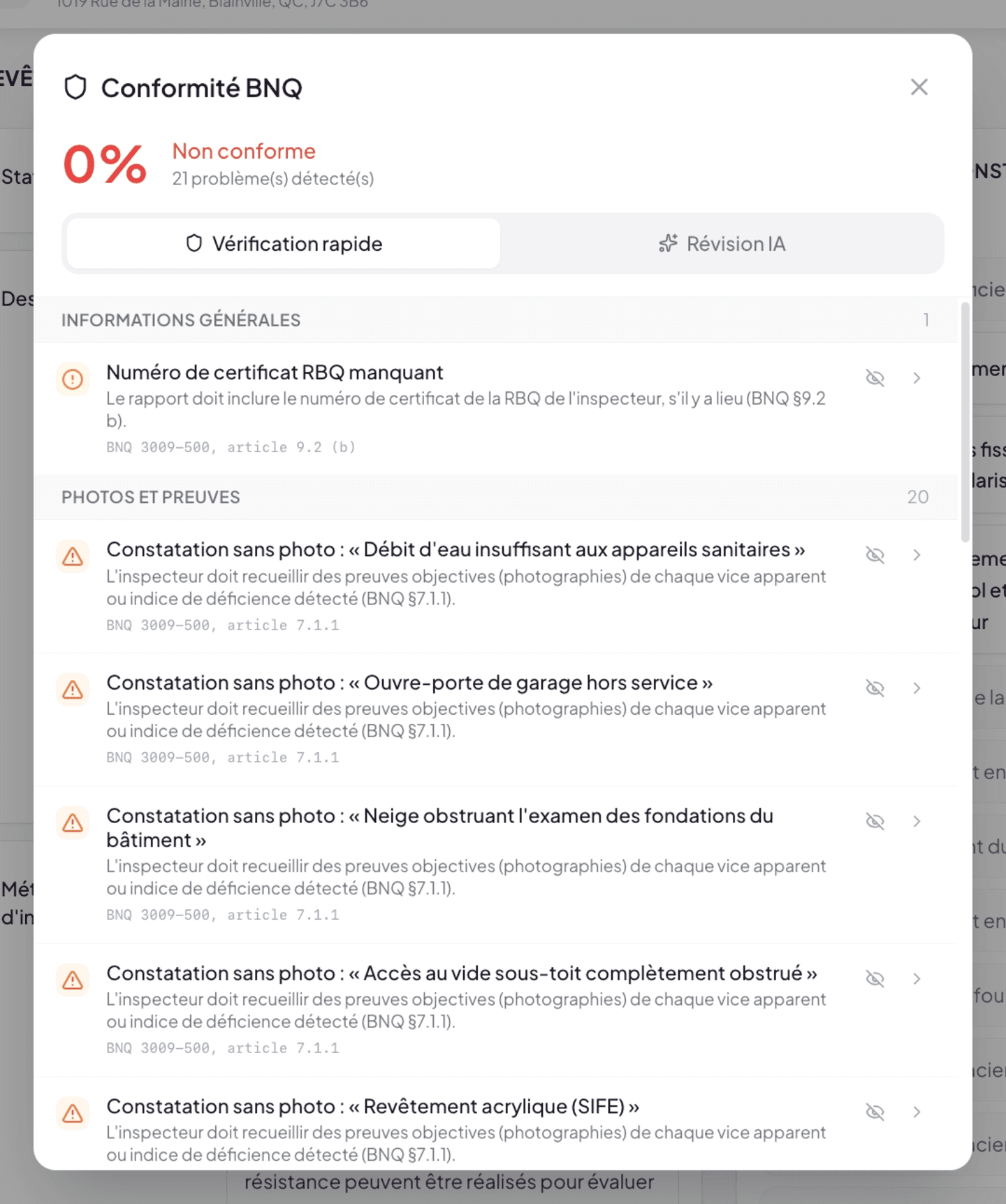
The Quick Check is the basic mode of the BNQ compliance gauge. Included in all plans, it analyzes the completeness of your report according to strict rules aligned with BNQ 3009-500. It is a mechanical checklist: every issue is binary (present or absent), no subjective judgment.
Access
Click the compliance badge in the inspection editor’s header. The modal opens to the Quick Check tab by default.
What the Quick Check looks at
Four verification categories, mapped to BNQ articles.
General information (BNQ §9.2)
Verifies that all essential fields are filled in:
- Client identity — name, email.
- Inspector identity — name, phone, RBQ number if applicable.
- Inspection date.
- Full property address.
- Weather conditions at inspection time.
An empty field = an issue in the list.
Report content (BNQ §9.3 a/d/f)
Verifies the mandatory elements of the inspection record:
- Brief description of the property.
- People present during the inspection.
- Instruments and tools used.
Photos and evidence (BNQ §7.1.1, §7.1 note)
Verifies that each deficiency or limitation finding has at least one associated photo, and that each photo has a description. The BNQ requires objective evidence for every apparent defect or deficiency indicator.
This is generally the largest category at the start of writing.
Section coverage (BNQ §12)
Verifies that every enabled sub-section in your template has an assigned inspection status (Inspected, Not Inspected, Inaccessible, Not Present). A sub-section with no status = it has not been visited, and that is flagged.
Non-inspection justifications (BNQ §9.3 l)
Verifies that sub-sections marked Not Inspected or Inaccessible have a comment justifying why they couldn’t be inspected (furniture, height, weather, etc.). The Not Present status is exempt because it just signals that the component does not exist.
Reading the list

Each detected issue appears as a row with:
- Warning icon ⚠️
- Issue title (e.g. “Finding without photo: ‘Insufficient water flow at sanitary appliances’”)
- Short explanation (“The inspector must collect objective evidence…”)
- BNQ article reference (e.g.
BNQ 3009-500, article 7.1.1) - Crossed-eye icon on the right — to ignore the issue (see below).
- Chevron > — click navigates directly to the relevant sub-section or finding in the editor.
Issues are grouped by category (General Information, Photos and Evidence, etc.) with a per-group counter. The most problematic groups appear first.
Navigate to fix
The chevron or click on a row closes the modal and takes you directly to the relevant sub-section in the inspection editor. The problematic finding or field is visually highlighted.
You fix it (add the photo, fill the field, etc.) and the issue automatically disappears from the gauge — no need to manually return to the modal.
Ignore an issue
The crossed-eye icon on the right of a row lets you ignore and hide the issue. Use case: you know the “issue” is a false positive in your context (e.g. a finding that legitimately doesn’t need a photo per your interpretation).
Effect:
- The issue is removed from the score (the percentage goes up accordingly).
- It remains listed in the modal, but marked as ignored.
- You can undo the ignore later if needed.
Ignoring an issue does not fix the report. If you ignore a finding without a photo to bump the score, your report remains non-compliant with BNQ. Use ignore with discernment, only for true false positives.
Severities and score calculation
The score starts at 100 and decreases as issues are detected. Each issue has a severity level (low, medium, high, critical) that determines how many points it deducts.
In current usage, most rules are high severity: missing essential fields, missing photos, unvisited sections. The lowest severities (low) concern for example missing photo descriptions.
The score is capped at 100 maximum and 0 minimum.
When to aim for 100%
The ideal goal is 100%, green, 0 issues before delivering the report to the client. It is the signal that all mechanical BNQ requirements are met.
This does not mean the report is perfect — just that nothing is structurally missing. Writing quality of the findings still needs verification via AI Review or your final read-through.
See also
- Enable the gauge
- AI Review
- Best practices
- Chapter 7 — The inspection editor — for correction operations in practice