Enable the compliance gauge
The gauge is disabled by default. This page describes how to enable it, the Alpha warning to accept, and where the gauge appears in the editor once active.
Enable the gauge
- Open Settings > Report Template > BNQ Conformity.
- At the bottom of the page, locate the BNQ Compliance Verification section marked with the ALPHA chip.
- Toggle on Enable the compliance gauge.
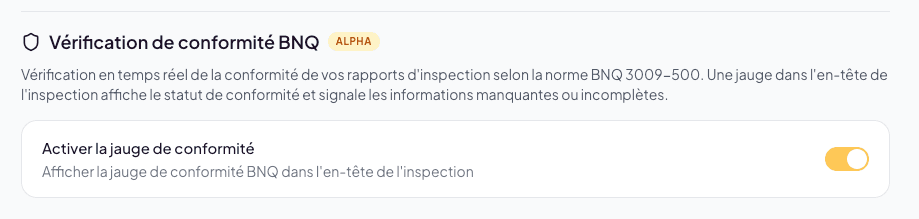
An Alpha Feature modal appears immediately.
The Alpha warning modal
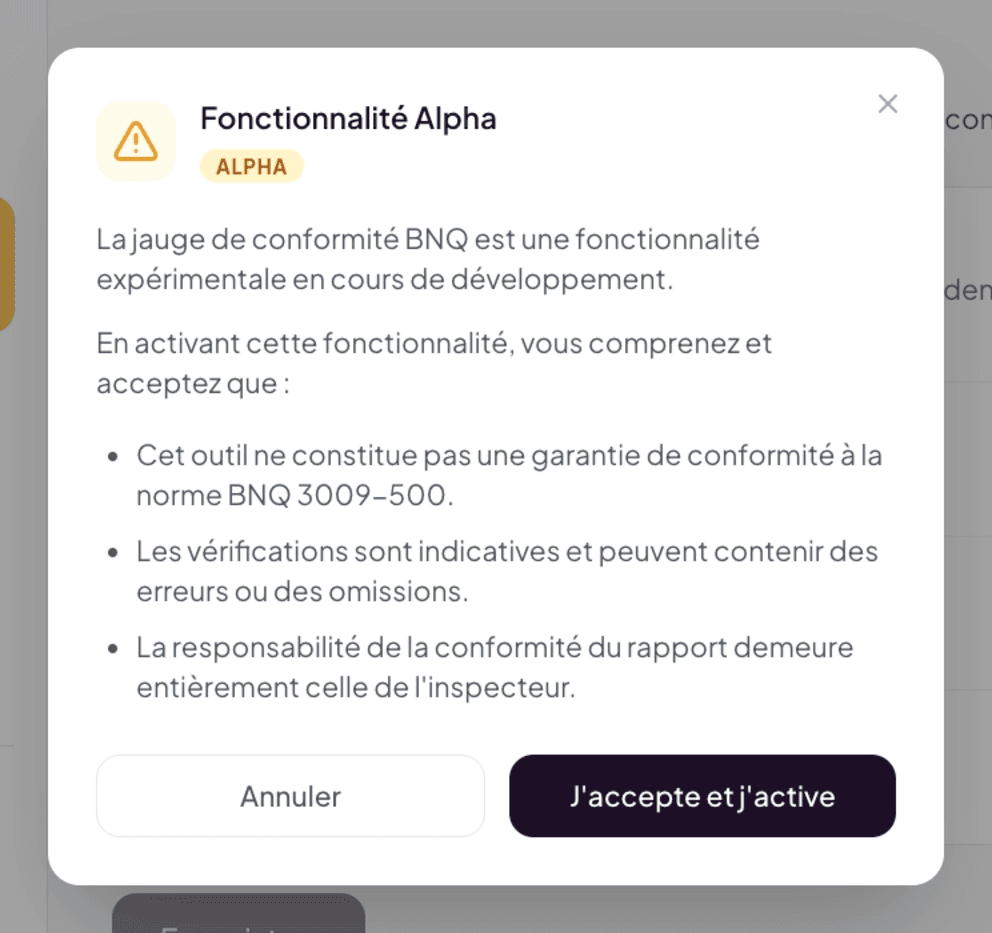
The modal reminds you, with a warning icon and an ALPHA chip:
The BNQ compliance gauge is an experimental feature under development.
By enabling this feature, you understand and accept that:
- This tool does not constitute a guarantee of compliance with the BNQ 3009-500 standard.
- The verifications are indicative and may contain errors or omissions.
- The responsibility for the report’s compliance remains entirely the inspector’s.
Two buttons: Cancel or I accept and enable.
Click I accept and enable to confirm. The gauge becomes active across all your in-progress and future inspections.
The Alpha modal appears on every activation. You can disable the gauge at any time via the same toggle, with no confirmation. Every re-activation shows the modal again to remind you of the clauses — you must accept once more.
Disable the gauge
The same toggle in Settings > Report Template > BNQ Conformity disables it. Immediate effects:
- The gauge disappears from the header of the inspection editor.
- Lumos stops calculating verifications in the background.
- In-progress inspections no longer show any score or compliance warning.
If you re-enable later, the gauge automatically recalculates from the current state of relevant inspections.
Where the gauge appears
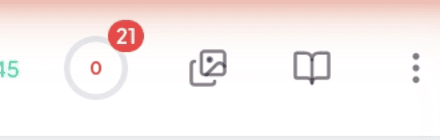
Once enabled, the gauge appears in the inspection editor’s header as a badge with:
- A red or green dot depending on the compliance state.
- A counter indicating the number of detected issues (e.g. “21”) if non-compliant, or no mark if everything is correct.
- A percentage score (e.g. 0% at the start of an inspection, 100% when all verifications pass).
Clicking the badge opens the BNQ Compliance modal with the two verification tabs.
Colors and state
- Green + 100%: everything is complete according to Quick Check rules. The report can still benefit from an AI Review.
- Red + < 100%: non-compliant — the counter shows how many issues remain to fix.
The gauge works in real time
As you fill in your report (adding photos, completing fields, entering justification comments), the gauge automatically updates. No need to refresh. When you fix an issue, it immediately disappears from the list and the score goes up.