The Image Bank
The Image Bank is a dedicated library for technical illustrations that you insert into your narratives: anatomical stair diagrams, foundation drainage schematics, exploded wall views, winter conditions of a poorly insulated attic, and any other illustration that helps explain a finding to your client. This page describes the complete operation: adding, editing, filtering, sharing.
Access
Image Bank is a top-level item in the main sidebar, next to Narrative Bank. URL: /image-bank.
The page
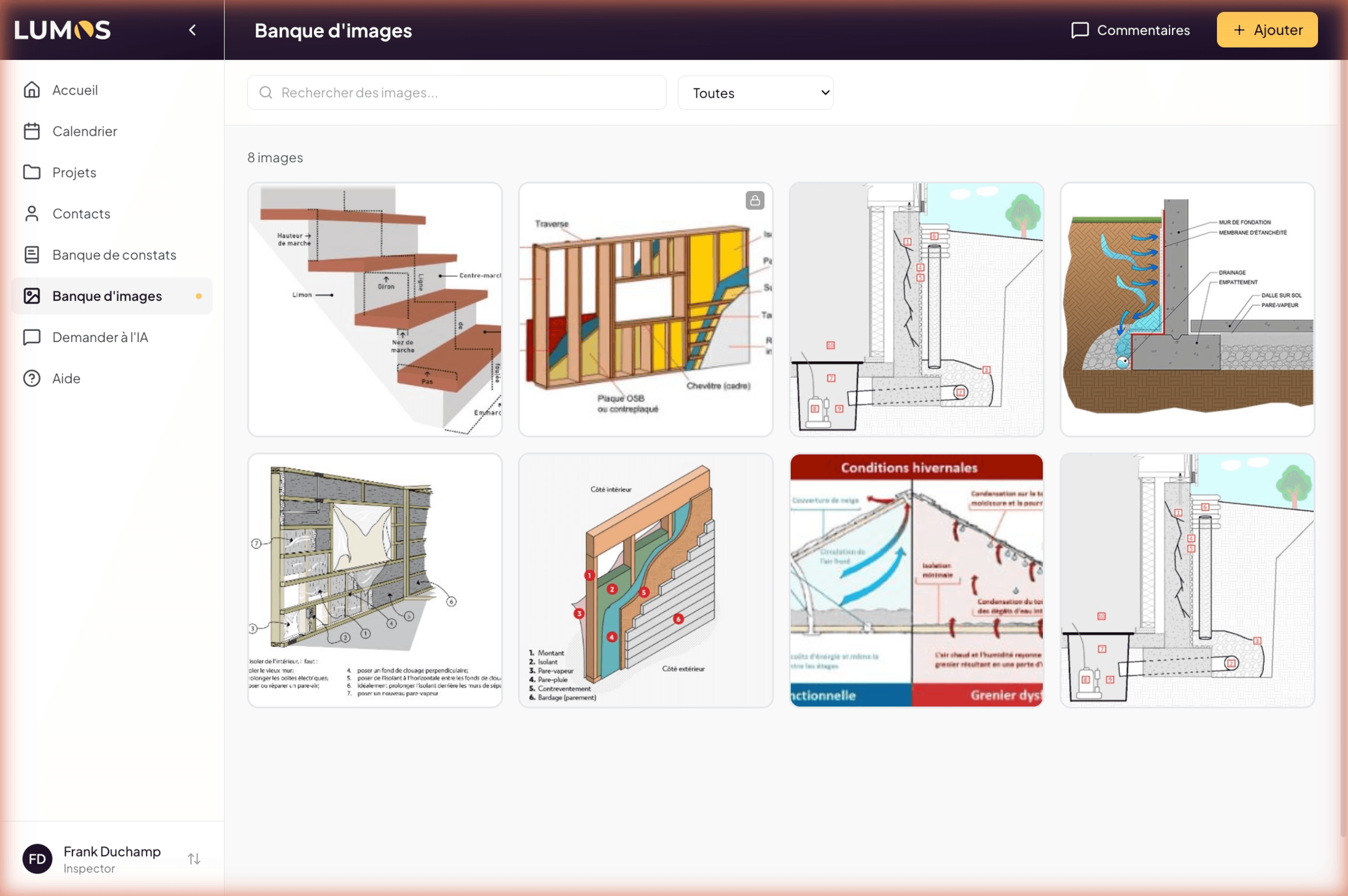
Header:
- Title Image Bank
- Comments button (Lumos feedback)
- + Add button (orange) to upload a new image
Filter bar:
- Search images… field (text search).
- Category filter dropdown: All (default), Default images, Shared images, Private images.
“N images” counter above the grid.
Card grid (4 columns desktop, responsive on mobile). Each card shows the image with a small visibility indicator when relevant (lock for private).
The bank starts empty
When a new account is created, your personal Image Bank is empty. You progressively populate it with:
- Your own illustrations that you upload.
- Shared images from your team (if you are a sub-account).
- Lumos may also make default images available (visible via the dedicated filter).
The experience becomes more useful as you identify and load the illustrations that recur often in your reports.
Add an image
Click + Add at the top right. A file selection dialog opens — choose one or more image files (JPG, PNG, or other supported formats) from your computer.
Once uploaded, the image appears in the grid and can be edited to add its metadata.
The Image Details modal
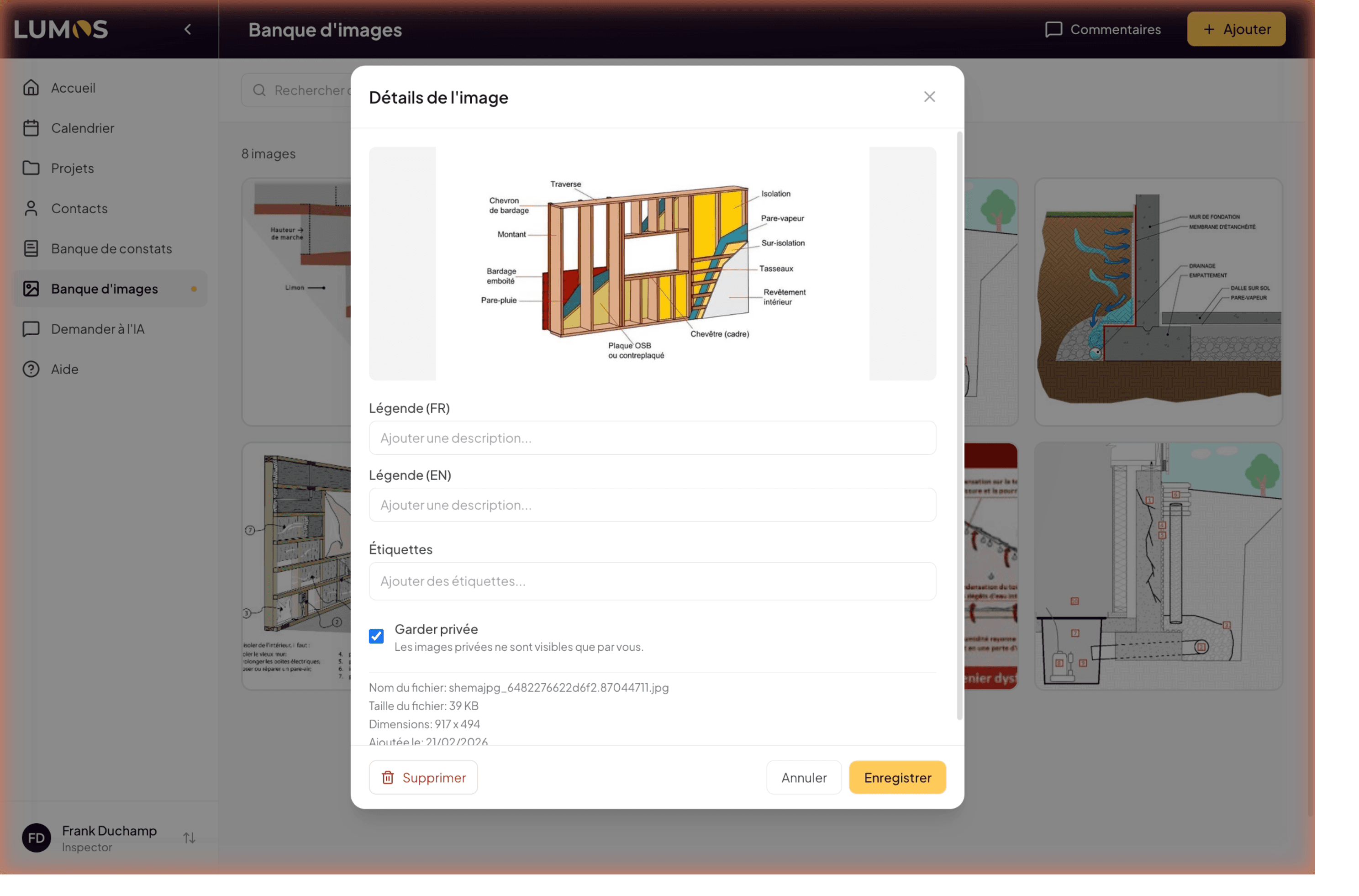
Click an image in the grid to open the Image Details modal:
- Preview of the image at the top.
- Caption (FR) — short text shown below the image when inserted in a French-language narrative.
- Caption (EN) — English version for reports in English.
- Tags — classification labels (for example
stairs,BNQ code,structure,moisture). Used for search. - Keep private checkbox — if checked, the image is visible only to you. Otherwise, it is shared with your team.
- Read-only metadata:
- File name.
- File size.
- Dimensions (width × height in pixels).
- Date added.
Buttons at the bottom:
- Delete (red) — remove the image permanently.
- Cancel — close without saving.
- Save (orange) — confirm changes.
Visibility: private vs shared
Lumos distinguishes three image sources in your bank:
- Default images — provided by Lumos, visible to all users.
- Shared images — uploaded by a team member (master account or sub-account) and accessible to the entire team.
- Private images — uploaded by you with Keep private checked. Visible to you only.
No personal image is shared with the public or with clients. “Sharing” only concerns your inspector team under the same master account.
Filter to find
The dropdown above the grid lets you target a specific source:
- All — the default view, shows everything accessible.
- Default images — only system illustrations.
- Shared images — only those shared by your team.
- Private images — only your own private ones.
Combine with text search and tags to find quickly.
Insert an image into a narrative
During inspection writing, in the narrative editor, you can insert an illustration from your Image Bank via the dedicated toolbar button. The FR or EN caption automatically follows the report’s language.
For editor details, see Chapter 7 — The inspection editor.
Best practices
- Systematic tags — every image benefits from 2 or 3 relevant tags (component, subject, context). Search becomes notably faster.
- FR + EN captions on adding — even if you mostly work in French, take 30 seconds to add the English version. It avoids catch-up later.
- Private for drafts, shared after validation — if you test an illustration in a report, keep it private. Once validated for regular use, share it with your team.
- Quarterly cleanup — remove redundant or outdated images to keep the bank navigable.
See also
- 13.0 Overview
- Chapter 7 — The inspection editor — how to insert an image into a narrative
- 13.1 The Narrative Bank — the twin library for narratives