Schedule the visit and use the calendar
Every scheduled inspection in Lumos automatically appears in the Calendar view, accessible from the main sidebar. The calendar gives you an aggregated view of your upcoming load and makes scheduling adjustments easier.
The five views
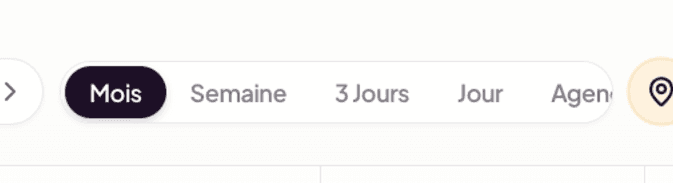
The calendar offers five display modes, selectable at the top right:
- Month (default) — classic calendar view, ideal for medium-term scheduling.
- Week — all inspections of the current week, with time slots.
- 3 days — a compressed view centered on today, tomorrow, and the day after.
- Day — focus on a single day, with full details for each inspection.
- Agenda — chronological list of upcoming inspections, without the calendar grid.
The Today button brings the view back to today. Left and right arrows navigate in time based on the active view.
The filters
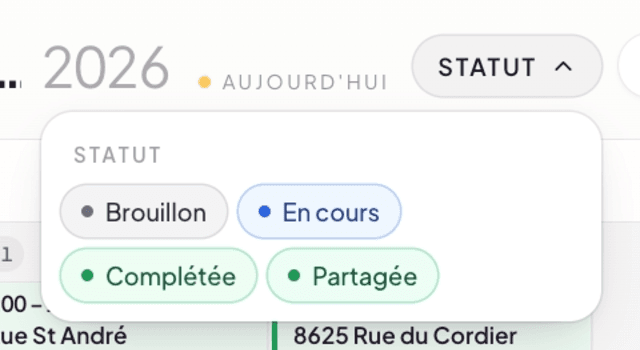
Two filters are at the top right:
- Status — to limit display to a given inspection status (for example In progress inspections only).
- Filters — a generic filter for additional criteria (to explore).
The New Project button is also available directly from the calendar, to create a project without going back to the Projects page.
Information displayed on each inspection
Each inspection on the calendar shows:
- The time range (for example
08:00 – 11:00) or the mention All day if not specified. - The distance from your business address (for example
99.6 km). - The address or the project name.
- The main contact name (the client).
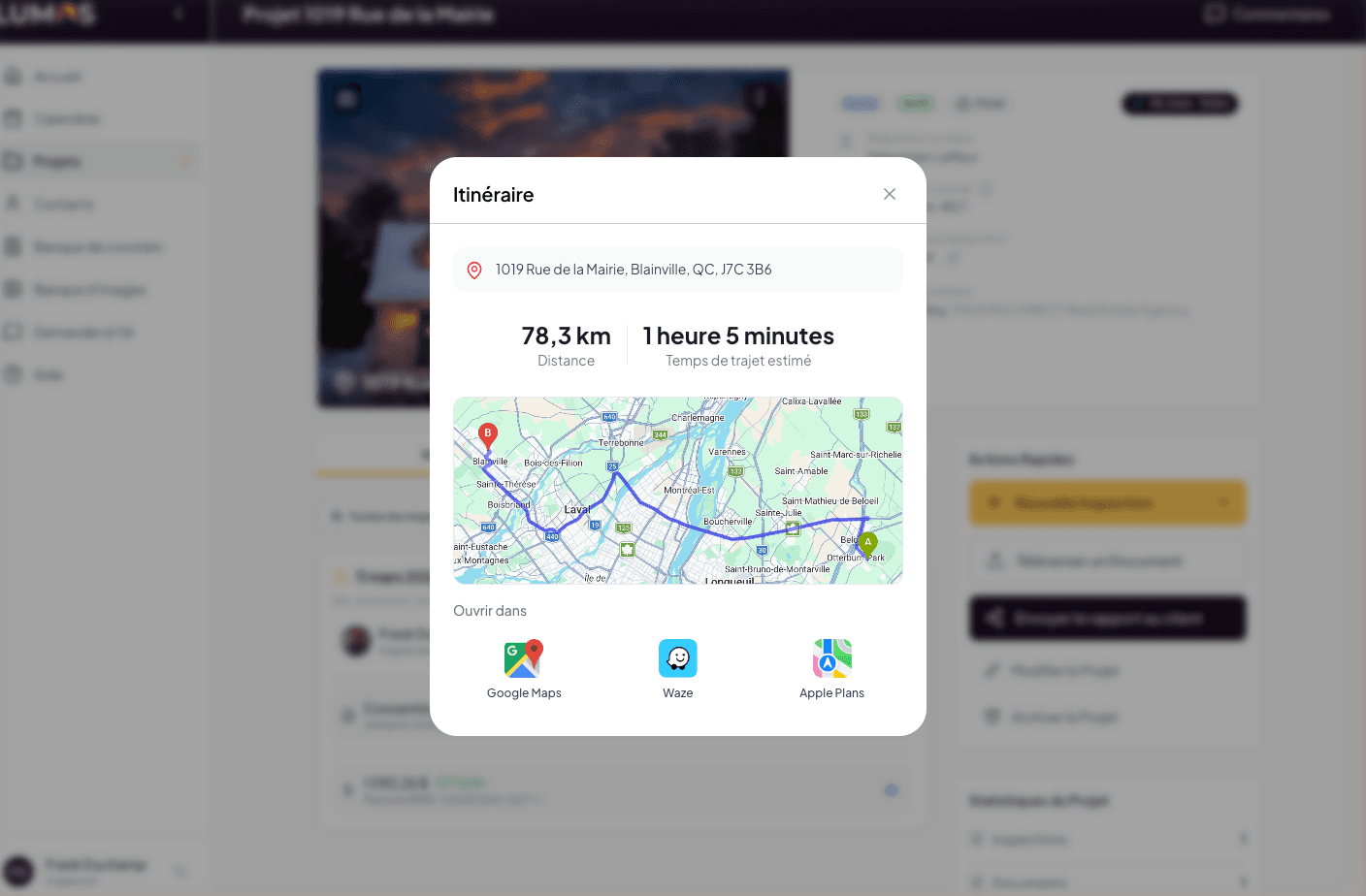
Distances and travel times are computed automatically from your business address (My Profile > Business) and the inspected property’s address. Convenient to estimate travel time between two consecutive engagements.
The map view
A location pin icon next to the filters switches the display to map view, which presents your inspections on a geographic map. Useful to optimize a day’s route or to spot clusters of engagements by area.
Sync with your external calendar
Lumos can feed your external calendar (Google Calendar, Apple Calendar, Outlook) with your inspections. Sync is configured in My Profile > Calendar Settings:
- Click Generate link to obtain a private iCal subscription link.
- Add this link to your preferred calendar application.
Inspections scheduled in Lumos then automatically appear in your external calendar, alongside your other events. Sync flows in one direction only: Lumos to your calendar. Editing an event in your external calendar does not update Lumos.
See My Profile > Calendar Settings for details.
Display preferences
Also in My Profile > Calendar Settings, two toggles control what you see when opening the calendar:
- Show archived — display archived inspections or not.
- Show past — display inspections older than today or not.
Step-by-step
A Guidde video dedicated to the calendar and sync is in the works.
See also
- My Profile > Calendar Settings — time zone and subscription link
- The dashboard — quick view of recent projects as an alternative
- Start an inspection with a quote — where the inspection date is set