Property description
Assisted mode writes the summary description from chips you check. This page decides what those chips contain and how the AI writes.
Settings > Report Template > Default settings, Property description section.
Your settings apply to all your inspections, current and future. On a team account, they are specific to each inspector.
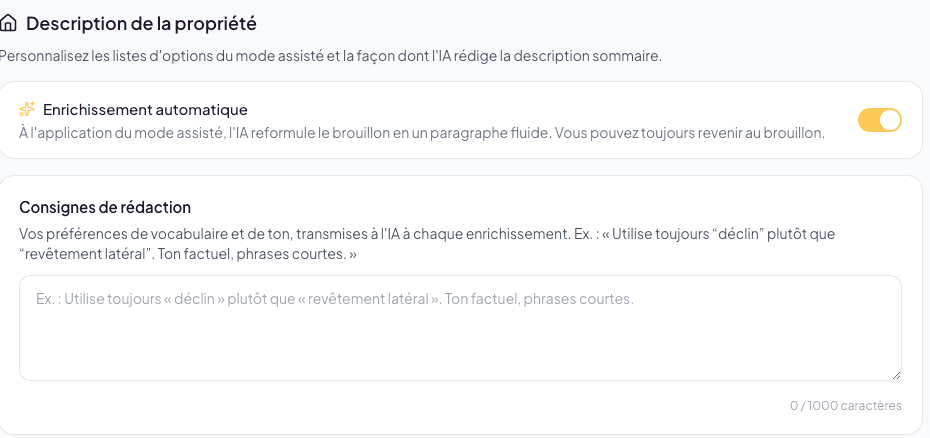
Automatic enhancement
On by default. Every time you click Apply in assisted mode, the AI rewrites your selections into a flowing paragraph before dropping it into the field.
Turn it off if you prefer the raw text: you will then get a series of short sentences, one per characteristic, that you rework yourself.
Either way, no AI call is made until you click Apply.
Writing instructions
A free-text field, up to 1000 characters, sent to the AI on every enhancement. This is where you impose your vocabulary and tone.
A few examples that work well:
- “Always use siding rather than cladding.”
- “Always start with The inspected building.”
- “Factual tone, short sentences, no superlatives.”
- “Never use the word house, write building.”
Your instructions cannot override the base rule: the AI adds no fact and removes no fact compared to what you checked. An instruction like “add that the roof is in good condition” will be ignored.
The field saves automatically when you leave it.
Option lists
The 15 lists that feed the assisted-mode chips: sides and positions, basement, garage, garage size, foundation, roof shape, roof material, roof features, exterior cladding, cladding positions, terrain, landscaping, parking, walkway, walkway access.
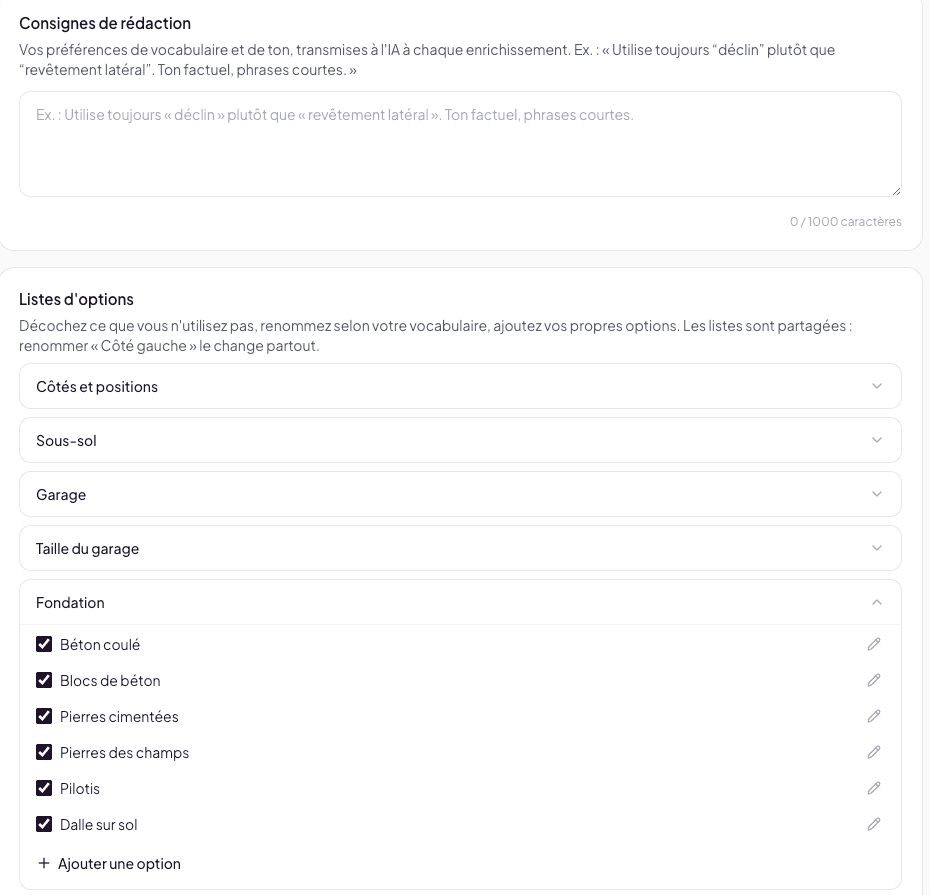
Expand a list to act on it:
- Hide — uncheck an option you never use. It disappears from the chips without being deleted: the hidden counter appears to the right of the list name, and you can re-check it at any time.
- Rename — the pencil replaces the label with yours. A reset arrow then appears to restore the original name.
- Add — Add an option creates your own entry, marked Added by you. The bin deletes it.
- Reset this list — undoes all your changes to the list at once.
Lists are shared
Some lists feed several fields. Sides and positions serves the adjoining side, the garage position and the parking position: renaming “Left side” changes it in all three. This is intentional — your vocabulary stays consistent throughout the report.
Adding an option mid-inspection
You do not need to come back here. Every chip group in assisted mode has a + Add chip: type the name, confirm, and the option is created in your settings and selected immediately.
What happens to descriptions already written
Nothing. Reports already written keep their text as-is.
Two special cases if you reopen assisted mode on an older inspection:
- an option you hid but that was selected keeps its chip, so you can remove it;
- a custom option you deleted simply disappears from the selection.
See also
- General Information — assisted mode seen from the editor
- Template configuration