The floating (+) button — quick capture
A yellow floating button at the bottom right stays visible at all times in the inspection editor. It is built for quick capture of an observation, without breaking your workflow.
Why this button
While writing a report, you remember a detail to add, or you want to document a new photo you just found. Rather than navigating to the right subsection, the floating button lets you capture immediately and classify later.
Any capture launched from this button lands in To Review. See To Review.
How to use it
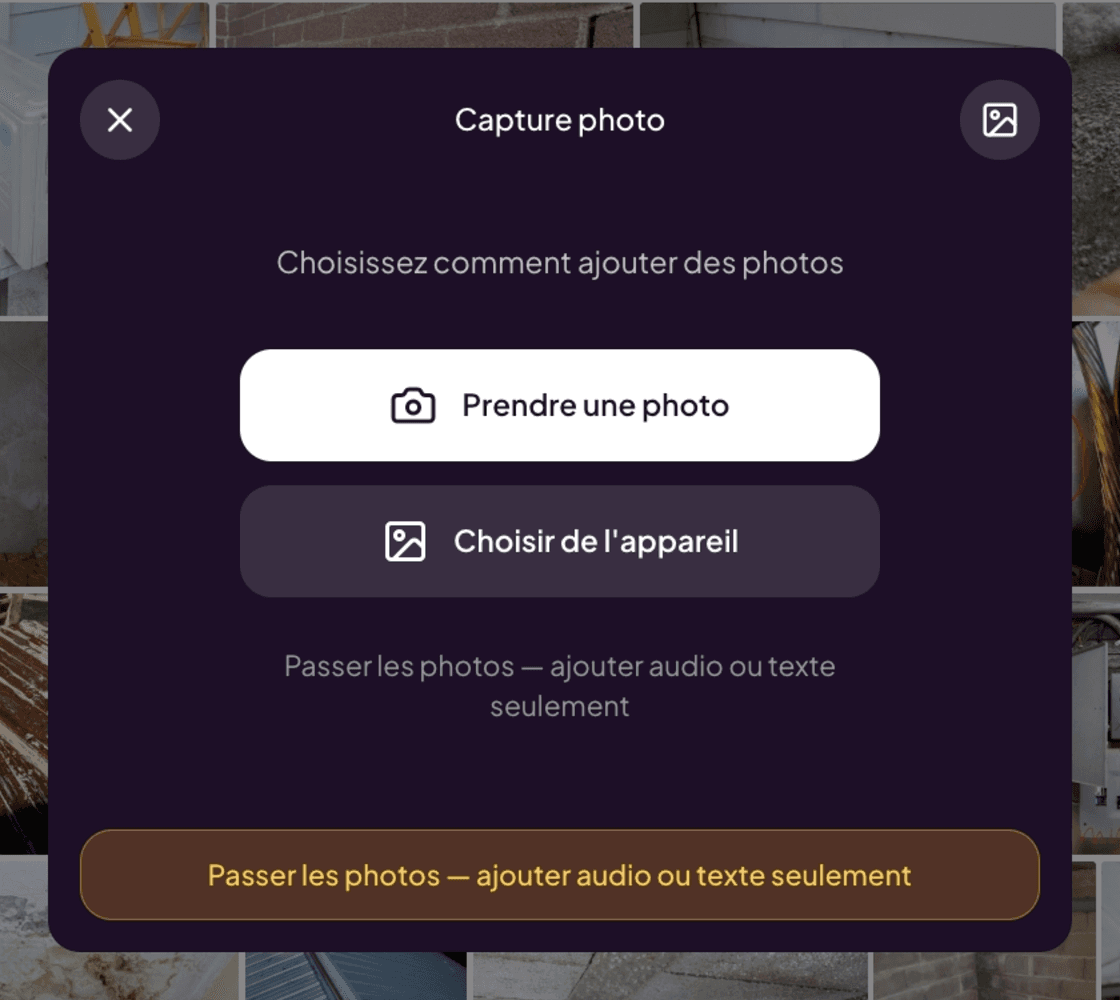
Click the yellow button. The Photo capture modal opens with three modes:
- Take a photo — accesses your device’s camera to capture immediately (on Web Mobile and iPad).
- Choose from device — uploads one or more photos already on your device.
- Skip photos — switches to audio or text only mode, no photo. You’ll find:
- Audio — record a voice note. Lumos automatically transcribes your voice to text. Useful for dictating a long observation without breaking your flow.
- Text — type an observation on the keyboard. Useful for quick additions or purely descriptive notes.
Once the capture is created, it appears in To Review with a timestamp. You will classify it to the right subsection when the time comes.
Always visible
The button stays accessible no matter what page of the editor you are on: General Information, a section, a Document-type subsection, the gallery. This is intentional — quick capture should never be more than one click away.
Distinction with the sidebar and the header
- The floating (+) button captures a new observation and routes it to To Review.
- The left sidebar is for navigation between existing sections.
- The header buttons (gallery, bank, menu) are for global actions on the inspection (preview, audit, finalization).
Three zones, three roles.
See also
- To Review — where your captures end up
- The photo gallery
- Create and edit a narrative
- Lumos Capture — the optimized field equivalent