The photo gallery
The photo gallery gathers all photos linked to your inspection, whether captured on the field via Lumos Capture , uploaded from your computer, or created via the floating button in the web editor. It gives you an aggregated view and tools to turn these photos into report narratives.
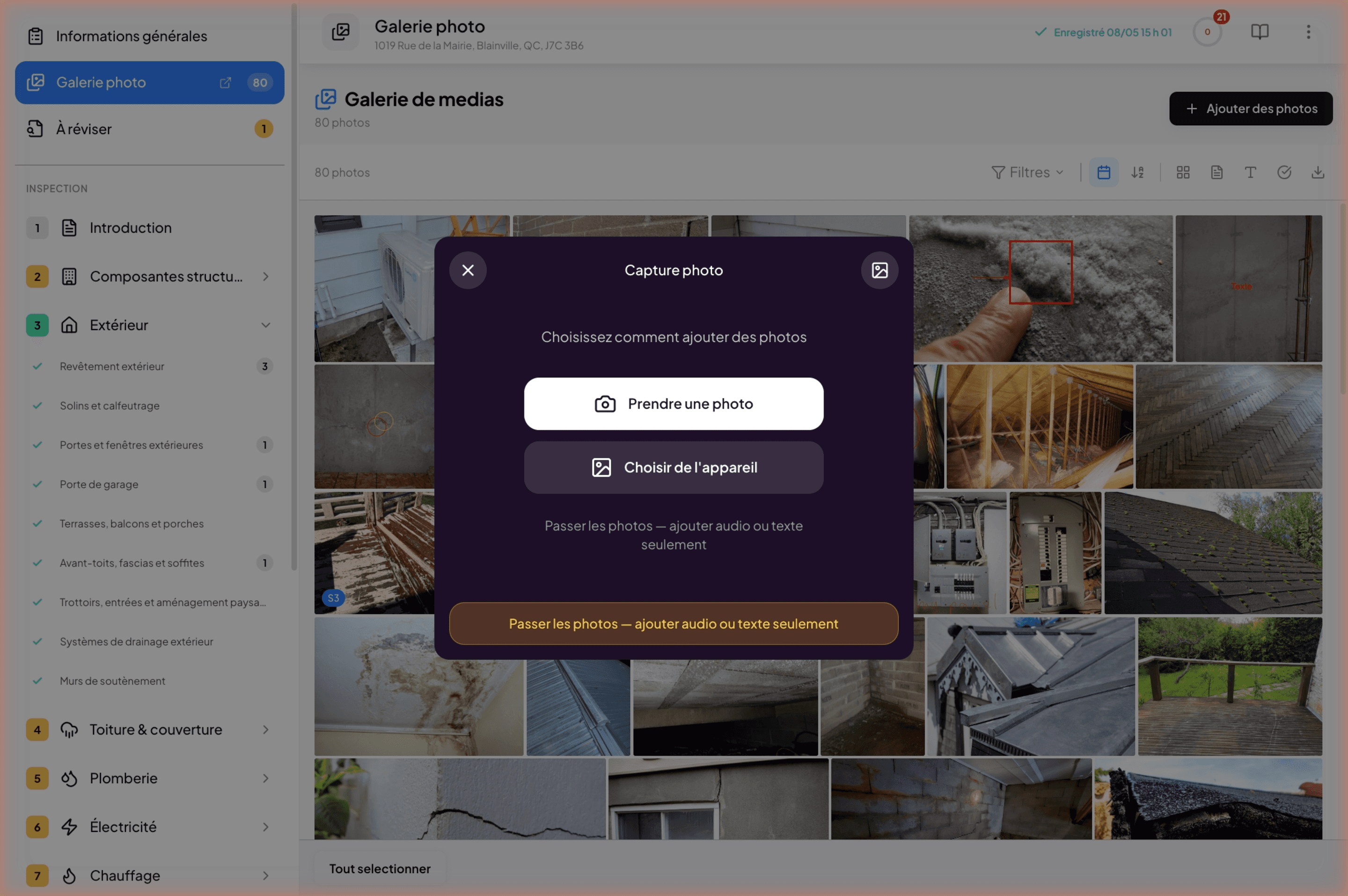
How to access it
Two paths:
- From the left sidebar of the editor, click Photo Gallery (the counter shows how many photos are there).
- From the header, click the images icon. This opens the gallery in a side panel on the right, without leaving your current page. See The images side panel.
Default organization
By default, photos are sorted by file name. This gives a stable, reproducible order when uploading in batch.
Assign photos to a section
Select one or more photos (checkbox or multi-click), then use the Assign to a section button to attach them to a specific building section or subsection. A photo can be attached to several places.
Once assigned, you can filter the gallery by section to see only the photos relevant to a specific area of the building.
Free photos vs photos linked to a narrative
A photo does not have to be attached to a narrative. You can have “free” photos in the gallery — for example general context reference photos, or photos you keep for your archives without including them in the report.
A visual option lets you show a green check and green frame around photos already used in a narrative. You see at a glance what has been exploited and what remains to classify.
Create a narrative from the gallery
Select one or more photos illustrating the same observation, then use the Create a narrative from selection option. The narrative inherits the selected photos; you assign it a subsection and a text. See Create and edit a narrative.
Particularly useful when you have documented an issue from multiple angles and want to group them in a single narrative.
Edit a photo
Click a photo in the gallery to open it in edit mode. Lumos provides annotation and basic retouching tools. See Photo editing tools.
Upload photos
The + Add or Upload button opens the file picker on your device. You can select multiple photos at once. Lumos accepts JPG and PNG formats (and probably HEIC/HEIF on iOS).
See also
- The images side panel and drag-and-drop
- Photo editing tools
- Create and edit a narrative
- To Review — the inbox of field captures to classify