The dashboard
The dashboard is the screen that greets you when you arrive in Lumos. It gives you an overview of your inspection activity and shortcuts your most frequent operations.
It is laid out in four zones: your activity statistics at the top, your recent projects in the center, and two panels on the right, Quick Actions and Recent Activity.
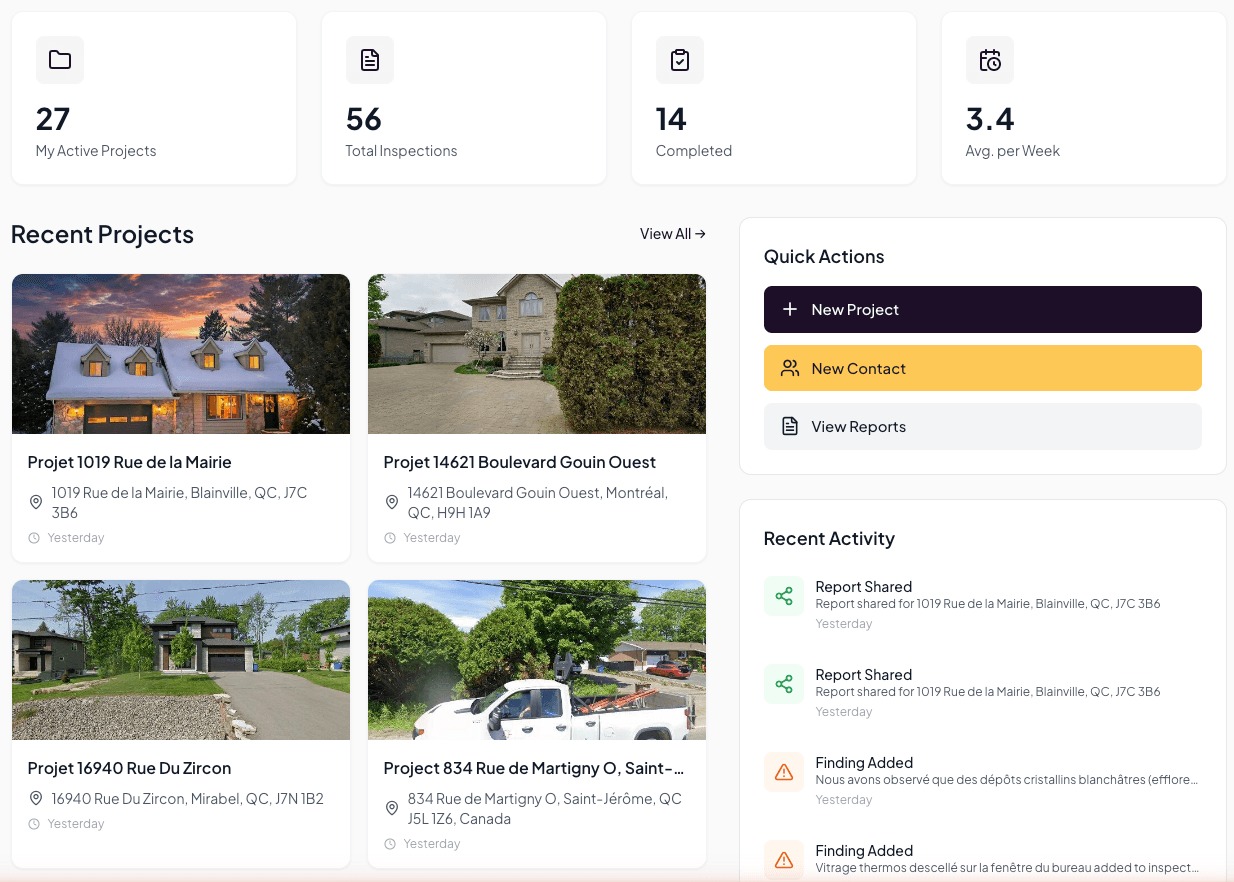
Your activity statistics
Four cards at the top of the screen summarize your activity:
- My active projects — the number of projects currently open in your account. A project remains active until it is archived.
- Total Inspections — the total number of inspections you have performed in Lumos since signup.
- Completed — the number of inspections marked as finished (report finalized and delivered).
- Avg. per Week — your weekly average of inspections, computed over active weeks. A reference point to gauge your pace.
Statistics are computed in real time from your activity in Lumos. They do not include inspections performed outside the platform.
Your recent projects
The Recent Projects section shows your six most recently modified projects, with their cover photo, title, address, and time since last edit.
Click a project card to go directly to its detail page. The View All → button at the top right of the section opens the full Projects page, with search, filters, and archive options.
This section is built for frequent returns to ongoing projects. If you work on several inspections in parallel, this is where you pick up the thread.
Quick Actions
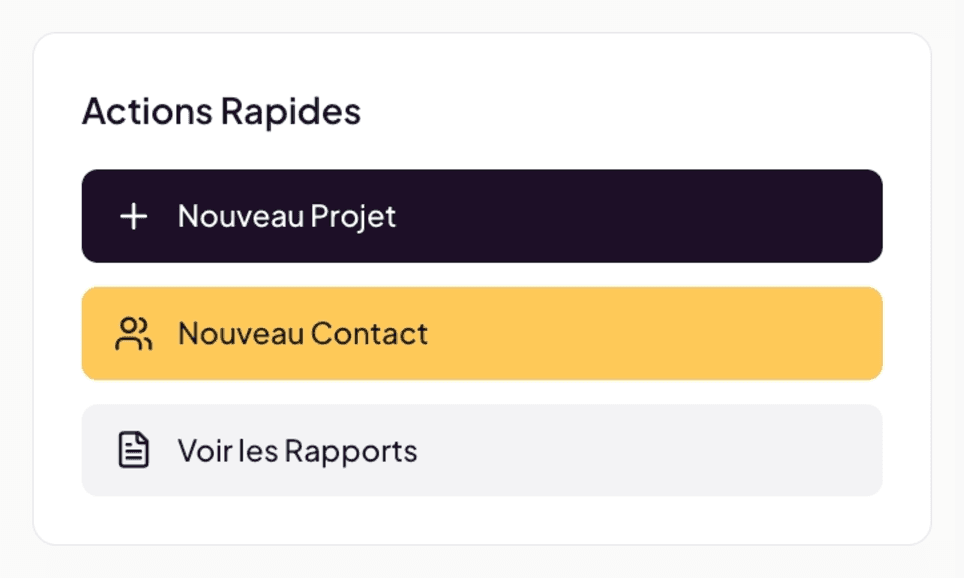
The Quick Actions panel on the right gives one-click access to three of your most frequent operations:
- New Project — start a new inspection by creating a project (client, building, engagement).
- New Contact — add a client, real estate agent, or partner to your address book.
- View Reports — access the centralized list of your inspection reports.
These three actions are also available elsewhere in Lumos (from the Projects page, from Contacts, etc.). The Quick Actions panel is a shortcut so you do not have to navigate manually.
Recent Activity
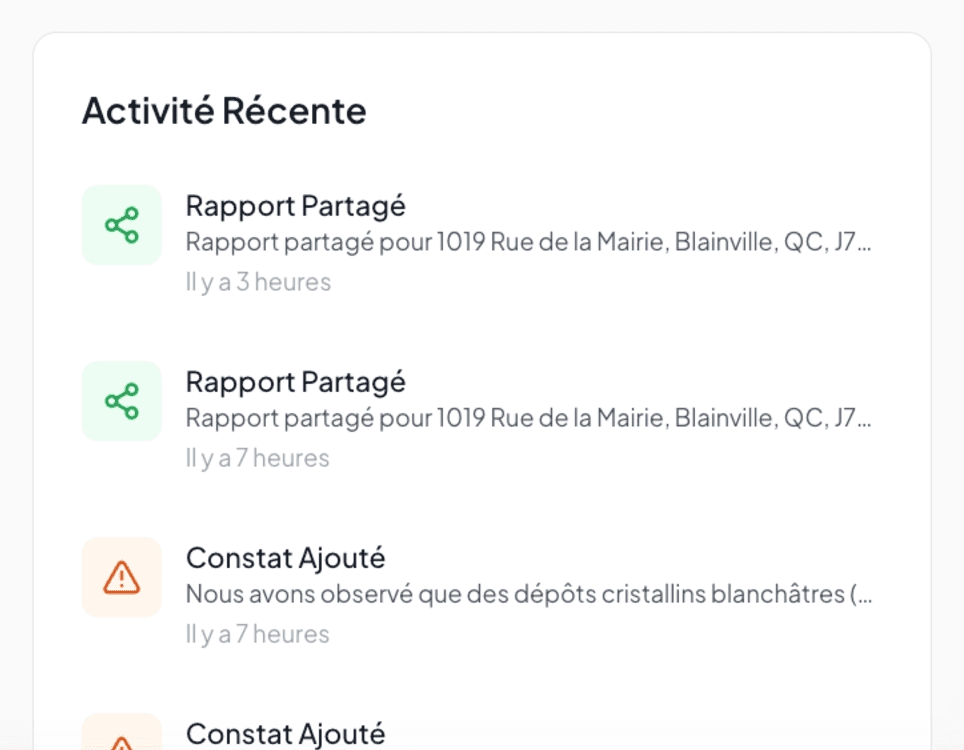
The Recent Activity panel below Quick Actions shows a log of the latest actions on your projects: narratives added, inspections created, reports shared.
Each line displays:
- The event type (for example Narrative Added, Inspection Created, Report Shared).
- A short summary (the name of the item or an excerpt of the content).
- A relative timestamp (“6 hours ago”, “7 hours ago”).
The panel works as a context history. It is particularly useful when you resume work after a break or when you want to quickly check what changed on your projects.
The dashboard refreshes automatically on each visit. There is no need to reload the page to see your statistics up to date.
See also
- Navigating Lumos — the overall structure of the interface
- Project management — search, filters, archive from the full Projects page
- The interactive web report — understanding delivery on the client side