Business Configuration
This page configures everything that touches the commercial structure of your activity in Lumos: contract templates, project and contract numbering, quote and invoice emails, online presence (request widget on your site, Google review requests).
It is divided into five tabs: Service Agreements, Contract Number, Quote & Invoice, Website Widget, Google Reviews.

Service Agreements
This tab groups three sections.
APCHQ Service Agreement
If you are an APCHQ member, enter your member number here. The official APCHQ form then becomes available when adding a service agreement to your projects, and it auto-fills from project and inspection information.
Default values
Five fields that pre-fill your service agreements automatically. The values are also available as variables in your custom contract templates:
- Fees ($)
- Report delay (days)
- Additional hourly rate ($)
- Cancellation fees ($)
- Notice hours (cancellation)
Contract templates
Lumos provides a default template, “Inspection Service Agreement (BNQ-compatible)”, already filled with the standard BNQ content in 17 sections (parties, purpose, refusal of exhaustive inspection, building description, performance modalities, standard compliance, client obligations, warranty exclusion, ownership and report transmission, law observance, force majeure, applicable laws, interpretation, continuation or annulment, additions, fees, signatures, plus an Annex on the Civil Code of Quebec).
From there:
- Edit the default template to add your specific clauses.
- Create new templates for different mandate types (residential, commercial, pre-listing, etc.).
- Choose the language of the contract, French or English.
- Insert variables in the content (
{{Contract Number}},{{Company Name}},{{Property Address}},{{Inspection Date}}, etc.) that Lumos replaces automatically at each contract generation. See Using variables in text editors for the full catalog and best practices.
Available buttons: Reset to default, Preview, Download PDF, Save template.
Contract Number
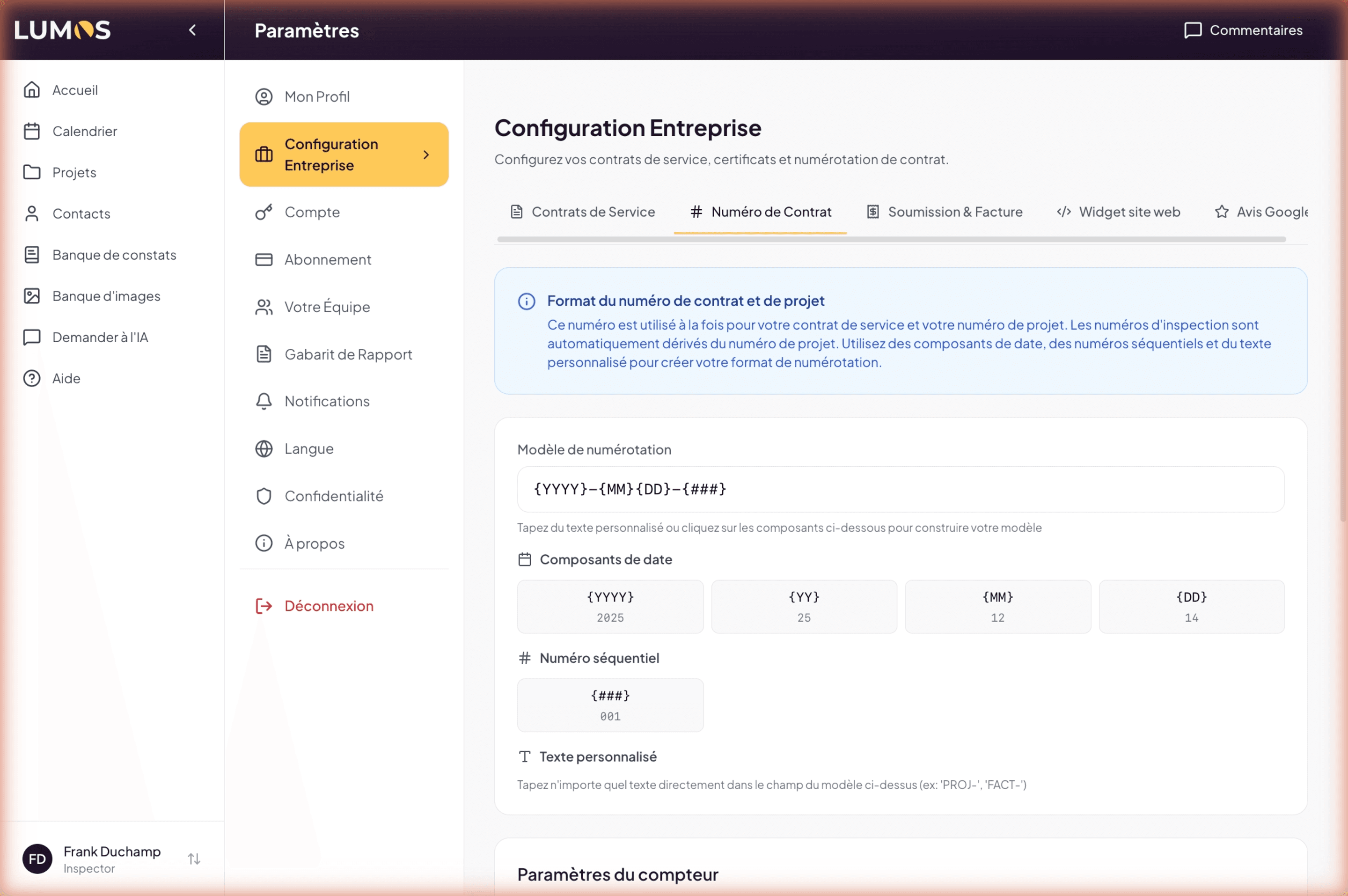
This tab defines the numbering format used for your contracts and projects: both share the same number. Inspection numbers are derived from it automatically.
Numbering pattern
Build your format by combining components:
- Date components:
{YYYY}(4-digit year),{YY}(2-digit year),{MM}(month),{DD}(day) - Sequence number:
{###}, an auto-incrementing counter - Custom text: typed directly in the field, for example
PROJ-orINV-
Example patterns:
| Pattern | Preview |
|---|---|
{YYYY}{MM}{DD}-{###} | 20251214-001 |
PROJ-{YYYY}-{###} | PROJ-2025-001 |
{YY}{MM}-{###} | 2512-001 |
INV-{###} | INV-001 |
Counter settings
- Current counter — the current value of the sequence counter
- Digit padding — 1, 2, 3, or 4 digits (for example
001for 3 digits) - Reset frequency — Never, Yearly, Monthly, or Daily
- Reset counter to 1 button
The preview displays in real time the next contract number that will be generated.
Inspection number
An inspection is numbered after its project’s contract number, followed by its rank within that project. A project numbered 20251214-001 gives INS-20251214-001-1 for its first inspection, INS-20251214-001-2 for the second.
The Prefix field controls what goes in front. It defaults to INS-.
| Prefix | First inspection’s number |
|---|---|
INS- (default) | INS-20251214-001-1 |
| (empty) | 20251214-001-1 |
FILE- | FILE-20251214-001-1 |
Clear the field if you already put your own prefix in the contract number pattern — otherwise the two stack up and you get INS-PROJ-2025-001-1.
The setting applies to new inspections. Numbers already assigned do not change — a report, agreement, or invoice already delivered keeps the number it was issued under.
Quote & Invoice
This tab defines email templates and default notes for your quotes and invoices. Everything is configured independently in French and English.
Quote email template
The default text of the email sent when preparing a quote. Lumos provides a pre-filled template that covers: thanks, inspection details (address, date, time, price), applicable standard, documents to share before the inspection, access to provide, roof access, report delay, recommended presence.
Available variables in this editor: {{Company Name}}, {{Property Address}}, {{Inspection Date}}, {{Inspection Time}}, {{Total Price}}, {{Norm Name}}, {{BNQ Norm Link}}, {{Report Delay (days)}}, {{Inspector Name}}. See Using variables in text editors. The standard named is the one of the agreement in the send (non-REIBH, classic AIBQ or BNQ), and the BNQ link only appears with a BNQ agreement.
Before each send, you keep the option to edit the email.
Invoice email template
The default text of the email sending the final invoice to the client. Pre-filled, shorter template, based on the same variables.
Invoice information
Two fields that apply to all your invoices:
- Default notes — additional notes shown at the bottom of your invoices (thank-you message, policies).
- Default payment instructions — how your clients should pay (bank transfer, e-transfer, check, payment details).
You always have the option to customize these texts case by case, on each invoice.
Website Widget
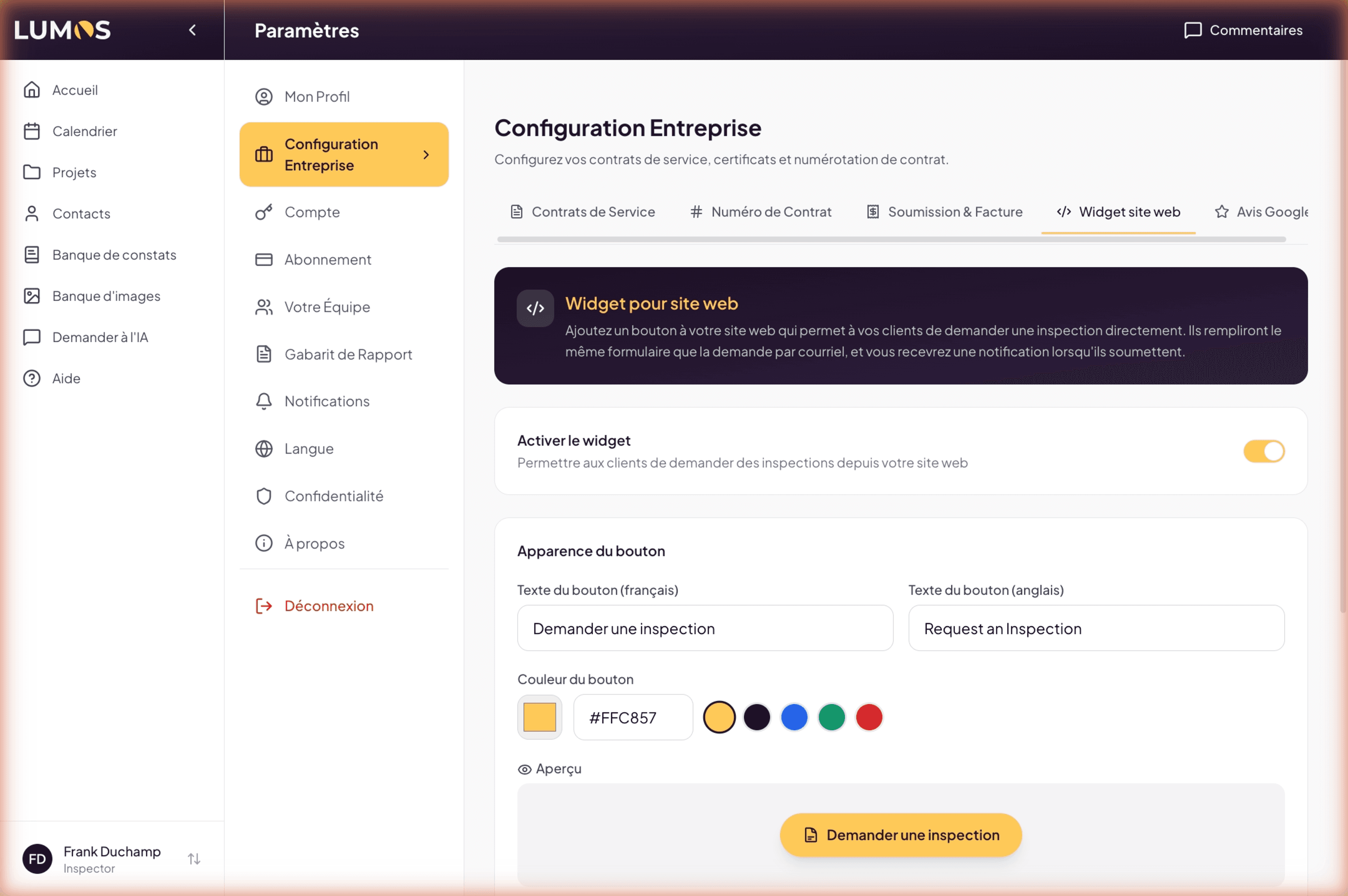
This tab lets you add a button on your own website through which your clients can request an inspection. They fill in the same form as for the email request, and you receive a notification.
Enable widget
Enable widget toggle. As long as it is disabled, the button does not appear, even if the code is integrated on your site.
Button appearance
- Button text (French) — default “Demander une inspection”
- Button text (English) — default “Request an inspection”
- Button color — color picker
A real-time preview shows the button’s rendering.
Embed code
Lumos generates an HTML snippet to paste in your site, where you want the button to appear:
<script src="https://inspector.lumos.property/widget.js"
  data-inspector-id="..."
  data-button-text="Request an inspection"
  data-button-color="#FFC857"
  data-language="en"></script>
A “See the result on a website” link opens a demo.
Google Reviews
This tab configures the automatic sending of a Google review request to your clients after their inspection.
Enable Google reviews
Enable Google reviews toggle. Without enabling, no request is sent.
Google Business Profile
Paste your Google review link in the field. The easiest way: search for your business on Google Maps, open your listing, then copy the full link from your browser’s address bar — Lumos generates the review link automatically.
The field also accepts the “Ask for reviews” link from your Google Business Profile, a Google Place ID (ChIJ... format), or a Google URL containing a Place ID:
https://search.google.com/local/writereview?placeid=...As soon as the value is recognized, the final link sent to your clients appears in a green box, with a button to test it in a new tab. For those without a Google Business profile yet, the link to business.google.com leads there.
Button on the client report
Show the Google review button on the client report toggle: adds a review invitation button to the interactive report, below your contact info. It is independent from the email review requests — only your review link is required. The same toggle is also available in Report Template → Client Report Design.
Automatic sending
- Enable automatic sending toggle
- Delay after report sharing — 24 hours, 48 hours, 72 hours, or 1 week
Default message
The text of the email sent to your client with the review link. Configurable independently in French and English.
Available variables in this editor: {{Client Name}}, {{Company Name}}, {{Inspector Name}}. See Using variables in text editors.
Step-by-step
The existing Guidde video configure-profile covers the Service Agreements, Contract Number, and Quote & Invoice tabs. New videos are planned for Website Widget and Google Reviews.