Daily route
For an inspector on the road, route planning is as important as scheduling the inspections themselves. The Daily route function calculates the full itinerary of a day for you, and exports it in one click to your preferred navigation app.
Access
In the calendar, every day that contains at least one inspection shows a pin icon followed by a number in its header (e.g. 📍 2). Clicking the pin icon opens the Daily route popup for that day.

The icon is not the inspection card — it is the pin next to the inspection count. Clicking the inspection card itself would open the project file, not the route.
What the popup contains
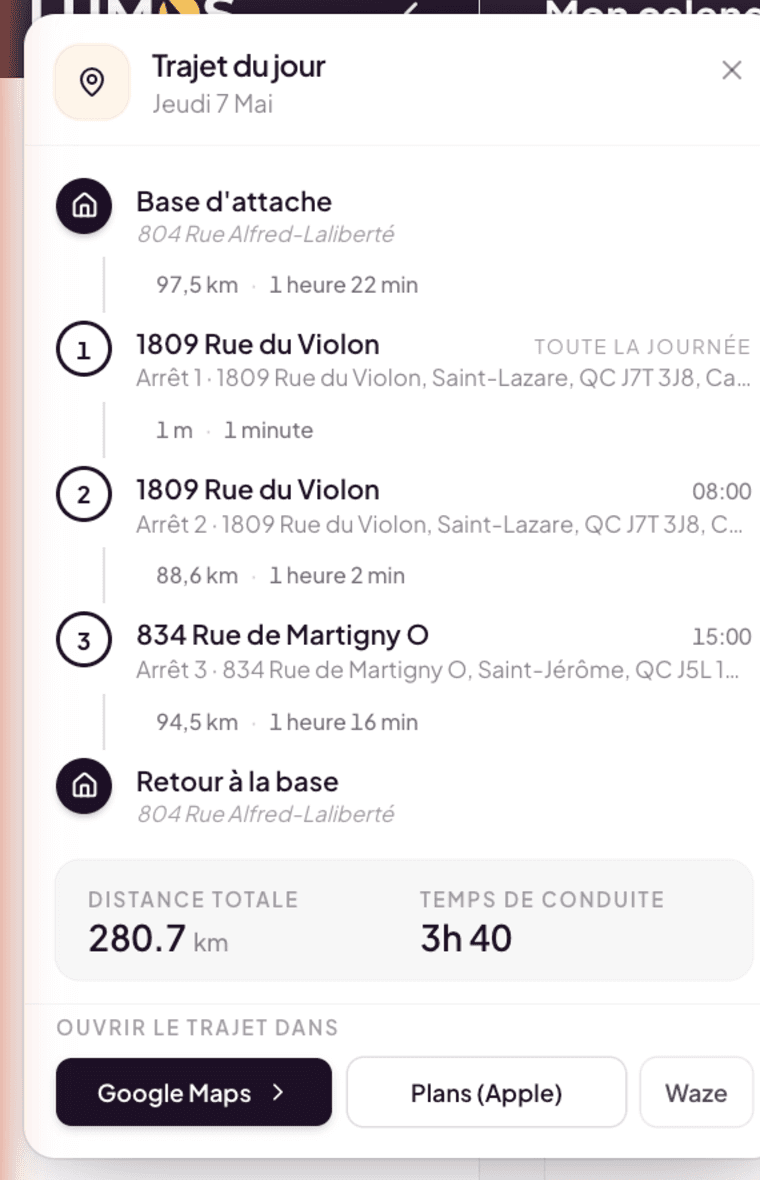
The popup displays a structured route:
- Home base — the starting point. This is your business address (set in My Profile > Business).
- Numbered inspection stops — each inspection of the day, in order, with its address, scheduled time, and distance from the previous stop.
- Return to base — the return to your business address.
- Total distance of the full loop (e.g. 373.2 km).
- Estimated driving time (e.g. 4 h 39).
It is a synthetic view that lets you assess the feasibility of a day before it begins — or document it for your mileage expenses.
Export to a navigation app
At the bottom of the popup, three export buttons open the itinerary in the navigation app of your choice:
- Google Maps — opens the full multi-stop itinerary in Google Maps, in the browser or app if installed.
- Apple Maps — opens the itinerary in Apple’s Maps app. Ideal on iPhone/iPad.
- Waze — opens the itinerary in Waze for real-time navigation with community alerts.
On mobile (Web Mobile), these buttons trigger the native app if installed. On desktop, they open the corresponding web interface.
How distance is calculated
Lumos uses a road routing service (not as-the-crow-flies distance). Distances and driving times account for the road network, but not real-time traffic — which explains why the actual time observed in Google Maps or Waze may differ from the Lumos estimate.
The starting and return point is always the business address you have set in My Profile > Business. If this address is missing, the Daily route function will not be able to calculate the full loop.
Practical tips
- Verify your business address in My Profile > Business — it is the pivot of the calculation. A wrong address gives wrong distances.
- Open the route the day before to anticipate the day, adjust the order of inspections if needed (by editing times in the project files), and pick the most suitable navigation app.
- For mileage expenses, the total distance shown in the popup is a good starting point — check with your accountant what is admissible (full round trip vs one-way).
See also
- Overview
- Views and filters
- Settings and sync
- My Profile — Business — to configure your home base address