Choose, duplicate, create a template
Before modifying anything, you need to decide which template to work on. This page describes the three options and helps you choose.
Getting there
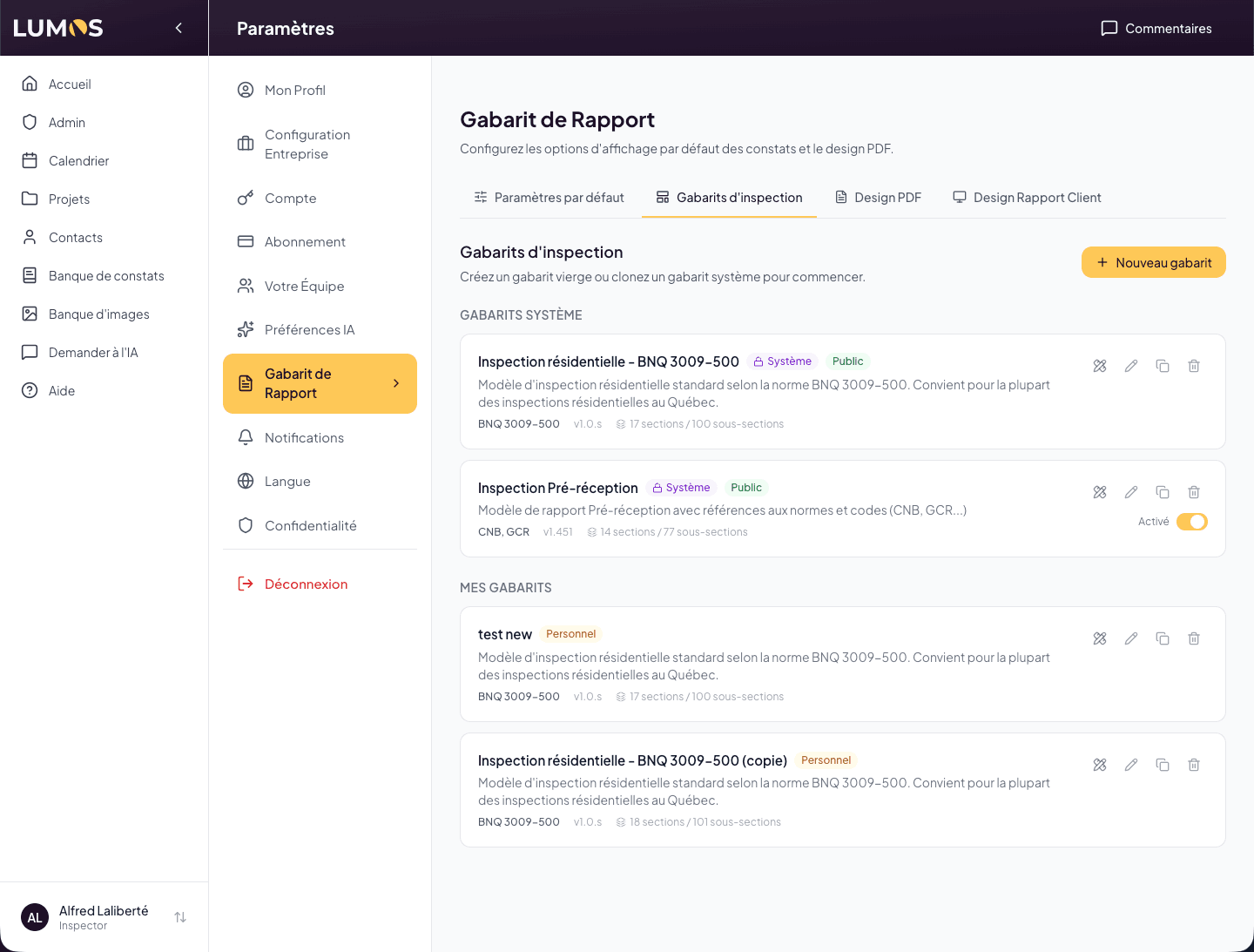
Settings > Report Template > Inspection templates tab. You see two sections: System templates (provided by Lumos) and My templates (yours).
System templates
Lumos offers two system templates, marked with a System chip + a Public chip:
Residential Inspection - BNQ 3009-500
Lumos’s flagship template. Compliant with the BNQ 3009-500 standard (building inspection — pre-purchase inspection of mainly residential buildings). 17 sections, 100 sub-sections covering all the components of a residential home.
It’s the default template for any new inspection. The majority of inspectors start with this one.
Pre-handover Inspection
Pre-handover report model with references to standards and codes (NBC, GCR…). 14 sections, 77 sub-sections.
Deactivated by default — you activate it via the toggle on the right of its card if you do pre-handover inspections. This initial deactivation is because most inspectors don’t do both types of inspections.
Three paths to get started
Path 1 — Use as is
This is the right starting point for the great majority of inspectors. You don’t touch the system template and use it as is for your inspections. Your reports will comply with the BNQ standard from the start, with zero configuration effort.
You have nothing to do: when creating an inspection, the BNQ template is selected by default.
When to move on: when you identify something in the template that doesn’t match your style (phrasings to adjust, sections to remove, severity levels to reword).
Path 2 — Duplicate a system template
This is the most used path for customization. You create an editable copy of the system template.
- On the system template card, click the duplicate icon (on the right of the card).
- Lumos creates a copy named for example “Residential Inspection - BNQ 3009-500 (copy)” in the My templates section.
- The editor opens directly on the copy, on its Template configuration page — rename it first, then adjust the rest.
The copy is fully editable — you can modify everything (sections, sub-sections, severities, predefined narratives). The original system template remains intact under System templates.
Path 3 — Create a new template
Click + New template at the top right. A guided creation window opens:
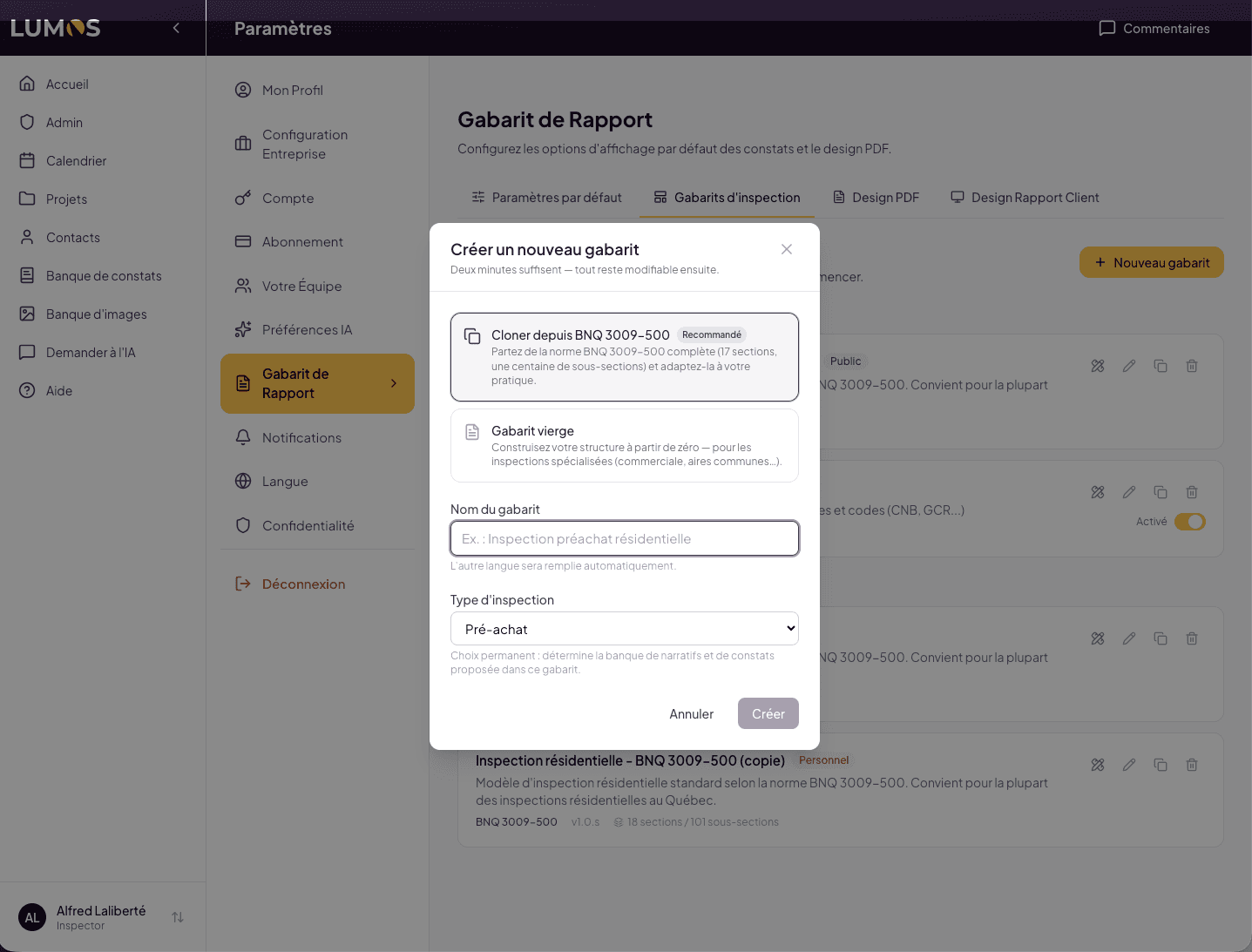
- Source — two cards to choose from:
- Clone from BNQ 3009-500 (Recommended) — you start from the complete standard and adapt it to your practice. Equivalent to Path 2, but with your own name from the start.
- Blank template — you build your structure from scratch. Reserved for specialized inspections (commercial, common areas…) where BNQ is not a good starting point. Expect several hours of serious configuration for a complete template.
- Template name — a single field, in your language. The other language is filled in automatically by translation.
- Inspection type — visible if the Pre-handover template is activated on your account. It’s a permanent choice: it determines the bank of narratives and findings offered in this template (Pre-purchase or Pre-handover).
Click Create: the editor opens on your new template’s Template configuration page.
Activating a deactivated system template
To activate Pre-handover Inspection:
- On its card, click the Deactivated toggle on the right. It switches to Activated.
- The template becomes selectable when creating an inspection.
You can also duplicate it without activating it if you just want to build a personal derivative.
Your personal templates (My templates)
Each template you create or duplicate appears under My templates, marked with a Personal chip. For each, you have three actions on the right of the card:
- Edit (pencil) — opens the editor.
- Duplicate (copy icon) — creates a copy of your personal template.
- Delete (trash) — opens a confirmation, then permanently deletes the template. You can also do this from the Delete template zone at the bottom of the Template configuration page (see RT.10).
Deleting a personal template is permanent. Inspections already created with this template are not affected (they keep their frozen copy of the template), but you won’t be able to create new inspections with it. If you hesitate, don’t delete.
Metadata shown on each card
For each template, the card shows:
- The template’s name
- Its standard (BNQ 3009-500, NBC+GCR, or custom)
- Its version number (managed automatically by the version history)
- Its structure (N sections / N sub-sections)
- A short description
This helps you quickly identify which template to choose for which type of inspection.