Manage your subscription
This page describes everything you can do from Settings > Subscription: view your plan, adjust your team, open the Stripe Billing Portal to manage invoices and payment methods, cancel a subscription, and understand renewal and payment failure behaviors.
Access
Settings > Subscription in the left sidebar. Item under Account and Business Configuration.
Page anatomy
When your account is on a Pro plan with a team, the page shows three blocks:
Active plan block
- Crown icon + plan name (e.g. Pro).
- Short description (e.g. “Unlimited inspections”).
- Chip on the right indicating state (e.g. ∞ Pro).
On a Starter account, the block would instead show the counter of remaining inspections in the bank and an upgrade button to Pro.
Team Seats block (only in team mode)
- Users icon + title Team Seats.
- Explanation text: “Each team member requires a seat. The account owner’s seat is included.”
- Line Current seats: N seat(s) — with sub-line specifying that 1 seat is included for the owner and the cost per additional seat ($99/seat/month).
- Manage team button leading to Settings > Your Team to invite or remove inspectors.
Billing Portal block
- Card icon + title Billing Portal.
- Text: “Manage your payment methods, view your invoices, and update your billing information.”
- Open billing portal button (black, primary) — opens Stripe.
- Gray Cancel subscription link at the bottom of the block.
At the bottom of the page, a Manage payment method ↗ link (direct Stripe shortcut).
The Stripe Billing Portal
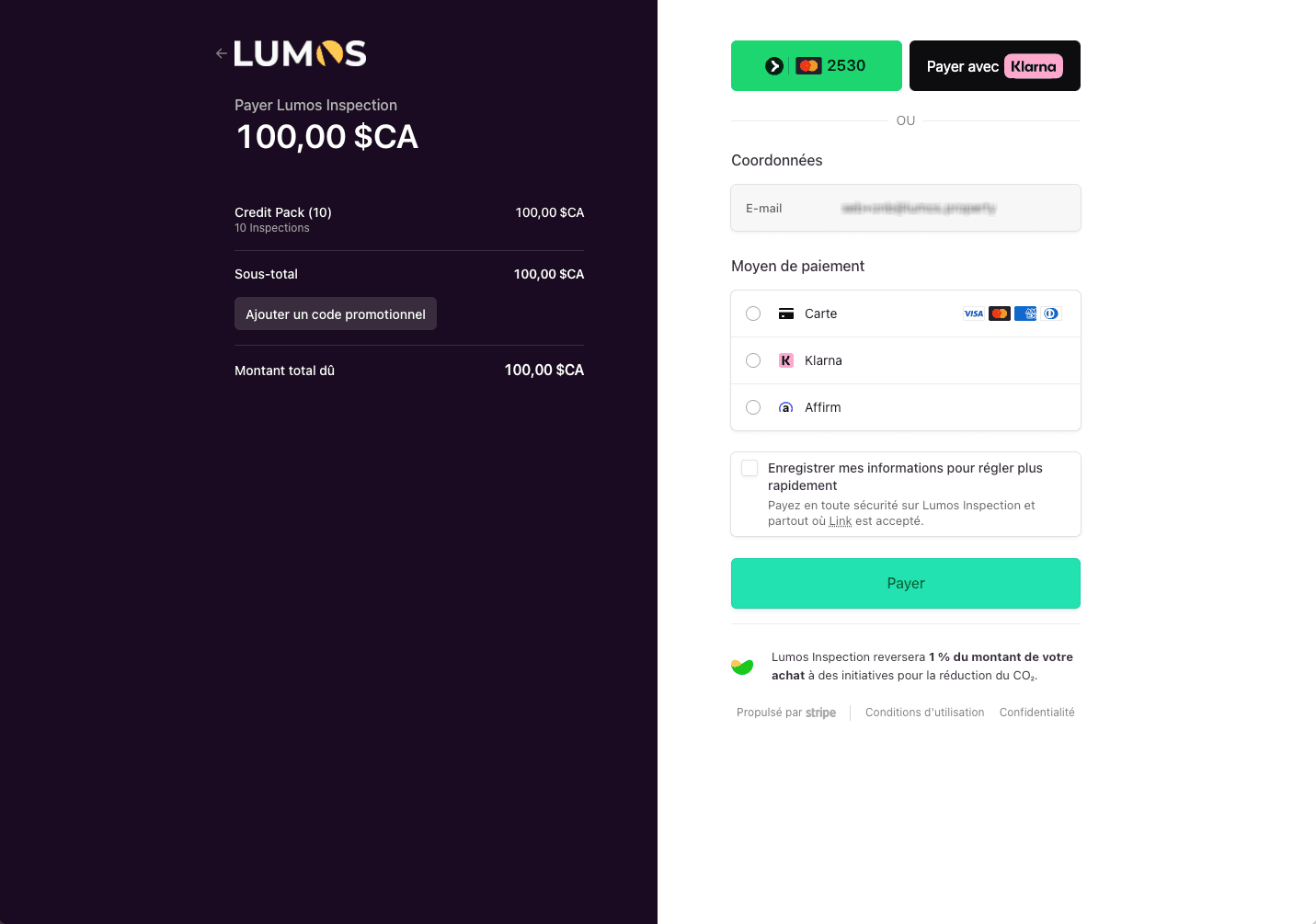
Lumos delegates all fine-grained billing management to Stripe, the recognized payment provider used by thousands of companies. Clicking Open billing portal redirects you to a secure Stripe page where you can:
- View your payment history.
- Download your invoices in PDF format (useful for your accounting).
- Update your credit card in case of expiration or change.
- Modify your billing address.
- See details of your next renewal (date and amount).
Your credit card information is hosted by Stripe, not by Lumos. That’s good news for security — Stripe is PCI DSS certified, the world standard for payment data security.
Automatic renewal
The Pro monthly and Pro annual plans renew automatically at their due date. You receive a renewal notice by email at least 7 days before the due date.
The notice reminds you of:
- The amount that will be charged.
- The date of the charge.
- The payment method used (card ending in XXXX).
- The link to the Stripe portal to modify or cancel.
If you don’t want to renew, cancel before the due date (see below).
Switching from monthly to yearly
On the Subscription page, the Switch to yearly block offers to move your monthly Pro plan to yearly billing. Yearly costs less: $1,100 instead of 12 x $110, and $990 per seat instead of 12 x $99. A team of three inspectors saves $616 a year.
The change takes effect right away, as soon as you confirm — not at the end of your current month. Today you pay for the full year, seats included, minus the time you already paid for the current month. That credit appears on the same invoice, so you never pay twice for the same period. Your next charge happens one year later.
Before you confirm, the window shows the exact breakdown of the charge:
- the yearly plan, seats included;
- the credit for the days already paid this month;
- if any, adjustments already pending (for example a seat added mid-month);
- taxes;
- the total charged today. That exact amount, to the cent, is what your card is charged.
If your card is declined, or your bank asks for a confirmation, nothing changes: you stay on monthly billing and nothing is charged. Update your card with Manage Payment Method, then try again.
Switching to yearly cannot be undone from the app. To go back to monthly, write to support@lumos.property.
Cancellation
Procedure
From the Subscription page:
- Click Cancel subscription (gray link in the Billing Portal block), or open the Stripe Portal and use the cancellation option.
- Confirm your choice.
Effects
- The subscription stays active until the end of the current paid period.
- No prorated refund for the unused portion — it is written in the Terms of Use.
- At the end of the period, your account switches to the Starter plan by default. Your data stays intact.
Reactivate after cancellation
You can reactivate your Pro plan at any time from Settings > Subscription. The new cycle starts from subscription.
Payment failure
If Stripe fails to charge your renewal payment (expired card, insufficient funds, bank block), here is the sequence:
- First failed attempt — Stripe automatically retries several times over 15 days.
- Notification — you receive an email from Lumos to inform you and invite you to update your card.
- 15-day grace period — your Lumos access remains functional during this time.
- Suspension — beyond the 15 days without resolution, access to the Software may be suspended.
- Interest — any unpaid amount bears interest at 24% / year from its due date.
To avoid this sequence: update your card at least 7 days before the renewal date as soon as you know it will expire.
Inactive accounts
Lumos may delete an account that has been inactive for 12 consecutive months after sending a notice to your email address. If you plan a long activity break, stay attentive to Lumos emails.
Stripe acts as processor
Important to understand: Lumos does not store your payment information. Stripe hosts it per its own terms of use and privacy policies. Lumos only receives transaction confirmations and billing information for accounting purposes.
For questions about a specific payment:
- For management questions (change card, download invoice): use the Stripe portal.
- For questions related to your plan (change, cancel, problem):
support@lumos.property. - For privacy-related questions about payment:
privacy@lumos.property.
See also
- Overview
- Plans and pricing
- Getting started with Lumos
- Team chapter — for team seats
- Terms of Use — Section 5 — payment and billing