Document-type subsections
Among the building sections, your template includes a few Document-type subsections. These are pages of written text that do not host narratives: they frame the report (introduction, conclusion, certificate) and give a professional voice to your deliverable.
Which subsections are Document-type
The Residential Inspection - BNQ 3009-500 template typically offers four:
- Reader’s Notice — the introduction page of the report, contextualizing the inspection for the client.
- Items to Consider — a summary of attention points, presented before the detailed sections.
- Inspector’s Certificate — the professional identification page (name, certifications, signature).
- Conclusion — the closing page of the report.
Other templates may add or remove some. You recognize a Document-type subsection by its document icon in the sidebar.
How they work
When opening a Document subsection, the rich text editor takes over the workspace. The content is pre-filled from the template: no need to start from scratch each inspection. You can edit the text locally for this specific inspection — your changes override the template, without modifying it for future inspections.
If you want to change the default text for all your future inspections, edit the template in Settings > Report Template.
The editor toolbar
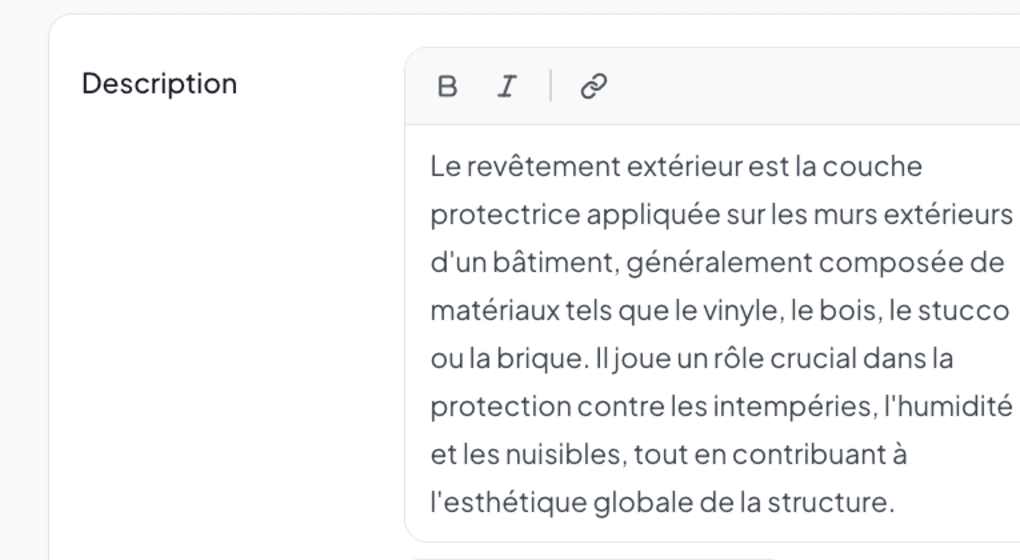
The editor offers standard tools to write structured text:
- Undo / Redo
- Bold / Italic
- Heading level (Normal, H1, H2, H3, etc.)
- Text color
- Bulleted / Numbered lists
- Quote (blockquote)
- Hyperlink
- Insert variable (
{ }icon) — see below. - HTML view — for advanced users who want to edit markup directly.
FR / EN toggle
At the top of the editor, two pills FR and EN let you edit the French and English versions independently. The language shown in the final report depends on the project’s language (set at creation) and the language chosen when generating the PDF.
If your activity is mostly francophone, you can fill only the FR. The English report will then use the template’s default content.
Variables
Document subsections support variables ({{Property Address}}, {{Inspection Date}}, {{Full Name}}, {{Company Name}}, etc.). Variables fill automatically at report generation, from the project, the client, and your profile.
Click the { } icon in the toolbar to insert a variable, or type the syntax directly between double curly braces. See Using variables in text editors for the full catalog.
Example: Reader’s Notice
Pre-filled content typically looks like this:
Dear client,
Please find attached the inspection report of the property located at
{{Property Address}}, performed on{{Inspection Date}}. In accordance with our service agreement, this inspection was performed according to the BNQ 3009-500 practice standard in force in Quebec.[…rest of the text with mentions on scope, confidentiality, invitation to ask questions, and signature]
{{Full Name}}{{Company Name}}
You can adjust this text for tone, add mentions specific to your firm, or replace the signature.
Saving
As everywhere in the editor, your changes are saved automatically. The “Saved at HH:MM” indicator in the header confirms the latest save.
See also
- Navigating between sections and subsections
- Using variables in text editors
- Customizing report templates — to edit default content at the template level
- Change or reset the template