Navigating between building sections and subsections
The left sidebar of the editor is your table of contents. It lists all the sections your report will cover, in the order of the template you chose at inspection creation.
What the sidebar contains
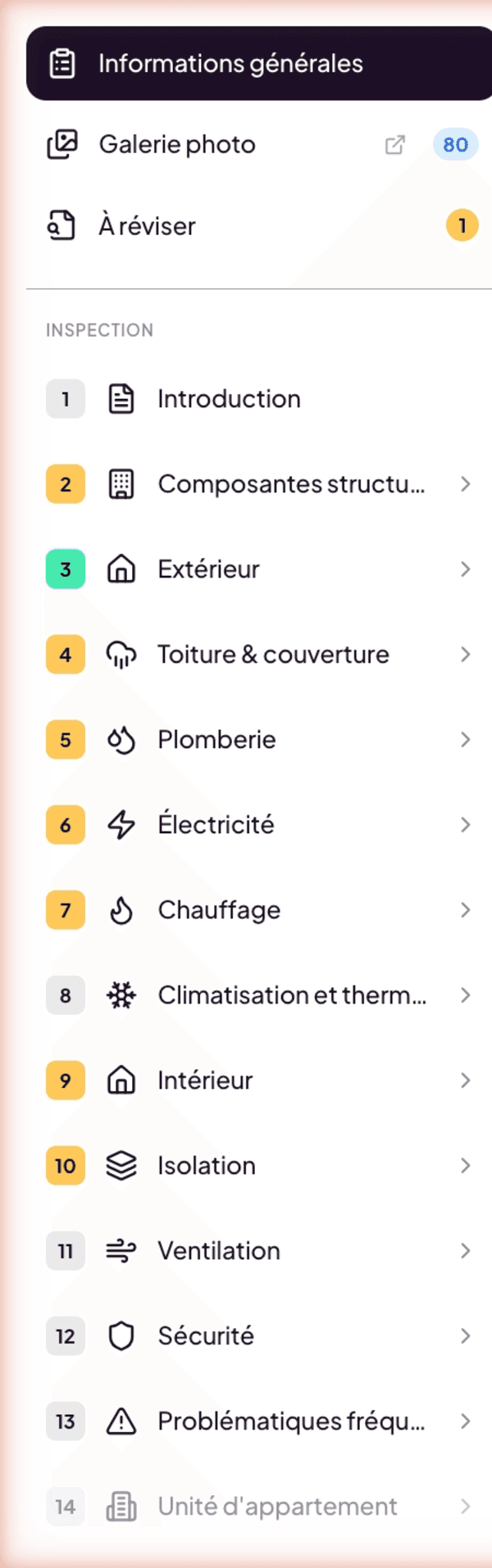
From top to bottom:
- General Information
- Photo Gallery (with a photo counter)
- To Review (with a counter of unclassified captures)
- A section labeled “INSPECTION” follows. The entries below are the building sections and the Document-type subsections defined by the template.
For the Residential Inspection - BNQ 3009-500 template (the most common), the typical list is: Reader’s Notice · Structural Components · Exterior · Roofing & Cover · Plumbing · Electrical · Heating · Air Conditioning and Heat Pumps · Interior · Insulation · Ventilation · Safety · Common Issues · Apartment Unit · Items to Consider · Inspector’s Certificate · Conclusion.
The exact order and list come from the template. If you use a personal template or a Pre-handover template, entries may differ.
Building sections vs Document-type subsections
Two families coexist in the list:
- Building sections (Structural Components, Exterior, Roofing, Plumbing…) contain subsections that group narratives about specific components.
- Document-type subsections (Reader’s Notice, Items to Consider, Inspector’s Certificate, Conclusion) are pages of written text that open directly in a rich editor, without narratives. See Document-type subsections.
Open and explore a section
Click a building section name (for example Exterior) to open its page. The section displays its subsections (for example Exterior Cladding, Exterior Doors and Windows…). Click a subsection to reveal its descriptive fields (materials, condition, observations) and its narratives already created or to be created.
For a Document-type subsection, clicking opens the text editor of that subsection directly.
Visual indicators
- Counter on Photo Gallery and on To Review — number of items there.
- Numbering of sections — eases reference between inspectors and with the client.
- Progress indicator on some sections — shows the completion rate.
Collapsing the sidebar
The menu button (hamburger icon) at the top left of the header collapses the sidebar, freeing space for the workspace. Clicking again brings it back. Useful on a small screen or in focus mode.
Locked by the template
You cannot add a section or a subsection ad-hoc to an ongoing inspection. The structure comes from the template chosen at creation and only changes through the template selector (which wipes existing data — restorable for 90 days thanks to a safety snapshot). See Change or reset the template.
To add a new section to your methodology, edit your template in Settings > Report Template. All your future inspections will benefit. Ongoing inspections keep the snapshot of the template used at their creation.