Narrative sections
Narrative sections (page icon in the navigation) are free-text pages inserted into the report. They have no sub-sections and no findings — just a block of text written in advance in the template, with variables that resolve at inspection time.
What they’re for
Four typical use cases (present in the BNQ template):
- Notice to reader — introduction page addressed to the client, explaining the report’s context, the applied standard, and each party’s responsibilities.
- Items to consider — recap of vigilance points outside the BNQ scope that the inspector deems relevant.
- Inspector’s certificate — attestation page with license number, affiliation, and professional contact info.
- Conclusion — closing page, usually with a final recommendation and a courtesy note.
You can add more if your practice justifies it (for example a Methodology page or Condo-specific warnings) — see RT.3, Add a text block menu (4 pre-written models + blank block).
The narrative section editor
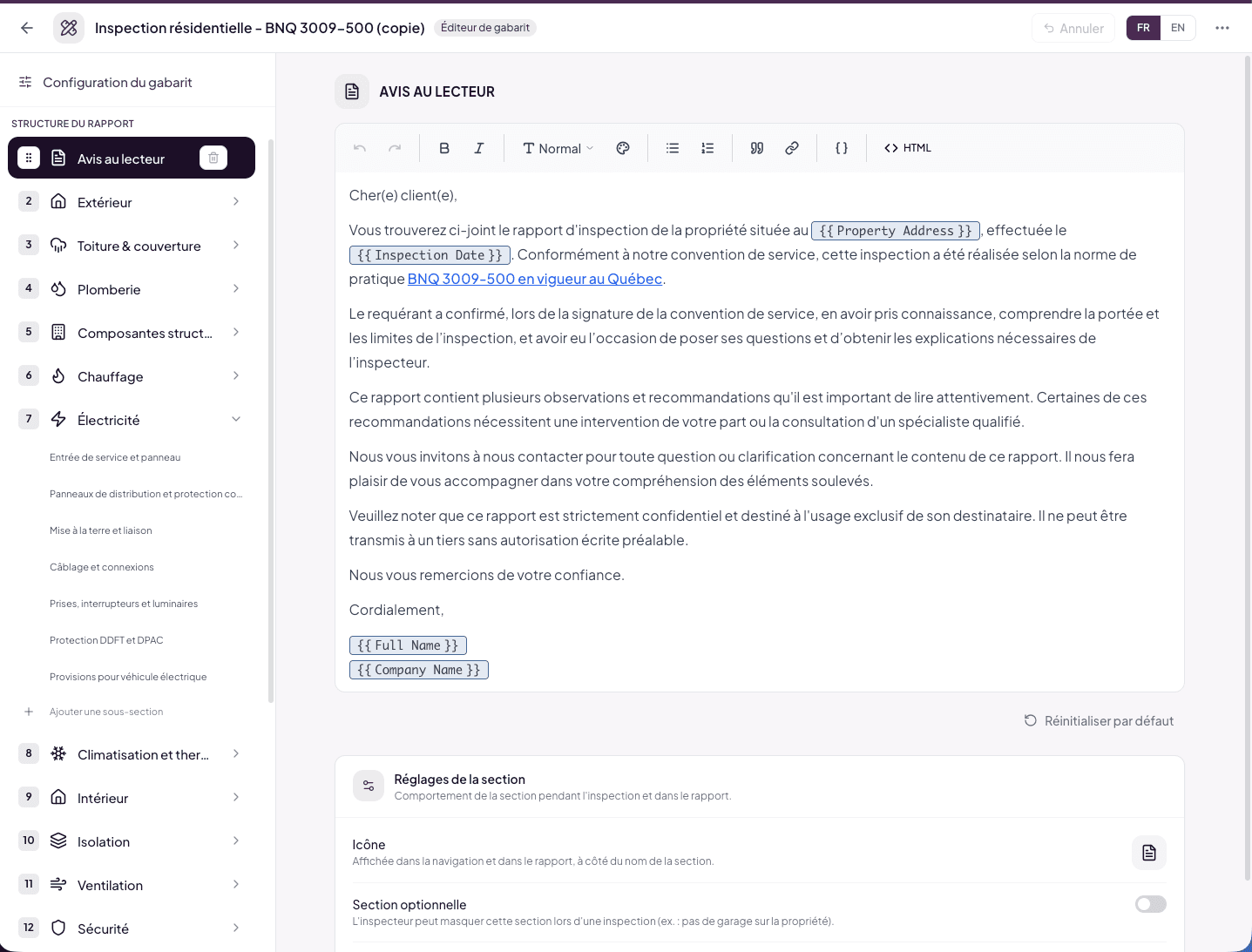
Click a narrative section in the navigation. The page shows:
The title
At the top, the section name — click it to edit in place. This is the title that appears in the table of contents and at the top of the page in the report.
The rich editor
You write in the language of the header’s FR / EN switch (see RT.2). The toolbar offers:
- Undo / Redo — within the text.
- Bold / Italic — basic formatting.
- Heading level — Normal, H1, H2, H3.
- Text color.
- Lists — bulleted and numbered.
- Quote — block quote.
- Link — create a hyperlink (for example to the BNQ standard).
- Variable
{ }— insert a dynamic variable (see below). - HTML — switch to source mode to paste raw HTML.
The text is kept as you write it and appears in the generated report (PDF + interactive web).
What about the other language? When you leave the editor and the other language is still empty, Auto-translate fills it in from your text. If the other language already has content, it is not overwritten — flip the FR/EN switch to touch it up yourself.
Reset to default button
Below the editor, a Reset to default button restores the text provided by Lumos for this section. One click shows a two-step confirmation — the second click performs the reset.
Reset to default overwrites your current version (in the displayed language). In case of a mistake, the header’s Undo button can recover your text; for a longer-lasting net, create a snapshot via ⋯ > History before big rewrites.
Section settings
Below the editor, the Section settings card offers the same options as any section: icon, optional section (with enabled by default), forced page break. See RT.3.
The {{ }} variables
Narrative sections support dynamic variables that are automatically replaced by real values when the report is generated.
Variables used in the BNQ template:
{{ Property Address }}— full property address.{{ Inspection Date }}— inspection date.{{ Full Name }}— client’s full name.{{ Company Name }}— your company name.
To insert a variable, use the { } toolbar button and pick from the list. Once inserted, the variable appears as a blue-tinted chip in the text to indicate it will be replaced at generation.
Behavior at generation
When the report is produced (PDF or interactive web), Lumos replaces each variable with the matching value:
{{ Property Address }}→ “3669 Rue Orléans, Brossard, QC, J4Y 2M1”{{ Inspection Date }}→ “May 6, 2026”{{ Full Name }}→ “Jacob Mercier”{{ Company Name }}→ “SupaDupa Inspection”
If a variable has no value at generation time, Lumos may produce an empty string. Proofread your narrative sections in a test report before finalizing.
Writing best practices
Keep a professional tone
Narrative sections are read directly by your client — they’re your editorial storefront. Avoid overly technical jargon, explain concepts that may surprise a layperson, and polish grammar and punctuation.
Don’t duplicate what the findings already say
A generic Notice to reader about “how to read the report” is useful; a Notice detailing the structural defects found is not — that’s the findings’ job. Narrative sections provide context, not inspection content.
Check both languages
If you serve a bilingual clientele, flip the FR/EN switch after your edits to proofread the translated version — automatic translation is good, but your professional eye remains the final judge.
Use variables sparingly
Variables are powerful but can make the text rigid. Prefer them for factual values (address, date, name) and write the rest as free text.
See also
- RT.3 Sections and sub-sections — to add / delete a narrative section
- RT.2 Editor anatomy — the FR/EN switch and Auto-translate