The sub-section
A sub-section is the inspection unit: it’s what the inspector fills out for a given building component (Foundations, Load-bearing walls, Service entrance and panel, etc.). This page presents its editing form and its Settings panel — the content blocks (status, elements, findings) are covered in RT.6 to RT.8.
Getting there
Click a sub-section in the navigation (expand its section with the chevron if needed).
The form — a replica of the inspection
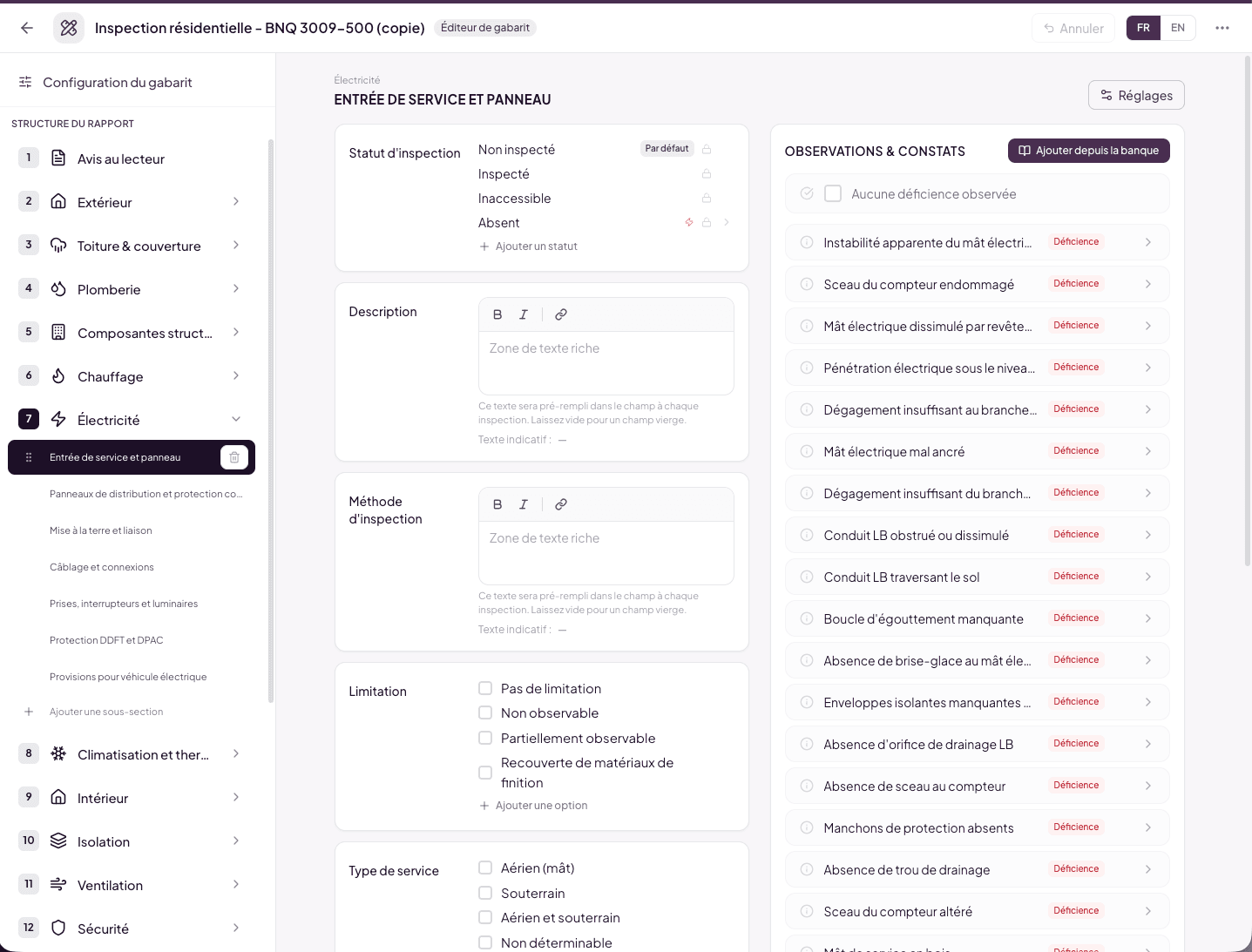
The editing area shows the sub-section exactly as the inspector will see it:
- At the top: the breadcrumb (section name), the sub-section title — click it to rename in place — and the Settings button.
- On the left: the Inspection status card (see RT.6), then the inspection elements (Description, Inspection method, Limitation… — see RT.7), and the Comments zone the inspector will be able to fill.
- On the right: the Observations & findings column with the sub-section’s predefined narratives (see RT.8).
Everything edits directly on this mockup. What you see is what your team will see.
The Settings panel
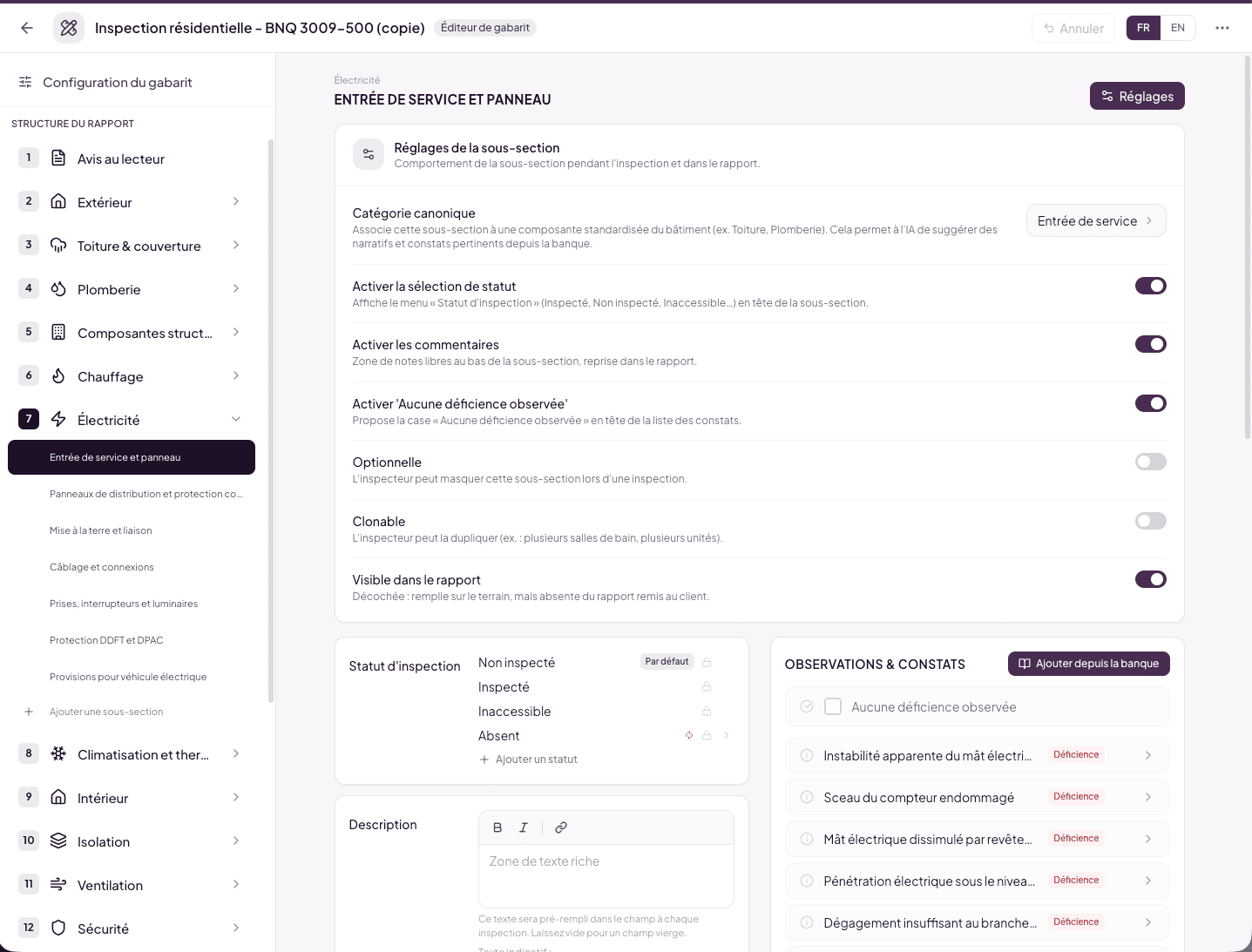
The Settings button (top right) unfolds the Sub-section settings card: the sub-section’s behavior during the inspection and in the report.
Canonical category
Associates the sub-section with a standardized building component (for example “Service entrance”, “Foundations”, “Roofing”). Click the value to open the picker: search + category families organized hierarchically (STRUCTURE, PLUMBING, ELECTRICAL, ROOFING, etc.).
What it’s for: the AI suggests relevant narratives and findings from the Bank based on this category. If you create a “My special foundations” sub-section with the Foundations category, the AI will suggest the same findings as for a standard Foundations sub-section.
The category list is closed and determined by Lumos. If no category fits perfectly, pick the closest one — the AI will still work, with slightly less precise suggestions.
Enable status selection
Shows the “Inspection status” menu (Inspected, Not inspected, Inaccessible…) at the top of the sub-section. Enabled on nearly all BNQ sub-sections. Disable only for purely informational sub-sections where a status makes no sense.
Enable comments
Shows the free notes zone at the bottom of the sub-section, included in the report. Keep it enabled in most cases — disable only if you want to force exclusive use of predefined narratives.
Enable “No deficiency observed”
Offers the “No deficiency observed” checkbox at the top of the findings list. When the inspector checks it, the report explicitly states that they inspected and found nothing — more reassuring for the client than a silent sub-section.
This checkbox never excludes anything automatically. Information, limitation and method findings are added without a question. If the inspector adds or reactivates a defect while the box is checked, or checks the box while defects are active, Lumos flags the conflict; they can continue and keep both in the report, or cancel.
Optional
The inspector can hide this sub-section during an inspection. Enable it for components that aren’t present on every property.
Clonable
The inspector can duplicate the sub-section within an inspection — for example several bathrooms, several units.
Visible in report
Unchecked: the sub-section is filled in the field but absent from the report delivered to the client. Rare use case — internal notes, checklist items you don’t want to expose to the client.
Saving
As everywhere in the editor, every change is saved automatically — the header indicator confirms it, and Undo reverts recent changes.