Narrative configuration per sub-section
The Observations & findings column (on the right of the sub-section form) lists the findings Lumos will suggest to the inspector when writing this sub-section. This is where your template’s added value lives: a well-chosen list turns writing into a series of clicks.
The column in detail
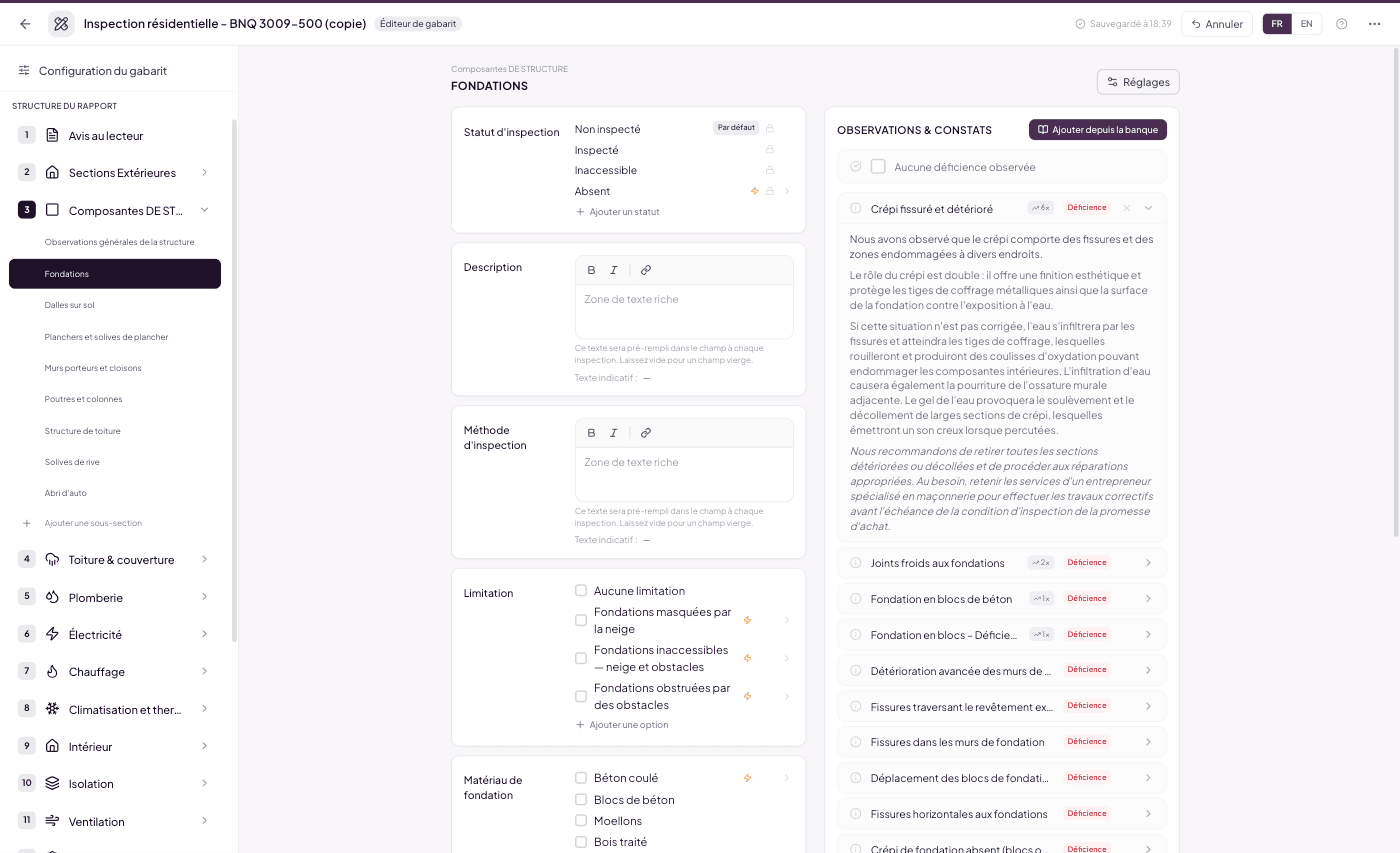
From top to bottom:
- The Add from bank button (at the top of the column).
- The No deficiency observed row — present if the option is enabled in the sub-section’s Settings (see RT.5). This is the checkbox the inspector will tick when they inspected and found nothing.
- The list of predefined findings, each with its title and type badge (Deficiency, Limitation, Information…).
- The Allow custom findings and Order by popularity toggles at the bottom of the column.
Reading a finding
Click a finding to expand it and read its full narrative — the exact text that will be inserted into the report. A second click collapses it. Handy for checking a phrasing without leaving the editor.
Reordering
When hovering a finding, a drag handle appears left of its title. Drag and drop to change the order — this is the order in which findings are suggested to the inspector during the inspection. Put the most frequent ones on top.
Would you rather have this ranking happen by itself? Check Order by popularity (see below): the list then automatically follows each inspector’s most-used findings, and drag and drop is disabled.
Removing a finding
On hover, an × appears right of the title. Click to remove the finding from this sub-section. The finding stays in the Bank — it’s simply detached from this sub-section, and you can re-attach it later.
To delete a narrative from the Bank itself, go through the Narrative Bank (Chapter 8).
If a narrative in the list has been deactivated or deleted in the Bank since it was added, it shows greyed and struck through with a “Narrative deactivated” or “Narrative deleted” badge, and its × stays visible. Such narratives are no longer offered in the inspection editor; removing them here keeps your template clean.
Adding from the bank
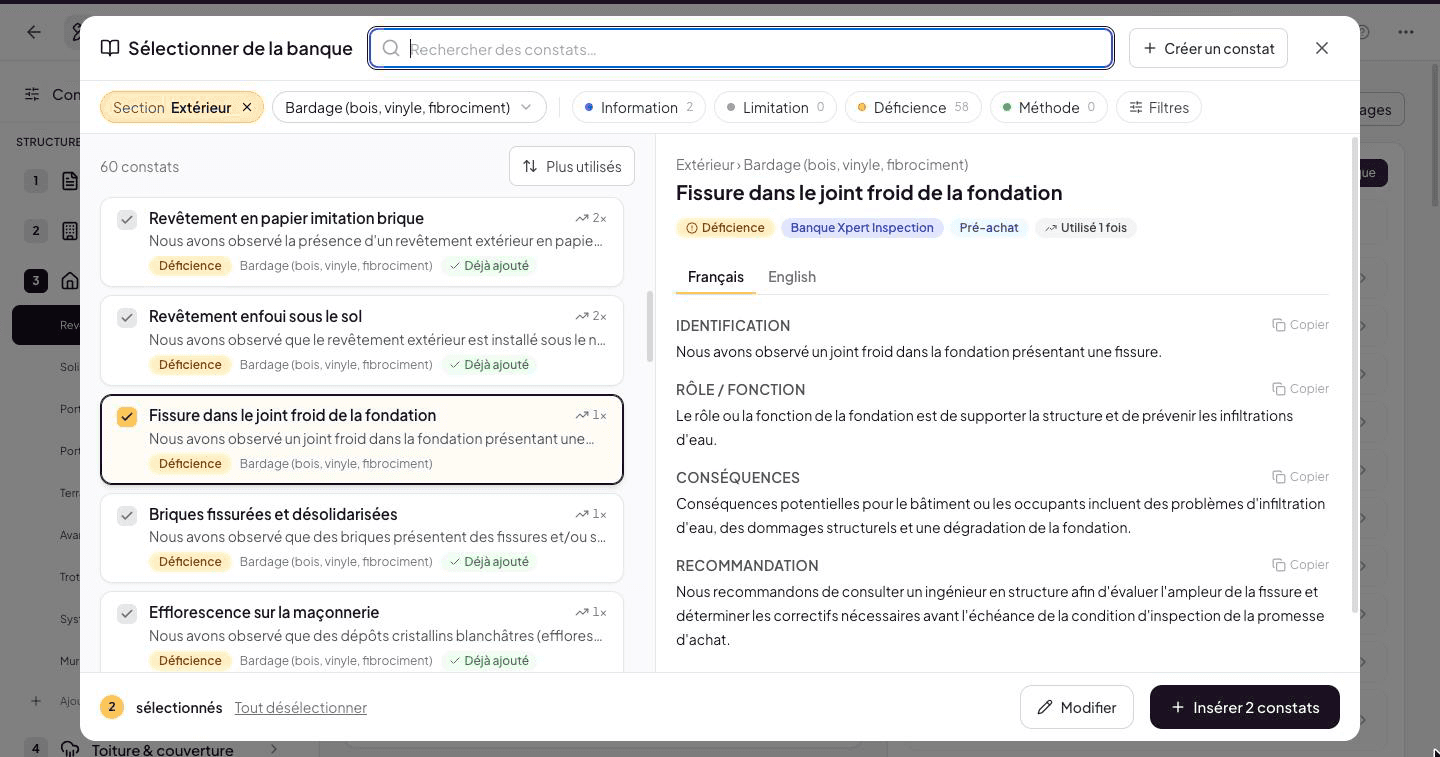
The Add from bank button opens the Select from the bank window, the same one as in the inspection editor (see Using the bank from the editor): the list on the left, the narrative preview on the right.
- Already focused on your sub-section — the Section chip limits the list to the categories of the section you are editing, and the category menu opens on the sub-section’s. The template’s inspection type is pre-selected.
- Search, types and Filters — search looks in titles; the chips filter by type; the Filters button opens inspection type, bank, domain and inactive narratives (admin).
- Check several narratives — click each card’s box, or browse with ↑ ↓ and check with Space. The bottom of the window shows how many are selected and a Clear selection link.
- Insert — Insert N narratives adds the checked ones. With nothing checked, Use this narrative adds the one shown in the preview (Enter does the same).
- Already added — narratives already attached to the sub-section stay visible, checked and greyed out, with the Already added tag: no duplicates possible.
- Most used — the same sort as in the narrative bank: your most-used narratives on top, with their use count.
- + Create a narrative — to write a narrative right from this window if it doesn’t exist yet; it arrives checked. Edit opens the narrative shown in the preview, if you can edit it.
Inserted narratives immediately appear in the predefined findings list.
Allow custom findings
The toggle at the bottom of the column. On by default: “The inspector can write free-form findings in addition to the predefined list.”
Turn it off only if you want the inspector strictly limited to predefined findings (a very constrained template, for example for a firm that wants maximum consistency).
Order by popularity
The second toggle at the bottom of the column. Off by default: the list keeps the manual order you defined by drag and drop.
When enabled, it replaces the manual order with an automatic ranking based on real usage: predefined findings appear from most used to least used, and each already-used finding carries a purple badge with its counter (e.g. “6×”).
Things to remember:
- The ranking is personal to each inspector. During the inspection, everyone sees their most-used findings first — the counter only counts their own reports, never their colleagues’. In a team, the same template therefore adapts to each person’s habits.
- Drag and drop is disabled while the option is checked. Uncheck it to return to the manual order (it is preserved).
- Never-used findings stay visible, after the others, in the template’s manual order. Findings used the same number of times also keep the template’s order among themselves.
- In the template, the list is already shown sorted by your usage, with the note “Order shown: your most-used findings first”. Seeing the same order in your inspections is expected: it’s not the manual order, it’s the ranking.
- In the inspection, each unchecked finding shows its counter (e.g. “6×”), so you can see at a glance why it sits where it does. A checked finding leaves this list and joins the report’s findings.
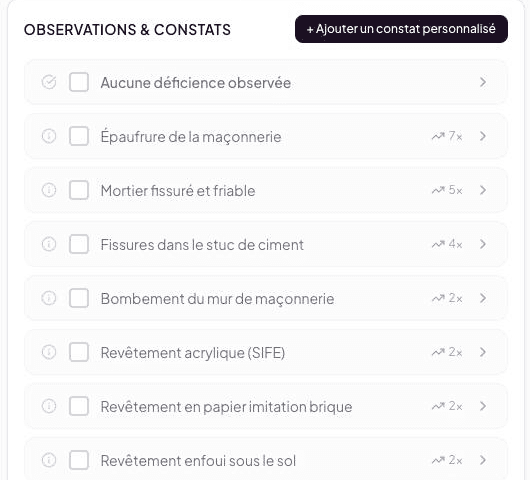
This is a per-sub-section setting: you can keep the manual order on sub-sections where the sequence has a pedagogical meaning, and enable popularity on long-list sub-sections (Foundations, Roofing…) where finding your regulars fast matters more.
What about comments?
The Comments zone (free notes at the bottom of the sub-section, included in the report) is controlled from the sub-section’s Settings panel — see RT.5.
How many findings per sub-section?
No strict technical limit, but in practice:
- Highly standardized sub-section (e.g. Foundations, Roofing) — 20 to 40 predefined findings. The BNQ template has 20 to 30 per sub-section.
- Less frequent sub-section (e.g. Sump pump) — 5 to 15 findings.
- Rare or highly specialized sub-section — 3 to 8 findings may be enough.
Too many findings can overwhelm the inspector. Too few force manual writing. Aim for the right balance based on the sub-section’s frequency in your practice.
See also
- Chapter 8 — The Narrative Bank — where all your narratives are stored and managed
- RT.7 Inspection elements — the Automatic finding mechanism on options
- RT.5 The sub-section — the canonical category that powers AI suggestions