Display Findings in 4 Sections or a Single Paragraph
This tutorial will teach you how to change the display format of findings in your inspection reports.
1. Edit an Existing Finding’s Display
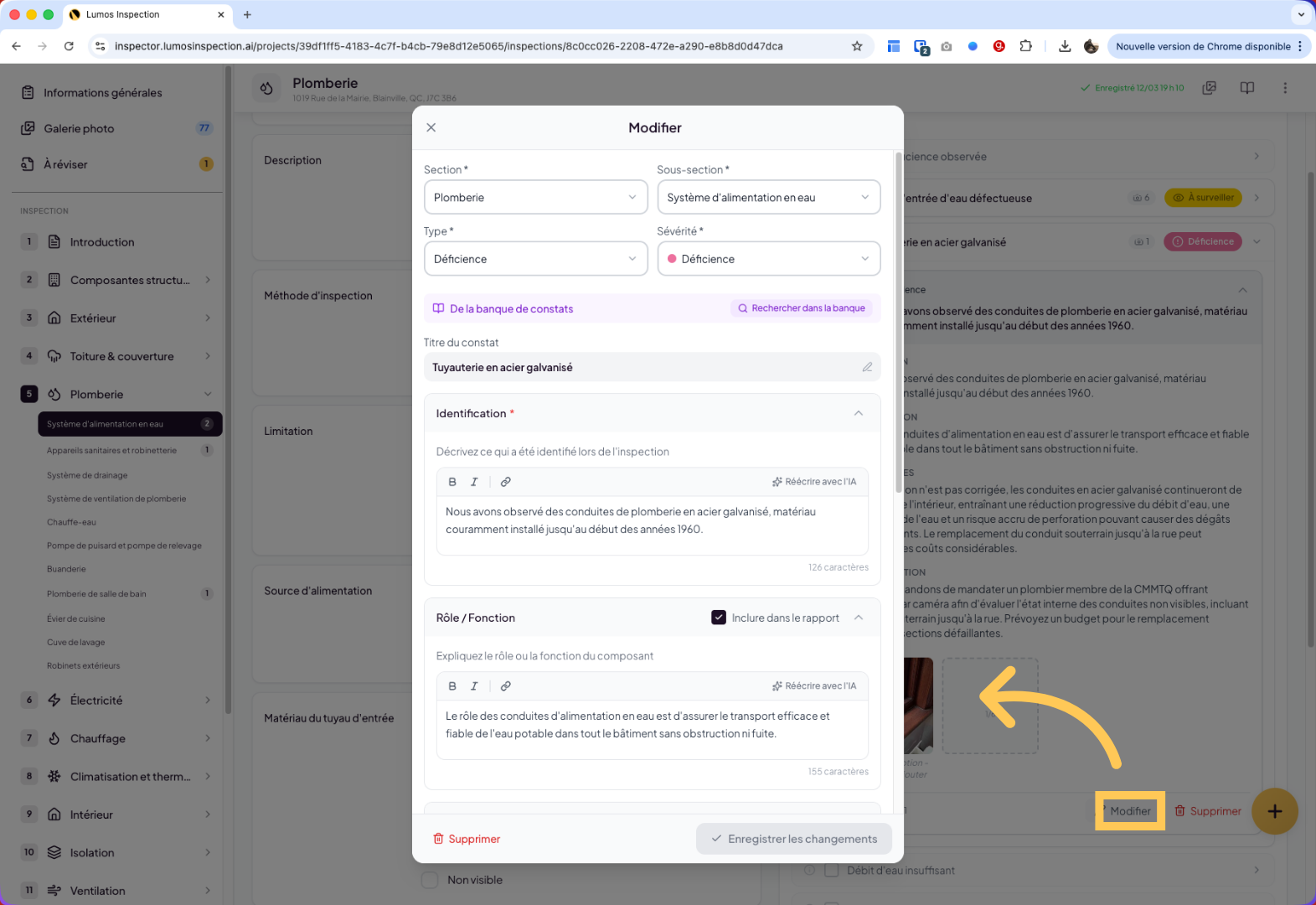
Navigate to the section of the finding you want to modify. Open the finding and click “Edit”.
2. Choose the Finding Display Format
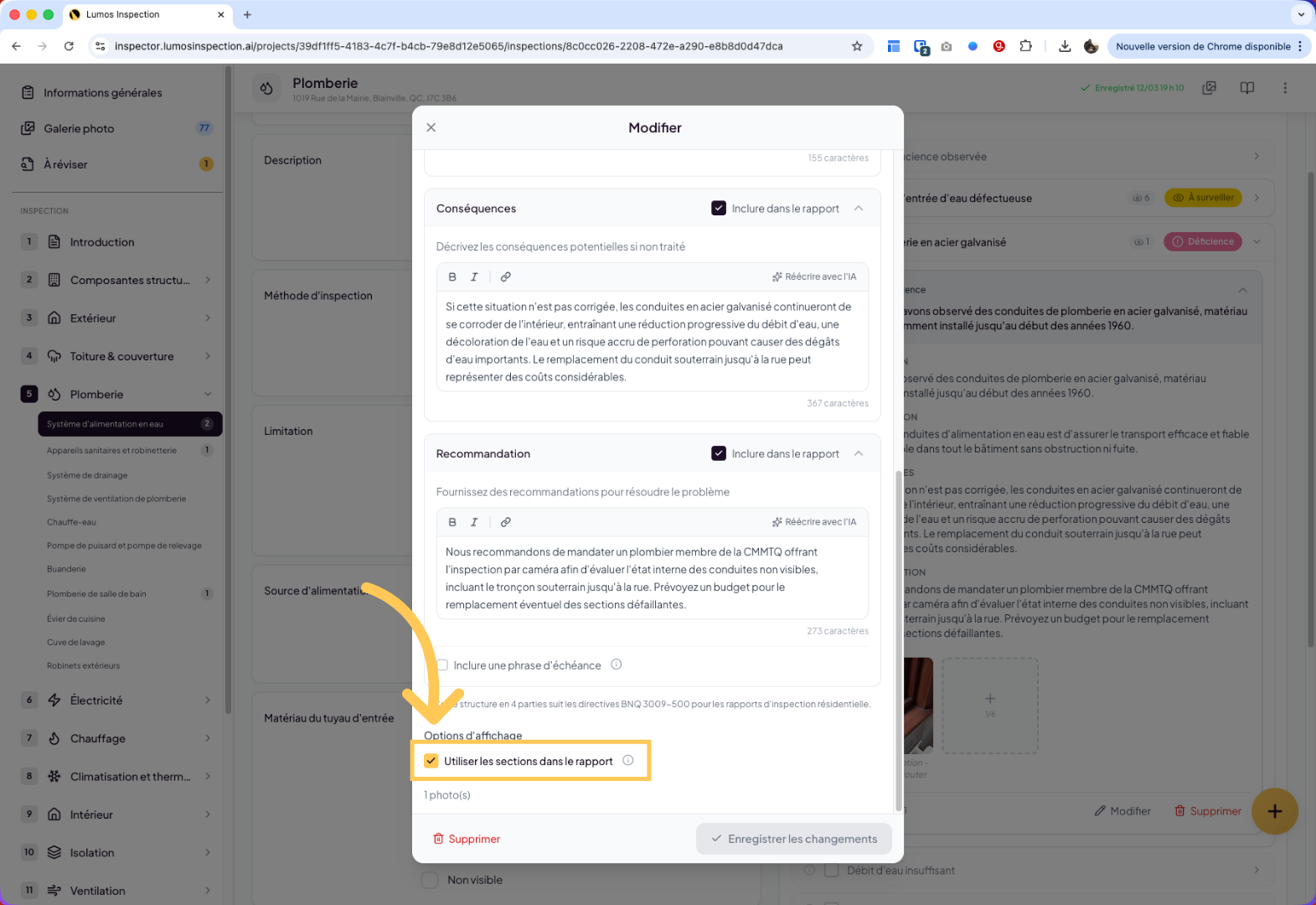
At the bottom of the finding detail window, you have the option to display the finding in 4 paragraphs (Identification, Role and Function, Consequences, Recommendations). Or by unchecking the box, display the finding as a single paragraph.
3. Save Your Changes
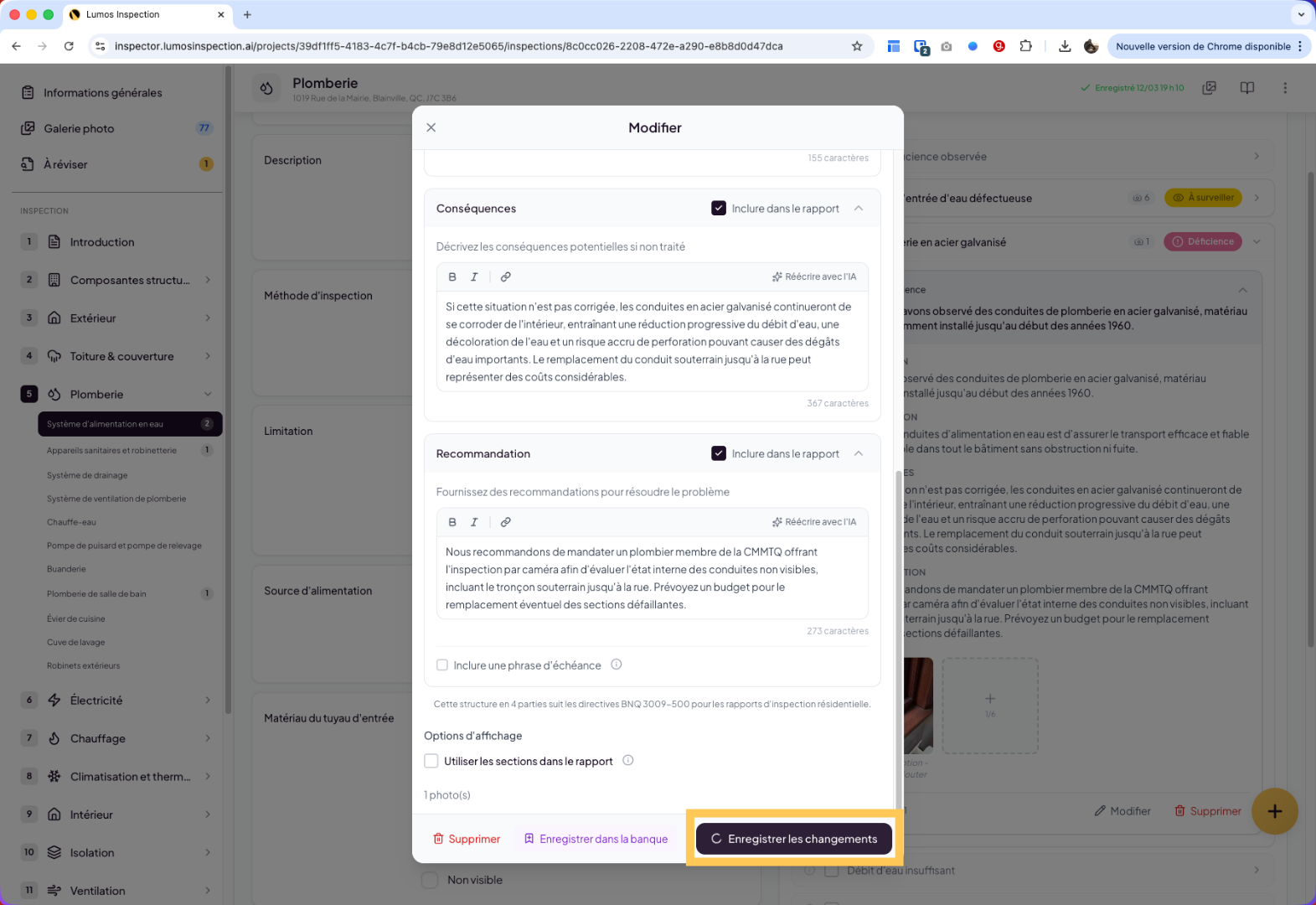
Don’t forget to click the button to save your changes.
4. Default Configuration
You can set the default format in the report.
In the application settings, you’ll find an option that lets you choose whether findings should default to 4 sections or a single paragraph.
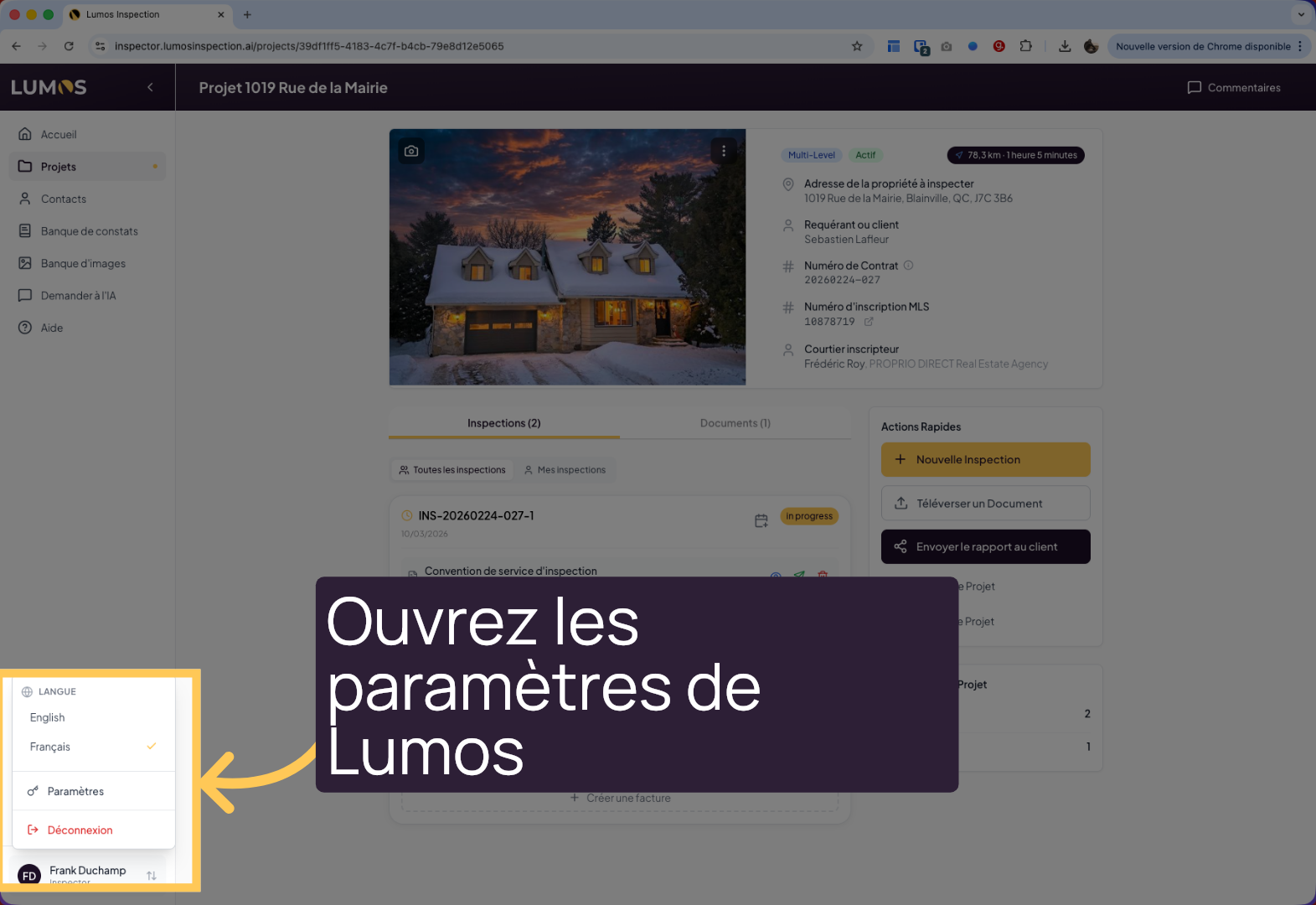
To do this, exit your inspection report and go to the Lumos settings.
5. Report Template Settings
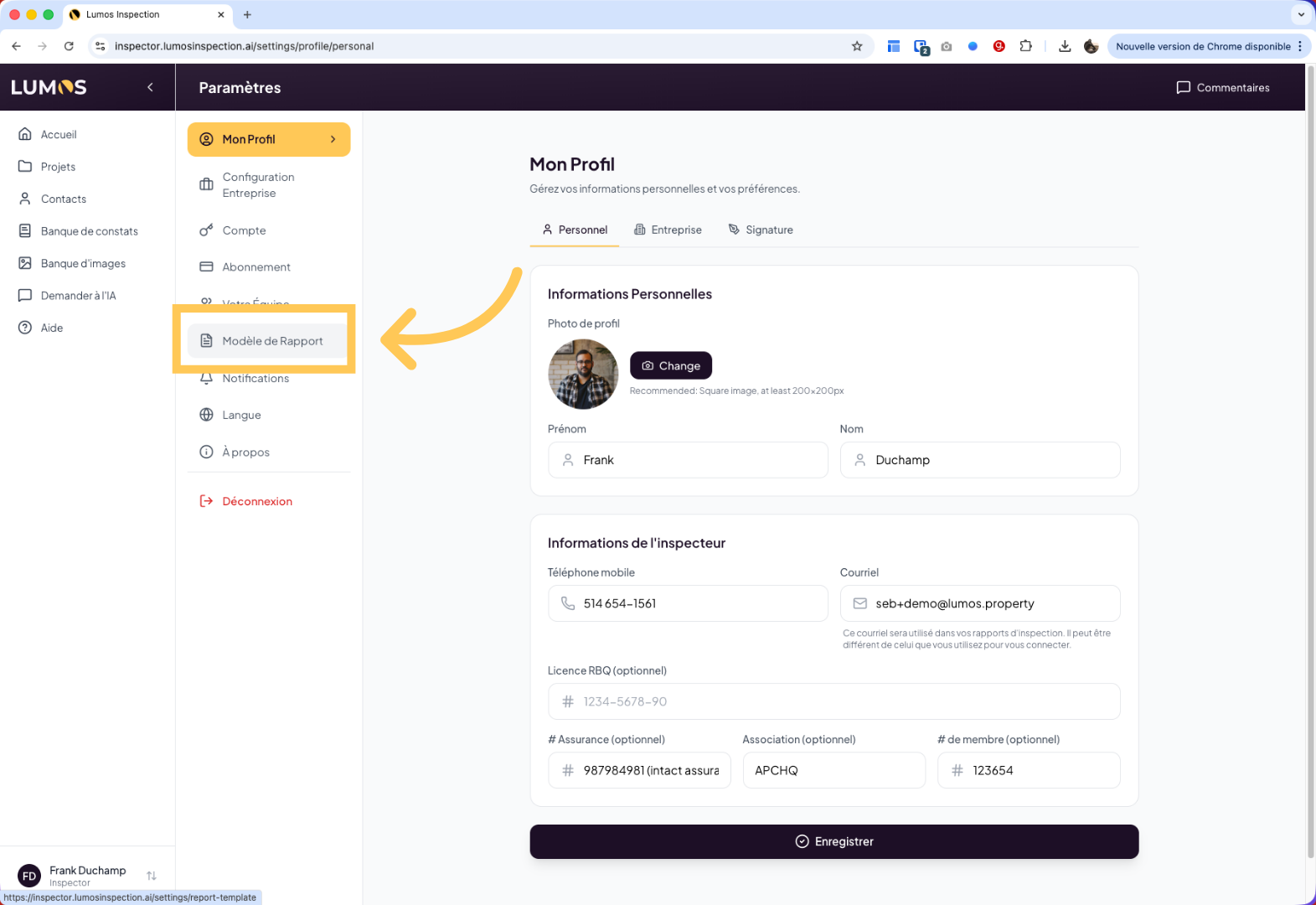
Select “Report Templates” to find the template options.
6. Findings Option
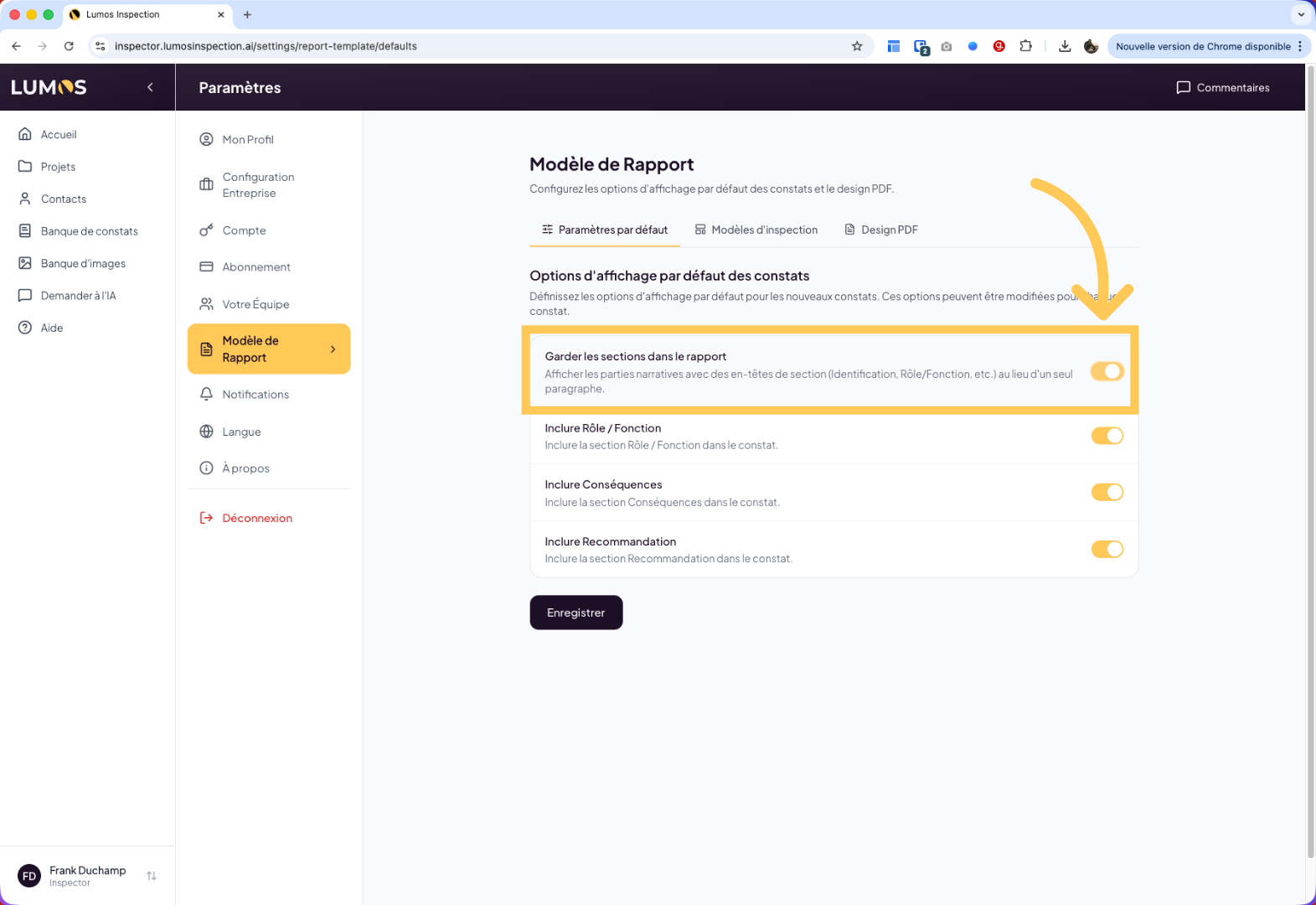
In the “Keep sections in the report” row, you have the option to enable or disable the 4-section mode.
By default, Lumos is configured to display findings as a single paragraph.
Note that even if you set this option, you always have the final say in the report: you can override this setting for specific findings individually.
7. Save Changes
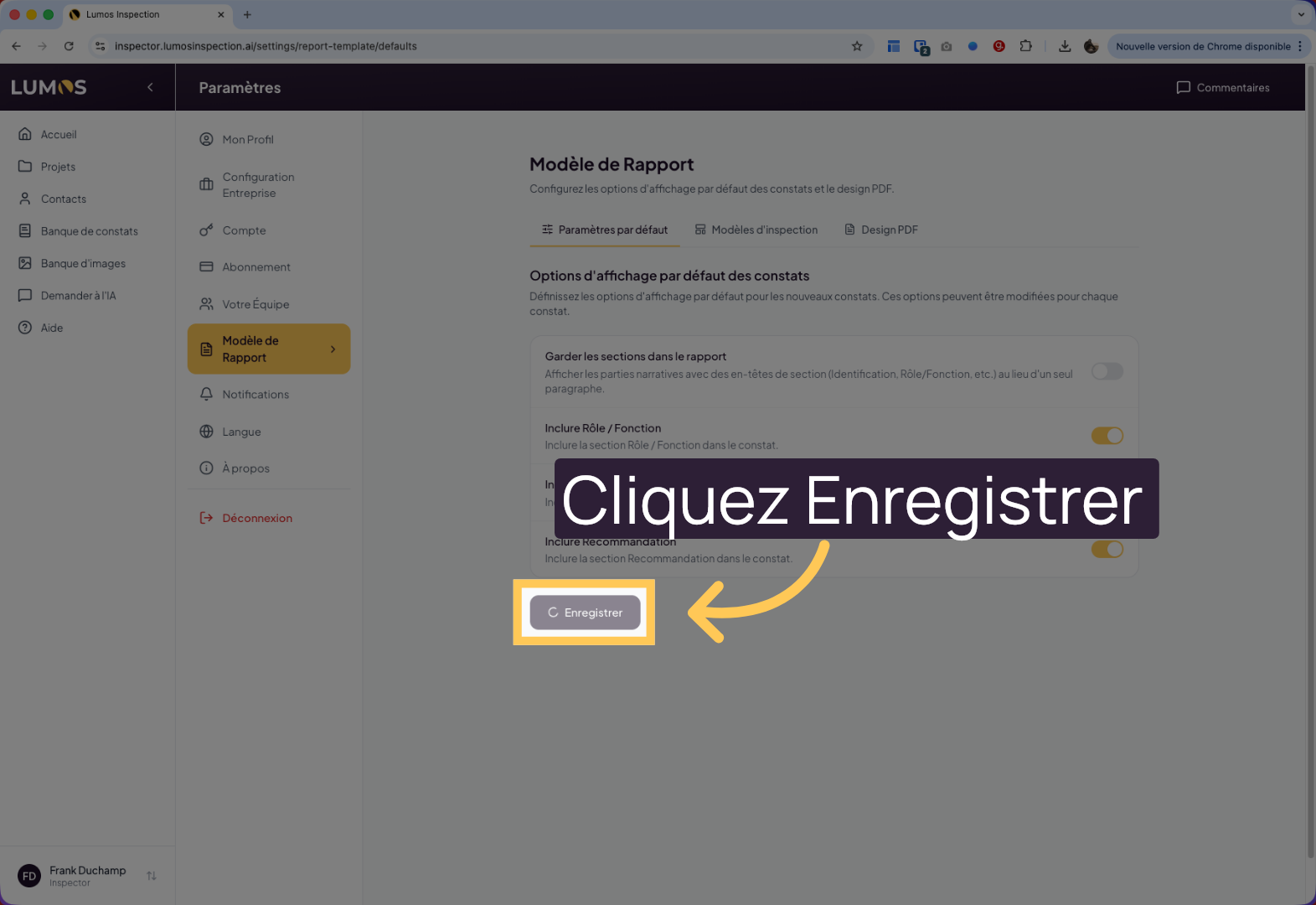
Click “Save” to save all changes made to the settings.
You now know how to configure the findings display format in the report! For more information about Lumos Inspection, visit help.lumos.property .