Edit project information
A project is not frozen after creation. If something changes (address typo, client becomes clearer, MLS to add), Lumos lets you edit the information without recreating the project. This page explains how and when to do so.
How to open the editor
Two paths depending on your starting point.
From the Projects page
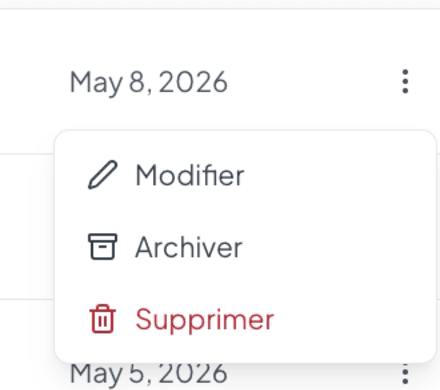
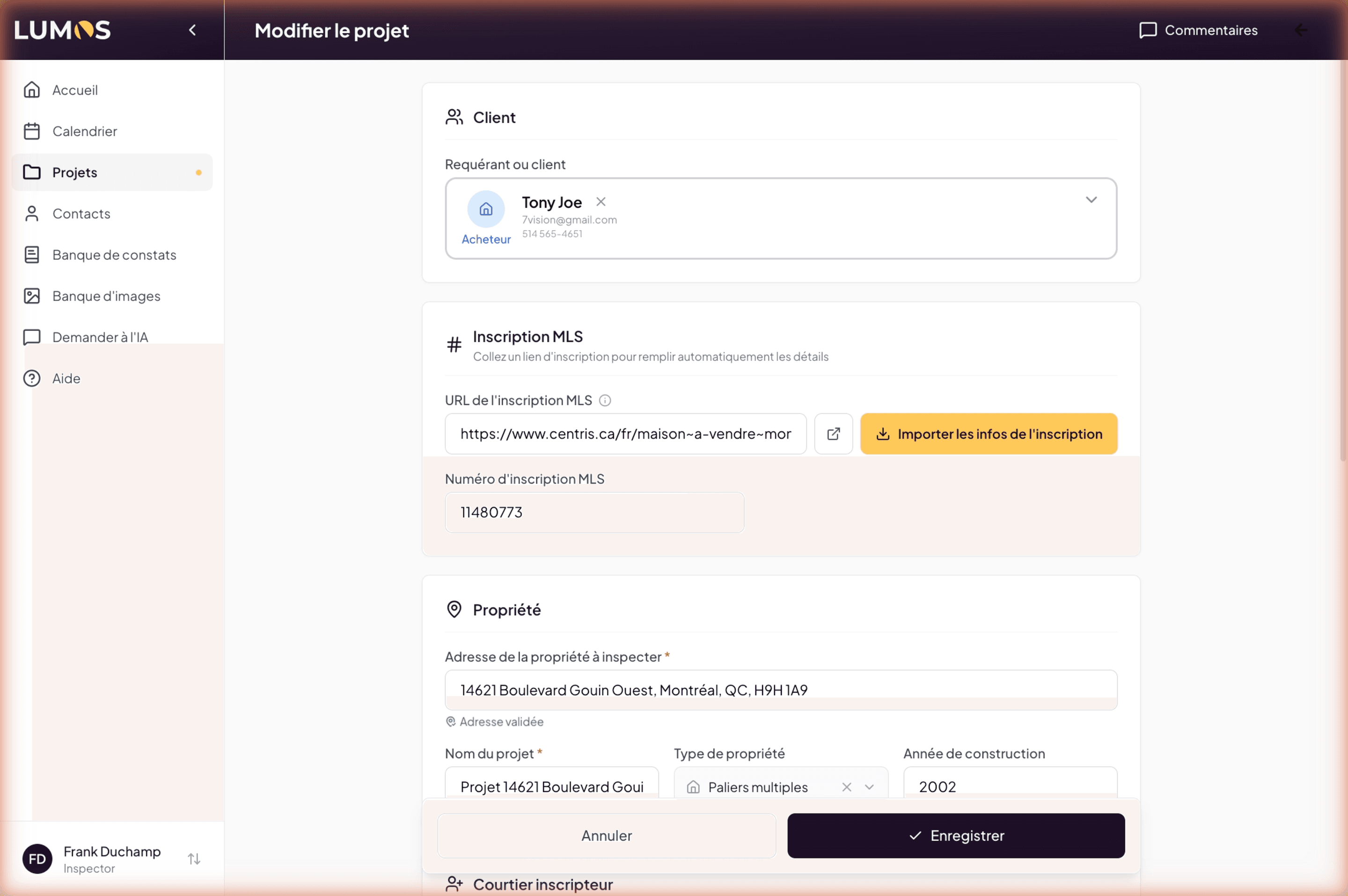
In list view, click the 3-dot menu in the Actions column of the relevant row, then choose Edit. Lumos opens a dedicated edit page (/projects/<id>/edit) with every project field — not a modal.
From the project page
On an open project’s page, the Quick Actions panel on the right contains the Edit Project button. The result is identical: dedicated edit page.
Editable fields
The edit page contains the fields entered at creation:
- Property address — autocompleted via Google Maps, editable.
- Property type — dropdown (Single-family, Condo, Duplex, Triplex, Multiplex, Commercial, Other, etc.).
- Year of construction, area, and other optional characteristics depending on your version.
- Desired inspection date — for planning.
- MLS listing number — useful for reconciliation with broker listings.
- Property photo — Lumos defaults to a Streetview image; you can replace it with a custom photo.
- Visibility — Private or Shared (team accounts only).
The client linked to the project is managed via the Contacts book (chapter 5.3); to change the client, edit the association on the contacts side or recreate the link.
When to edit (and when not)
Good cases for editing
- Typo in the address, postal code, or client name.
- Late detail — the type changes from “Other” to “Single-family” after your first visit.
- MLS received afterwards by the client or broker.
- Postponed date — your client moves the inspection from Tuesday to Friday.
- Custom photo you want to use instead of Streetview.
Bad cases (create a new project)
- Property change — the client ultimately buys a different house. Create a new project; the old one can be archived or deleted.
- Client change — the first person backs out, another takes over. Reusing the history of one project for a new client causes confusion; better start fresh.
- Completely different inspection — pre-purchase to pre-handover six months later. New project (or new inspection in the same project if the property is the same).
Effect on already-created inspections
Editing a project does not rewrite inspections already created under it. Existing inspections keep the address, client, and type they had at the time of their creation. This protects your already-partially-written reports.
Practical consequence: if you edit the address, check in-progress reports to ensure they reflect the right information. As needed, open the inspection editor to manually adjust.
Saving
Lumos records your changes when you click Save at the bottom of the edit page. The project page updates accordingly and you are returned to the originating page.
See also
- Chapter 5.1 — Create a project — initial creation
- Chapter 5.3 — Contacts book — for the client
- 12.5 Archive, restore, delete