Create a project
This page covers the direct project creation, that is, the case where you enter the information yourself. If you prefer your client to enter it for you, see Invite the client to fill in details.
Start the creation
The + New Project button is available in several places: Projects page (top right), Calendar, and Home dashboard via the Quick Actions panel.
When opened, a modal offers two options:
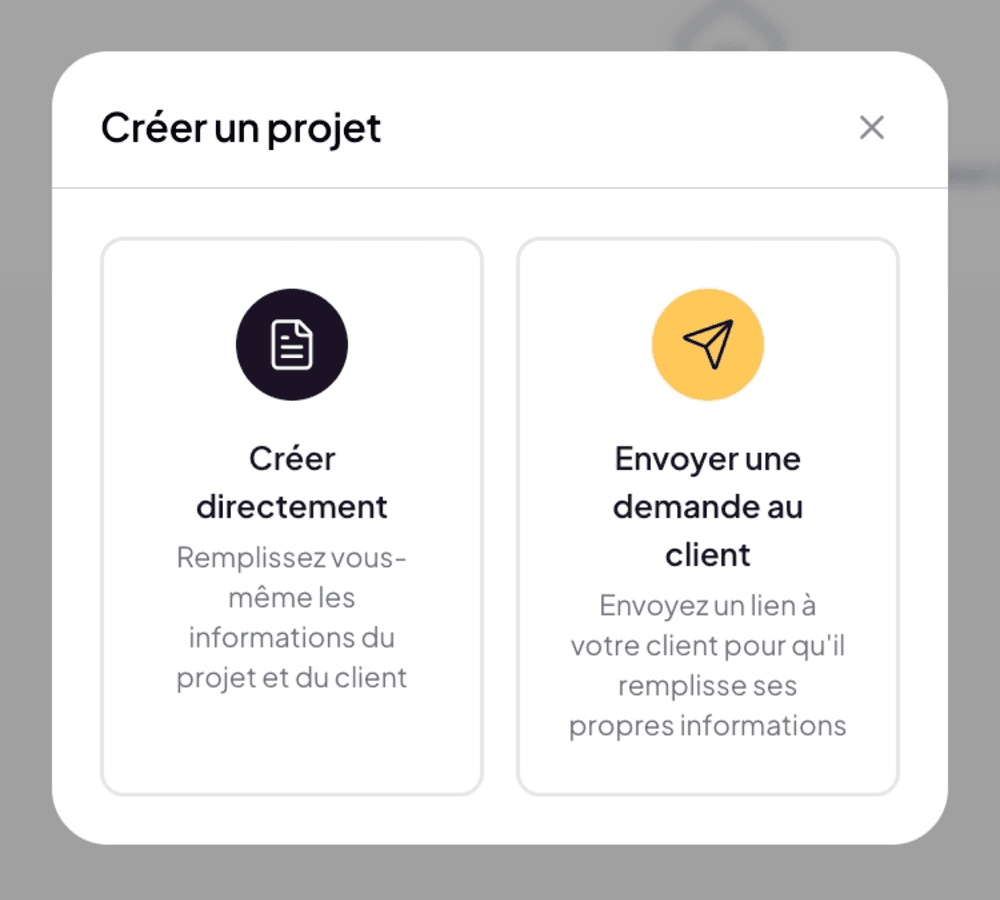
- Create directly — to enter the information yourself.
- Send a request to the client — to have your client enter the information. See Invite the client to fill in details.
Select Create directly. A full-page form opens, at /projects/new.
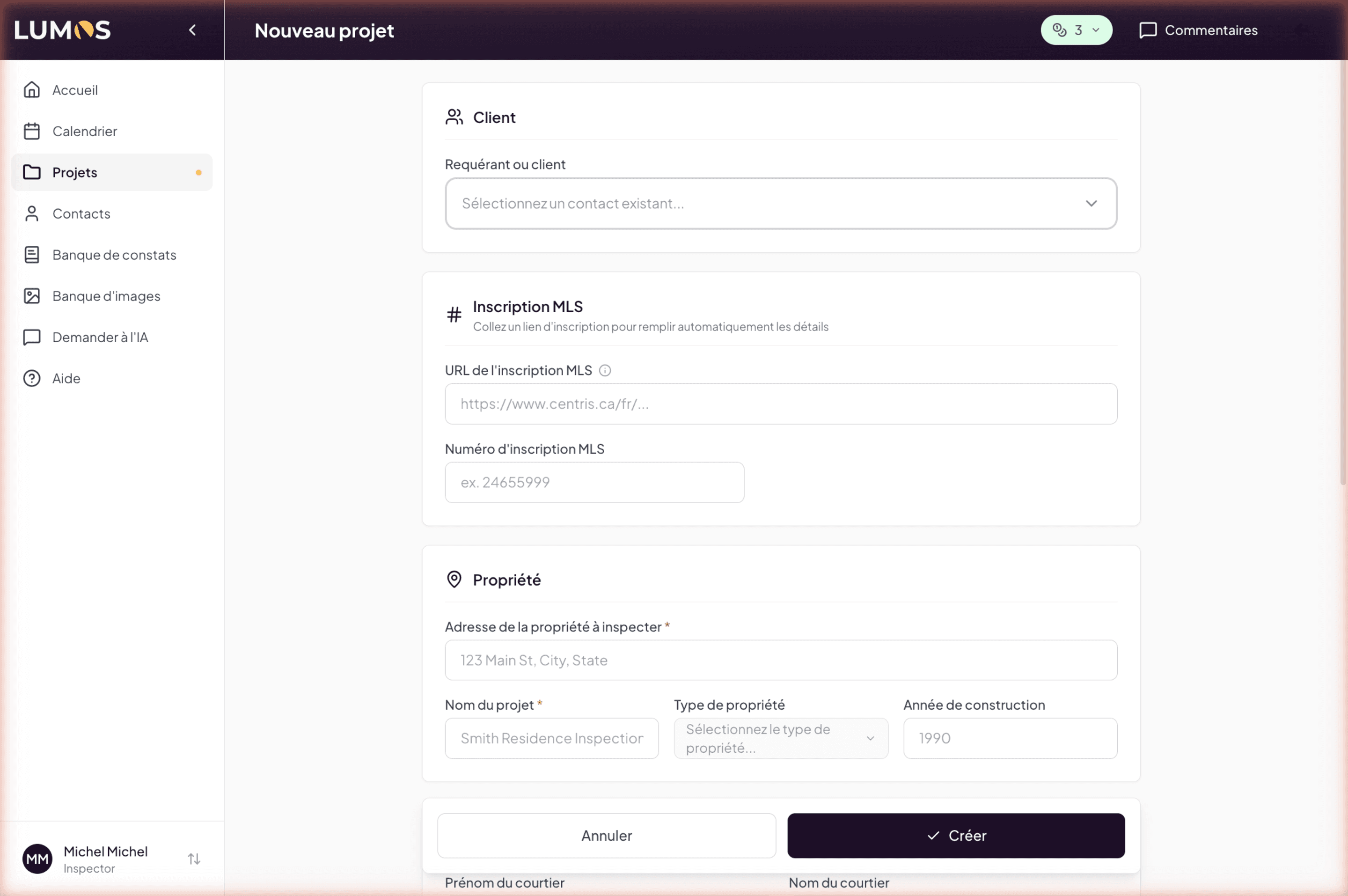
The six-section form
Client
Single field: Client, which pulls from your existing Contacts. You can select an existing contact already created. To add a new contact, see The Contacts address book.
Note: the label says “Client”, but Buyer is the matching contact type in the address book (the term “Client” comes from the BNQ standard and appears on contracts).
MLS Listing
A productivity feature not to be missed. If the property is listed on Centris, Realtor.ca, or another MLS:
- Paste the MLS listing URL in the dedicated field (placeholder
https://www.centris.ca/...). - Or enter the MLS listing number directly (placeholder
e.g. 24655999).
Lumos automatically fills the property fields (address, type, year built, and more) from the listing’s public data. Verify and correct as needed.
Property
- Property address to inspect required
- Project name required — a short label shown everywhere in the app (e.g. “Smith Residence Inspection”)
- Property type — dropdown with 27 options, from Bungalow to Mixed-use (commercial/residential). Covers residential, condominiums, commercial, industrial, and institutional.
- Year built
Listing agent
All optional, to fill in if the inspection comes through an agent:
- Agent first name
- Agent last name
- Agency
Desired inspection date
Toggle between two modes:
- Specific date — a single date field, for fixed appointments.
- Date range — two fields (from / to), for clients who have not nailed down a date yet. You will set the final date when preparing the quote.
Report settings
- Project language — French or English. Determines the language of content generated by Lumos for this project (inspections, agreements, AI-generated text). Choose based on your client’s language, independently of your interface language.
- Notes — free text field for context details that do not fit elsewhere.
Validation and creation
Click Create at the bottom right. The project appears immediately in Projects and receives a contract number based on the format you configured in Business Configuration > Contract Number.
The project is created without an inspection at this stage. To add your first inspection, see Start an inspection with a quote or Start an inspection without a quote.
Step-by-step
A Guidde video dedicated to project creation is in the works.