The client experience
This page describes what your client experiences, step by step, from the moment they receive your report-sending email. Understanding this journey helps you anticipate questions and polish the first impression.
Step 1 — The email received
Your client receives an email signed with your name (or your business name depending on your settings). The email contains the report link (inspector.lumos.property/myreport/<slug>) and the access code.
If you chose the Copy and share mode, your client receives this information through your usual channel (personal email, text message, in person).
Step 2 — The secure access page
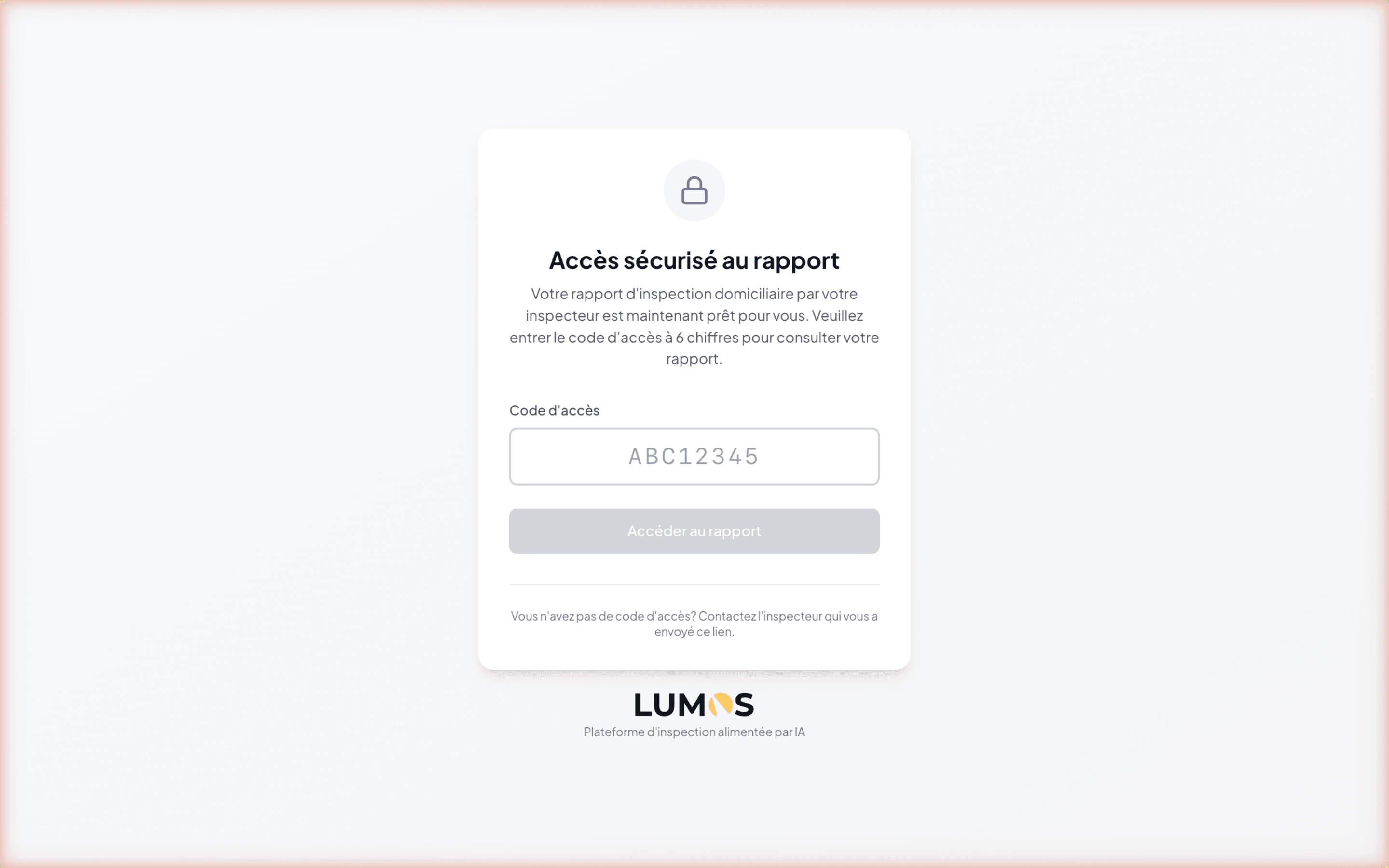
When opening the link, your client lands on a clean Lumos-branded page:
- A lock icon
- The title “Secure report access”
- A short description announcing that the report is ready to view
- An Access code field with a placeholder
- The Access report button (disabled until the code is entered)
- A support message: “Don’t have an access code? Contact the inspector who sent you this link.”
- In the footer, the Lumos logo with the mention “AI-powered inspection platform”
Your client enters the code from your email and clicks Access report.
Step 3 — The interactive report

As soon as the code is validated, the report appears with your branding instead of Lumos branding. Your business logo replaces the Lumos logo in the header, and the inspector card (your photo, contact details, insurance number) appears in the left sidebar.
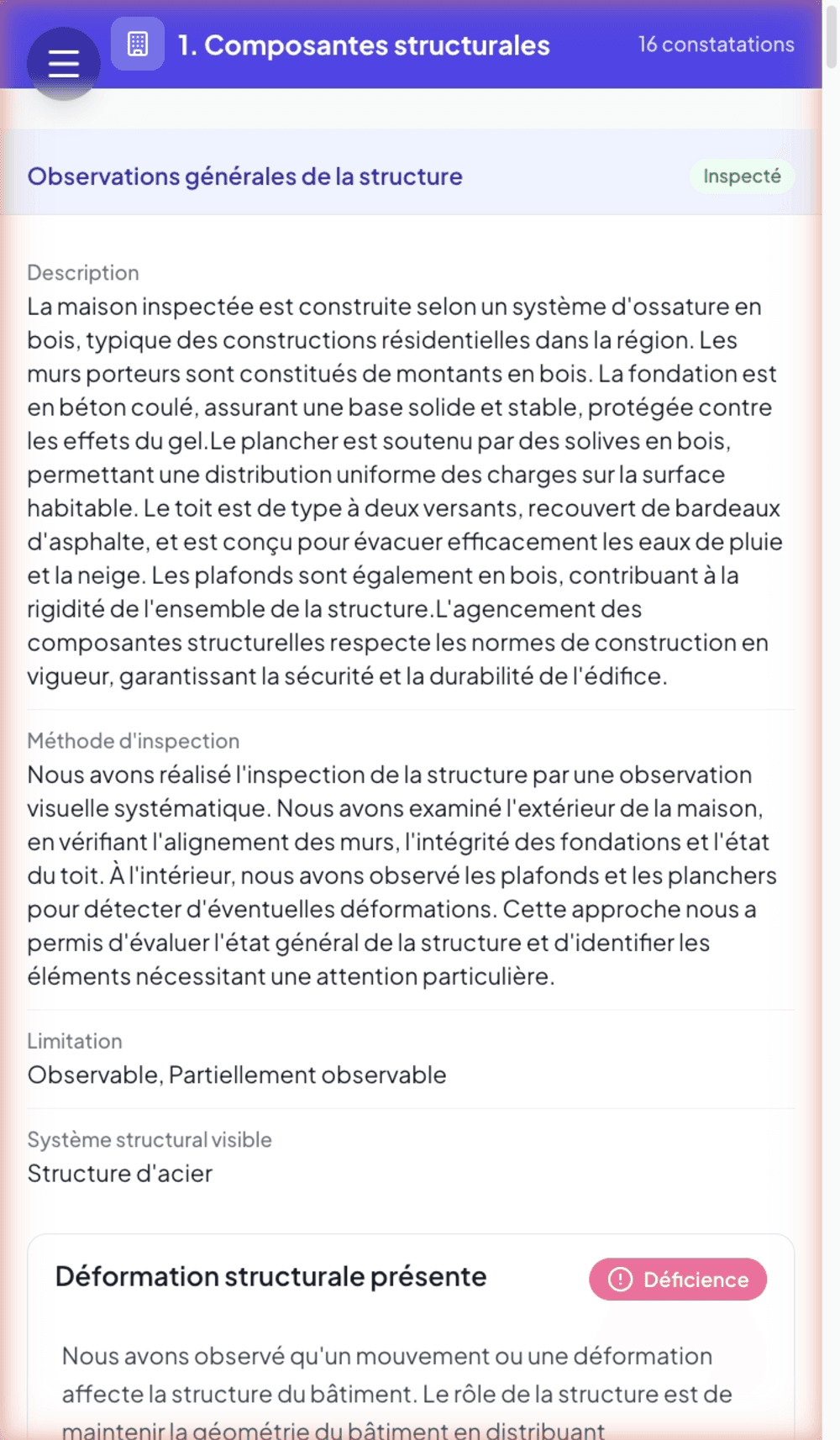
This is an important moment: your client immediately understands who they are dealing with, and the presentation quality reflects the quality of your work. See The interactive web report for the structure details.
Permanent link
The link and access code remain valid indefinitely. Your client can return to consult their report months or years later, without having to ask you for re-access.
This is useful for:
- Reconsulting a specific point during negotiations or works.
- Sharing the link with a new professional (contractor, lawyer) who needs to see the report.
- Keeping permanent access to the inspection as the property’s history.
PDF download
At any time, your client can download a PDF version of the report via the Download PDF button at the top right. The PDF is built live from the current report content. See Generate and download a PDF.
On mobile and tablet
The interactive report is responsive: it adapts automatically to a phone or tablet screen. On a small screen, the navigation sidebar collapses into a dropdown menu, and the content takes full width.
Your client can therefore consult their report from their phone, anywhere, with nothing to install.
Branding: what your profile controls
Your branding in the interactive report is fed by your Lumos profile:
- Logo from My Profile > Business
- Contact details from My Profile > Personal + Business
- Profile photo from My Profile > Personal
- Insurance number from My Profile > Personal
To adjust these elements, see My Profile.
See also
- The interactive web report — the internal structure
- Send the report to the client
- Open tracking and post-delivery follow-up
- My Profile — where your branding is configured