Using the bank from the inspection editor
The narrative bank is also available directly from the inspection editor, without leaving your work. This is the most frequent daily use: you are editing a subsection, you want to find a specific narrative, and the bank opens as an overlay over your editor.
The book icon in the header
In the editor’s header, next to the Photo Gallery icon, the book icon (titled Browse narrative bank) opens the bank as an overlay over your editor.
The selection window
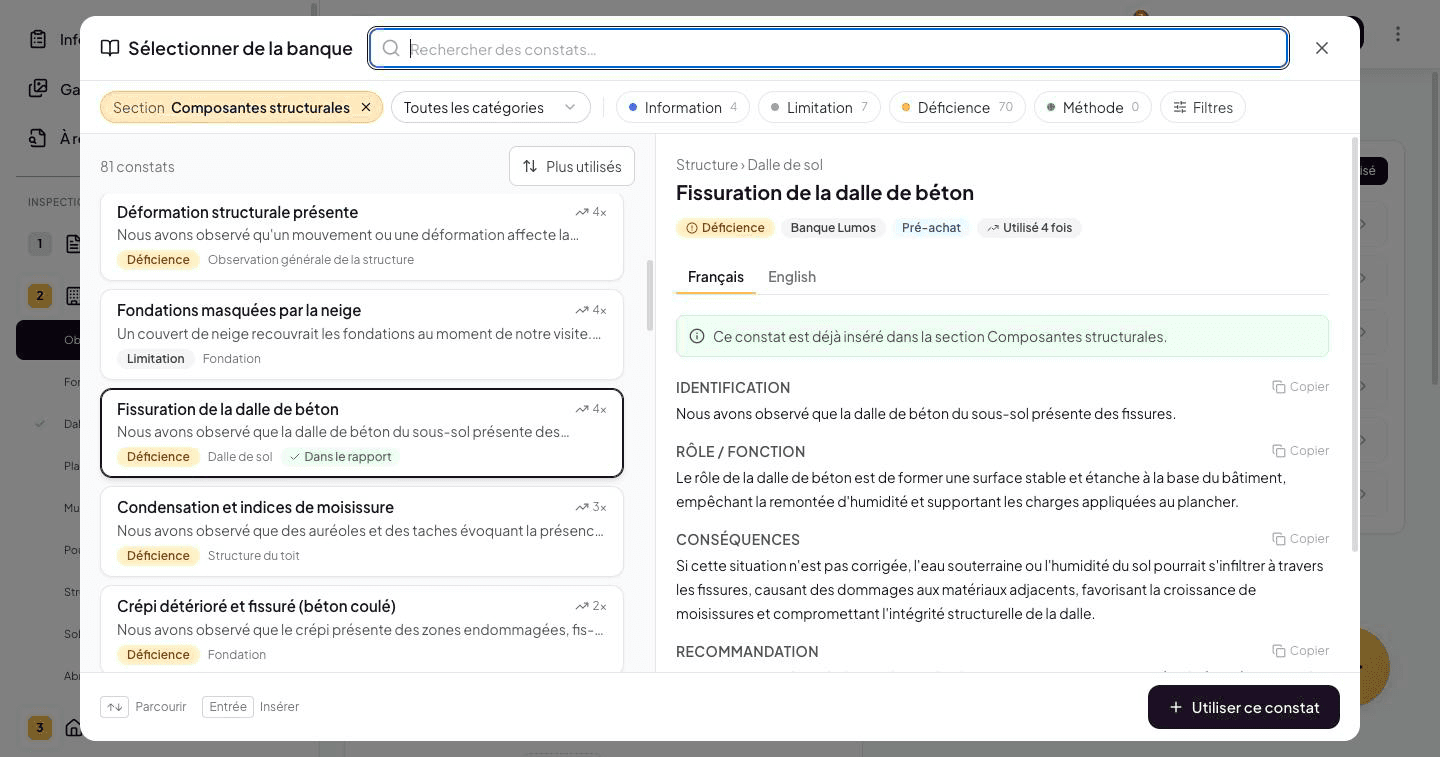
The bank opens in a large Select from the bank window: search at the top, a row of filters, the narrative list on the left and the narrative preview on the right. On a phone, the window fills the screen and the preview opens when you tap a narrative.
The same window opens from the book icon, from a text field’s bank button and from a finding’s window.
Contextual behavior
Lumos pre-filters the list based on where you are:
- The Section chip (e.g. Section Structural components) limits the list to the categories of the subsections in the report section you are on. It is on when the window opens. The ✕ removes it; the dashed + Section chip puts it back.
- The All categories menu lists that section’s categories to narrow further.
- If you open the bank from a subsection, the list starts on that subsection’s category.
- The inspection type follows the inspection’s (Pre-purchase or Pre-reception). A narrative from the other type shows an orange tag.
The Information, Limitation, Defect and Method chips filter by type (several at once) and show their narrative count. The Filters button opens the rest: inspection type, bank, domain and category, “Contains URL”. Its number shows how many of those differ from the defaults.
Already in the report
A bank narrative already used in the current section shows the green In the report tag. Its preview says so too: “This narrative is already in the … section.” You can still reuse it.
Your most-used narratives first
The sort button offers Most used, A-Z and Recent. With Most used, your favourite narratives — the ones you place most often in your reports — rise to the top, each with its use count (e.g. “12×”). Combined with the section filter, it’s the shortest path to your recurring narratives.
The counter reflects your usage only, and the setting (on by default) is shared with the bank page — see Navigating the bank.
Add a narrative to your inspection
Select a narrative in the list to see its content in the preview, then click Use this narrative.
- From the book icon, the finding window then opens so you can pick the subsection, severity and photos before saving.
- From a text field, the narrative replaces the field’s text.
- From a finding’s window, it fills in its content.
Keyboard shortcuts
On a computer, the search is ready as soon as the window opens:
- ↑ and ↓ move from one narrative to the next in the preview.
- Enter uses the narrative shown.
- Esc closes the window.
Difference with the pre-shown list of a subsection
When you open a subsection in the editor, Lumos already shows a pre-shown list of applicable narratives, directly in the subsection. This is the fastest path for common narratives. The order of that list is defined in the template: manually, or automatically by your most-used narratives when the Order by popularity option is checked in the template builder.
You open the bank from the header when:
- You want more narratives than those pre-shown.
- You want to search for a specific narrative by its title.
- You want to add a narrative to another subsection than where you are (remove the Section chip).
The two paths coexist and complement each other.