Setting up Lumos before your first inspection
Before creating your first inspection project, take the time to configure your account from the Settings page. This avoids back-and-forth later, and your first reports, invoices, and agreements will carry your professional and tax identity right from the start.
The Settings page
To access it, click on your profile at the bottom left of the main sidebar, then on Settings. A page opens with its own sub-navigation that contains these ten entries (plus the Sign Out button):
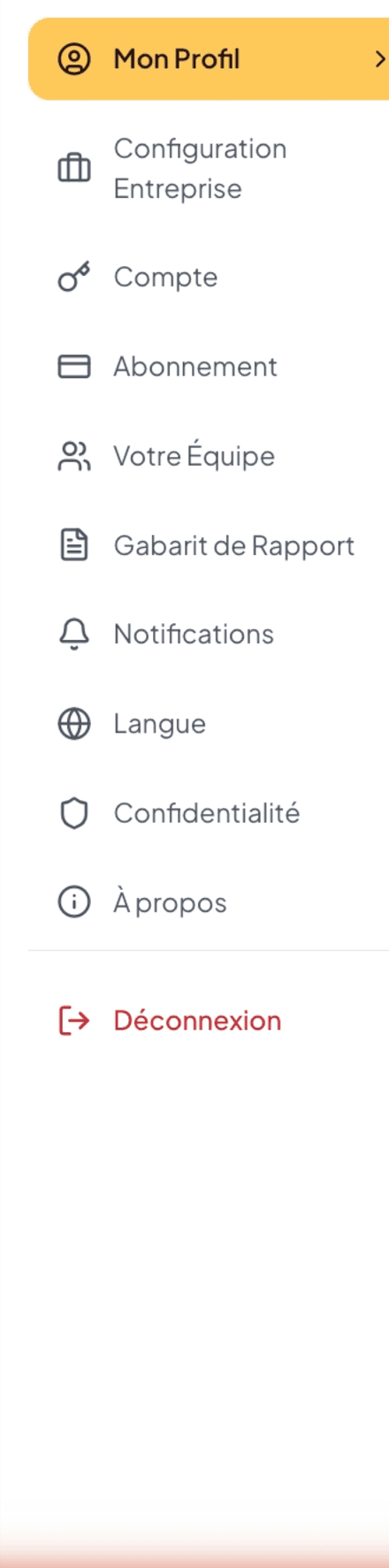
- My Profile — personal information, business, signature, calendar
- Business Configuration — service agreements, numbering, billing, widget, Google reviews
- Account — login email, password, account deletion
- Subscription — plan, team seats, Lumos billing
- Your Team — invitations and member management
- Report Template — report templates
- Notifications — activity and marketing emails
- Language — interface language
- Privacy — consents (audio capture, etc.)
- About — application version
Recommended order
Here is a sequence that minimizes back-and-forth:
- Create your account (5 min) — from
inspector.lumos.property/auth. See Create your account. - Complete My Profile > Personal (5 min) — name, photo, phone, professional email, RBQ license, and professional affiliations as applicable.
- Complete My Profile > Business (5 min) — legal name, contact details, logo, social media, tax numbers if you are subject to them.
- Add your signature (2 min) — by stylus or upload.
- Configure Business Configuration (10 min) — contract template, numbering format, invoice settings (notes, payment instructions, email template).
- Configure the calendar (2 min) — time zone, iCal link to connect your calendar app.
- Choose your plan (3 min) — Starter or Unlimited. See Subscription.
- Invite your team (optional) — if you work with others.
Allow about 30 minutes for a solo account.
What you can adjust later
Everything remains editable at any time from the Settings page; no decision is final. To start faster, here is what is truly blocking and what can wait:
- Required before the first inspection: My Profile > Personal (at minimum name, signature, and RBQ license as applicable) and My Profile > Business (at minimum legal name).
- Required before the first invoice: tax numbers (GST/QST) if you are subject to them, numbering format.
- Important but not blocking: logo, custom contract templates, website widget.
- Convenience: notifications, calendar, team.
If time is short, skip steps 5 to 8 and start your first inspection with a minimal profile. You will fill in the rest after your first report, knowing what you missed.