Grid vs list view
Lumos offers two display modes for your project list, accessible via the two icon buttons at the top right (next to Export). This page explains what each view emphasizes and when to switch from one to the other.
Grid view
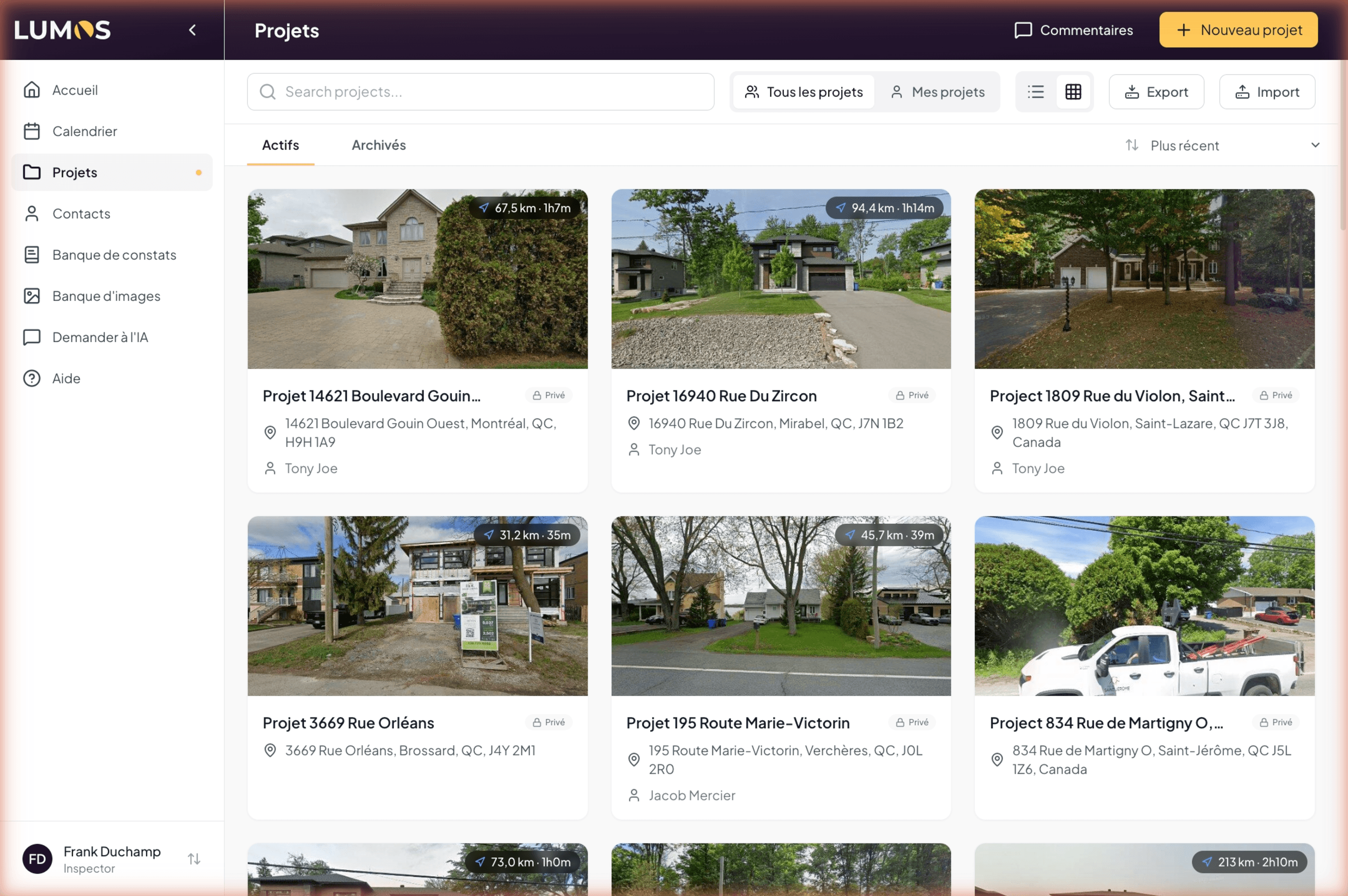
The grid displays your projects as cards arranged in several columns (depending on screen width). Each card shows:
- The property image — Google Streetview photo taken at the address, or a custom photo if you uploaded one.
- The distance·time chip at the top right (for example “31.2 km · 35 min”) — distance and travel time calculated from your business address (My Profile > Business). It does not appear on the project closest to you.
- The project name.
- The visibility chip: Private (lock) or Shared.
- The full address.
- The linked client name if filled in.
When to use the grid
- To visually identify a project when the property image helps your memory.
- To plan your routes — distance/time information at a glance helps organize an inspection day.
- For an airier view when you browse without a specific search.
List view
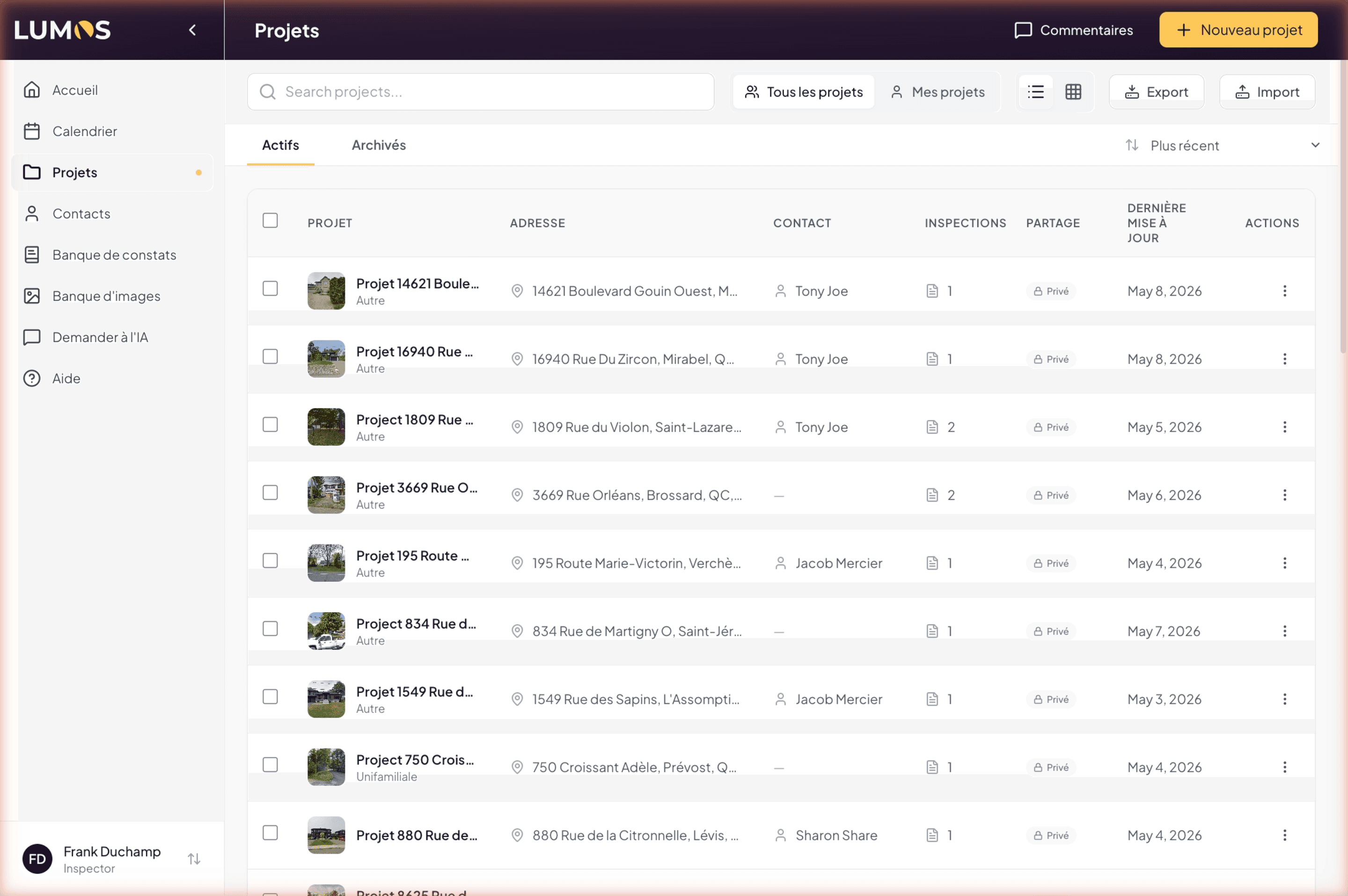
The list displays projects in a dense table, with seven columns:
| Column | Content |
|---|---|
| Checkbox | Multi-select for bulk actions |
| Project | Thumbnail + name + type (Other / Single-family / Condo) |
| Address | Full address |
| Contact | Client’s name, or ”—” if none |
| Inspections | Icon + number of linked inspections |
| Sharing | Private or Shared |
| Last updated | Short date (for example “May 5, 2026”) |
| Actions | 3-dot menu (Edit / Archive or Restore / Delete) |
When to use the list
- To quickly compare several projects on the same attributes.
- To find a project by address, client, or date more efficiently.
- To act on multiple projects via multi-select (chapter 12.5).
- For maximum information density on a large inventory.
Switch without loss
Moving from one view to the other preserves your search filter, active sort, and Active/Archived tab. You can switch freely as needed.
The default choice
At first login, Lumos presents you with the grid view. If you work with many projects, the list may become your default — Lumos remembers your choice within a session.
See also
- 12.1 Navigate your projects
- 12.5 Archive, restore, delete — multi-select in list view
- My Profile > Business — where the reference address is entered
Last updated on